How to Configure an Amazon Signage Stick
Steps to provission an Amazon Signage Stick as a Korbyt Media Player
Written By David Colas
Prerequisites
Korbyt login credentials
Access to Amazon Signage Console
Any Amazon Signage Stick provisioned before May 8th, 2026, will need to be factory reset to take advantage of the latest API Integration.
Instructions to Factory Reset you Amazon Signage Stick can be found on Amazon’s support library here: Amazon Device Management
Unbox and connect your Amazon Signage Stick
Unbox your Amazon Signage Stick.
Connect the device to power - A power plug and wire are provided in the box.
Connect the device to a screen via the HDMI port - A HDMI connection is provided in the box.
Insert batteries into the remote control - Batteries are provided in the box.
The device will power on as soon as you connect it to power, and a signage stick logo will.
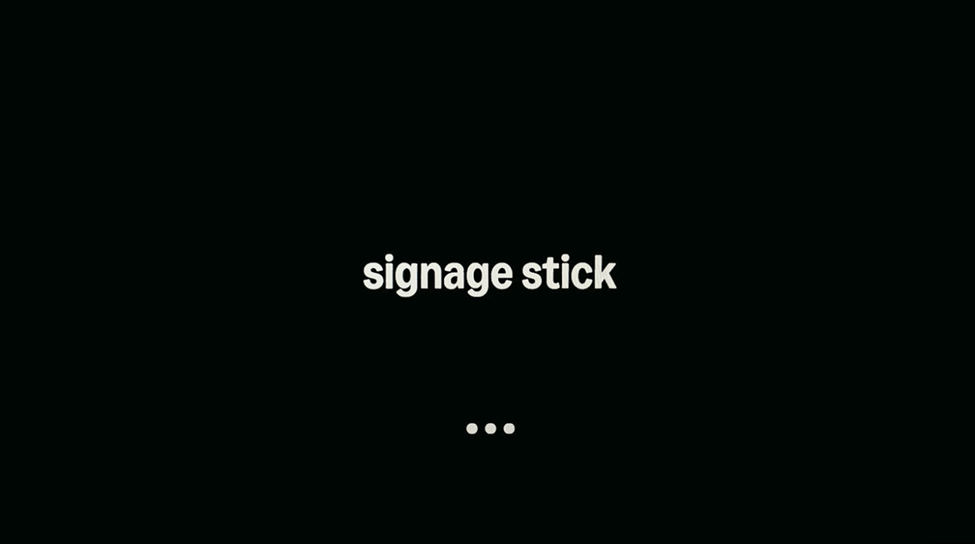
Set up the Amazon Signage Stick settings and network
Connect the remote controller by clicking HOME
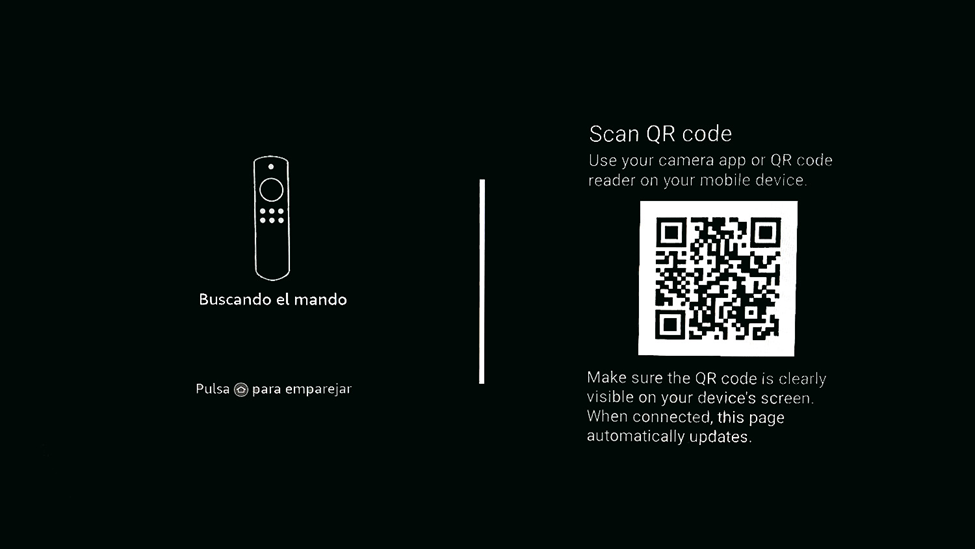
You will be prompted to click the play/pause button on the remote to begin setup.
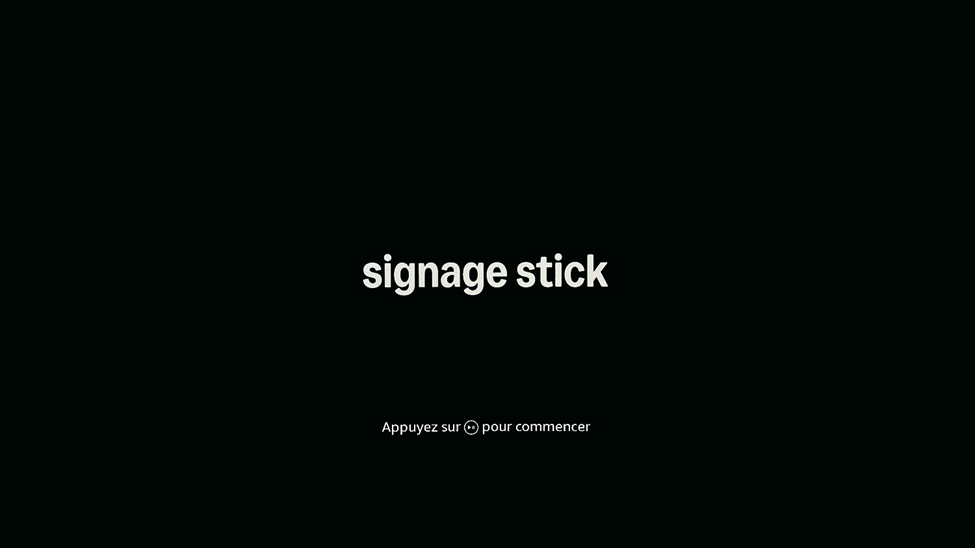
Select your language option.
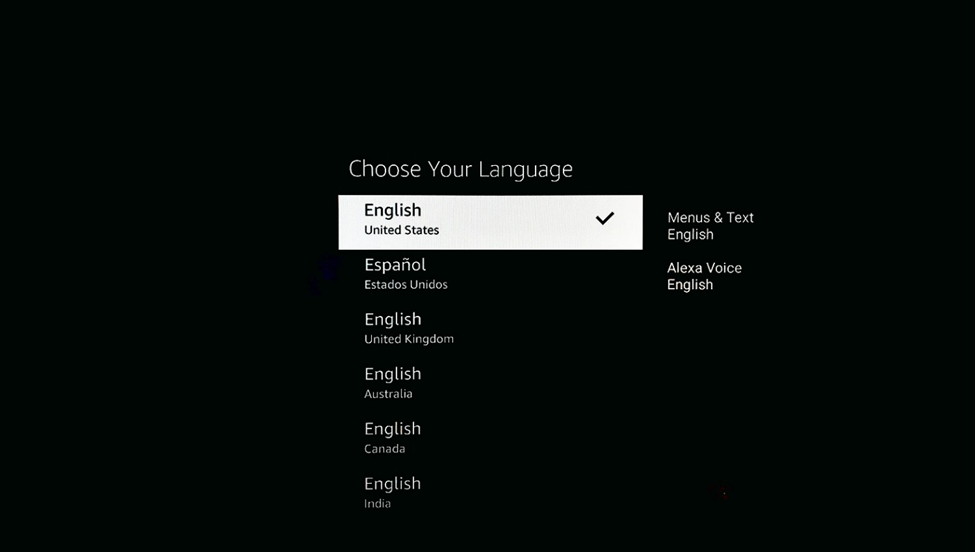
Select WiFi and input login information. You will see a Connection successful message once the device has an internet connection.
The device will check for updates. Wait a few moments to allow this to complete.
A 6-digit code from Amazon will appear, along with a link to the Amazon account that you can connect the pairing code with: https://console.signage.amazon.com/
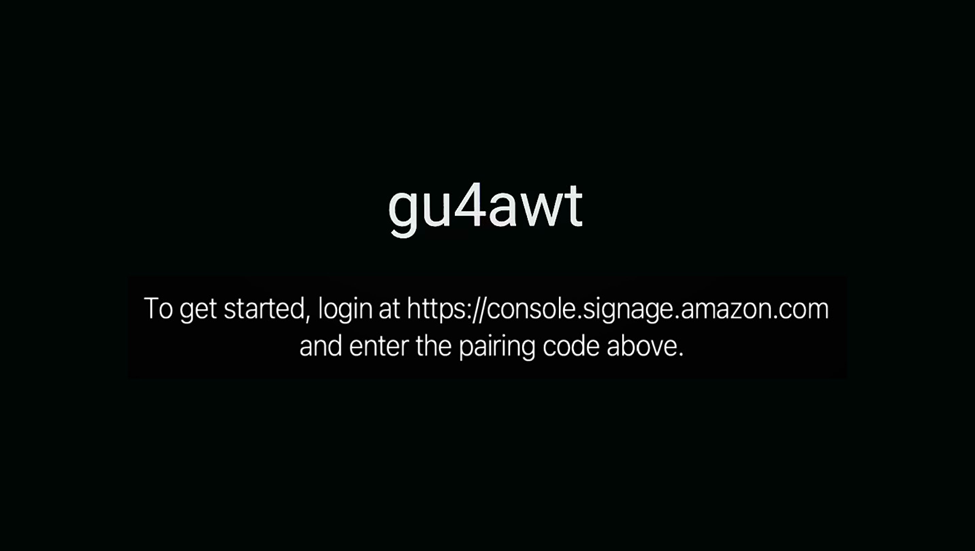
Connect the Amazon Signage Stick to your Amazon Signage account
Head to https://console.signage.amazon.com/, select Login with Amazon
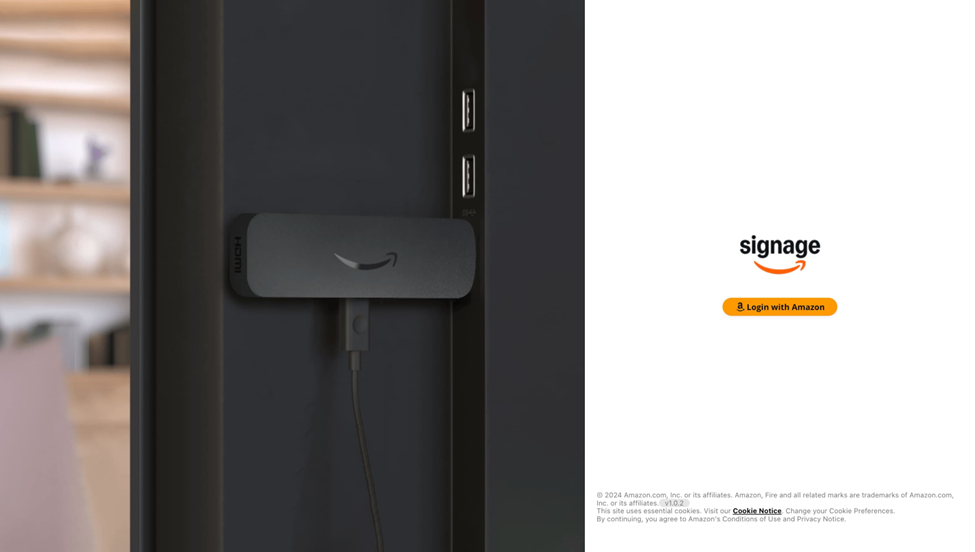
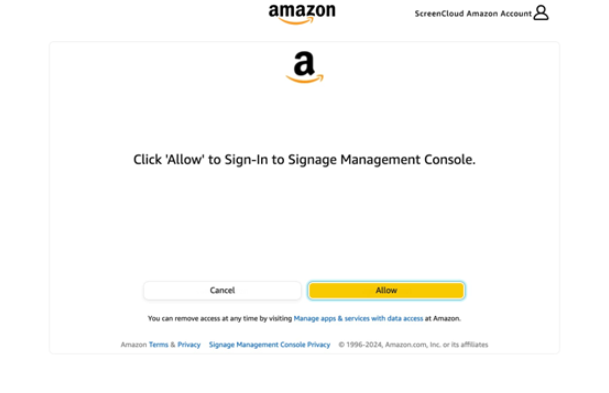
and then select Allow
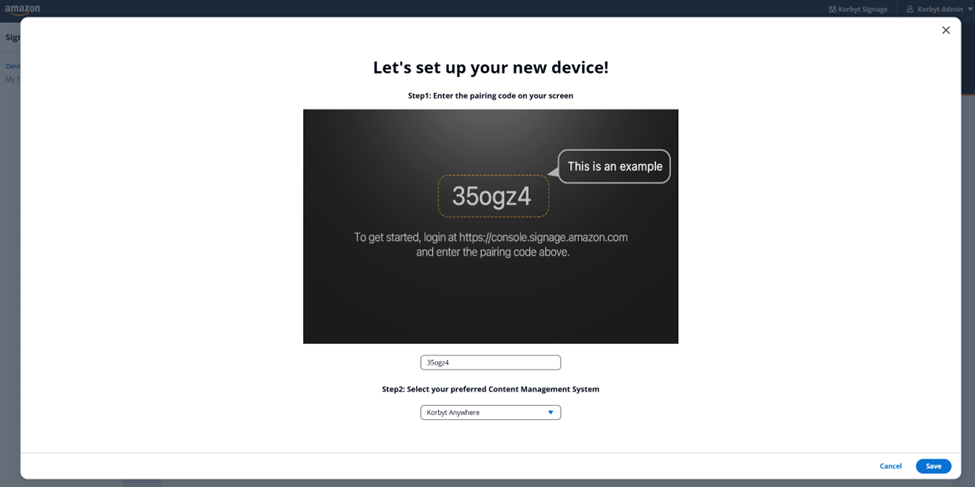
Click + Add Device in your Amazon Signage dashboard.
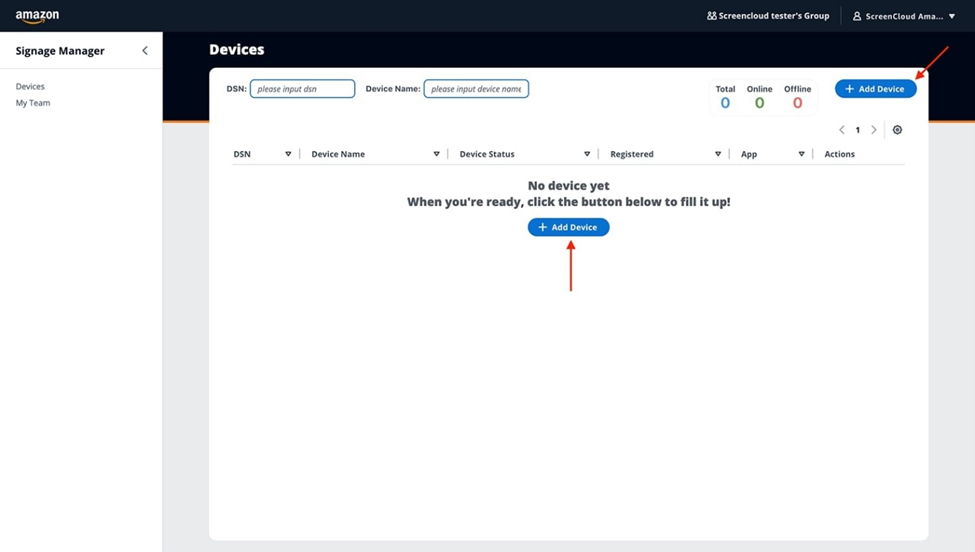
Note: If this is your first time accessing the account, you’ll be taken directly to the setup screen.
Enter the 6-digit code shown on your device
Select Korbyt Anywhere from the Preferred Content Management System drop-down, then click Save
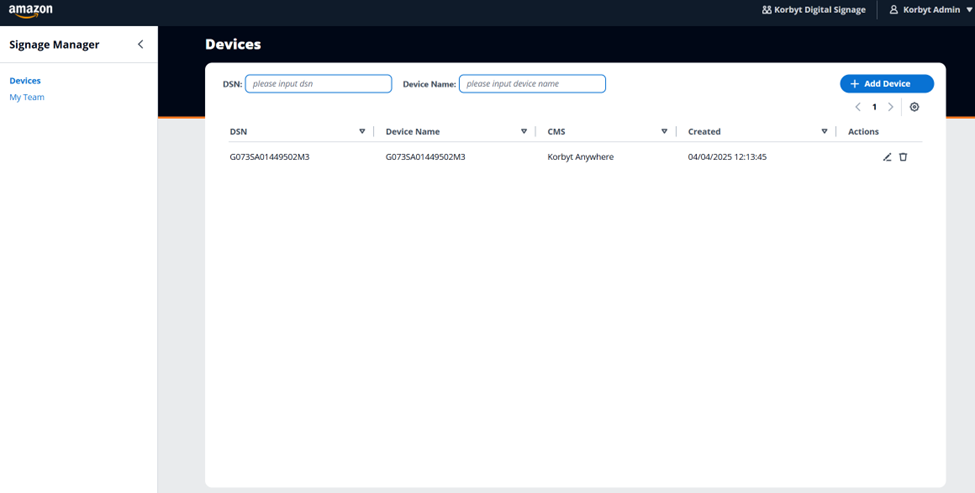
The device will now appear in your Amazon Signage device list.
Launch and Pair the Korbyt Player
Once added to your Amazon Signage account, the device will automatically download and install the Korbyt app.
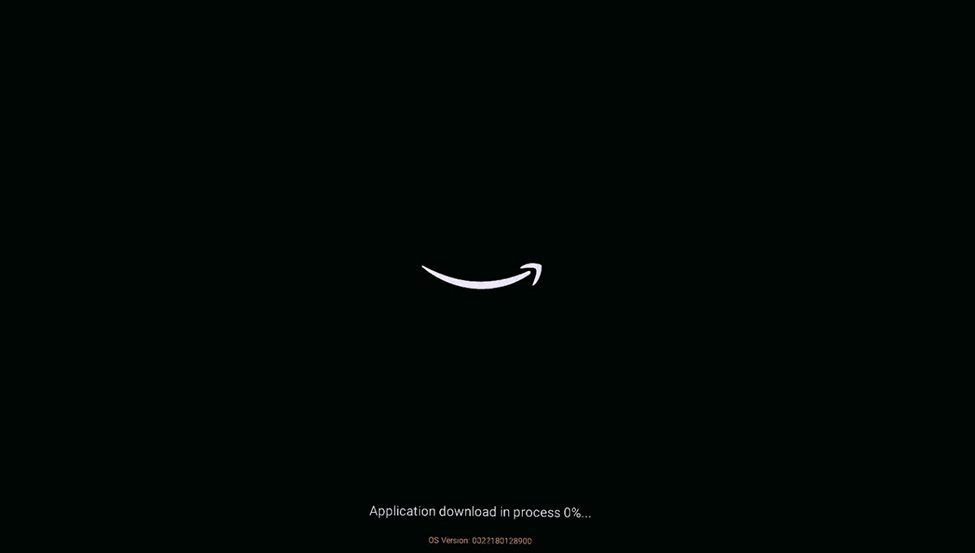
After installation, the Korbyt player will launch and display a provisioning code.
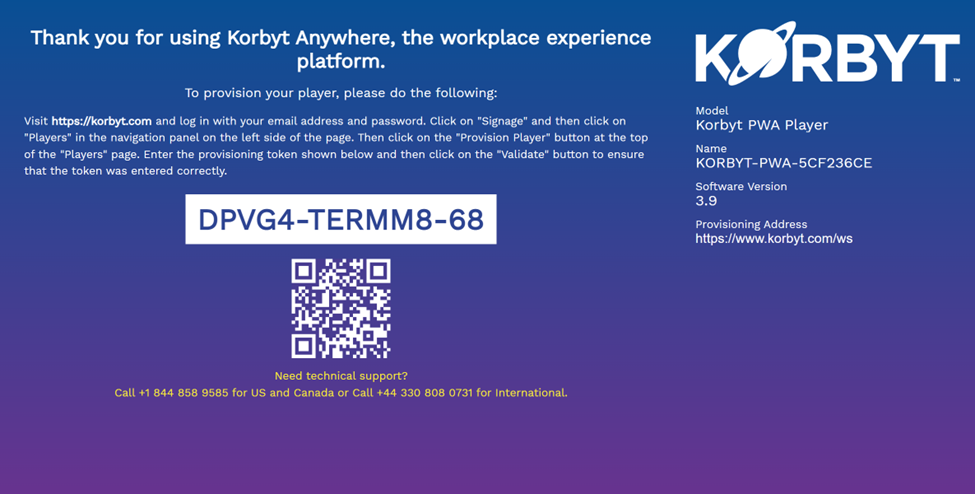
You can now log into your Korbyt Tenant and use the CMS to provision the player to your system.
For more information, see Adding Players to your Korbyt Tenant - Provisioning
If you are going to be bulk provisioning multiple Amazon Signage Stick devices at once using the Bulk Provisioning CSV form, you will need the DSN value for each device.
You can retrieve the DSN for each device from the Amazon Admin portal at console.signage.amazon.com for a list of the devices connected to your Amazon account.
When provisioning on the bulk file you will enter”dsn:” and then the DSN value found in the admin portal
example - dsn:GT53SA0152020AL6