Desktop (InView) User Experience
A review of the experience of using the Korbyt Desktop(InView) application on their computer to view their assigned messages
Written By Ed Kinne
The options described in this article can be influenced or changed based on the way your organization has chosen implement the Korbyt Desktop(InView) application. For more information on options available Desktop (InView) Application Settings
Logging In
Logging into the Desktop(InView) application can be configured for your deployment. This article reviews the most generic implementation of the application

First Login
The first time a user opens the Desktop application, you may be asked for more information than just your user name and password.
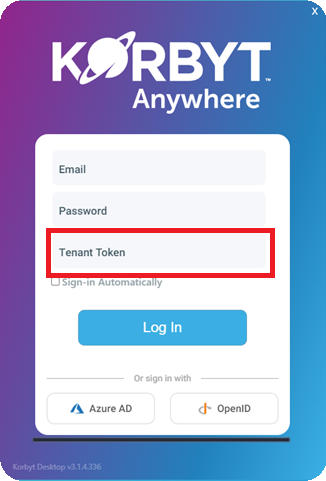
The first time the application launches you may be asked for a Tenant Token. This token, a combination of letters and numbers, can be found in the settings menu of the Korbyt Content Management System and would have to be provided by a system administrator.
System administrators may have already configured this information into your Korbyt Desktop application. In that case you will not see this screen.
You will only see this screen the first time you open the application, or if at some point your application becomes unattached to your compani’s Korbyt Tenant.
Normal Login
After the initial first launch of the application, the login screen will only ask for Email and Password.
Or have links for Azure AD or OpenID authentication
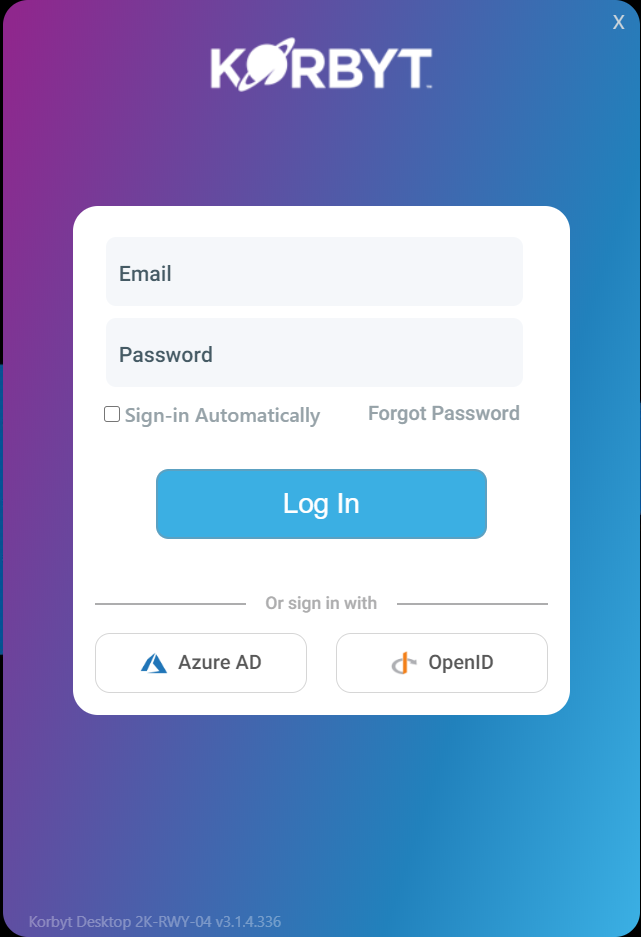
Your organization may have set this login process to happen automatically as your computer starts up
If your organization has created and assigned multiple messages to you, on your first login you may be asked which message you would like to see.
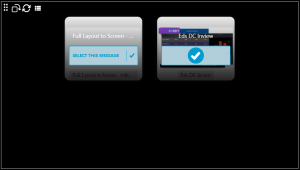
The system will remember your last choice when you log back in the next time. If you have multiple messages, you will be able to select which message you view with the in-app controls reviewed in the next section.
Using the Desktop Application
our organization has built a design for your desktop application that will pull information together for you. This design is called a Message Assignment in Korbyt.
It might look something similar to this
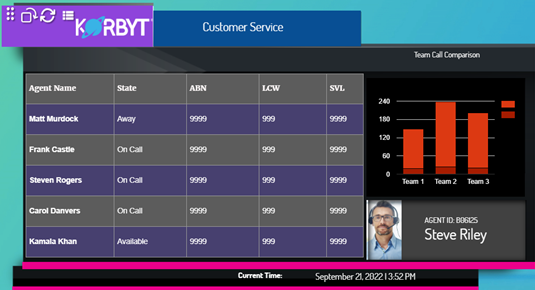
The design is going to be unique to your organization. It might even have interactive elements and dynamic alerts.
You will have to consult system administrators within your organization for the specifics of your Message Assignments
Besides the unique design of your Messages, there are functions that are available within the Desktop Application itself
Using the Application Icon
The application has icons that will appear in the upper right corner of the application window when the mouse moves to that area.
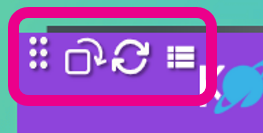
These Icons (from left to right)
Move Grab-Bar = this is the location you can click and drag to move the application window
Change Orientation = this will pivot the application between a Portrait and Landscape orientation
Refresh = this will refresh the desktop message to reflect any changes that have been made to it or pull new data
Message List Icon = this will allow you to select from multiple desktop message assignments that you might have
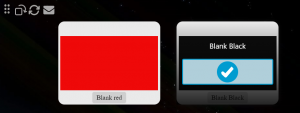
Your organization’s system administrators have the ability to disable any of the icons listed above. Desktop (InView) Application Settings
Using the System Tray Options
There are several options available through the Windows System Tray.
Based on your Windows Taskbar and System Tray settings your users will likely need to click the Up Arrow to expose the full list of running system applications.
Right-Clicking the mouse on the Korbyt icon will show the System Tray Options
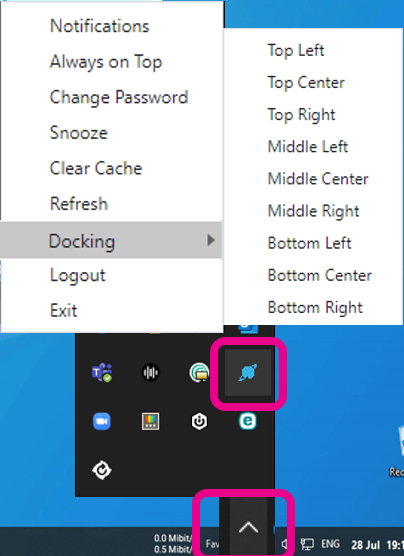
Through this menu you can select:
Notifications = See any messages notifications that have been sent to you through the Korbyt System
Always on Top = Toggle the behavior to always have the Desktop application on top of other windows
Change Password = Change your password for the Korbyt System (This options should not be used if your organization uses Singe Sign On)
Snooze = Minimizes the Korbyt Application
Clear Cache = Removes any stored Korbyt Desktop information and will take you back to the login screen
Refresh = Refreshes the Desktop information from the service
Docking = Allows you to set the location that the Desktop application window show be positioned in
Logout = Logs you out of the Desktop application and takes you back to the login screen
Exit = Closes the Desktop application
Your organization’s system administrators have the ability to remove any of the System Tray options listed above. Desktop (InView) Application Settings