How To Setup Korbyt On LG WebOS
Written By Ed Kinne
These instructions are specific to setting up the Korbyt Application on an LG WebOS screen
Go to the “SI Server Settings” on the LG monitor (getting to this menu depends on the model/firmware)
On some models, you may select “Settings” on the remote and then “EZ Settings” and then “SI Server Settings” (*note: you may have to contact LG for instructions if your display does not have these same options*).
Set Application Type to “.IPK”
Turn on “Fully Qualified Domain Name”
Enter the URL specific for your device’s WebOS version
For WebOS 3 & 4 : https://korbyt.com/webos/webos_3/korbytplayer.ipk
For WebOS 6 : https://korbyt.com/webos/webos_6/korbytplayer.ipk
Set application launch mode to local.
Click “Remote” on “Local Application Upgrade”
Power monitor off and back on.
Korbyt Player should launch and display the provisioning screen
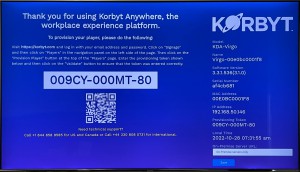
If the player is already provisioned to your tenant the player will start in streaming mode while the player downloads all the files to the cache, and will then switch to playing from the cache.
If needed, provision your player to Korbyt