How To Configure The Korbyt PWA Player On A Chrome Device & Other FAQs
Guide to using Chrome Devices with Korbyt
Written By Ed Kinne
Configure the Korbyt PWA Player on a Chrome Device
The steps below outline how to provision a Chrome Device as a Korbyt PWA Player
Google has announced that starting in July 2025, Chrome app support is being phased out in stages and reaches end of life in October 2028.
Please review Google’s Anouncment here: End of support for Chrome apps
Which details their timeline for ending support of specific ChomeOS versions, including specific information about Chrome aps in kioks mode.
The Chrome device must be on ChromeOS version 85 or later to work as a Korbyt PWA.
To update the ChromeOS in your Google Admin Console, go to Device update settings. Click Auto-upated settings. Select Allow updates. From Target version, select a ChromeOS version.
Save and Reboot
If you require the player to opperate on a domain with SSL Inspection see How To Get Chrome Devices To Work On A Domain With SSL Inspection
Ensure that the Chrome device is connected to the network.
Navigate to your Chrome Devices Page in your Google Admin Console
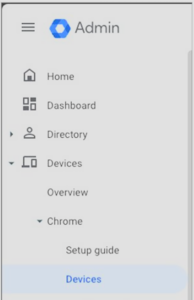
Make sure an organizational unit is created, if not done already
In your Google Admin Console navigate to Apps & extensions
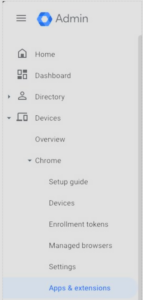
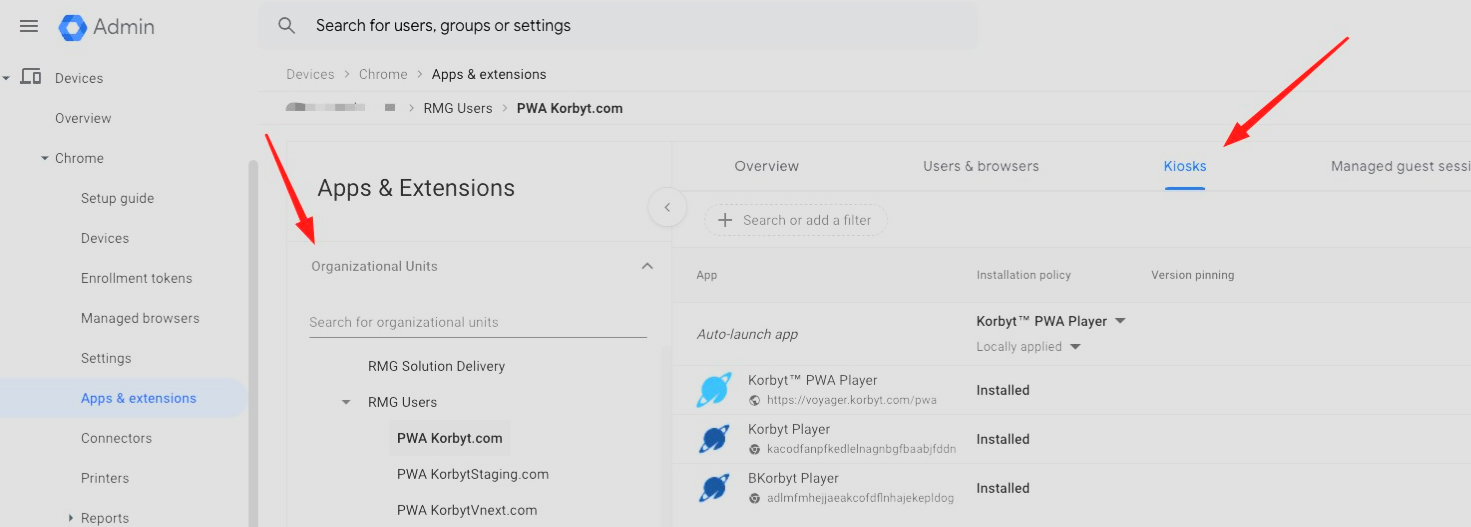
Select the Organization Unit that needs the Korbyt Player, and then select the Kiosks Tab
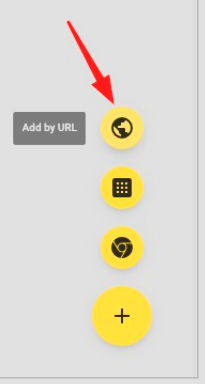
Click on the Add by URL button in the lower right corner
Add the Korbyt Player URL for your tenant
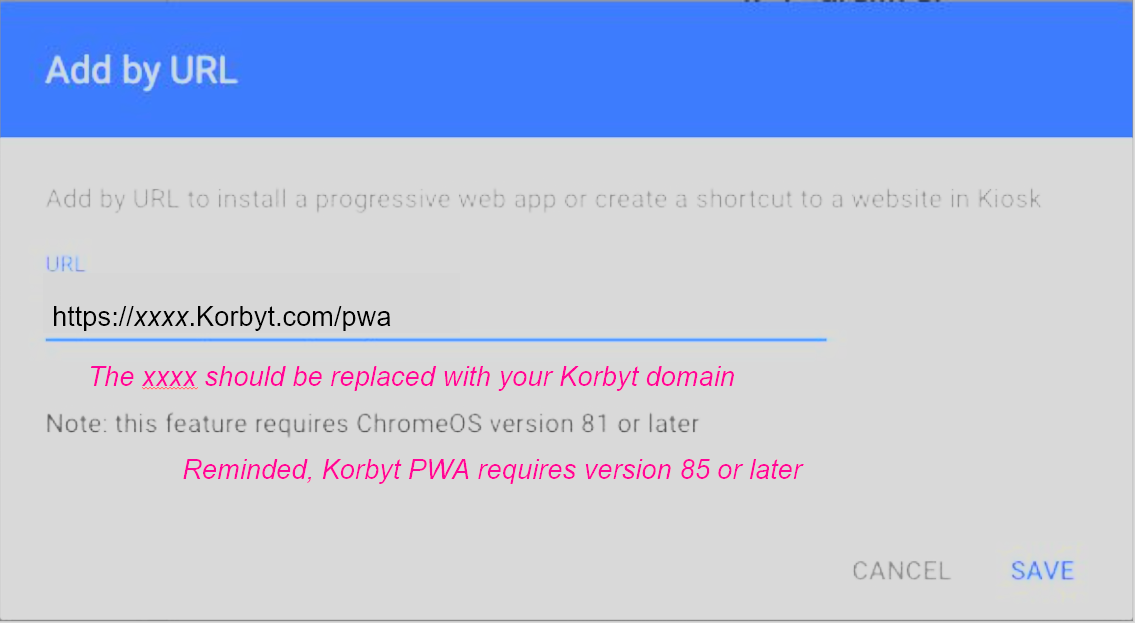
The URL will be the same as your Korbyt tenant, followed by /pwa
for example https://voyager.korbyt.com/pwa
Click Save
Click Agree on the next screen
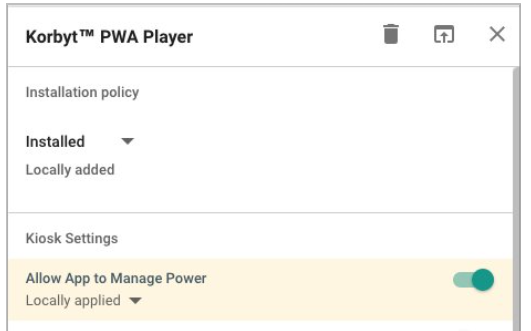
Select the newly added PWA Player and enable “Allow App to Manage Power” then click save on the top right
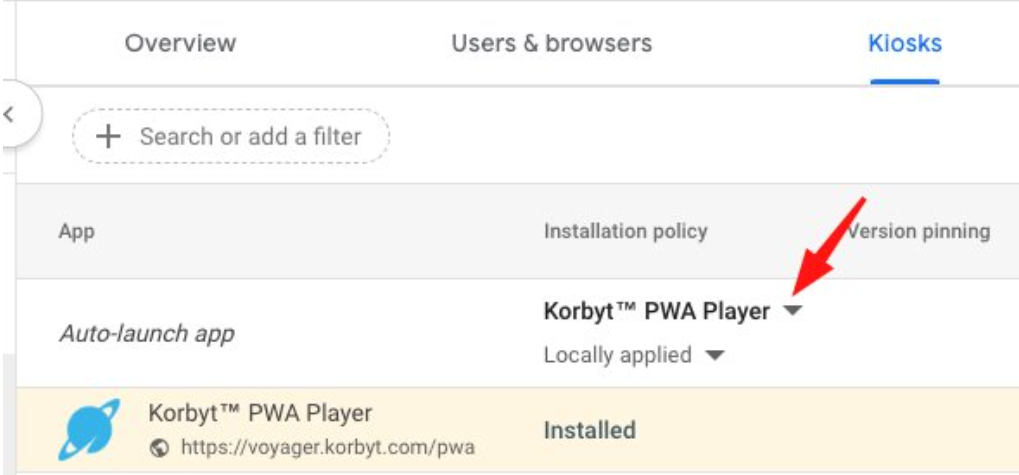
Click the dropdown nex tto “Auto-launch app” and select the Player App that was just created
Save & Reboot the device
Upon reboot, you should be prompted with the Korbyt Provisioning page with the 12-character provision code for the player.
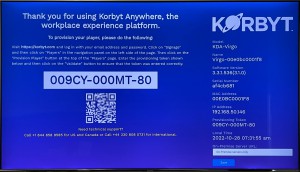
Provision the player following the standard Korbyt Player Provisioning process:
Frequently Asked Questions
How do I clear the cached content from a Chromebox?
Enter the following URL in a Chrome browser: http://player_ipaddress:65001/clear-caching-proxy/ .
The “proxy” entry has nothing to do with a network proxy. That is the name of the code module we use.
Our cache is acting as a proxy for the Korbyt CMS.
How do I rotate a Chromebox display from landscape to portrait?
Press CTRL+SHIFT+F3. This will rotate the screen 90 degrees
How do I access the logs on a Chromebox?
Goto the following URL: http://player_IPAddress:65001/logs
Example: http://x.x.1.86:65001/logs
========== ChromeOS Main ========== 16:32:30 [Info] Version: 1.4.6 16:32:30 [Info] Loaded from storage: {“settings”:{“forceSettings”:false,”player_name”:”RMG-xxx-xxxx41″,”player_uid”:”{xxxxxxxxxx170}”,”provisioning”:{“cms”:”https://company.korbyt.com”,”provisioned”:true,”tenant_token”:”xx-xxx-82″,”tenant_type”:”saas”,”version”:”1.2.5″,”webService”:”https://company.korbyt.com/ws”},”wsUrl”:””}} 16:32:30 [Info] {“forceSettings”:false,”online”:true,”wsUrl”:””,”player_uid”:”{xxxxxxxxxx170}”,”player_name”:”RMG-xxx-xxxxxx41″,”provisioning”:{“cms”:”https://company.korbyt.com”,”provisioned”:true,”tenant_token”:”xx-xxx-82″,”tenant_type”:”saas”,”version”:”1.2.5″,”webService”:”https://company.korbyt.com/ws”}}
How can I verify a Chromebox is active on the network outside of Korbyt?
Enter the following URL into a Chrome browser for an uptime: http://player_ipaddress:65001/healthcheck
Example: http://192.168.0.1:65001/healthcheck
Results: {“count”:1,”platform”:{“os”:”cros”,”arch”:”x86-64″,”nacl_arch”:”x86-64″},”version”:”1.3.2″,”uptime”:3.495,”startTime”:”2018-07-13T13:06:04.086Z”}
How Do I Wipe And Enroll A Chromebox Into A Managed Account?
To wipe a Chromebox and enroll into a managed account for use with Korbyt, please complete the following instructions.
Wipe the Player
Turn off the Chromebox.
Put a paperclip (or pushpin) into the recovery button hole.
Press down the recovery button with a paperclip while turning on the device.
Press Ctrl + D.
Press the recovery button with the paperclip again. The device reboots and displays a yellow exclamation point.
Press Ctrl + D. The Chromebox reboots and starts the transition to developer mode. This clears all local data and takes approximately 10 minutes.
At the startup screen, press the space bar, and then press Enter to reboot the device and return to verified mode.
Enroll the Player
Reboot the Chrome device and follow the onscreen instructions until you see the sign-in screen. Do not sign in yet.
Press Ctrl+Alt+E to go to the enrollment screen.
Enter the username and password from your Google Chrome Management administrator or contact the Korbyt Support team for devices purchased from RMG.
Click Enroll device. You’ll receive a confirmation message that the device has been successfully enrolled.
Provision the device in Korbyt
After enrolling the player and installing the Korbyt app, the device will display a Korbyt provisioning token on the screen. To provision the device in Korbyt,