Korbyt Zoom Room Experience
Korbyt enables the use of existing Zoom Room hardware as a digital signage endpoint
Written By Ed Kinne
What it Does
Enables your Zoom Room hardware to display programmed digital signage content when not in use for an event.
At a set time before a scheduled event, or when someone interacts with the room, the system will automatically switch to standard Zoom functionality.
After the event, it will switch back to your programmed signage content.
With Korbyt, you are able to have detailed content schedules and share real-time statistics and dashboards, not just a set of pictures and videos. This enables better focus and meaningful communication to your team than the standard Zoom Signage offering.
This Zoom Room Configuration Walkthrough Video below also reviews the process of setting up your Zoom Room
Prerequisites and Setup
Zoom Rooms License.
Zoom Room Admin permissions.
You have enabled Digital Signage for the Zoom Room(s), or you have created a Digital Signage-only Zoom Room.
Zoom Apps will need to be enabled in your Zoom account so that the Korbyt Anywhere Application can function
For assistance, see this Zoom support article - Enabling Zoom Apps for Zoom Rooms Digital Signage
Additional information regarding Zoom Room Digital Signage from Zoom can be found here. Zoom Rooms digital signage – Zoom Support
Supported Platforms
Zoom Web Portal
Zoom Rooms (Android/Appliance, Windows, macOS, iPad).
Add Zoom App to Zoom Room Digital Signage content rotation

First, authorize the app by clicking the ‘Add to Zoom’ button. Follow the prompts and then close the browser session once done.
Log in to the Zoom web portal.
Go to ADMIN > Room Management > Zoom Rooms.
In the left-side hierarchy, select a location, floor, or room.
Click the Edit button next to the location, floor, or room name.
Note: To edit all rooms in the account, select the first option in the hierarchy with the HQ icon, then click Account Settings.Select the Digital Signage tab > Add Content > Apps.
Select the Zoom App and click Add to complete the addition of the new app.
The new app appears in the Default Content List on the Digital Signage tab.Once the Korbyt Player app is launched and running on the Zoom Room, you can provision the player. For Assistance - Adding Players to your Korbyt Tenant - Provisioning
Zoom Bulk Provisioning
To provision a large list of Zoom Rooms to Korbyt at one time using Korbyt’s bulk provisioning feature, you first will need to get all of the room ID values from your rooms.
You can find the Zoom API call here to retrieve the list of these. Zoom Rooms API (specifically looking for ‘room_id’ in the GET /rooms response)
The room_id is the value that can be used to generate a player in Korbyt. In order to use this, place the value of the room_id prepended with ‘zid: ‘ in order to specify that this is a Zoom Room being bulk provisioned.
For example, the first column value for a Zoom Room in the bulk provisioning CSV should look similar to the following
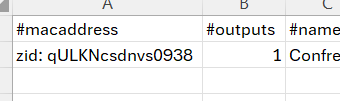
Other Bulk information fields can be used as normal
Information on Bulk Provisioning can be found in Adding Players to your Korbyt Tenant - Provisioning
Removing Zoom App from Zoom Room Digital Signage content rotation
Log in to your Zoom Account and navigate to the Zoom App Marketplace.
Click Manage >> Added Apps or search for the “Korbyt Anywhere” app.
Click the “Korbyt Anywhere” app.
Click Remove.
Frequently Asked Questions about Korbyt & Zoom Room
Does Korbyt support displaying websites or dashboards in Zoom Rooms?
No, authenticated dashboards and external websites are not supported in Zoom Rooms. This is because Zoom limits any external authentication attempts from third-party applications for security purposes.
Does Korbyt support visualizing raw data in Zoom Rooms?
Data visualization in Zoom Rooms is achievable via a combination of Korbyt Data Subscriptions and Data Integrations.
Showing the data this way is possible because the information is authenticated within the CMS prior to being sent to the Zoom Room display.
Due to processing requirements, the data must be kept as simple as possible.
Additional Information Resources
What display configuration options do I have for the Korbyt App in a Zoom Room?
Korbyt’s Layout Builder tool allows you to arrange your Digital Signage content in any desired regions on the Zoom Room display.
Zoom Rooms also offers a configurable Banner Overlay that can cover a section of your screen(s) to provide room utilization instructions or connection details.
Additional Information Resources
Can I use interactive Digital Signage content in a Zoom Room?
No, any interaction with the Zoom Room display(s) or control panels will shift the room out of Digital Signage mode and back to standard Zoom functionality.
How is Korbyt Digital Signage rendered across multiple Zoom Room displays?
If the Zoom Room has more than one display, Korbyt content is mirrored across all connected displays.
How do I know if a specific Zoom Room hardware model will support Korbyt Digital Signage?
The Korbyt Zoom App is available for use on all Zoom Rooms, but features may vary based on hardware processing differences. To ensure full functionality, our Sales Engineering Team is happy to help you test your specific hardware.