Newsfeed Posts
A review of how to create and edit Newsfeed Posts for the Mobile and Web platform through the CMS
Written By Ed Kinne
In Korbty Mobile and Web platform, the primary communication method is through the Newsfeed and the posts that have been published for a user to see based on their Audience membership and Category subscriptions.
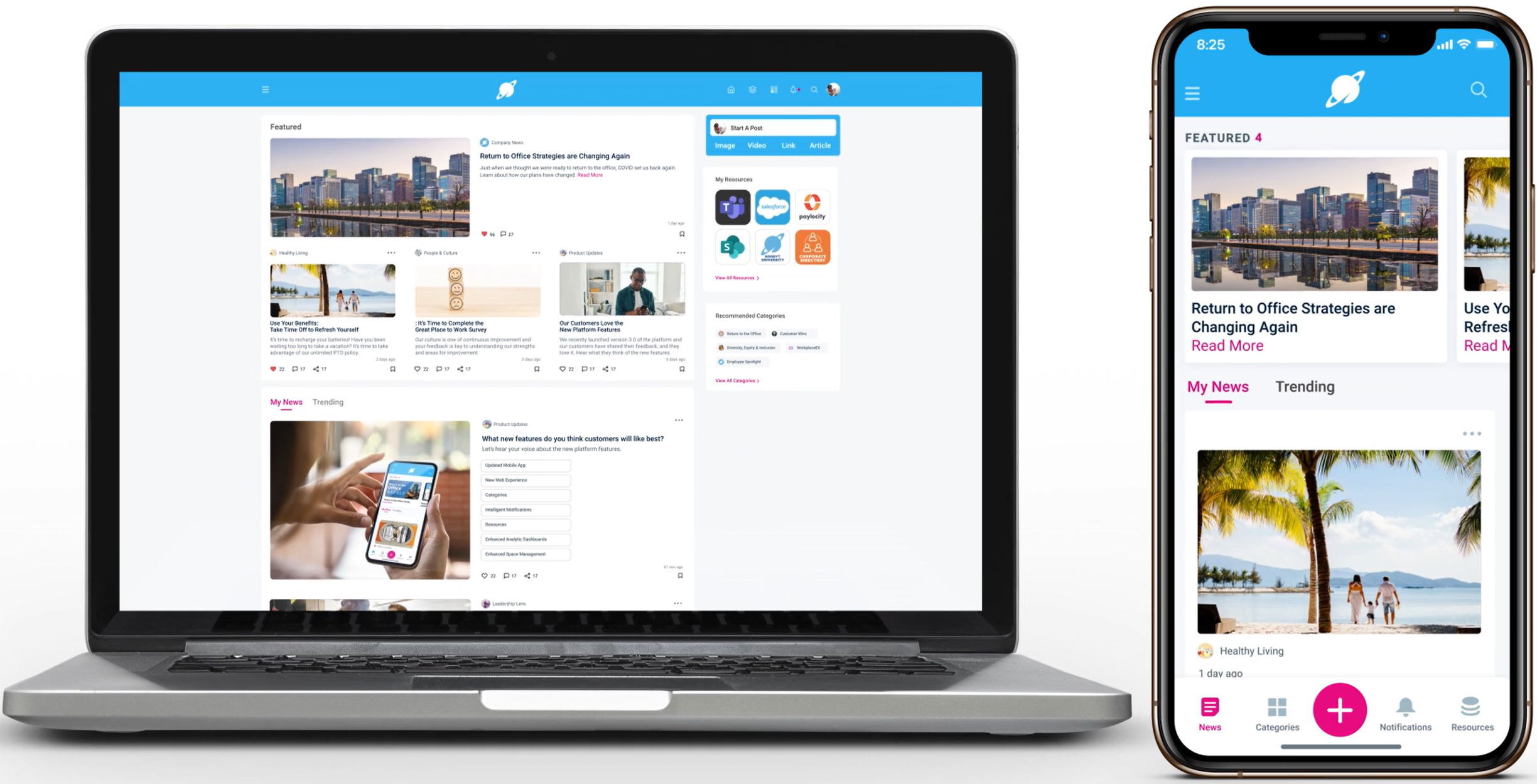
Posts Screen in the CMS
To view the Posts menu
Open the Mega Menu in the upper left corner
If needed, select the Mobile/Web option

In the Content section, click on Posts
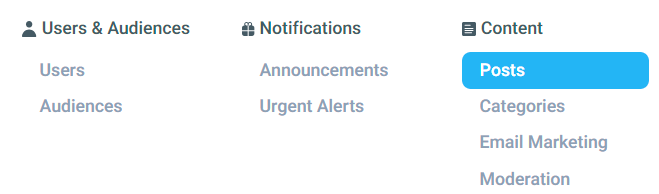
You are now on the Post management Screen
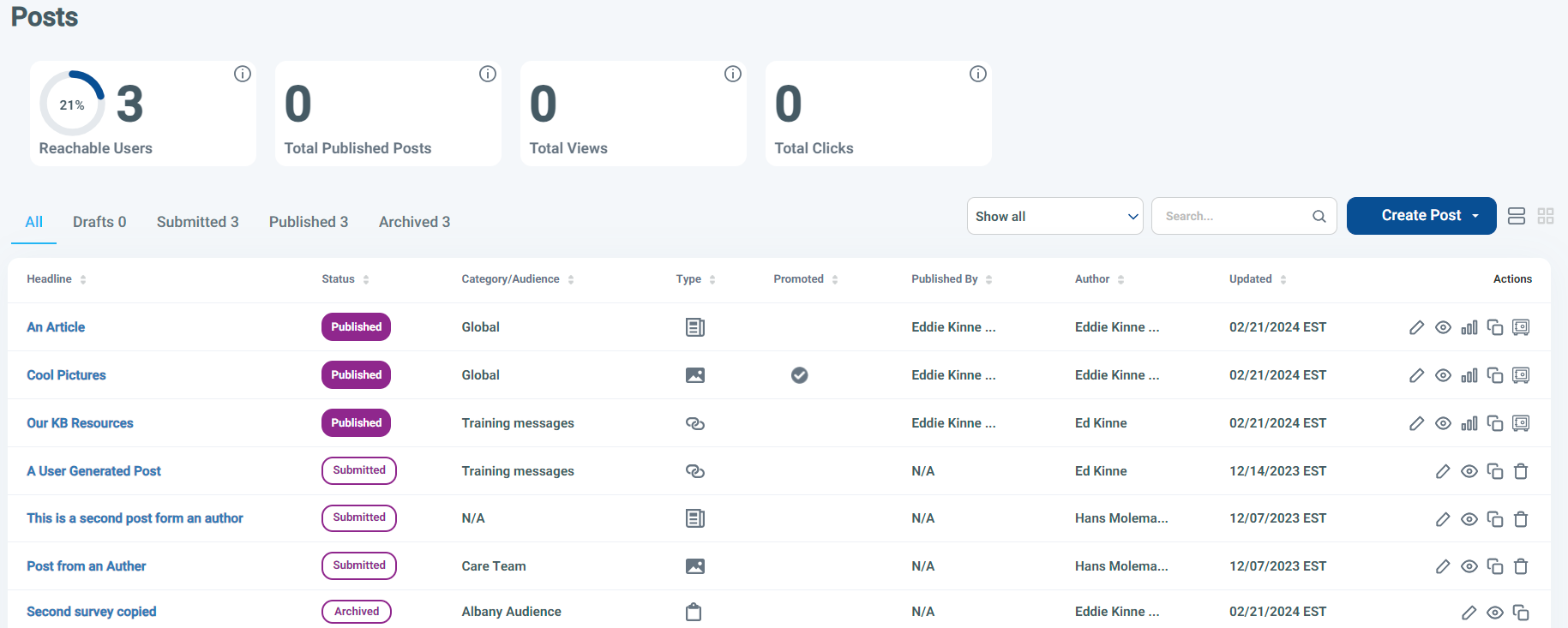
At the top are the Statistics about your posts and interaction from them
Posts can either be viewed as a list or card selected next to the Create Post button
Post can be in 1 of 3 statuses
Published - Viewable to their audiences
Submitted - A draft awaiting final publishing, possibly created by an Author
Archived - Removed from view
You can see details on this screen, such as type, dates, author
Action Icons to the right allow you to Edit, Preview, See Statistics, Clone, and Archive specific posts
Creating and Editing Newsfeed Post in the CMS
From the Posts screen, click the Create Post drop-down
Or click the pencil Icon of a Post you wan to edit
Select the type of post you wish to create
This can be changed in the next screen if needed
Set the Headline/Title
Set the Optional short Description
This is the text that will preview with the item in the Newsfeed
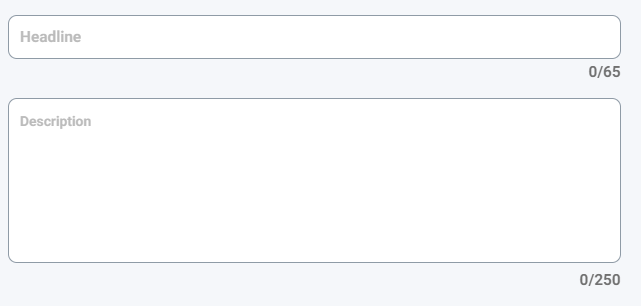
Every Post type has a Headline and Description Option
The other options available for the Post will be based on the Post Type
Newsfeed Post Types
Expand a Newsfeed Post to see that type’s options and details
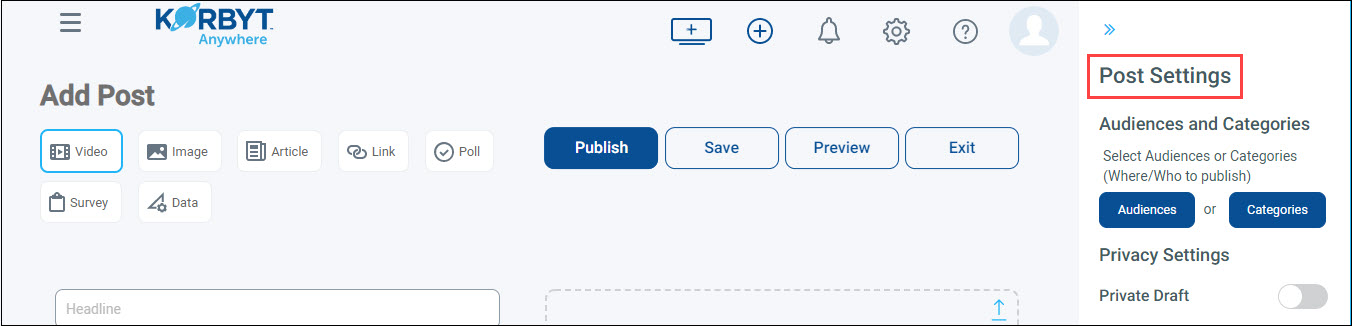
After writing the Post, you will configure the Post Settings
Post Character Limit
To give your users the best experience possible, we standardized the character limits across key fields.
Post Settings and Options
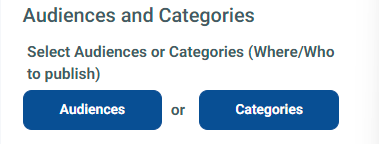
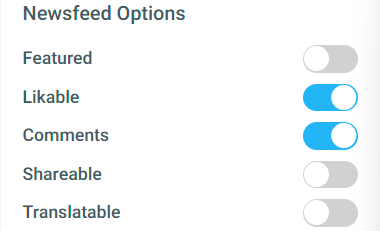
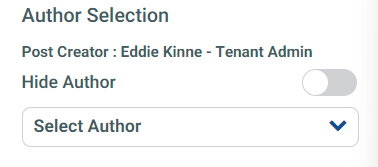
Post settings allow you to configure who sees the Post and how they see it in the Newsfeed.
Some will require a selection, some have default options that do not require setting
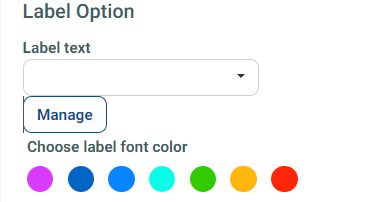
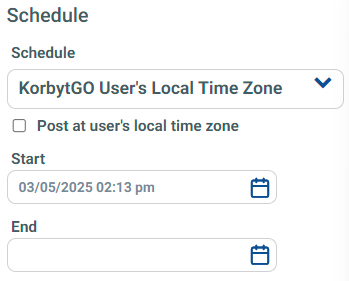
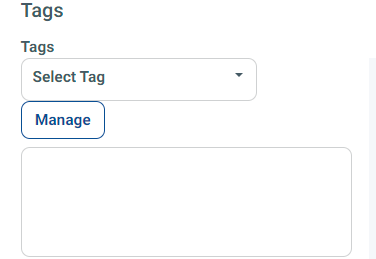
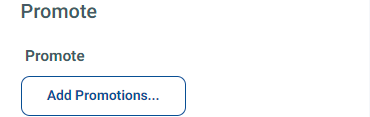
Save / Publish or Submit / Previewing / Exit
The options at the top of a Post will vary based on the User’s Role
Approver and Higher’s View

Author’s View

At any time while editing a Post you can use the buttons at the top
Publish
Publishes the article to the selected Audiences or Categories
Will be immediately viewable to users if no Schedule options were set
or Submit for Authors
As an author, you can not fully publish a Post
When ready to be reviewed for publishing, clicking Submit will alert content approvers that the Post should be reviewed
Save
Saves progress in a Draft status
Not viewable to users yet
Only option available to Authors for Mobile and Web
Preview
Opens a new window showing how the item will appear in a user’s Newsfeed
Exit
Leaves the editor
Will alert you if there are unsaved changes
Optional Creating a Signage Layout Design from a Newsfeed Post
Korbyt provides the option to create a draft Signage Layout when publishing a new Image, Video, or Article Post to your Mobile & Web news feed.
The feature is not available for other post types at this time
This will allow easier use of content across multiple communication channels
This option is available when adding a post in the Post Setting section on the right of the screen
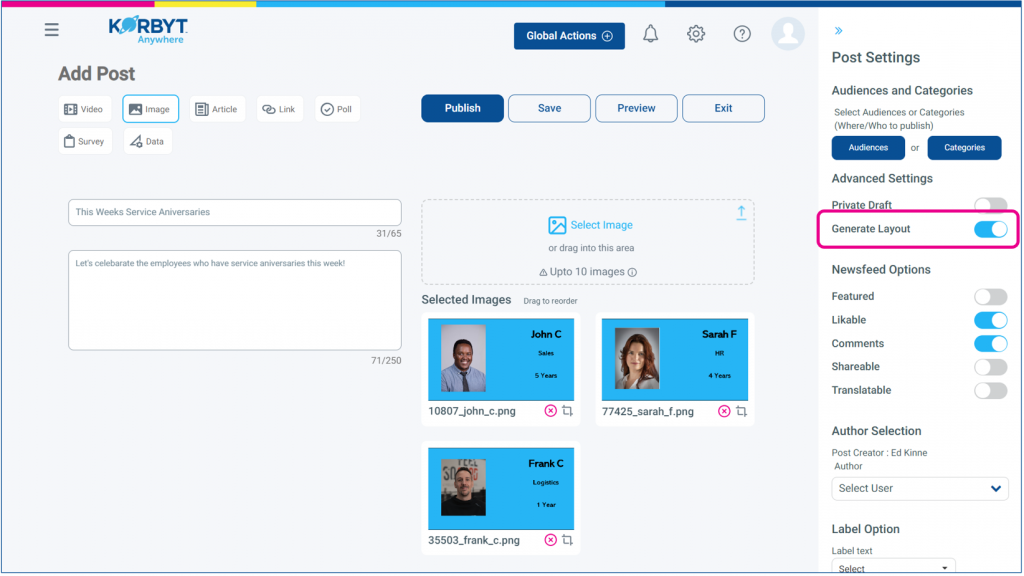
This option will produce a Layout the when the post moves from a Draft to a Published status.
After constructing your and publishing your Post a new Layout will be created in draft status.
The name of the Layout will be the Title from the Post.
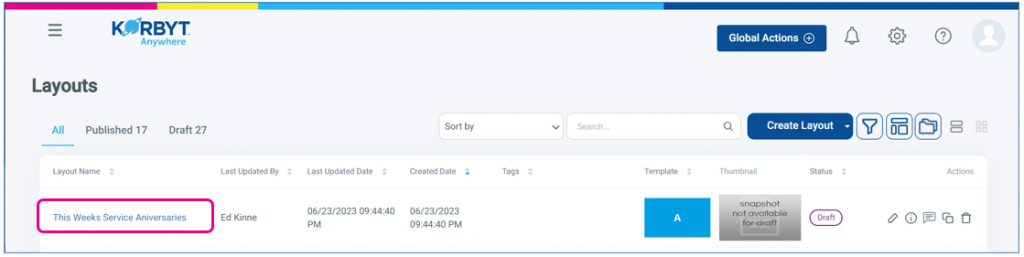
This new layout will have been created with Two Elements populated
A Text Note Element at the top with the Text from the Title of the Article
A media element that will vary based on the media in the post
A Video Element will be created from a Video Post
An Image Element will be created from an Image Post or an Article Post with 1 Image
A Carousel Element will be created from an Image Post or an Article Post with multiple images
Default 10 sec view time and a face transition for each item
Positioned using the Cover sizing mode
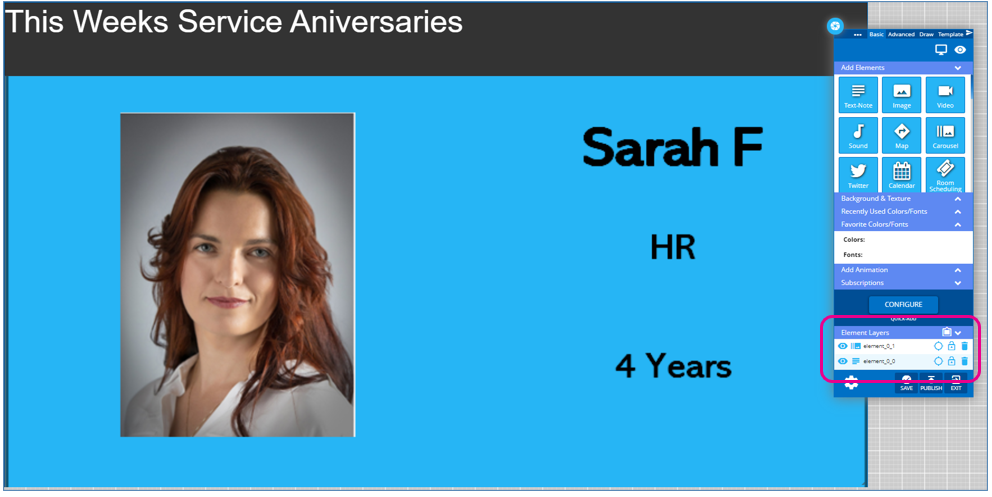
This new layout can be further edited as normal using the Builder Tool, and published to Playlists.
If you do not see this option present in your Mobile & Web tenant please contact your Korbyt Support team so that it can be turned on.