Categories for Mobile & Web Posts
Review of What Categories are and how to Manage them
Written By Ed Kinne
Categories help communicators organize posts by themes or topics of content. In Korbyt Anywhere Web Experience, you can use the discover any curated content that has been shared with you in the Categories page. Subscribe to categories that are interesting or relevant to your role to personalize your news feed.
From the Korbyt Anywhere mobile app and web interface, categories can be viewed to easily discover relevant content, and users can subscribe to categories to include posts to that Category in their News Feed
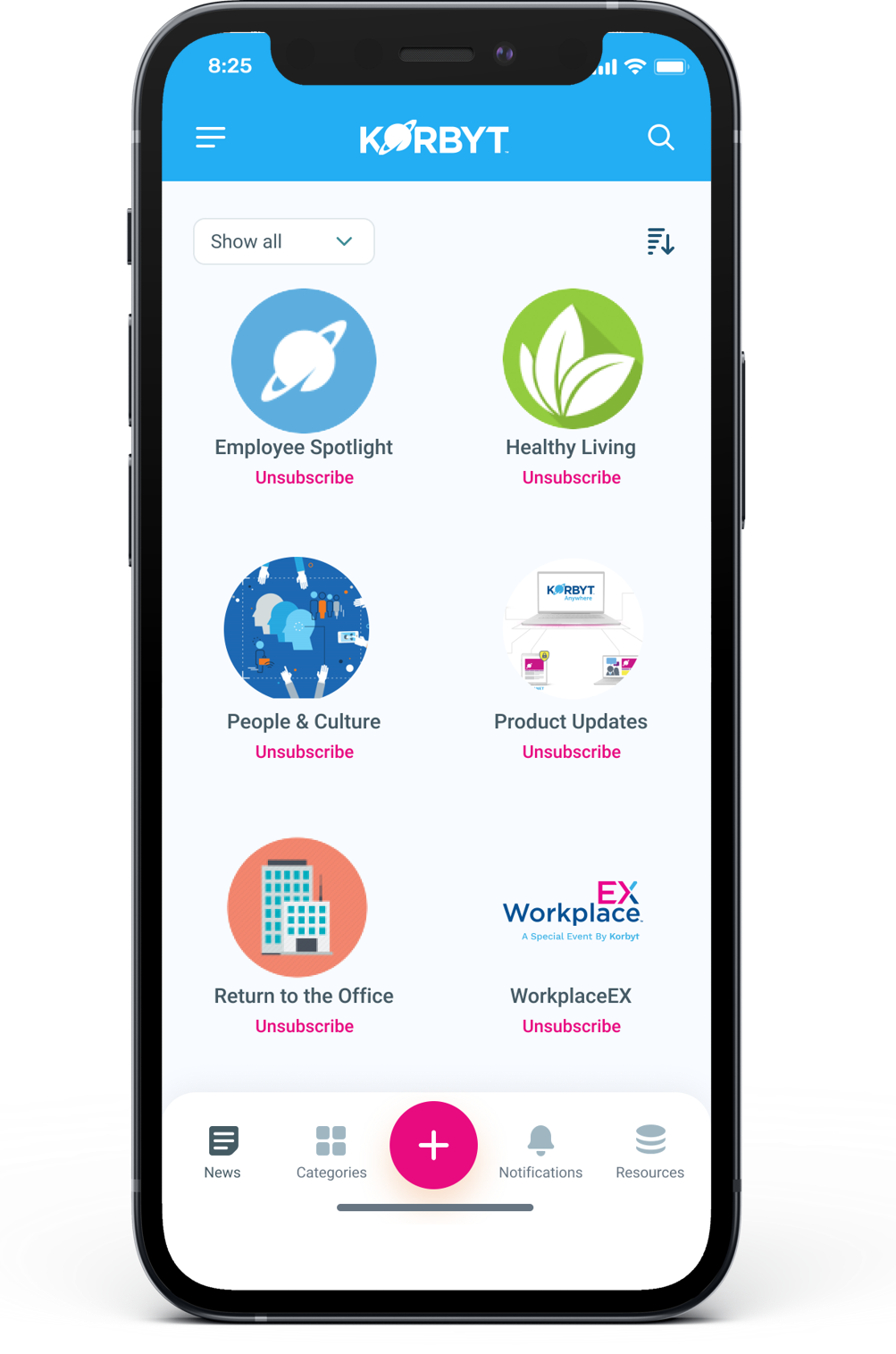
Categories are also required to allow End User submitted posts because this content can not be posted to system audiences
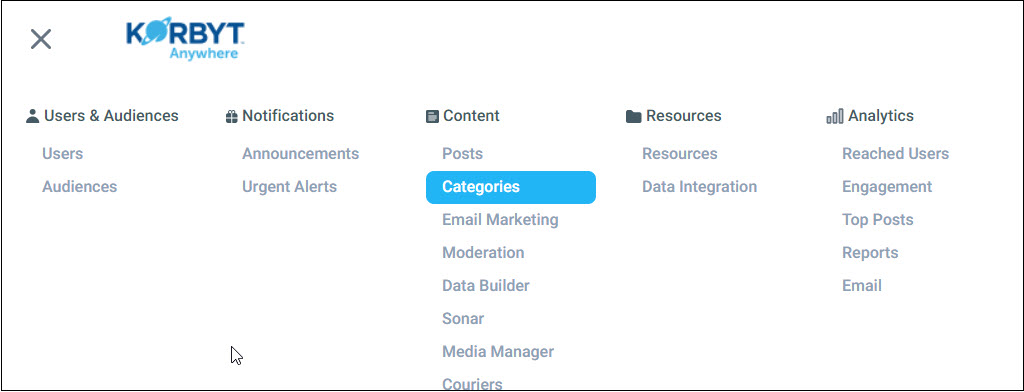
You can access the Categories screen by clicking the Mega Menu icon and navigating to Content > Categories.
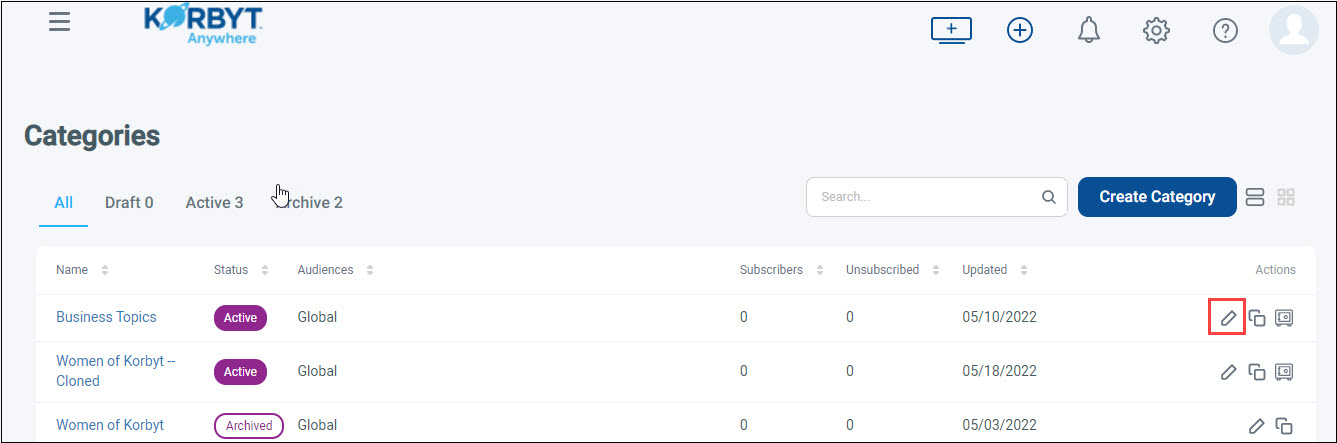
From the Categories screen, you can see the category’s status (Draft, Active, and Archived), associated audiences, corresponding number of subscribers and unsubscribers. You can Edit, Clone, or Archive the Category using the actions to the left
Creating and Editing Categories
If Editing or Cloning, start with the appropriate action button
If creating a New Category, click Create Category
Then use the Category Screen to customize your Category Settings
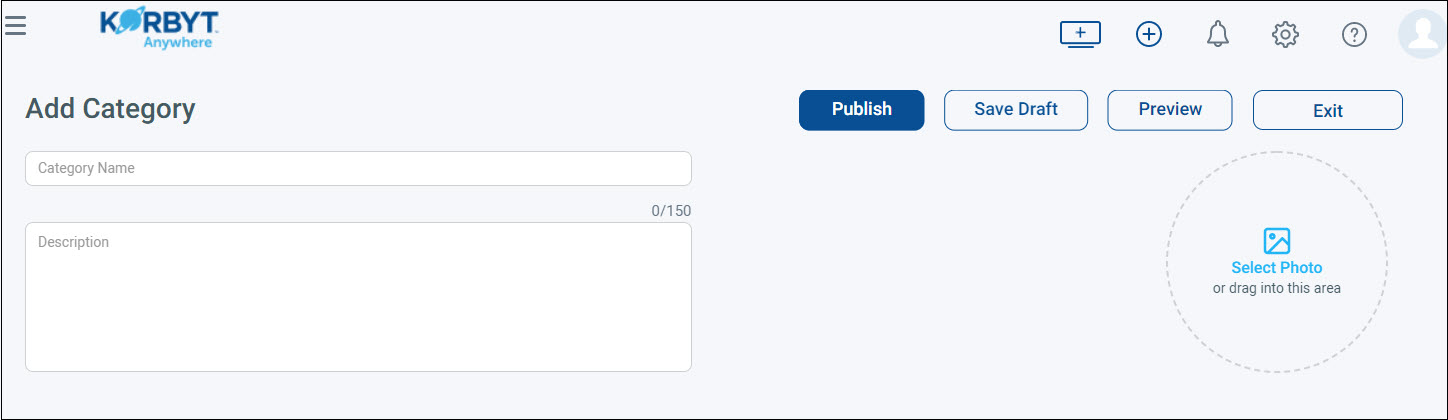
Provide the following information:
Category Name: Allows up to 50 characters. It appears in the Korbyt Anywhere mobile app and web interface. The category name should be simple and engaging enough for users to understand what content the category represents. Categories are ordered first by subscription status and then alphabetically by name. Category names can be edited at any time without negatively impacting published content or number of subscribers.
Description: Allows up to 150 characters. It adds a bit more detail about what content falls under the category.
Select a Photo for the category by dragging and dropping the appropriate file or selecting it from your computer.
You can also select images from the Media Manager.
It’s highly recommended that you use an image ratio of 1:1 (100px x 100px). If your image has a bigger image ratio, the system will automatically reduce it.
The image displays above the category name on the Categories screen in both the Korbyt Anywhere mobile app and web interface. This image also displays next to the category name within the Recommended Categories section on the Home page within the Korbyt Anywhere web interface.
To the Right, set the following category settings:
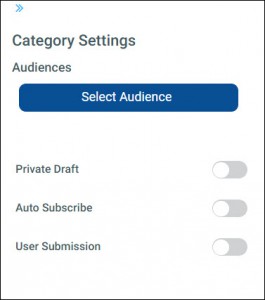
Audiences: Allows you to target your category to specific groups of users.
An audience has to be selected
It can be the Global Audience making the categor available to all users
For more information see Managing End Users for Desktop(InView) / Mobile&Web
Private Draft: Controls whether or not others can see your category in the Content Management System. When enabled, nobody will be able to see this category until you disable the setting.
Auto Subscribe: Automatically adds new and existing users to specific categories. When enabled, existing users in the targeted audiences will immediately be subscribed. New users will be subscribed to the category after their account has been added under the corresponding tenant. Users can unsubscribe from categories at any time by clicking Unsubscribe. When disabled, users in the targeted audiences will no longer be immediately subscribed. Users who have already subscribed will continue to see the category’s content in their news feed.
User Submission: Allows users to publish content from the Korbyt Anywhere mobile app or web interface. When enabled, users will be able to publish content to the category.
This setting will only be available if you have enabled the User Posts setting for your tenant. For more details see User Generated Content and Interaction on Mobile & Web
Auto-Publish User Content: Automatically publishes any user-generated content submitted to the category. When enabled, content published to this category from the Korbyt Anywhere mobile app or web interface will be immediately visible to all subscribed users. When disabled, any user posts will first have to be reviewed and approved by either a Tenant Administrator, Administrator, or Approver before it becomes visible in the Korbyt Anywhere mobile app or web interface.
This setting will only be available if you have enabled the User Posts setting for your category.
Click Save to save your category as a draft if you are not ready to publish it.
It won’t be visible to users.Click Publish to finalize your category and make it visible to users.

All saved and published categories will appear on the Categories screen. If you want to edit a category, click the corresponding pencil icon for the category and make the necessary updates.
Achieving and Restoring Categories
Archiving a Category makes it no longer available to the end users. Any posts associated with the Category will also be removed. If a post was associated with multiple categories, it will remain viewable under the other categories.
To archive categories:
Access the Categories page by selecting the hamburger icon and navigating to Content > Categories.
From the All or Active tab, click the Safe icon in the Actions column for the category that you want to archive.
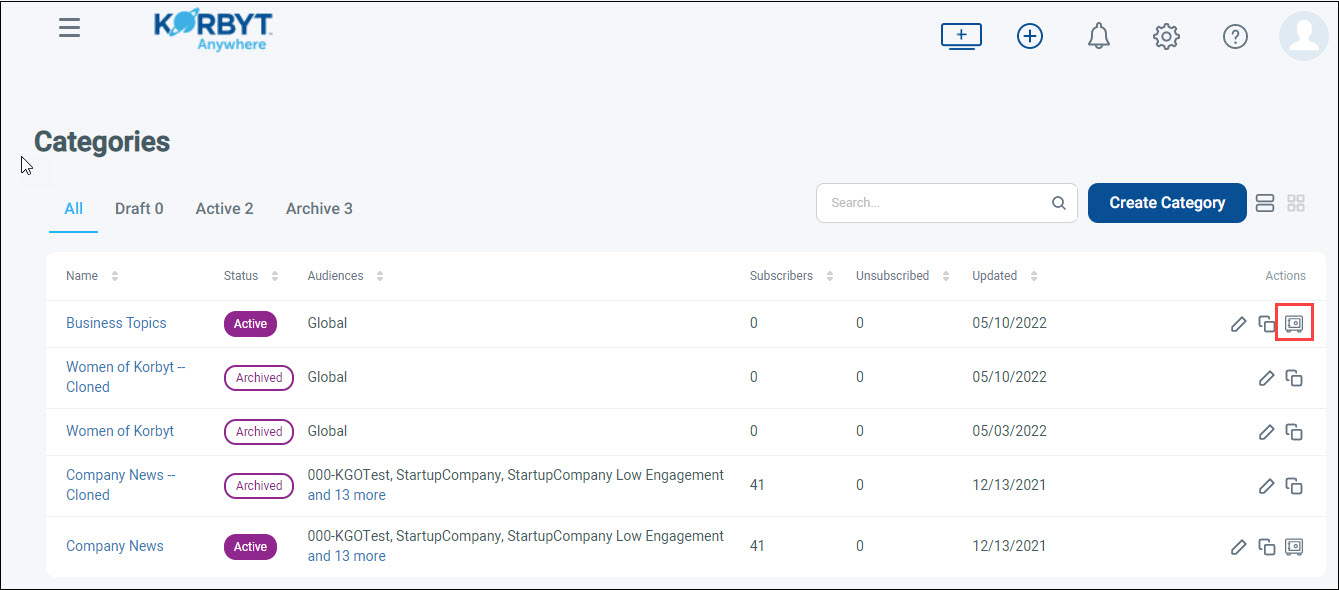
Click Yes on the confirmation screen.
After the category is archived, the following will occur:
The category will appear in the All and Archived tabs on the Category landing page with an Archived status.
Any content associated with the category will no longer display in the user’s newsfeed. However, if the content was published to more than one category that the user had subscribed to, it will continue to display in the newsfeed.
To Restore Archived Categories:
Access the Categories page by selecting the hamburger icon and navigating to Content > Categories.
Find the archived category by accessing either the All or Active tab from the Categories screen.
Click the Pencil icon in the Actions column for the category that you want to restore.
From the Edit Category screen, click Publish.
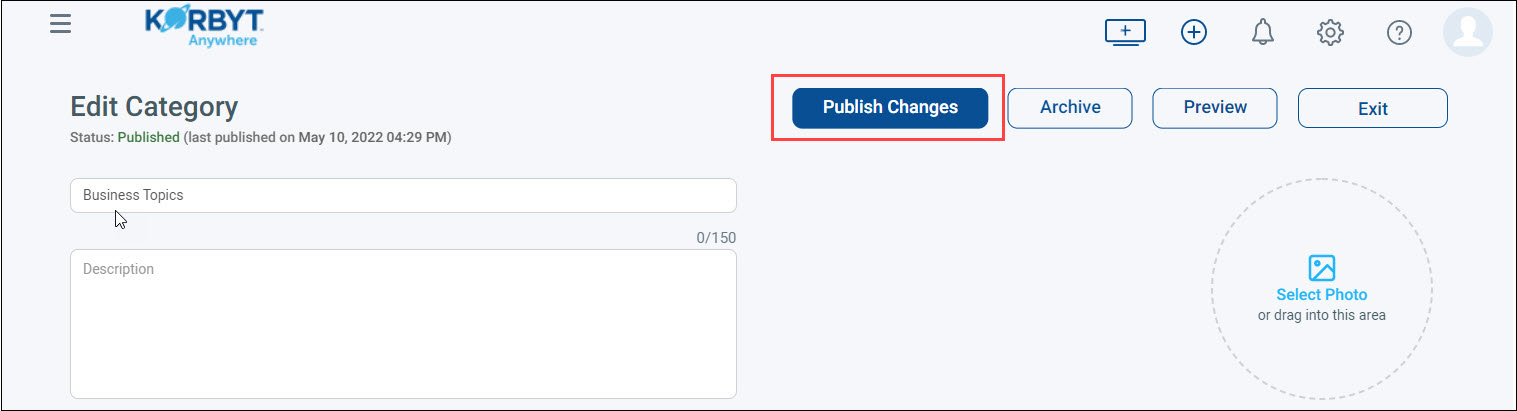
Your category will be restored and its status will be changed to Active.