Understanding The Korbyt Dashboard
This article describes the Dasboard and the Clasic Mega Menu navigation
Written By Ed Kinne
The Dashboard is the first thing you will see when you log in to your Korbyt Content Management Platform.
On the dashboard, you will see information tiles that provide a high-level view of activity in your Tenant, a player location map, and a breakdown of players by status (with a drop-down to focus this graph on different player groups)
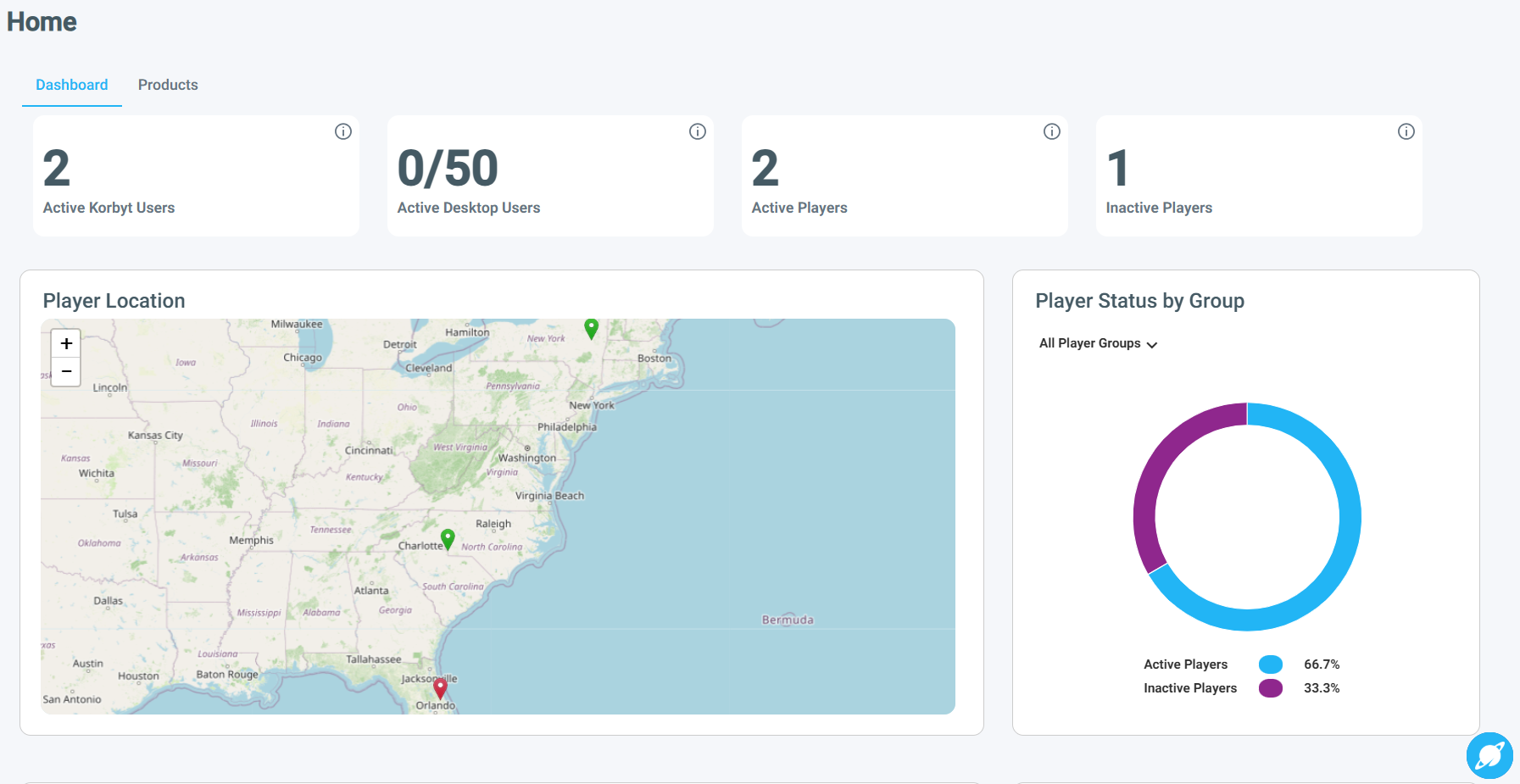
Active Korbyt Users
This represents the number of unique CMS users who have logged in in the last 30 days
Active Desktop Users
Represents how many users are currently logged into the Korbyt Desktop application tied to your tenant
If you do not subscribe to Desktop, this will display 0/0
Active Players
Players that are currently talking to Korbyt
Inactive Players
The number of players that have been connected to your tenant, but do not have an active connection at this moment.
Player Location Map
Displays player pins based on the street address that each player has been assigned
Player Status by Group
Active/Inactive status by group
Can use the dropdown to select different player groups
Top Playlists
Playlists that have the most scheduled time
Top Content
Content that has the most view time
Navigation in the system will depend on whether you have the Mega Menu or Navbar-based CMS navigation enabled.
Mega Menu Navigation
The Mega Menu includes a set of icons across the top of the CMS. For more details, see Mega Menu CMS Navigation

Side Navbar Navigation
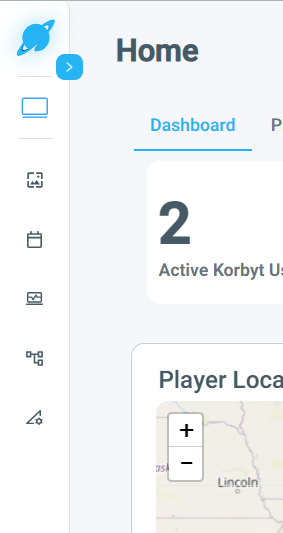
The Navbar is a dynamic, expandable set of sections down the left side. For more details, see Side Navbar CMS Navigation