Reports And Analytics For Signage & Desktop(InView)
Written By Ed Kinne
Korbyt has several reports available within our CMS to track different aspects of your Signage and Desktop(InView) products. This article will review the common report types and what information they share
Reports available to you on your tenant may vary based on your tenant’s features
Some of the reports listed below are tied to subscription features and are only present if you are subscribed to
Your ability to interact with reports may be limited if you are not an administrative-level user of your tenant
Report data can be exported to a CSV file for external use
Several of the report types available can be scheduled to run daily at a specified time and then emailed to a specific email address
This article reviews the Reports and Analytics available for Signage and Desktop(InView). The reporting options for the Mobile, Web, & Email products function differently.
Finding Reports
To access your Signage and Desktop reports, click on the Mega Menu in the upper left corner, then click on Reports, in the Analytics column
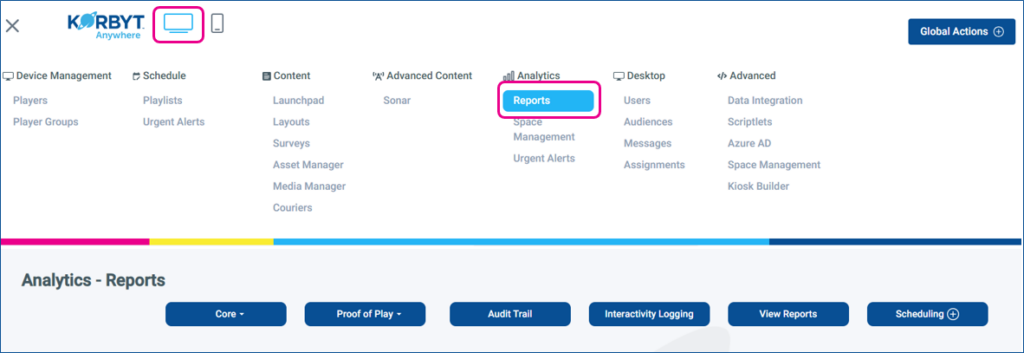
The Report Sections at the top are different report areas you can open
click on the section name below to see more details on that section
Core is a dropdown of specific reports that track different aspects of the system
Audit Trail is a report of all activity by any user
Proof of Play (if subscribed to) is a dropdown of different reports that detail impressions of content that are tracked
Interactivity Logging is specific to Kiosk Interaction Tracking
View Reports is a record of schedule reports that have been generated in the past
Scheduling is where specific report schedules can be created and managed
Core Reports Drop-Down
Use the dropdown to select the specific report you wish to see
Player Inventory
Information on players provisioned to the tenant
Report Information Includes: Player Name, IP Address, Status, Model, AgentVersion, Last Heartbeat, SleepTime, Date Added, and Location
Can be filtered by: Player Name, Model, Status, Street, City, Country, Group
Media Added in Last 30 days
Items that have been imported to the Media Manager in the last 30 days
Report Information Includes: Thumbnail, Media Name & Path, File Type, Added By, Added Date, Tags, Width(px), Height (px)
Can be filtered by: Media Name, Added By, and File Type
Playlist and Player Details
Shows which Players or Player Groups a playlist is being sent to and the content that has been involved
Report Information Includes: Playlist Name, Number of Players, Number of Player Groups, Runtime(sec), Is Dynamic, Entity Type, Name, Model, and Version
Can be filtered by: Group Name, Playlist Count Min or Max, Total Runtime Min or Max, Content Type (Player, Group, or Content)
Tag Usage
Details the content, the tags used on different types of content
Report Information Includes: Tag Name, Created Date, Occurrences
Can be filtered by: Tag Name, Entity Type, Start Date, End Date
Desktop Usage
Shows the users who have logged in from specific audiences within a date range
Has a count of Total Users currently logged in versus licenses subscribed to in the top left
Report Information Includes: Audience Name, Count of Users Logged in during Date Range, Available, and Percentage of Total available licenses
Can be filtered by: Start Date, End Date, Audience Name
Desktop Login History
A record when a specific desktop users who have logged into the Desktop(InView) application
Report Information Includes: User Name, Timestamp UTC, Action, Session Duration(sec), and IP Address
Can be filtered by: Start Date, End Date, User Name
Screen Control
A record of Screen Control Commands that a player has sent to its monitor
Report Information Includes: Player Name, Channel, Command, Status, Description, and Executed
Can be filtered by: Player Name, Start Date, End Date
HDMI-CEC Report
A record of Screen Control Commands that a player has sent to its display specifically through the HDMI control channel
Includes: Player’s Name, Status, Description, and Executed
Can be filtered by: Player Name, Start Date, End Date
Optics Analytics
Optics is a paid feature that uses a webcam attached to a player to see who is present in front of the display
This report details the information about the individuals who are seen by the webcam
Report Information Includes: Detection Time, Detections, Gender, Age, Dwell Time, Content Name, Content Type, Playlist Name, Player Name, and Start Time
Can be filtered by: Content Name, Content Type, Metric, Start Date, End Date
Playlist Feedback
Shows responses to the Playlist Feedback optional survey
This optional setting, which can be turned on for individual playlists, adds a QR code that shows on the screen and solicits feedback
The report has a Summary and Detailed versions
Summary is turned on by default
Summary Report Information Includes: Playlist ID, Playlist Name, Playlist Created Date, and Rating
Can be filtered by: Start Date, End Date, Playlist Name
Detailed Report Information Includes: Playlist ID, Playlist Name, Playlist Created Date, Rating, Feedback Date, Email of respondent, Comments
Can be filtered by: Start Date, End Date, Playlist Name, Feedback Email, Rating
Survey Reports
Captures the responses from the survey built in Korbyt’s Survey Builder system
Report Information Includes: Name, Created Date, and Completions
Can be filtered by: Start Date, End Date
Form-Builder Reports
Captures the responses from forms built in Korbyt’s Form Builder element
Report Information Includes: Form Name, Parent Content Type, Content Name, and Created Date
Can be filtered by: Start Date, End Date
User Productivity
Shows statistics for CMS users on their involvement using the platform
Report Information Includes: User Name, User Groups, Number of Layouts Created, Number of Media Uploaded, and Tags Used
Can be filtered by: Start Date, End Date, User Role
Audit Trail Report
The Audit Trail is a separate category from Core Reports.
This report details user activity in the CSM platform
The default Date Starting and Date Ending window is the last 48 hours and should be adjusted if you are looking for a different time period.
Audit Trail
Report Information Includes: Modification Date, Modified By, Content Type, Content Name, Action, Section, Previous Data, and Modified Data.
Can be filtered by: Content Type, Action, Start Date, End Date, Modified By(User), Section
Proof of Play
Proof of Play is a subscription feature within Korbyt. If you do not have Proof of Play and are interested in subscribing to it, please contact your sales representative.
Proof of Play has to be enabled on the specific items that you wish to track (Images, Videos, Layouts, Playlist)
For detailed instructions on using the Proof of Play feature, please review the article Proof Of Play
Reports available for Proof of Play
Period Report that can be exported
Report Information Includes: Content Name, Content Type, Playlist, Player Details, Duration of Play
Report shows a row of data each time the tracked content gets played
Interactivity Logging
Interactivity Logging is based on Kiosk Navigation that has been programmed to track interaction.
The report is based on the Media Player that is running the kiosk and tracks the elements that are interacted with and which layout pages are shown.
For more information on how to create Kiosk Interactivity Tracking, please review the Kiosk Builder article.
View Reports
This section houses reports that have been generated from within other report sections such as
Scheduled Reports
Proof of Play > ECA Content Views
Proof of Play > Digital Signage Content Views
Scheduling Reports
Allows a user to schedule specific reports to be automatically run at a specific time each day and emailed to the user
Available reports for scheduling include: Player Inventory, Playlist and Player Details, Content Views, Optic Analytics, Quiz Results, Survey Results, Engagement, Audit Trail, Interactivity Monitoring, Media Added in Last 30 Days
To create new schedule reports, you have to click on the plus sign on the Schedule button