Settings in the Content Management System (CMS)
System Wide Controls and Options
Written By Ed Kinne
The Settings screen in the CMS can be opened by clicking on the Gear Icon either at the bottom of the Navbar, or in the upper right if you have the Mega Menu-based navigation.
Only Users who are Administrators and Tenant Administrators can access the CMS Settings
The Setting Screen has several Tabs for different sections along the top

Your specific tabs will depend on the services you have subscribed to
Use the On this page section to the right to select a specific settings section
General tab
From the General tab, the following settings can be configured:
At the top is Tenant Information, such as Company Code for Desktop and Mobile applications, the unique Tenant ID, and service type

Working top left to bottom right
Colors
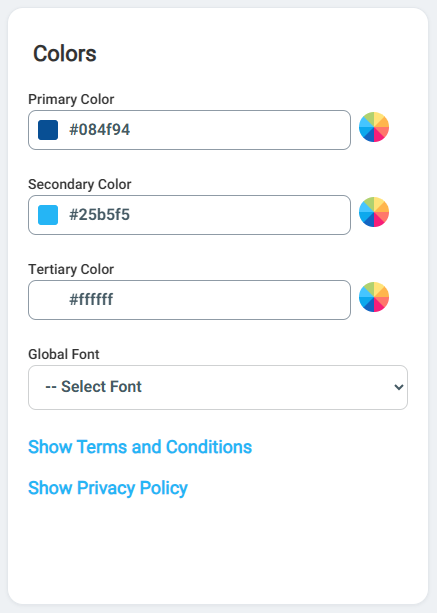
Section | Description |
Colors | The primary, secondary, and tertiary colors for the Desktop(InView) and Mobile & Web experiences
|
Global Font | Sets a Global font for the Mobile & Web Application Experience  |
Show Terms and Conditions | Custom terms and conditions can be added for your organization. |
Show Privacy Policy | Custom privacy policy information can be added for your organization. |
User Email Allowed Domain Names | You can specify which email domains must be used to sign in to the Korbyt Anywhere CMS. |
Logos
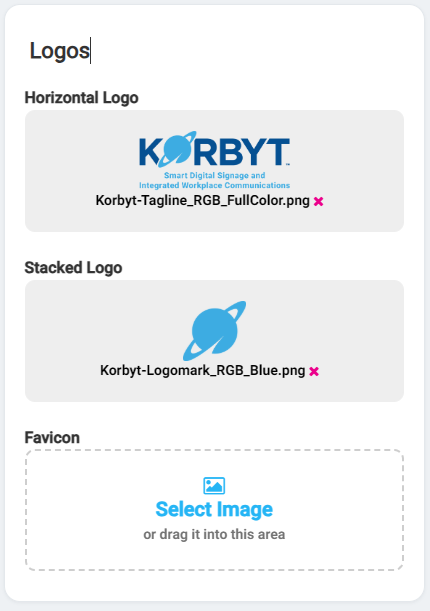
Section | Description |
Horizontal Logo Stacked Logo | Sets Custom Logos that become available in the Builder Tool and that set the brand in the Desktop(InView) and Mobile & Web Experiences For Details on the effect they have, see |
Favicons | This is a space for a custom icon to display in a Favorites or Bookmark browserbar in your broswer, such as this 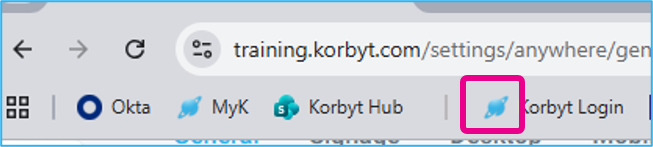 |
Icons
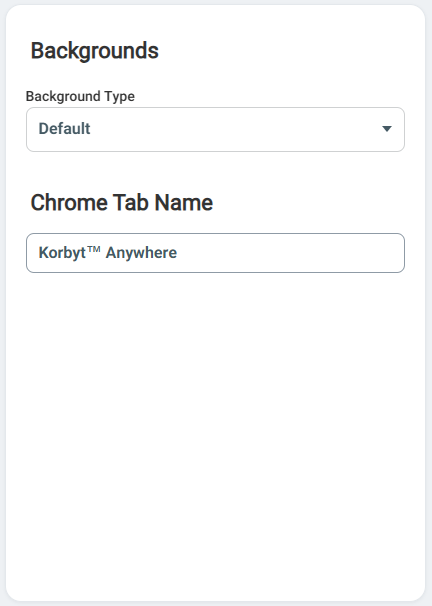
Backgrounds
Global Settings
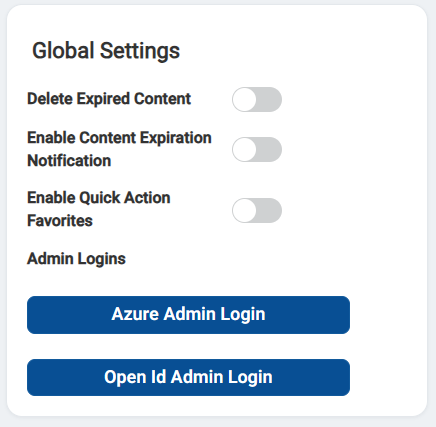
Section | Description |
Delete Expired Content | will remove expired content automatically after it has passed it’s validity date. The content will have at least 1 week of time sitting expired before it is deleted. See Validity Dates for more information |
Enable Content Expiration Notification | If enabled, it will allow notifications to be created for assets such as images and videos within the Media Manager. 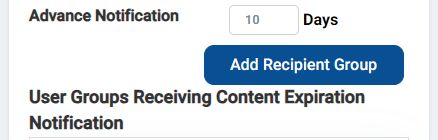 A notification will be sent via email once the asset has expired so that the admin knows when items will start disappearing from their content scheduling., so the admin knows when items will start disappearing from their content schedule |
Enable Quick Action Favorites | Only Applicable to Mega Menu based tenants If enabled, it will allow users to save specific pages to their Global Actions menu with a Star Icon  |
Admin Logins | Used in Configuring specific SSO connections 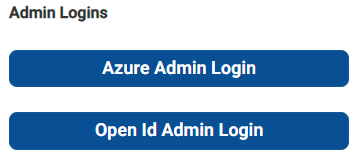 |
Courier Settings
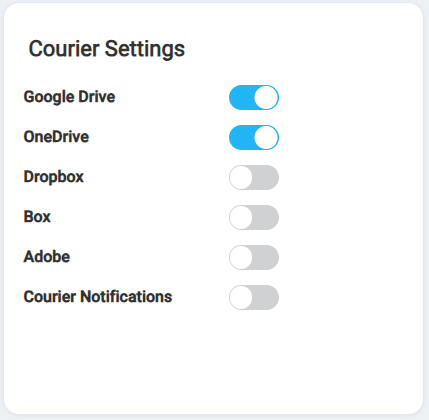
Controls which services users can create couriers to connect to. If the service is not enabled here, it will not be available to others Couriers for Automatic Content Import for more information
Courier Notifications allow user groups to be notified when Couriers change content
User Email Allowed Domain Names
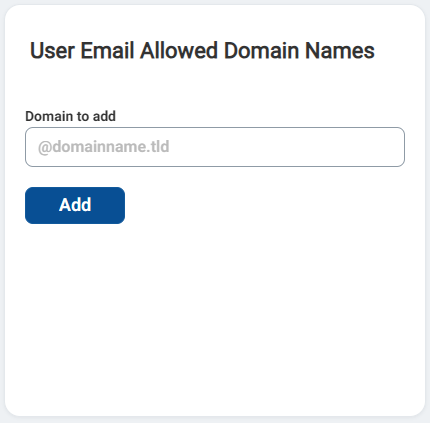
Add specific email domains that can be allowed for CMS users
Allowed IP Ranges for User Logins
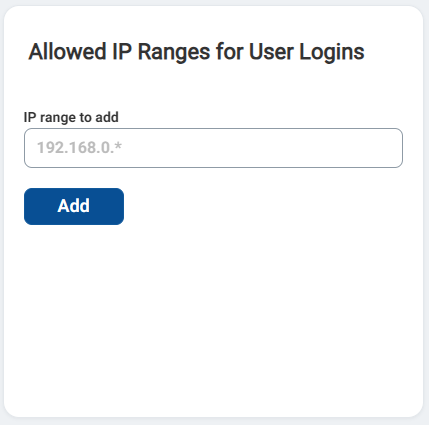
Used to limit which IP addresses users can log in from.
Multiple IP addresses can be added by entering each individually and clicking the Add button
Password Reset Template Settings
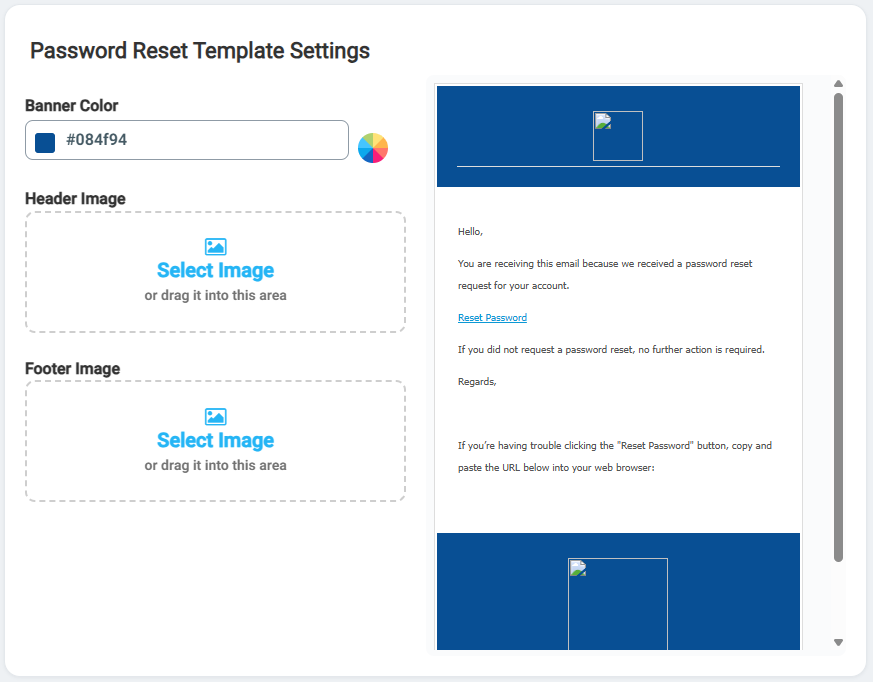
Allows you to customize the email sent when a user requests a password reset.
Can set header and footer color and images
Signage Tab
From the Signage tab, the following settings can be configured:
Some controls only become available when another option is turned on.
Some options have to be requested from Support to be enabled on the tenant
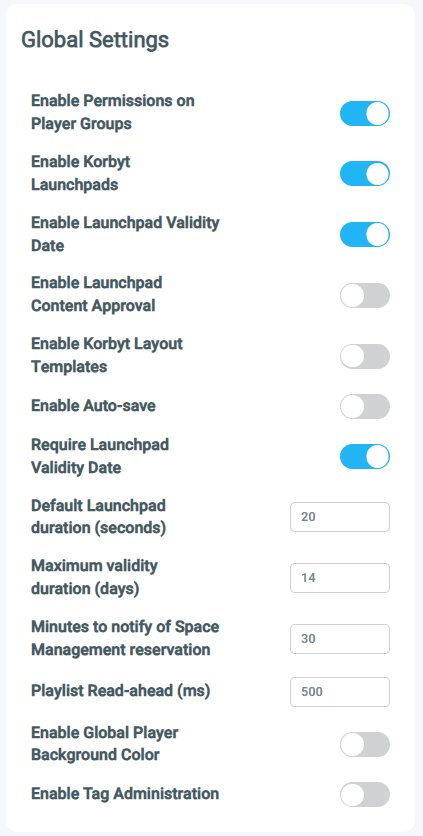
Global Signage Settings
Section | Description |
Enable Permissions on Player Groups | Allow player groups to set access to only specific user groups Player Groups and Access Permissions , for more info |
Enable Korbyt Launchpads | Shows the provided Korbyt Launchpad designs If turned off, users will only have access to your custom launchpads |
Enable Launchpad Validity Date | Allows the setting of Validity Dates during the Launchpad Publishing process. : Sets a maximum number of days users can set when creating a Launchpad with Validity Dates Only available if Require Launchpad Validity is turned onAllows |
Enable Launchpad Content Approval | This is an optional configuration for your service that you can request from Support@Korbyt.com. When enabled, Content Authors and Launchpad Only users will have to request approval for their Launchpad submissions. |
Require Launchpad Validity Date | Only becomes visible if Enable Launchpad Validity Date is turned on Mandates that a launchpad playback start and end time be set in the publishing process |
Maximum Validity Duration(Days) | Only becomes visible if Require Launchpad Validity Date is turned on Sets a maximum number of days users can set when creating a Launchpad with Validity Dates |
Enable Korbyt Templates | Shows the provided Korbyt Layout Template Designs when creating a new Layout If turned off, users will only have access to Blank and your custom Templates |
Enable Auto-save | Turns on a feature that will automatically save work in Korbyt If turned on, you set the number of minutes between autosaves |
Default Launchpad Duration (seconds) | sets the number of seconds a Launchpad shows for when it creates its new Playlist |
Minutes to notify of Space Management reservation | Sets the number of minutes before the user who reserved a space can be notified about their upcoming reservation. |
Enable Global Player Background Color | Sets a default background color for all players. This is the color that will show when there is no content in that area of the screen |
Enable Tag Administration | Enable Tag Administration: If turned on, it will allow administrators to set which tags are available in Korbyt rather than them being typed in After turning on, click Save in the upper right to have the Manage button appear 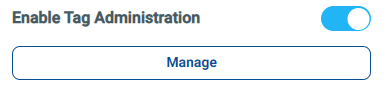 After clicking Manage, you can add or remove tags 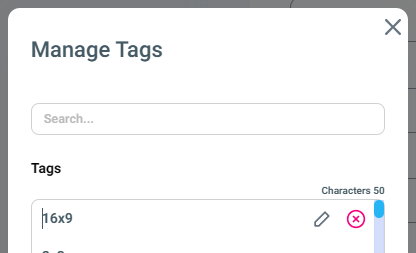 For more details, see Tagging In Korbyt |
Player Location Map
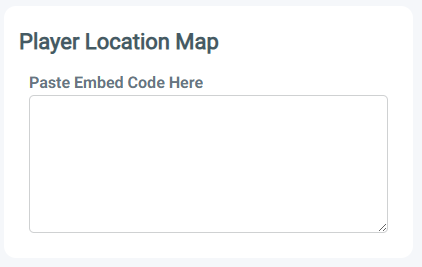
A custom map to specify the player location can be added using embed code.
Left blank, the default mapping through ArcGIS will be used to show player location based on the latitude and longitude in the player settings
ChromeOS Integration

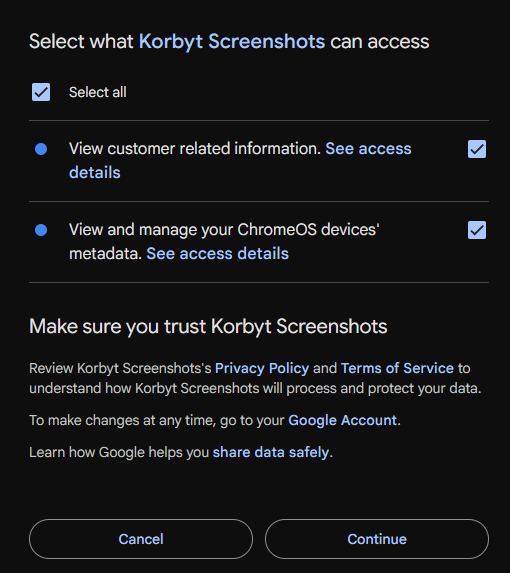
Used to connect Korbyt to ChromeOS Devices.
You will be asked to authenticate your Google account and give it permission to access your information
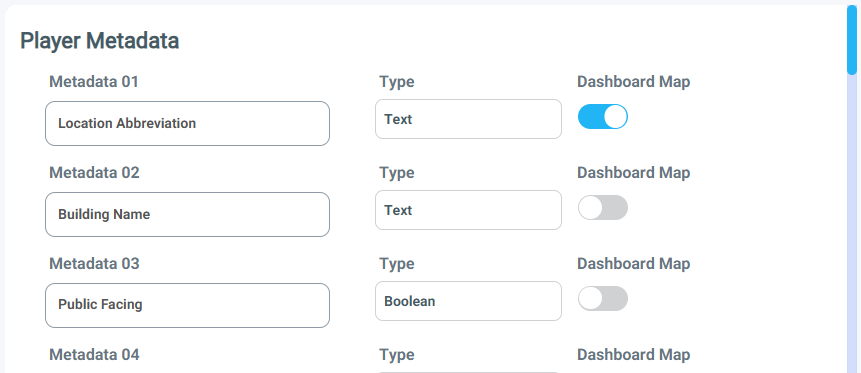
Player Metadata
Section | Description |
Metadata Field Name | Specifies the name of the metadata field. Typically labels are used for dynamic player groups or for dynamic content assignment. Users will typically use metadata to identify individual players by their location or what content they are showing. For More information see Player Settings - Controlling and Configuring Media Players in the CMS |
Type | Allows for easier value input for the user updating the player metadata. The type can be text, numbers, boolean values, or a lookup. 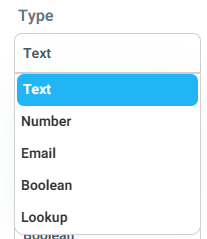 |
Dashboard Map | Once enabled, a user can highlight a player pin on the map so that this field can display as one of the quick info fields on the modal. 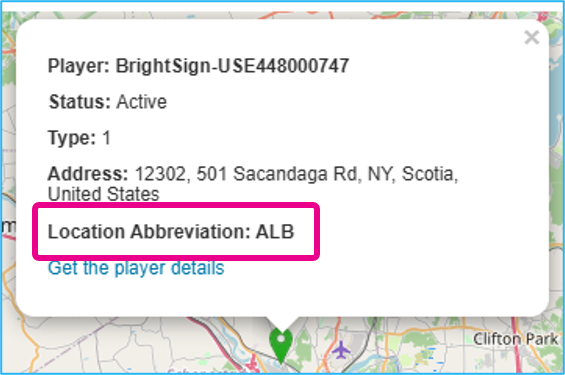 |
Desktop
From the Desktop tab, a variety of settings can be set to control which icons/buttons will appear in the upper left of the Korbyt Anywhere web interface, as well as what will appear in the system tray of the end user’s taskbar.
For More details on the effect of these settings, see Desktop (InView) Application Settings
Mobile & Web
From the Mobile & Web tab, the following settings can be configured:
Global Mobile & Web Settings
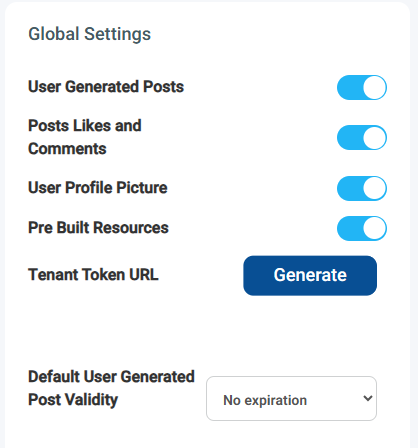
Section | Description |
User Generated Posts | Allows users to create posts. |
Posts Likes and Comments | Allows users to add likes and comments to posts. |
User Profile Picture | Allows users to add profile pictures to their Korbyt Anywhere account. |
Pre-Built Resources | Allows users to add directory and space management resources to the Korbyt Anywhere mobile app and web interface. |
Tenant Token URL | Allows admins to send a direct URL to new users so that they can easily log in to the Korbyt Anywhere platform for the first time without having to enter a company code. |
Default User-Generated Post Validity | Allows for the setting of a default expiration for End User-created content to expire and stop being shown. 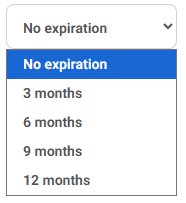 Individual Posts can have their own validity dates set. |
User Attributes
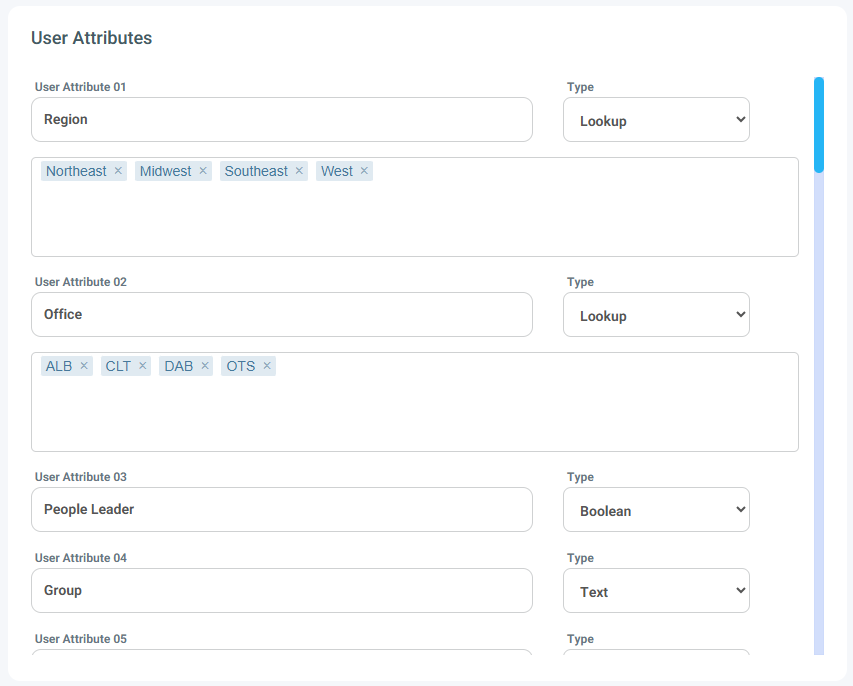
Custom attributes that can be used for end-user management across the Mobile&Web and Desktop Applications
If you do not subscribe to Mobile&Web these Attributes will be found in the General tab.
For more details, see Managing End Users for Desktop(InView) / Mobile&Web
User Registration Settings
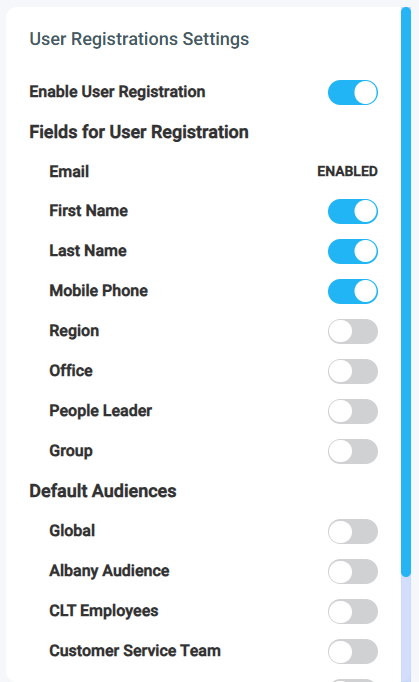
Enabling this option will allow End Users to self-register through to the service
Specific fields can be set to be required to be filled in
Default Audiences can be selected to add them to when self-registering
Audiences available will be based on your audience settings
Urgent Alerts

The Enable Urgent Alert Responses toggle can be enabled to respond to urgent alerts. Recipients of these responses can be specified.
User Generated Content Reports

The Enable UGC Reports toggle can be enabled to report user-generated content, such as posts and comments. You can specify who can receive these reports.
New Registration Approvals

The Require Registration Approval toggle can be enabled to ensure that new user registrations are approved before new users can be active in the system. You can specify who can receive new user registration notifications.
SSO Attribute Mapping

Allows you to set specific SSO characteristics to be mapped to Korbyt User Attributes
Delivery
From the Delivery tab, you can set a variety of settings for your delivery channels such as email, SMS, Twitter, phone (text-to-voice), Slack, intranet, and Teams. These settings must be configured before any communications can be sent via these channels. Currently, urgent alerts are the only form of communication that can be sent via these delivery channels.
Couriers
From the Couriers tab, you can set courier rules that will sync with a folder on the cloud or on an on-premise server. Once these courier rules are set up, content will be automatically added or removed from your Media Library without ever having to log into the Korbyt Anywhere platform.
For more information about how to set up a courier rule, refer to Couriers for Automatic Content Import
Predefined Layouts
From the Predefined Layouts tab, the following settings can be configured that will affect the behavior and flow of items that are Web Submitted through the Predefined Layout Templates
Screen Control
From the Screen Control tab, you can configure various screen control commands, such as on, off, mute, and unmute, for corresponding media players that support them.
These commands then become available in the Player Setting Screen
Email Campaigns
From the Email Campaigns tab, you can configure a variety of email attributes that will be auto-populated when creating new emails such as social media links, dynamic substitution values, and physical addresses.
For More details on how these are used, see Mobile & Web Email Campaigns
Event Managers
For integration with the Korbyt Events and Booking systems
Developer
For use with the Korbyt API Catalog
Downloads
From this screen you can download Korbyt Software that is related to your solution, such as Player Software and Desktop(InView) Client software