Ways To Preview Signage Content In The Korbyt CMS
The Korbyt CMS provides several places to preview content. These previews open in a new window and begin to play the content you selected.
Written By Ed Kinne
This article reviews those places where you can preview your signage content and any limitations that previewing from there may have.
As a note, this article reviews previewing content in the CMS which is not a live view of what is currently being presented on a screen at that second.
The Preview fuction in the CMS is also limited to content that is available to the CMS. Any data or content that is restricted an only available to the player itself (a HDMI Input, Encoded Video Stream, or Network Protected Data as examples) will not preview in the CMS
Youc an navigate to a specific preview type using the On this page section to the right
General Preview Playback Settings
Features that are present in all previes
Anywhere you find the preview eyeball icon you can click it to open a preview window

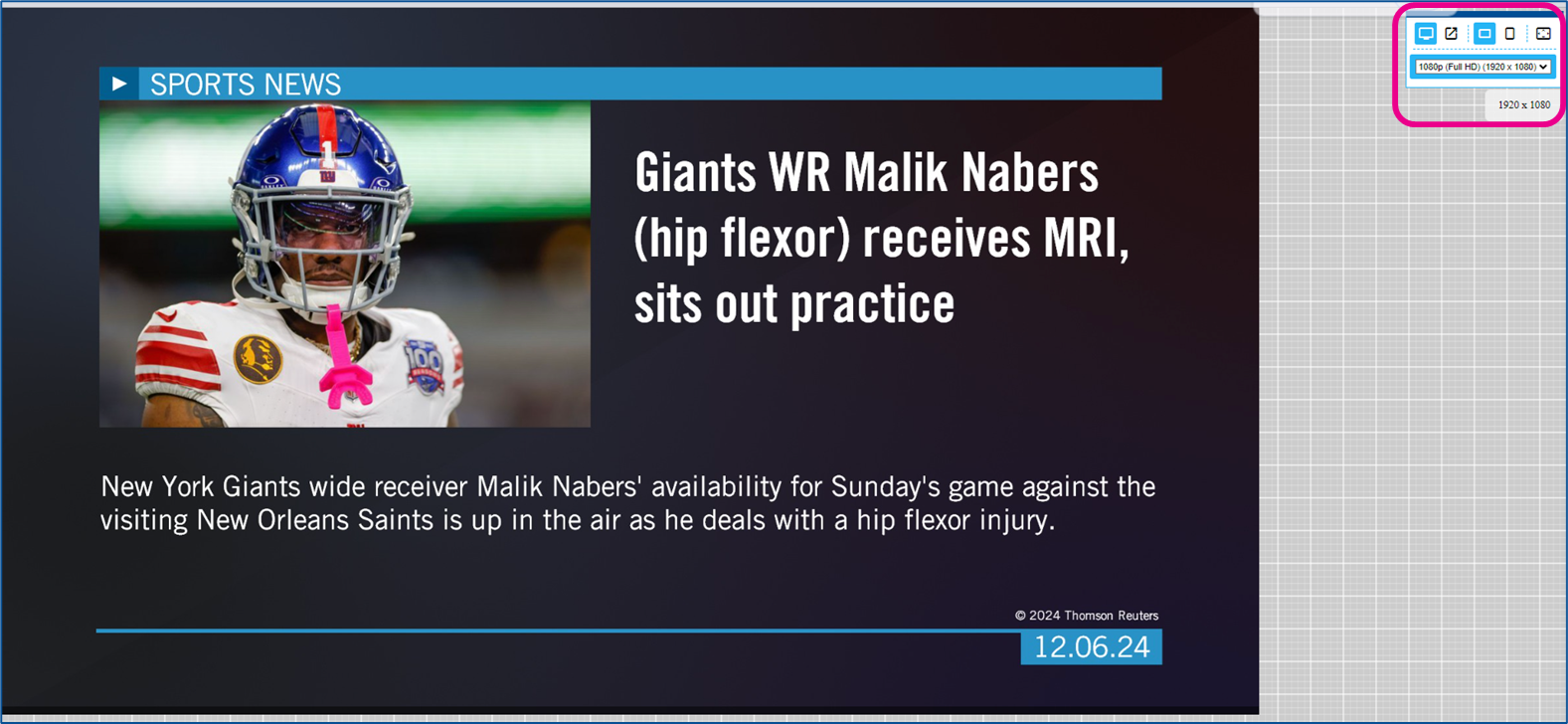
In the upper right-hand corner of the preview, there are screen controls
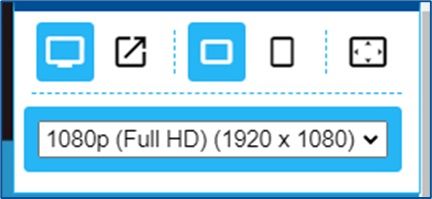
Use these controls to make your preview window mirror your final screen size and shape.
In general, because the preview window is not tied to specific hardware, the preview window will start in an HD Landscape shape
Interactivity, if present in the desig,n will be available using your computer keyboard, mouse, or touchscreen
General Limits that affect all Preview Options
Local content does not stream back to the CMS
Any content that is only available to the device will not be able to be previewed
HDMI Input on the device
Locally encoded video stream
Or data that is only available through the device’s local network and blocked from outside networks
This is typically due to data security or media copyright
This preview uses your web browser’s local time
Any time elements or time-limited content will use your browser information to display
Previews respect Validity Date limits
If a piece of content has a validity date limit present, that would stop its playback, that will stop its preview as well
If previewing a collection of content, the playback starts from the beginning of the content every time the preview is started
Preview from the Player Screen
On the Players Screen, each player has the preview eyeball which will open the preview window

Clicking the Eyeball opens a new browser tab for the preview
Previewing from the Player will begin playback of all content assigned to the player and is currently scheduled
All playlists assigned to the player or its player group
They are played back in order, and following the instructions that each playlist has
Limits of Player Preview
See the list of General Limits as there are no limits that specifically apply to the Player preview
Preview from the Playlist
On the Playlist Screen, each playlist has its own preview eyeball

Each playlist would be previewed individually
Clicking the Eyeball opens a new browser tab for the preview
Limits of Playlist Preview
In addition to the General Preview limits listed above
Playlist preview does not follow any instructions based on Player Metadata because that information is not available at the Playlist Level
Any Clever Rules triggered by Player Metadata such as Room, Address, etc. will be skipped
Any data displays that filter based on Player Metadata will show blank data
These limits can be overcome by previewing at the Player Level
Preview from the Layout List
On the Layout Screen, each Published Layout has its own preview eyeball
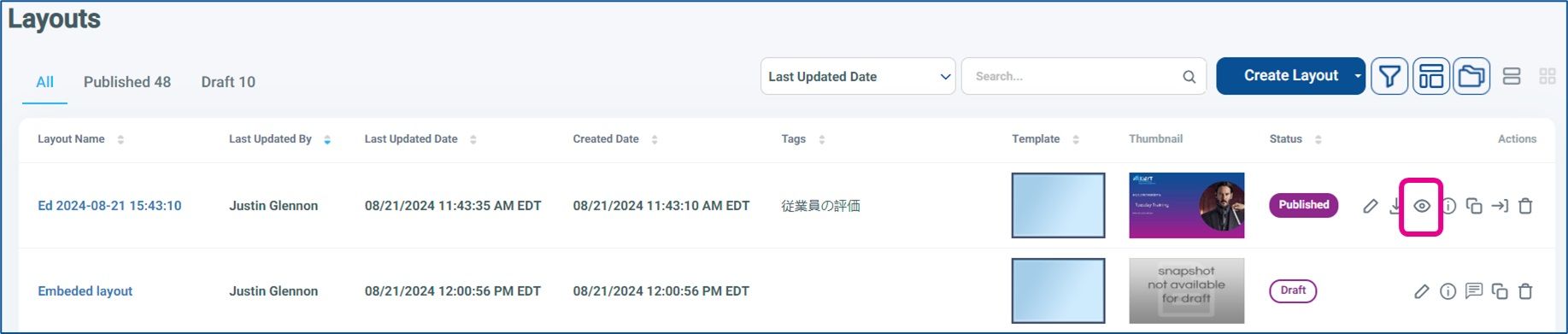
Layouts that are in Draft status do not have the preview eyeball
Clicking the Eyeball opens a new browser tab for the preview
This will begin a preview of the single Layout and all embedded elements
If a Playlist Element is embedded, it will be included in the preview
Limits of Previewing from the Layout List
In addition to the General Limits listed above
Layout preview does not follow any instructions based on Player Metadata because that information is not available at the Layout Level
Any data displays that filter based on Player Metadata will show blank data
Embedded Playlist items that Player Metadata controls will be skipped
These limits can be overcome by previewing at the Player Level
Preview from within the Layout Builder Tool
When in the Layout Builder editing a design, there is a preview eyeball icon at the top of the Control Panel
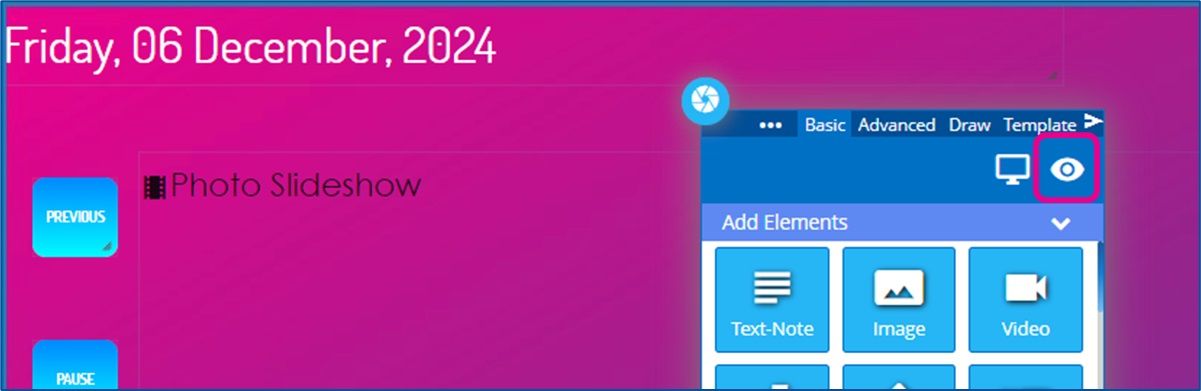
Unlike other preview options, this open creates a popup window that will float over the full builder screen
Limits of Preview in the Layout Builder Tool
In addition to the General Limits listed above
Builder preview does not follow any instructions based on Player Metadata because that information is not available at the Layout Level
Any data displays that filter based on Player Metadata will show blank data
Embedded Playlist Elements will not play because this requires too much processing while in the builder tool itself
The Playlist element will display the film strip icon and the name of the playlist (Phot Slideshow in the above image)
To preview an embedded playlist playing, publish the Layout and preview from the Layout List
Other Remote Viewing Options
Player Screenshot
You may be able to see a captured screenshot of the player’s HDMI output
This ability depends on the specific player hardware supporting it
You also have to be an Administrator or Tenant Administrator in Korbyt
For more details, see Player Settings - Controlling and Configuring Media Players in the CMS and the Screenshot section
Player Configuration Page
Your player hardware may support a remote configuration page that has a live view or screenshot
Typically, these are accessed by logging directly into the player by opening a web browser to the device’s IP address
You have to be on the same network (physically or VPN) as the device
The devices typically have an admin username and password
For more details on Korbyt Device Configuration KDA Player Configuration Page
Third-party device management software
Your hardware may have a native third-party remote device management software
Such as Brightsign BSN Cloud Access
Or your organization may have remote access to devices on the network
Windows Team Viewer or similar