Side Navbar CMS Navigation
This article reviews the new Side Navbar available for the Korbty CMS
Written By Ed Kinne
The Side Navbar is an option for the Korbyt CMS that replaces the standard Mega Menu drop-down and other top navigation icons with an expandable Side Navbar.
If you would like to enable the Side Navbar in your tenant, please see the Enabling the Side Navbar section at the end of this article
Using the Side Navbar
Expanded or Collapsed Views
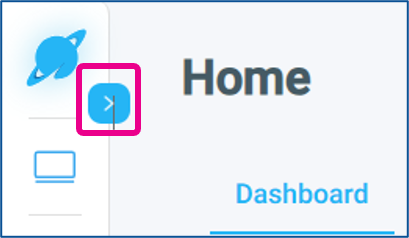
The Navbar can be expanded to show the full names of the sections by clicking the arrow at the top
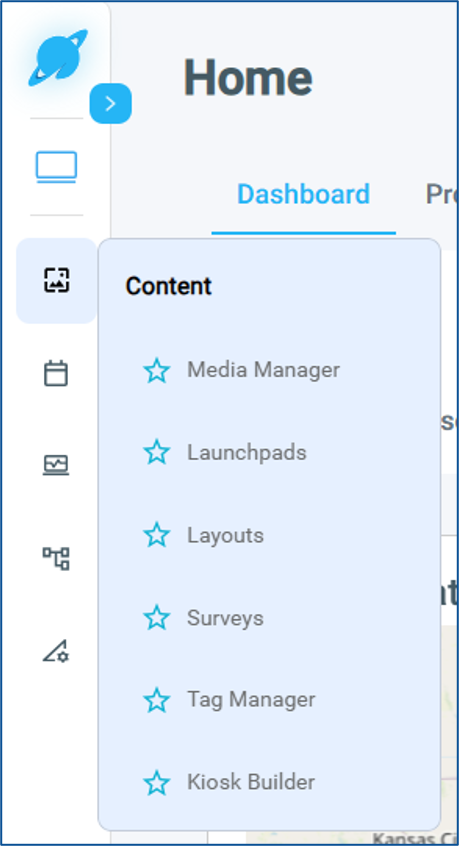
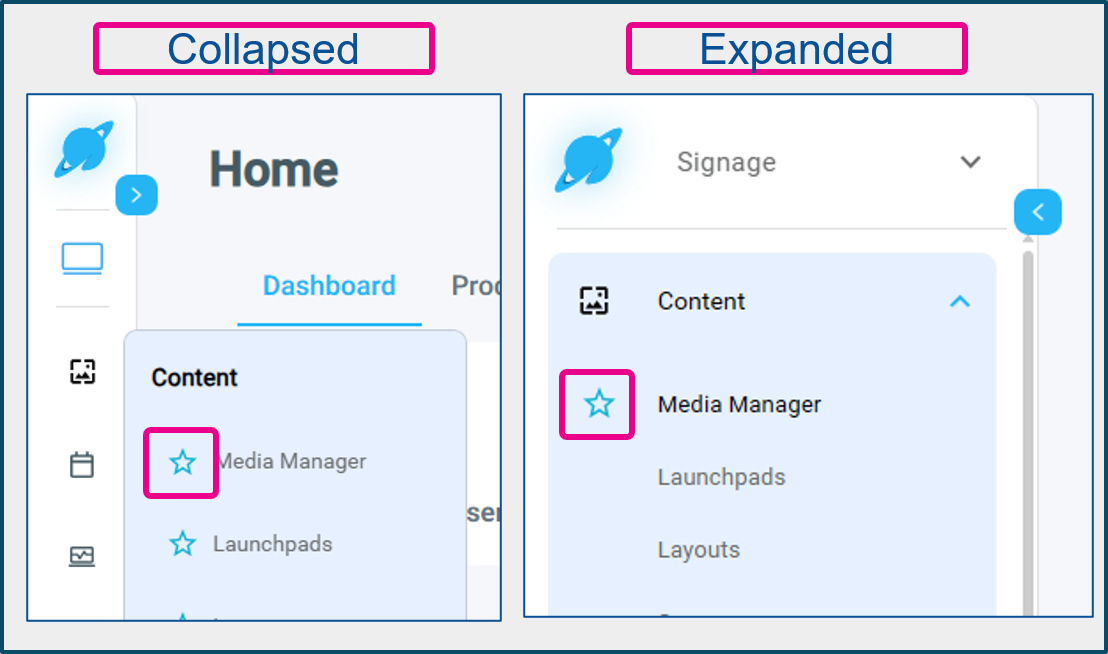
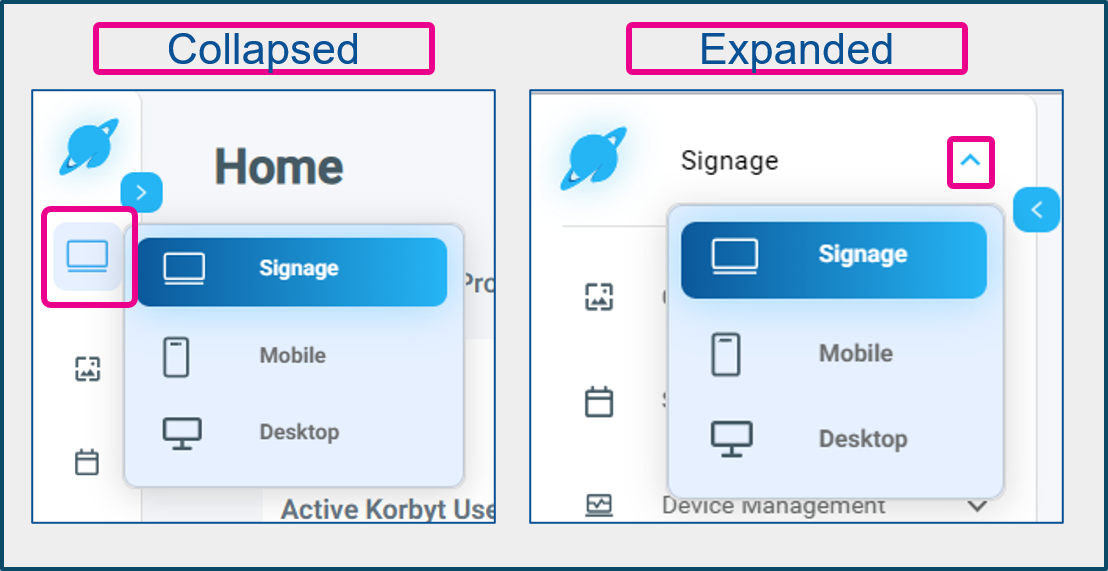
In Collapsed View, hovering over a Section Icon will create a flyout menu of the items inside
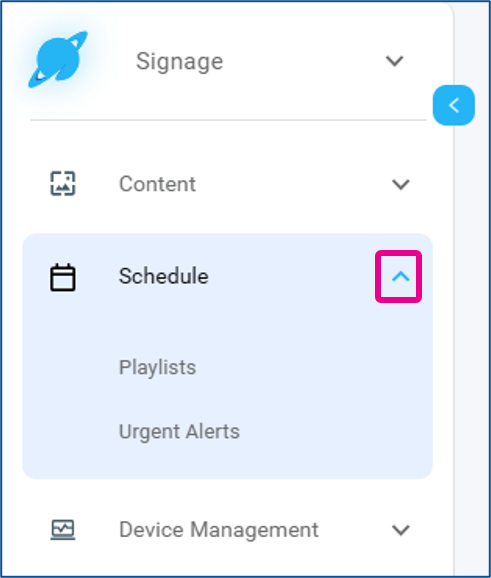
In Expanded View, a dropdown arrow is shown that will expand the options included in that section
Returning to the Dashboard
Clicking on the Korbyt Logo in the top left will return you to the Dashboard
Favorites
The new menu allows you to save favorites that will appear at the top of the menu
Setting a Favorite
To set a favorite, click the empty star icon next to a menu item you want to favorite. In the expanded menu, the empty starts only appear when your cursor is on the menu item.
Using Favorites
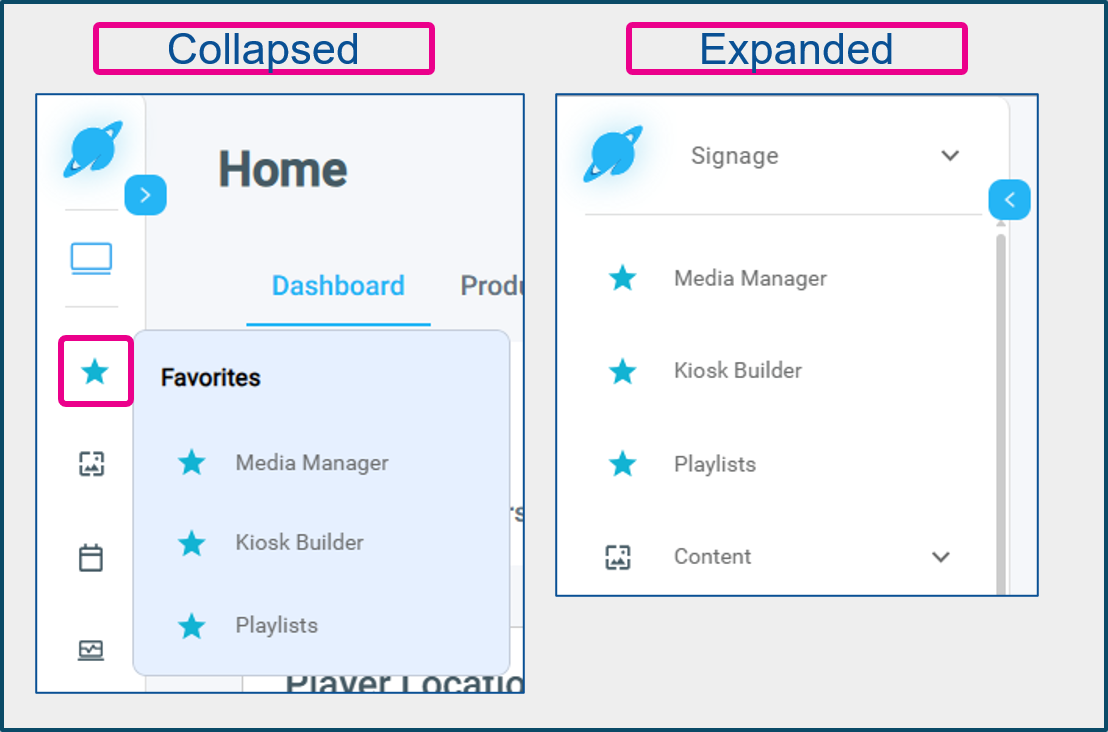
Items you have favorited will appear in the Favorites category when collapsed, or individually when expanded.
Removing Favorites
To remove a favorite, click the start icon again. This can be done in the individual sections or from the Favorites section.
Product-Specific Navbar Sections
If you subscribe to multiple Korbyt products, Signage, Mobile, and/or Booking, you will first select the product line you are controlling at the top of the Navbar
The options available at the top of the Navbar change based on the product line that you have selected and the services you have subscribed to.
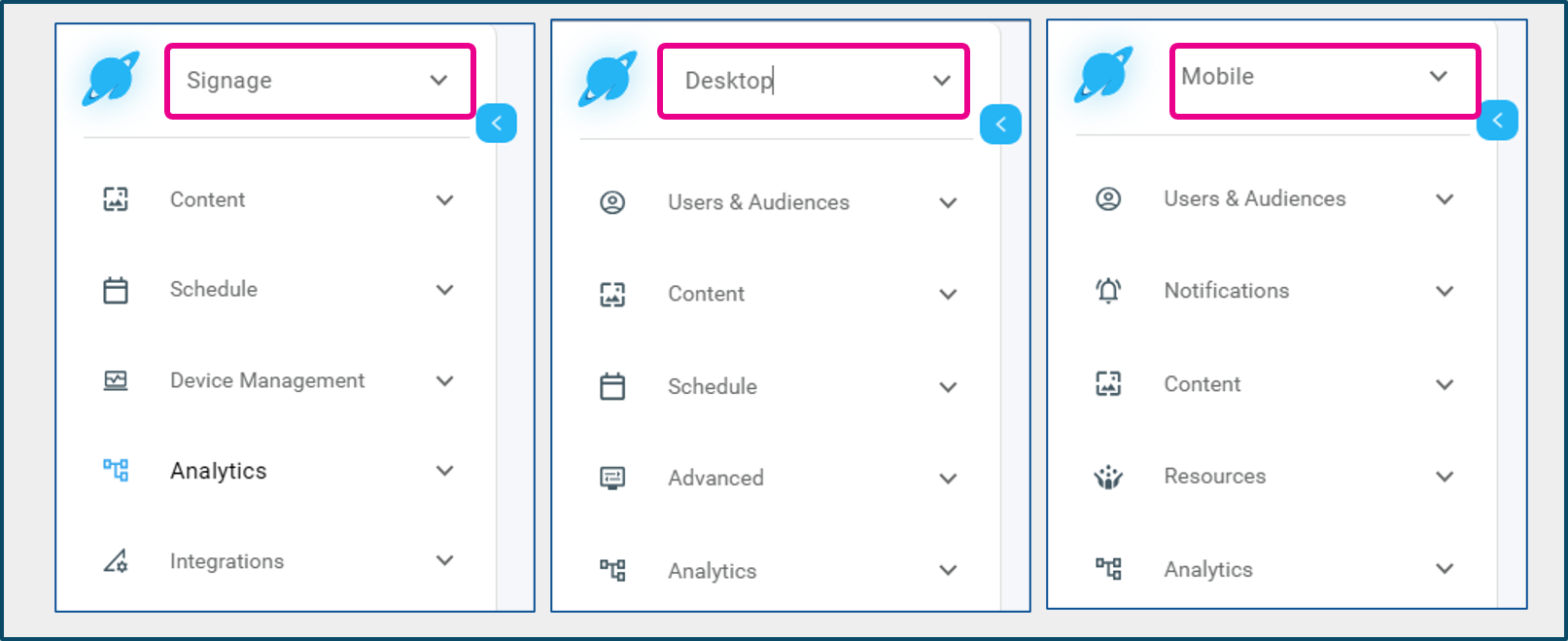
To see a list of Sections and Options for each service, expand the sections below
Footer Section
The footer section contains options that are not product-specific
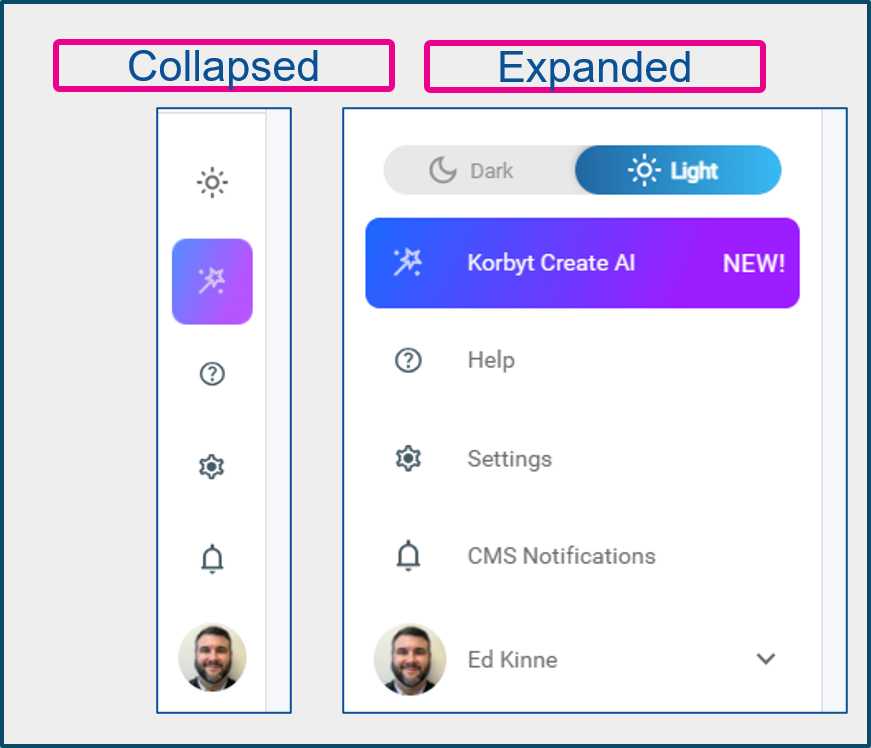
Light / Dark Mode Selector
Sets the theme for the sidebar
Korbyt CreateAI
If enabled, this is a quick link to the new Korbyt CreateAI system
Help
Links to our Knowledge Base for self-help articles
CMS Notifications
Which houses different messages that content managers and moderators may have received through the system
User Profile and User Management
Individual users can manage their profiles
Administrators and Tenant Administrators can select to manage other users
Enabling the Side Navbar
Your tenant can either have the traditional Mega Menu and top icons or the new Side Navbar.
This will affect all users in your tenant
To have the Side Navbar turned on for your system, please contact Product@Korbyt.com