Booking Admin- Legends
Controling the color coding and descriptions of time blocks on the Calendar
Written By Ed Kinne
Last updated 7 days ago
Legends are a collection of statuses that display on the diary (calendar) to show the status of a booking. Status colors are configured in this section. To view all status colors, go to the Calendar, then select Legend.
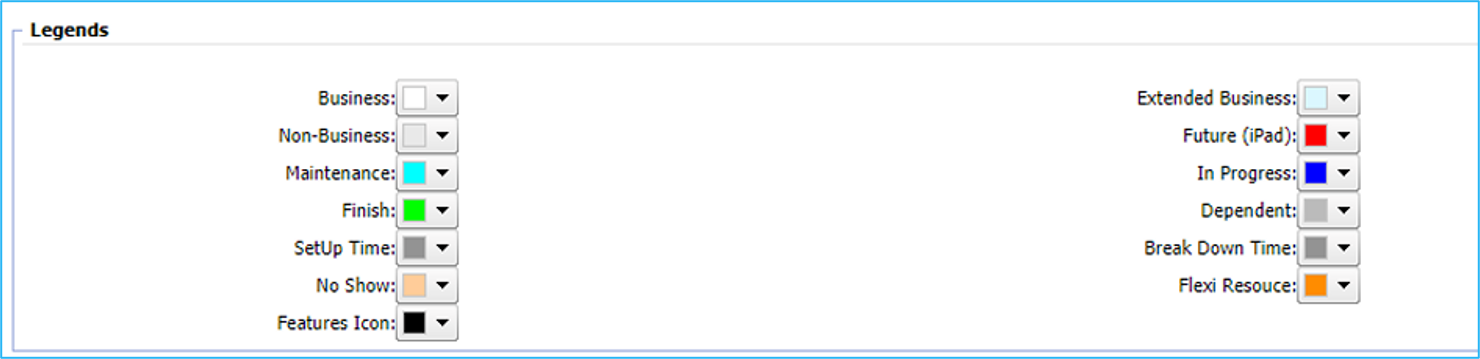
Business and Non-Business Hours:
These colors differentiate the booking hours.
To set the hours, go to the Business Rule Settings section.
Extended Business Hours:
This color indicates the Extended Business hours.
To set the hours, go to the Business Rule Settings section.
Setup and Breakdown Times:
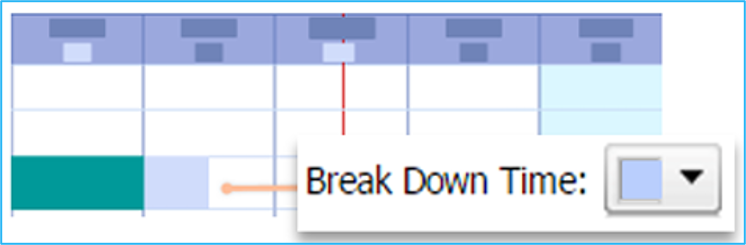
These colors display on the calendar before the start time and after the end time of a booking.
Colors will appear if a setup/breakdown time is entered manually for a booking resource or service.
They automatically appear for any booking that is made with a resource or service that has been configured with a setup/breakdown time.
NOTE: On iPad, the color for Future is hardcoded to be red
Dependent: The Dependent Status is used for multi-resource or combination rooms.
When a booking is made in a room that is part of a multi-resource/combo room, all other rooms are blocked out.
This color identifies the status of the dependent rooms on the calendar
Meeting Statuses
The In Progress, Finished, and No Show statuses are meant to give service departments statuses that show when they can start putting out or retrieving booked services.
In Progress:
When a booking is set to In Progress via the web app, the In Progress color will display.
The In Progress color will also display when a user checks in for a meeting using the iPad application.
Finished:
Making the Meeting Status Finished on a booking made from the web app will change its color and end the meeting at that time.
For meetings made from a panel, it will change the Booking Status to Canceled because they are likely made ad hoc.
Though it will only change the Meeting Status to Finished if the Auto Release Timeout is triggered.
No Show:
The No Show status is unique in that it will change the Booking status to Canceled (by default).
The status it changes is set in the Default Settings section.
Features Icon
This affects the color of all feature icons displayed on the diary (calendar).
Flexi Resource
Indicates the availability of Flexible Resource spaces. The color appears as a block each hour the resource is unavailable.
Was this helpful?
Still need help? Share an idea