Booking Admin - New Booking Diary
Setting and Controlling the new Booking Diary View
Written By Ed Kinne
Last updated 7 days ago
The New Booking Diary is a redesigned calendar view introduced in V9.9. It gives you a clear, unified picture of all your resources across multiple floors and locations in a single scrollable screen, with faster booking actions and a personalized experience that remembers your preferences.
Note: The New Booking Diary can be enabled or disabled by your administrator. If you do not see it, contact your system administrator to request access.
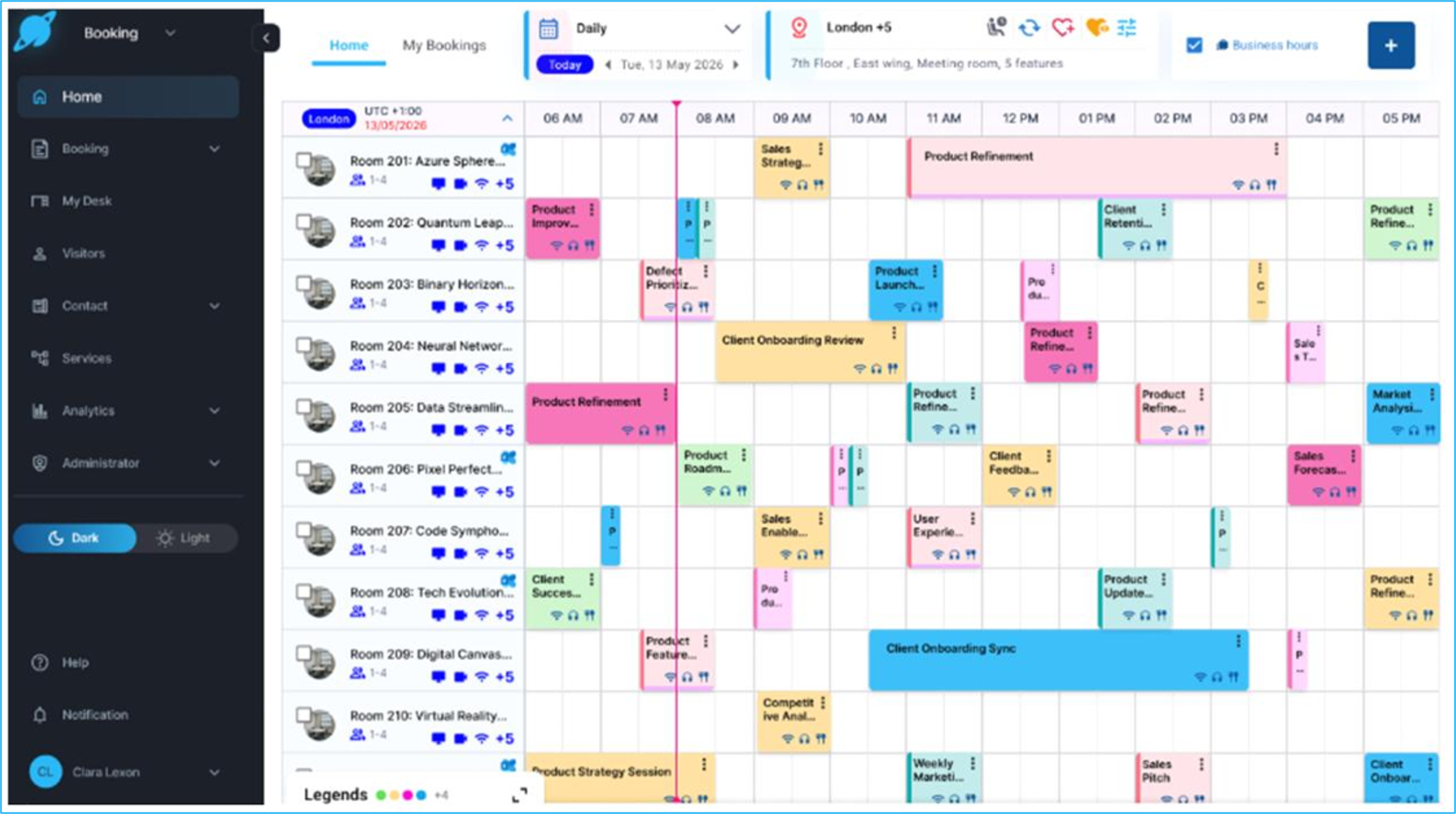
Enabling the New Booking Diary
The New Booking Diary is enabled using a feature flag in Global Settings.
Administration > Settings > Global Settings > Default Settings
Locate the New Booking Diary
Set the button to ‘Yes’ • Click Save.
Users will see the New Booking Diary on their next session.
Resource Thumbnails
The New Booking Diary displays a thumbnail image for each resource in the resource list panel on the left-hand side of the screen. Images are configured individually per resource in Resource Management.
Administration > Resource Management > Resources > [select resource] > Resource Details > Images.
Upload up to five images per resource.
The first image is used as the thumbnail in the diary.
Recommended image dimensions: 900 × 600 pixels.
Maximum file size: 200 KB.
If no image is uploaded for a resource, a default icon is displayed in its place.
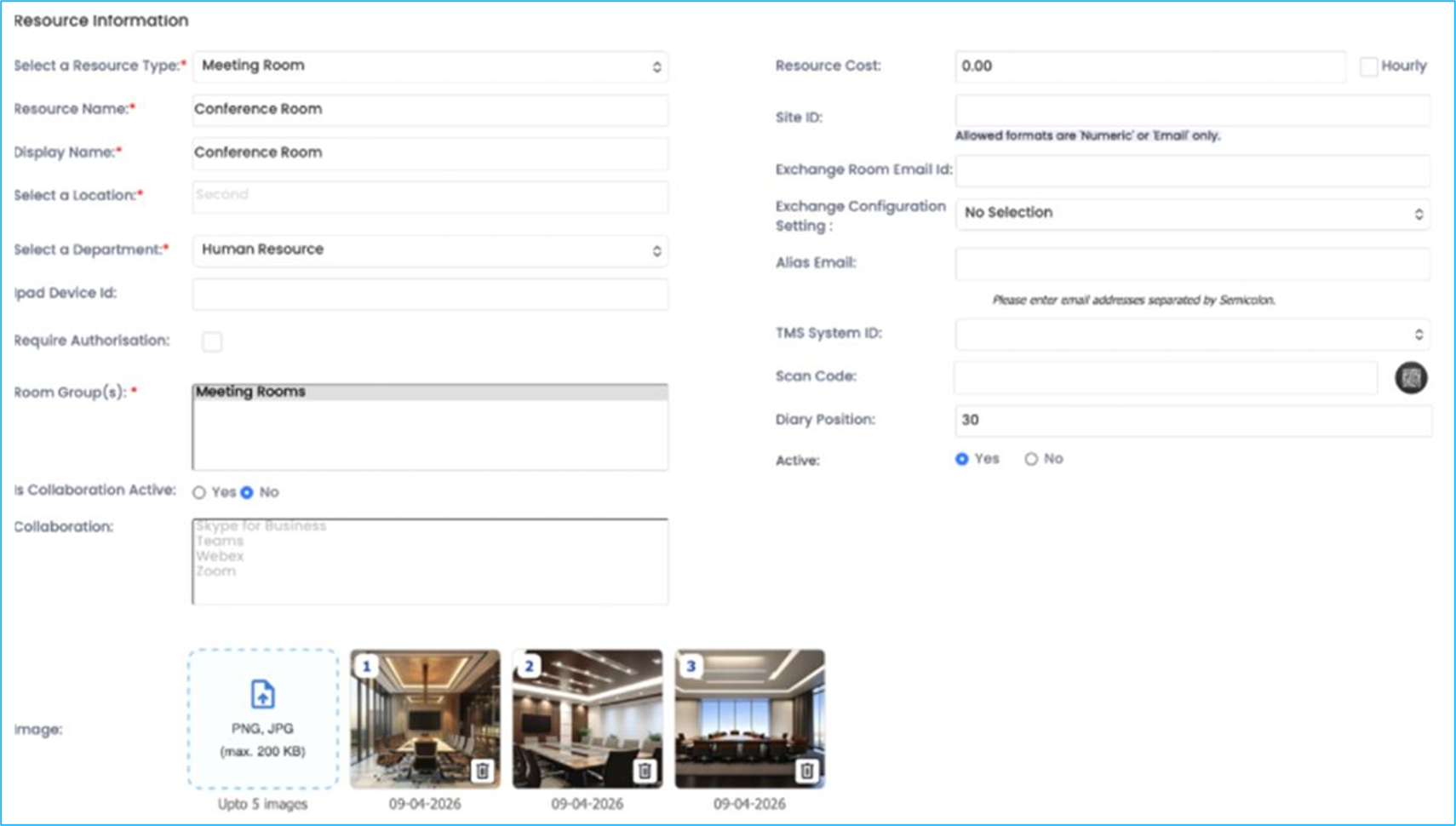
NOTE: Resource images were introduced in V9.8. From V9.8.1 onwards, images display as a carousel in the resource detail panel when a user selects a resource. In the New Booking Diary the first image is used as the thumbnail.
New Booking Diary - Settings Reference
The following table summarizes all administrator-configurable settings related to the New Booking Diary and where to find them.
Using the New Booking Diary
For information on using the New Booking Diary, please see the article Booking New Diary View in the Booking User Guides Section
Was this helpful?
Still need help? Share an idea