Booking Admin - Resource Management
Managing booking items (Rooms, Services and More)
Written By Ed Kinne
Last updated 7 days ago
A Resource represents all bookable items, such as a room or a service, and is created for each individual property.
This means duplicates may exist across multiple properties. For example, numbered parking spaces or Tea & Coffee. All resources are assigned to a Property, Department, Resource Type, and a Resource Security Group.
Creating Resource Types
Resource types function as a category to group resources that share similar features or functions. Different options will appear as you complete the process.
Start by going to Administration > Resource Management > Resource Type > Add New Resource Type button.
Creating Service (Addon) Resource Type
Enter the Resource Type Name and Description (e.g., Facilities). The Image function is no longer in use.
In Addons, select Yes for service. A list of the Category Items will appear. Select all that apply.
Services are then assigned to a category during creation.
Set Flexible Desk (Reverse Hoteling) Management to No.
Click No in Allow Layout. • Set Allow Participants to No.
Set Allow use in New Booking Search for each interface.
Set to No for service unless there are or will be Global Services under this Resource Type.
Click Save or Save & Add More Features to add a setup and breakdown time.
Creating a Room or Desk Resource Type
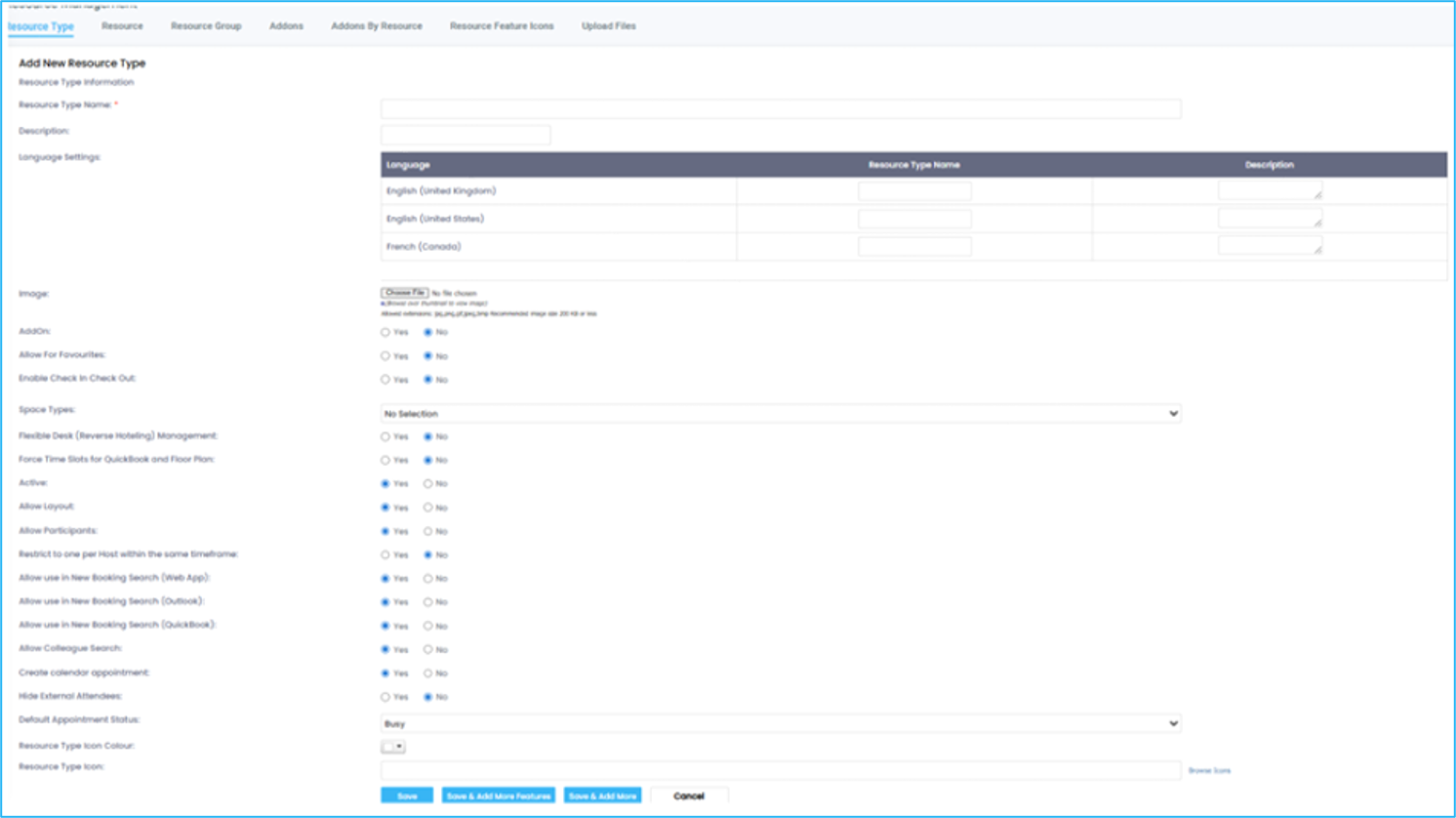
Enter the Resource Type Name and Description (e.g., Conference Rooms, Car Park Space, Office Desk). The Image function is no longer in use.
In Addons, select No for a room or other space.
A list of Space Types will appear.
Select the Space Type.
Set Flexible Desk (Reverse Hoteling) Management to
Yes if this resource type will be used for hoteling
Otherwise select No.
Click Yes in Allow Layout for rooms and spaces.
Setting allow layout to No for room Resource Types causes visibility complications for room resources in the system.
Set Allow Participants to Yes if the Resource Type allows Participants.
Allow Participants determines whether attendees can be assigned to a resource.
Set Allow use in New Booking Search for each interface.
When Allow use in New Booking Search is set to Yes, the Resource Type will be searchable in each UI.
This is how Resource Types are restricted by interface type.
Set Create Calendar Appointment to Yes.
Select Busy for Default Appointment Status.
Unless a Flexible desk, then select Free.
Click Save & Edit More Features.
Note: For resource types with Fixed Time Slots enabled, the admin-configured default for "Display as banner in Outlook" is set under Administration > Settings > Global Settings > Default > Booking behavior / admin defaults.
See the Global Settings article for full configuration steps.
Adding Required Features
There are two required features for Resource Types: Setup/Breakdown Time and Participants.
When creating a New Resource Type: From the Resource Type Screen> Click Save & Edit Features
Go to the Setup/Breakdown Time tab.
Enter the most common setup/breakdown times for this Resource Type.
Click Save.
To edit existing Resource Types, click Add/Edit from the list.
Click the Add/Edit link for the Resource Type.
Go to the Covers tab to add the participants feature.
Enter on the left the Default Minimum and Default Maximum.
Set the Attribute Order (the order features will show when making rooms).
Click Save.
Click the Add/Edit link for the Resource Type. Select Covers.
On the right side, click Add New Record and select a Layout from the dropdown list.
Complete the information for each layout.
Click Finish.
Reopen the Resource Type.
Select the default layout.
Click Save.
Adding Optional Features
Features are used to define the characteristics of a Resource Type. For example, a meeting room may have a built-in projector, wireless connection, PC, etc. These features are configured for each Resource Type and are used as search filters when making a booking.
The features can be configured to different data types, such as Boolean (Yes / No) or Integer range (Min / Max). This is important for defining the features of Meeting Rooms and Hot desks. The features are assigned in individual resources.
Select the Add/Edit hyperlink.
Features are generated using the top tabs, which are different Feature formats.
Remember to save after completing a Feature’s information.
Select Add as Search Filter. This defines if you can search for rooms with this Feature.
Set Default Value. If Yes, then when creating a room within this Resource Type, it will be enabled by default.
Set Attribute Order. This is the order in which the features will show when making rooms and services.
After adding a Feature, it will appear in the List of Features that displays at the bottom of the page.
Click Save.
NOTE: Services do not have room features
Adding Optional UDFs
Resource Features can display information in the Resource Notes on the Calendar screen. The information can also be included in certain system-generated emails. For example, Wi-Fi Username and Password.
Within the Features option, select the Alphanumeric Text Tab.
Name the Feature,
set the Default Value, and set the Attribute Order.
Click Save.
This Feature will automatically be added to each resource that belongs to the selected Resource Type.
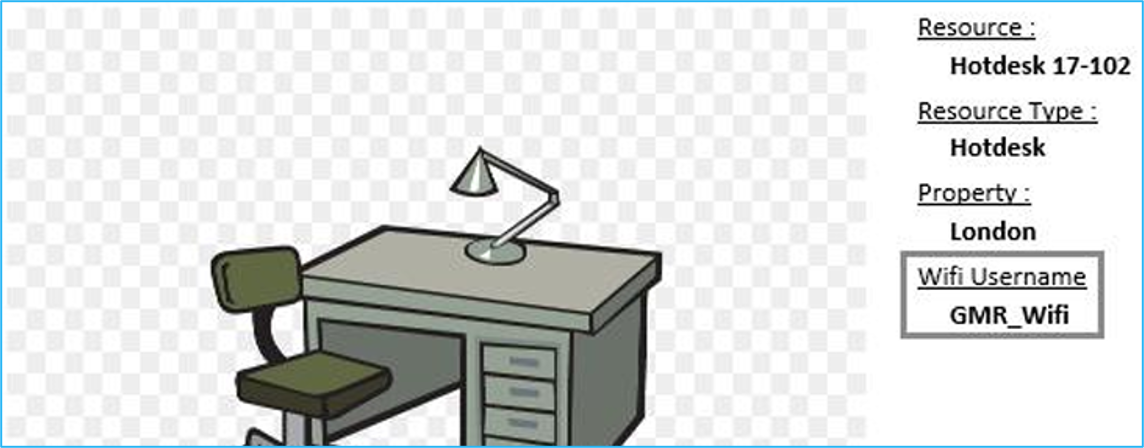
NOTE: If the feature is not applicable to a resource, remove the text from the Feature field in the Resource setup. To include these features on the system-generated confirmation reports, add the tag @@Resource_Features@@ to Alerts.
Creating Resources
This section gives a step-by-step guide on how to make a resource (for example, Meeting Room, Hot Desk). Because of the length of the Add a New Resource page, it is split into four sections in this guide.
Complete the steps in order, as certain fields will be erased if done out of order.
Start by navigating to Administration > Resource Management > Resource > click the Add New Resource button
Complete Resource Information
Select a Resource Type from the drop-down.
For example, if this is a conference room, select Meeting Rooms; if this is a VAO, select VAO.
Enter a Resource Name and Display Name.
Choose a Location from the drop-down menu by clicking the + to the left of the Property the resource sits within.
The Location cannot be changed after saving.
Select the Rooms Department.
If the resource requires approval, select the Require Authorization checkbox.
The system will then display a blank free-text field. Enter a valid email address.
Select the Room Group, e.g., Meeting Rooms or Desk.
Select Yes or No for Is Collaboration Active.
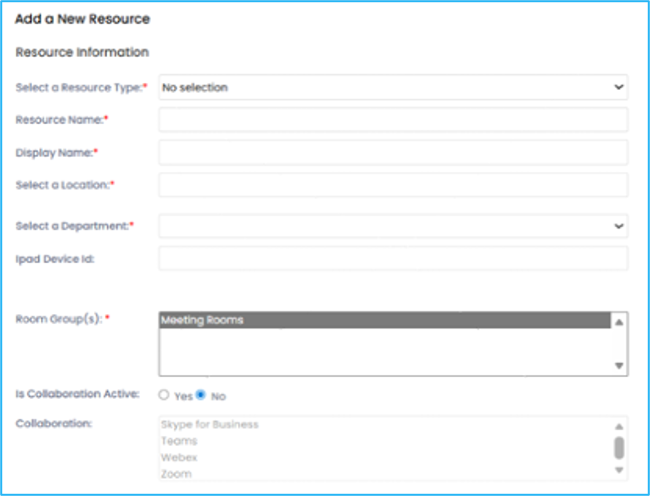
If yes, choose the Collaboration option from the list.
This option allows the resource to integrate with meeting software in bookings.
Enter the Mailbox ID.
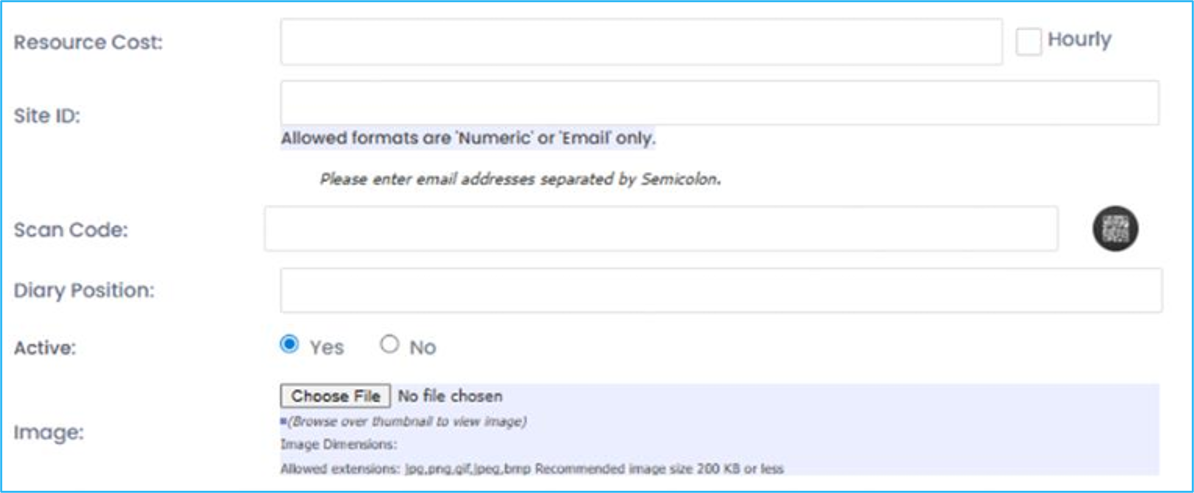
Enter the cost in the Resource Cost field. (If applicable)
Leave the Site ID blank.
Adding an email will populate an Outlook appointment in the calendar associated with the email.
The TMS System ID is used for an external connection to a TMS system endpoint. Configured by Korbyt.
Enter the QR code in Scan Code if the Mobile QR scanning feature was purchased.
Enter the Diary Position.
The Diary Position is used to arrange the order in which resources are displayed on the Calendar.
The lowest number displays at the top of the diary.
It is recommended to skip by fives in case a new room is added later, which must be in a middle position.
Optional: Select Choose File to add an Image. The image size must be 200 KB or less, and 900 X 600 pixels.
Multi-Resource Information
Select Yes for Main Multi Resource if the room is made up of separate rooms combined.

Then, in Select Resource Group, choose the rooms that make up this Main Multi Resource room.
Click the >> button to add the dependent rooms to the Multi-Resource Group.
NOTE: Only rooms of the same Resource Type can be made into a Multi Resource
Resource Details

From Resource Details, select the Resource Security Group for this resource.
Enter the Resource Code.
This is a unique identifier for each resource, and it is what the system uses to tell resources apart that have the same name.
This is usually identical to the resource name given.
Select Yes to make the resource visible on a Rolling Display or No to make it hidden.
This allows the resource to show on a Rolling Display when configured.
Enter any necessary details about the resource in the Notes field.
For example, “Extension: 6823” or “Use only for internal meetings”.
Panel & Mobile Integration Fields
These fields within the Resource Information section are for panel and Mobile integration. These fields are configured by Korbyt and should typically not be modified.
iPad Device ID is only applicable if using an iPad as a panel.
The TMS System ID is used for an external connection to a TMS system endpoint.
Scan Code is the point of Mobile integration.
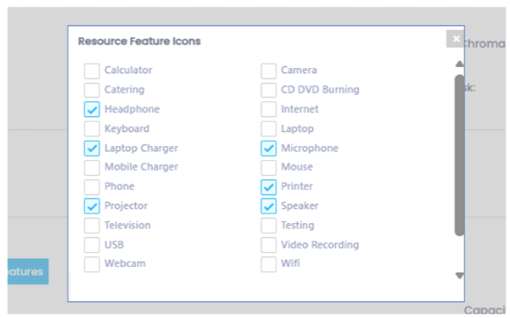
Feature and Feature Icons
Feature icons are displayed in the Mobile and Bookit applications to denote services and features using images and tooltips. Icons are chosen from the Google Fonts Icon library.
Click on the Feature Icons button. Select the applicable Features, then click Save.
Input the room’s default Setup / Breakdown Times. This is usually the same as the default layout.
In Participants, enter the room’s default Min / Max amounts.
This is usually the same as the default layout.
Select the applicable Features.
These are the searchable features in Korbyt Booking and usually are the same as the Feature Icons, which are visible in Bookit.
Click Is Active for each layout required.
Enter the Setup / Breakdown Times and Min / Max participant count for each layout.
Then select the Is Default layout for the resource.
Click Save.
Creating Services
Services (Addons in the system) are the additional items that can be added to a booking. For example, you may want to book a laptop when making a booking for a hot desk, or you may want to book coffee when booking a meeting.
Start by going to Administration > Resource Management > Addons > Add New Addon button

Resource Information
Select the Resource Type
Enter the Addon Name and Display Name.
For example, Continental Breakfast, Orange Juice.
The Addon Name displays in Bookit, and the Display Name displays in Korbyt Booking.
Select the Addon Location.
Do not select a floor unless the service is only available on a specific floor and not the entire property.
Select the Department that is responsible for the Addon.
Enter the Addon Cost. (If applicable.)
Addon Details
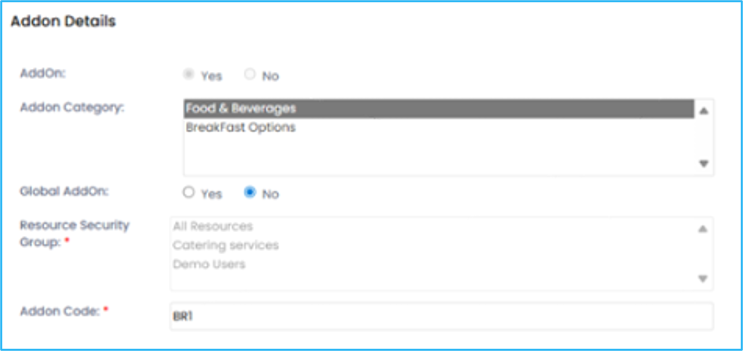
Choose the Addon Category that you want the service to sit within.
After selecting a category, the system will automatically select Yes
Select Yes or No to set the Addon as a Global Addon or Non-Global Addon.
A Global Addon can be booked on its own or within a resource.
A Non-Global Addon is only booked within a resource.
Assign a Resource Security Group (Only necessary if this is a Global Service).
Enter a unique Addon Code. The Addon Code is a unique identifier for each service to tell resources apart that have the same name.
Service AddOn Notes
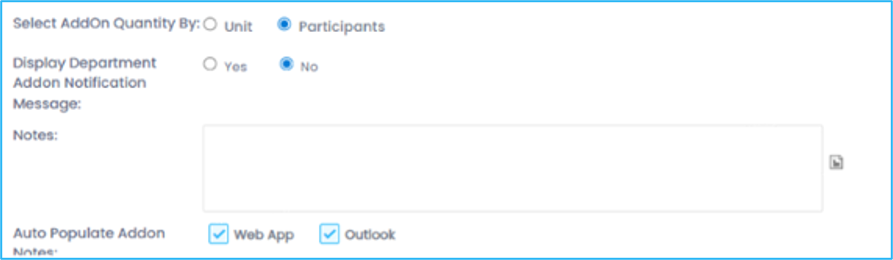
Select the Addon Quantity by Unit or Participant
Unit: Requires the user to add the quantity they require manually and will default to either 0 or 1. (This default number is dependent upon configuration.)
Participants: When participants are added to a booking, the system will generate the same number of Addons
If a Department pop-up note has been created for a specific department at a specific property (created in Departments),
Select Yes to display the Department Service Notification Message to have that note appear when the service is selected.
Select No if no Department Note has been created.
Enter service details in the Notes field.
Notes will appear when a user hovers over the service.
Select Web App and/or Outlook to display notes when hovering, and when a user makes a booking via one of these interfaces, the note will be visible in the addon note field.
NOTE: If the Auto Populate Addon Notes is not selected and notes are not manually added in the booking, the notes will not display in the service reports.
Booking Cut Off
The Booking Cut-off Period allows time for service (addon) preparation prior to the booking. This setting is based on the current time that the booking is being made.

Example: If the Booking Cut-off period has been set to 2 hours, but the request is made within 2 Hours of the booking start time, the system will alert the user that they are unable to book the service. Cut-off time and add 48 Hours for Weekends are not in use.
Available: User Interface Availability
Select Available In options. This provides the ability to restrict services from being available to Mobile, Bookit, and Bookit Outlook users.

Addon Details (Stock)

The Stock Type (optional) sets the quantity of a service. Select No Stock if the item does not have an inventory or if it is an Automatic Addon. Note: Automatic Addons cannot be monitored by Stock Type. If the service has inventory:
Select Stock Item from the drop-down menu.
Enter the amount for the Total No. of Addons and Maximum Addons per Booking.
Then, set the Quantity Deducted from the Total Available Addons as 1.
Enter the Setup Time and Breakdown Time.
Click Save
Assign Addons by Resource
Within the Addons by Resource section, Services are assigned to resources so that users only see the services added to each room when making a booking.
Go to Administration > Resource Management > Addons By Resource
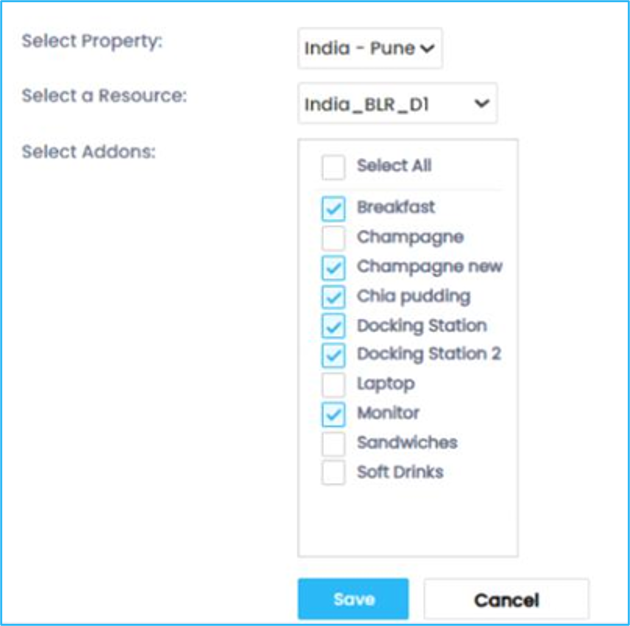
Select a Property.
Select a Resource from within that property.
Select the checkbox for each Addon (service) available for the resource.
Click Save.
Automatic Addons
Automatic Addons (optional) are configured separately for each resource. They will automatically be added to bookings by setting.
Go to Administration > Resource Management > Resource
Click on the Resource name.
Go to Features, scroll down, and click Automatic Addons.
Click Add New Auto Addon, complete the form, and click Save
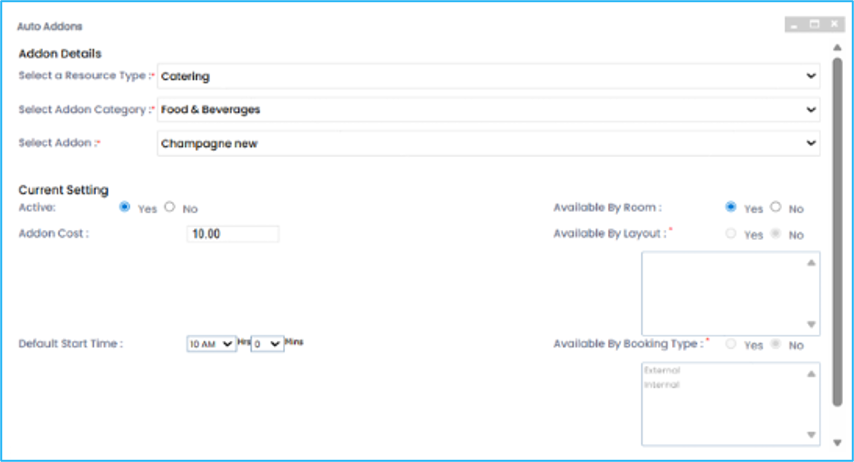
Automatic Addon Fields Defined
Configuration Options in Detail
When using this feature, you must select at least one of the following options: Time, Resource, Layout, or Booking Type.
By Time
This is separate from all other configuration options. There are two options: set and not set. When a time is set, the Automatic Addon will be added to the resource at the time specified.
When a time is not set, the Automatic Addon will be added to any booking created in the resource, regardless of time, assuming other configuration criteria are met.
By Resource (Room)
The Automatic Addon will always be added to this resource when it is booked. When selected, you will be unable to select By Layout or By Booking Type.
By Layout
By selecting one or multiple Layouts, the Automatic Addon will only be added to the booking if the specified Layout is selected. This setting can be used in conjunction with By Booking Type, but not By Resource.
By Booking Type
By selecting one or more Booking Types, the Automatic Addon will only be added to the booking if the specified Booking Type is selected. This setting can be used in conjunction with By Layout, but not By Resource.
Creating Resource Feature Icons
Resource Feature Icons are used within the Mobile and Bookit applications to denote services and equipment available in a resource, using icon images.
Go to Administration > Resource Management > Resource Feature Icons > Add New Resource Feature Icon button.
Enter the Resource Feature Name and a Tool Tip description.
Upload an Image of the feature. The file size must be 2KB or less.
Click Save.
Text Inserts
Text Inserts require a Korbyt Administrator to configure. Contact the Korbyt Consultant or the support team to configure. Text Inserts are predefined text snippets inserted into a service note field in a booking and can be resource category-specific. Only “.txt” documents are supported.
Go to Administration > Resource Management > Upload Files
Select the Resource Category the Text Insert belongs under.
Choose the file, click Add if necessary, then click Upload
Was this helpful?
Still need help? Share an idea