Booking Admin - Alerts
Configuring alerts from the Booking system
Written By Ed Kinne
Last updated 7 days ago
The Korbyt Booking Alerts engine can be configured to automatically send a variety of notifications. The notifications can be sent to everyone involved/attached to the booking, third parties, and can communicate with other software such as Microsoft Outlook and the Cisco Telepresence
Software. Alerts can include a printable Confirmation Report as an attachment.
Also, regular Service Alerts are not configured by default.
Note: that some Alerts are not currently used.
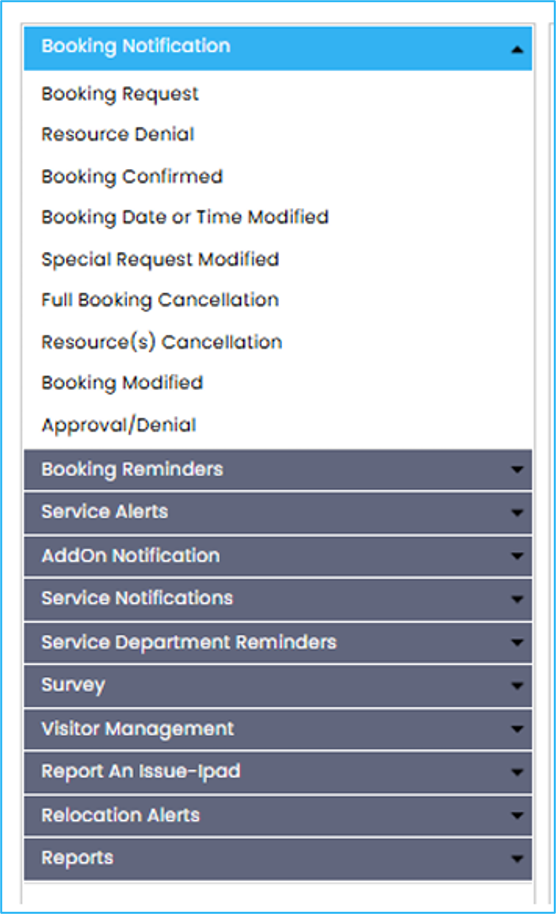
Most Common Alerts Configured
NOTE: If you want to create a date/time modified Alert, use the Booking Modified Alert. Do not use the Booking Date or Time Modified Alert.
Creating Alerts
Go to Administration > Alerts > Add New Alert button
Select the alert type from the Settings list on the left side of the page
Enter the Alert Name to identify it in the system.
Check Yes or No for Global. Most alerts are global (all properties), but some, e.g., Service Alerts, are property-specific. If No, select the applicable property.
Select the applicable Booking Roles. Some alerts, e.g., Service Alerts, do not require recipients because it pulls the recipients' email from elsewhere in the system
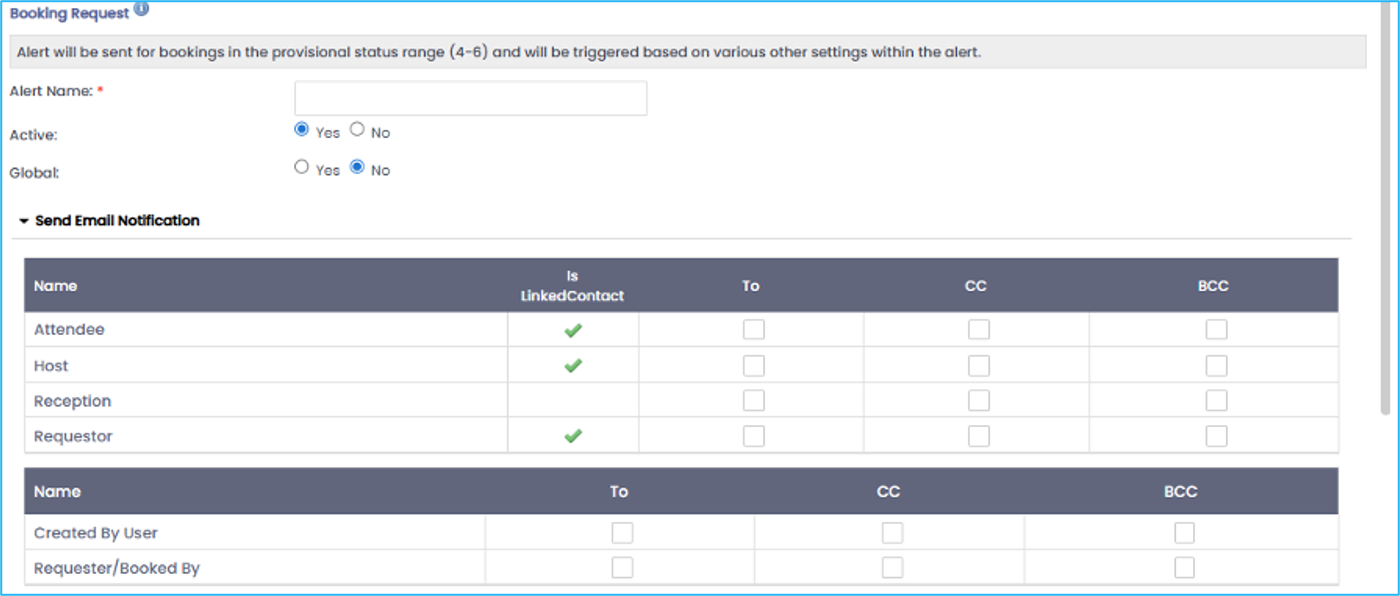
Select the email notification settings
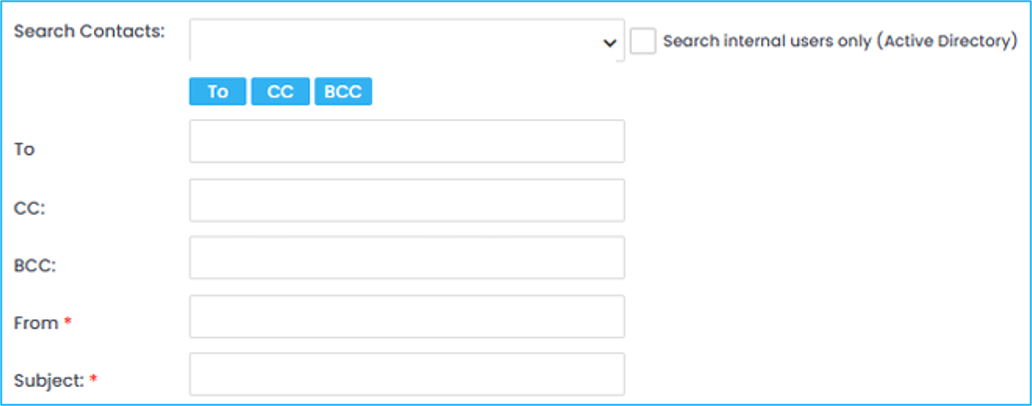
Enter additional recipients in the To, CC, and BCC fields.
In the mandatory From field, enter a company email (or a placeholder).
In the Subject line, enter the tag @@Event_Title@@ and clearly identify what kind of alert this is.
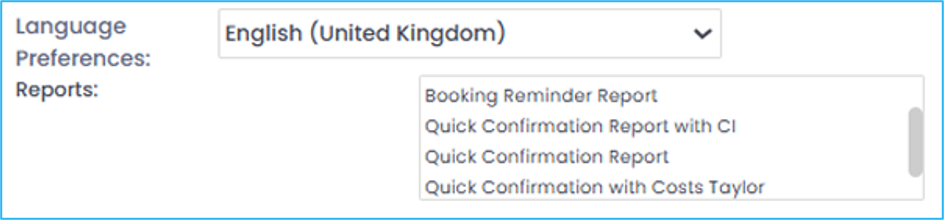
Select the Reports settings
Choose the Language Preference for the attached reports.
Select a report(s) to include from the Reports list (optional).
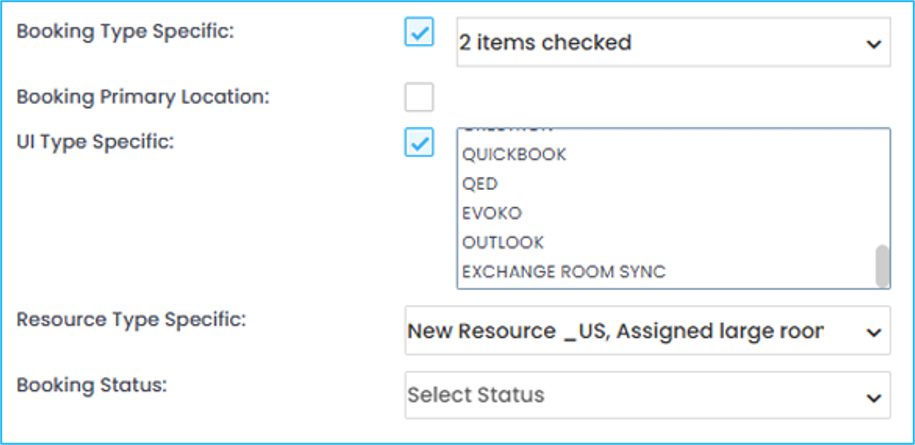
Select the alert triggers. The trigger options will vary based on alert type
Booking Type Specific: Alert will trigger when a specific booking type is selected during the new booking process. Making an Alert Booking Type Specific is optional and not usually used when Alerts are initially configured.
Booking Primary Location: Alert will trigger ONLY if the primary property of the booking is the same as the property configured in the Alert. When this box is unchecked, the alert will trigger if there is at least ONE resource in the booking that sits within the property that this Alert has been configured for. This is only available when the alert is not set as Global.
UI Type Specific: Allows/restricts which user interfaces will trigger the Alert. Bookit Outlook, Web, and Bookit are the UIs usually selected.
Booking Status: Alert will only trigger when the selected Booking Statuses are used in a booking. Select the applicable Booking Statuses. Which Booking Statuses appear in the dropdown will depend on what type of Alert is being made.
Items Modified: Alert will trigger when a selected booking item is changed. Select the Date and Time for a Date/Time Modified Alert.
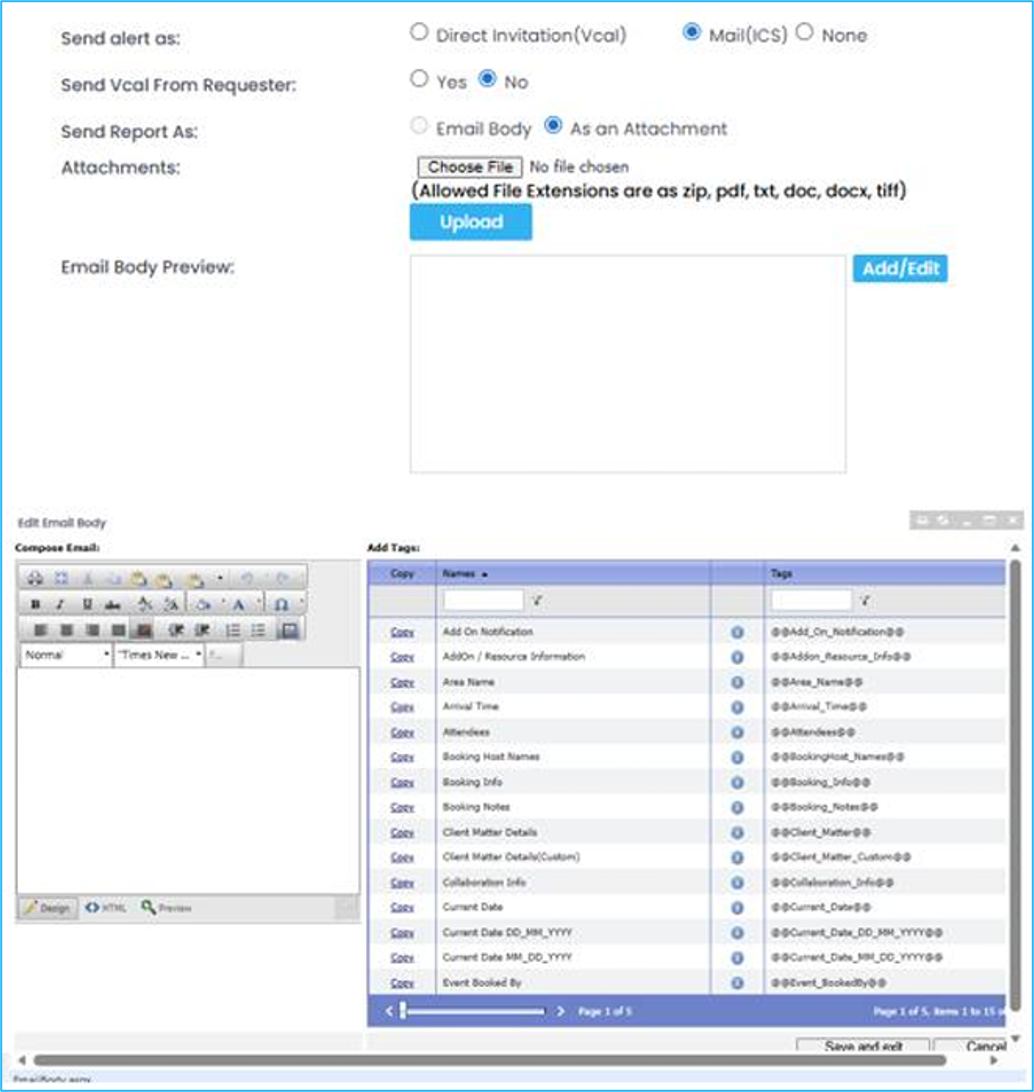
Select the email configuration settings
To set the Send alert as an attached invitation, select Direct Invitation (Vcal) or Mail (ICS). The invite will populate the recipients' Outlook calendar with the booking.
To have emails appear with the requester’s email in the from field, select Yes for Send Vcal from Requester
In Send Report As, select Attachment. The report will be fixed as an attachment for all alerts (excludes Quick Confirmation).
Click Choose File to add an attachment. Click Upload. o Click Add/Edit to open the email text box. Edit and use the tags as needed. Click Save and exit.
Double-check all your options. Click Save
Was this helpful?
Still need help? Share an idea