Booking Admin - Property Setup
How to configure a Property, with Areas, Neighborhoods, Resources and a Floor Plan
Written By Ed Kinne
Last updated 8 days ago
A “Property” represents the organization’s premises and holds all resources created in the system. You can assign properties to a region, which can represent a continent or a country (usually left as Global).
Depending on the organization, you may see multiple properties in the Property Tree View.
Creating Properties
Go to Administration > Property Setup > Properties > Add New Property
Complete the Property Address
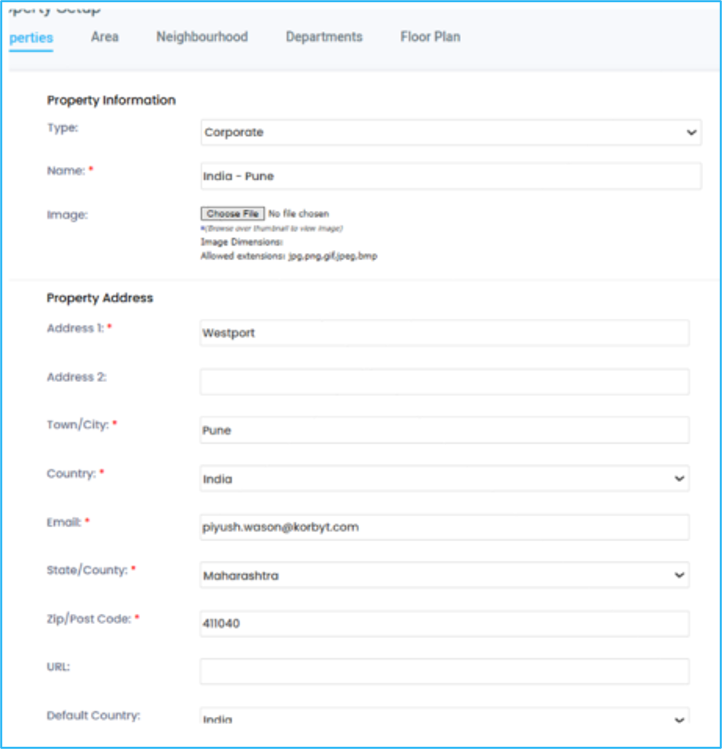
Select the Property Time Zone, including time Display (12-hour or 24-hour), and click Save

Areas
Areas define physical sections of a property, such as building floors. Create areas before rooms to assign rooms to a specific area of a property
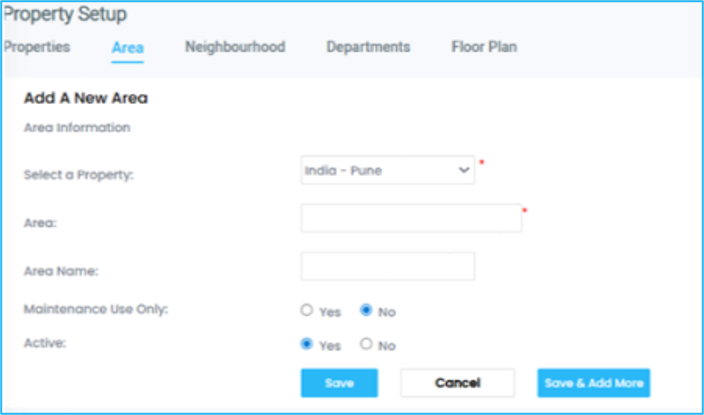
Creating A New Area
Go to Administration > Property Setup > Area > Add New Area.
Select the Property that the Area exists within.
Select the Property Name from the area list.
Enter a new Area name. Maintenance Use should remain set to No. Click Save or Save and Add More to add additional Areas.
Neighborhoods and Assigned Resources
Neighborhoods are areas of the workplace defined by teams, work activities, or other specific categories on a particular floor. Resources are then assigned to each Neighborhood.
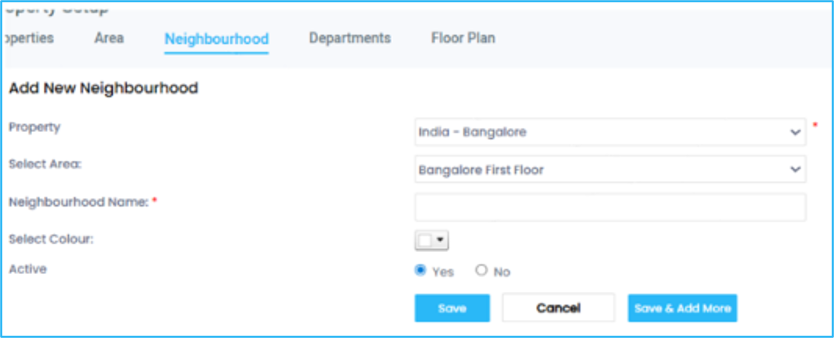
Creating a New Neighborhood
Go to Administration > Property Setup > Neighborhood > Add New Neighborhood
Select a Property and an Area in the dropdown menus
Enter a Neighborhood Name, and Select a Colour.
Set to Active and click Save.
Neighborhoods : Assigning Resources
Select a Location from the Dropdown menu
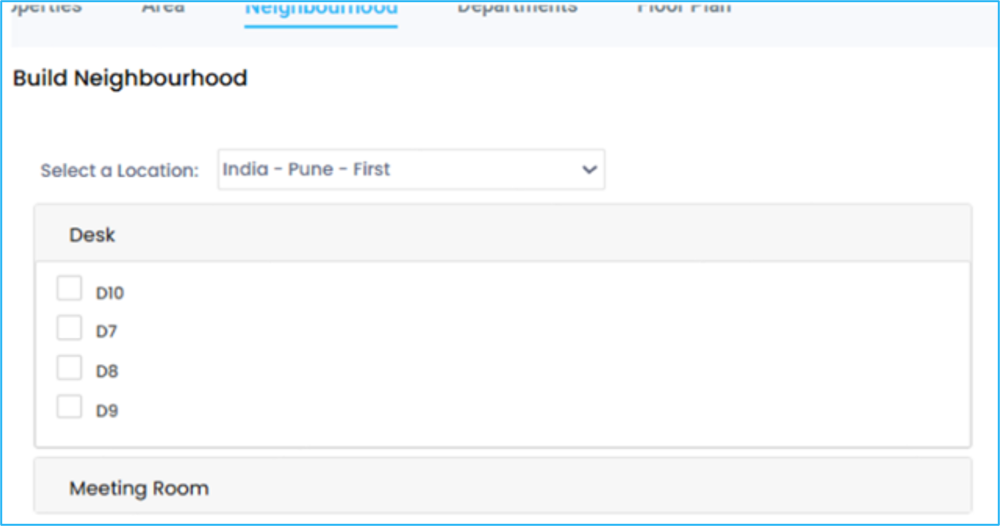
Select the resources by checking the box next to them
Once all resources are selected, click the >> button in the upper left to move the resources to the Neighborhood
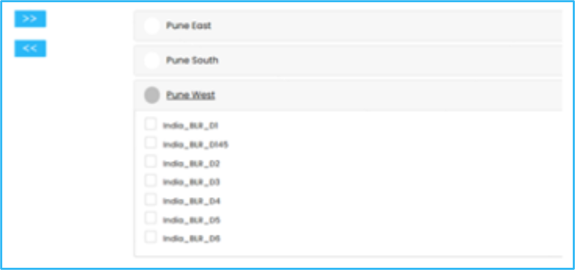
The receiving Neighborhood is the open
Click Save in the lower left
Departments
Departments are used to define the different sectors of an organization, such as Catering, Facilities, and Equipment. Departments are property-specific.
Creating a Department
Go to Administration > Property Setup > Departments > Add New Department
Select the Property from the Menu
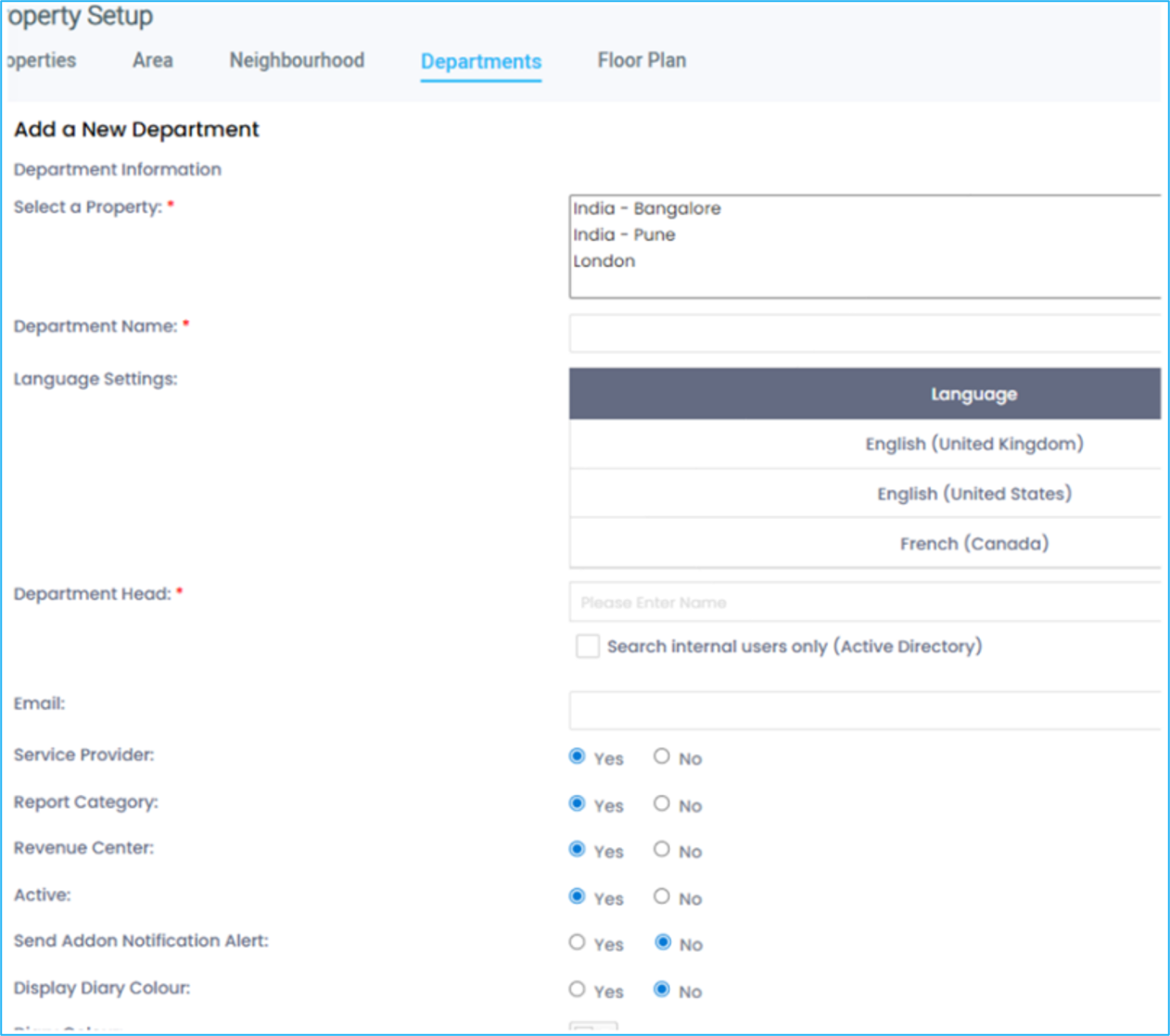
Enter the Department Details (select sections explained below)
Department Head ▪ Search for and select the individual who will approve services (Addons) that require authorization when booked. ▪ The Department Head is usually a system admin, but can be any user who is saved in the database ▪ The email address should be the Department Head's email
Choose a Diary Color; setting to Yes will make it Visible
In the Service Departments Diary Sequence Field, enter the order to display
Setting Icon
Click Browse Icons
Search and click on the icon you want in the new window.
On the right, scroll down to Inserting the icon, copy the icon name (e.g., check_circle) and paste the icon text into the text field to the left of “browse Icons,”
Click Save Korbyt Booking Admin
Addon Notification Message and Alert
The Service Notification Alert sends an email to an individual line manager when they book a service that requires approval. This is a useful tool to restrict staff from booking services outside of their appropriate use.
This is based on passive approval; the system will not deny the Service through any email notifications. The alert will need to be configured as well.
NOTE: Service Provider, Report Category, and Revenue Center are functions that are not currently in use.
Floor Plans
NOTE: Floor Plans are now available in all the platforms, including O365 Add-in and Booking. Previously, it was only available in Bookit and the Mobile Application.
A Floor Plan is an image you upload, then map resources to their locations on the image. A Floor Plan is configured by area in the system.
Creating a Floor Plan
Go to Administration > Property Setup > Floor Plan
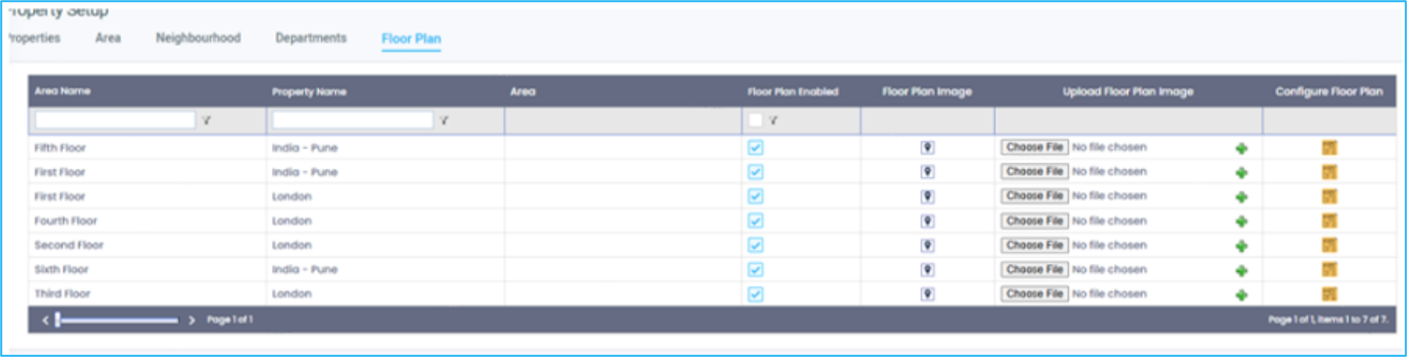
Find the Area you wish to map and click Choose File for that area
Select and upload your floor plan image, then click the + icon
Click the Floor Plan icon in the Configure Floor Plan column
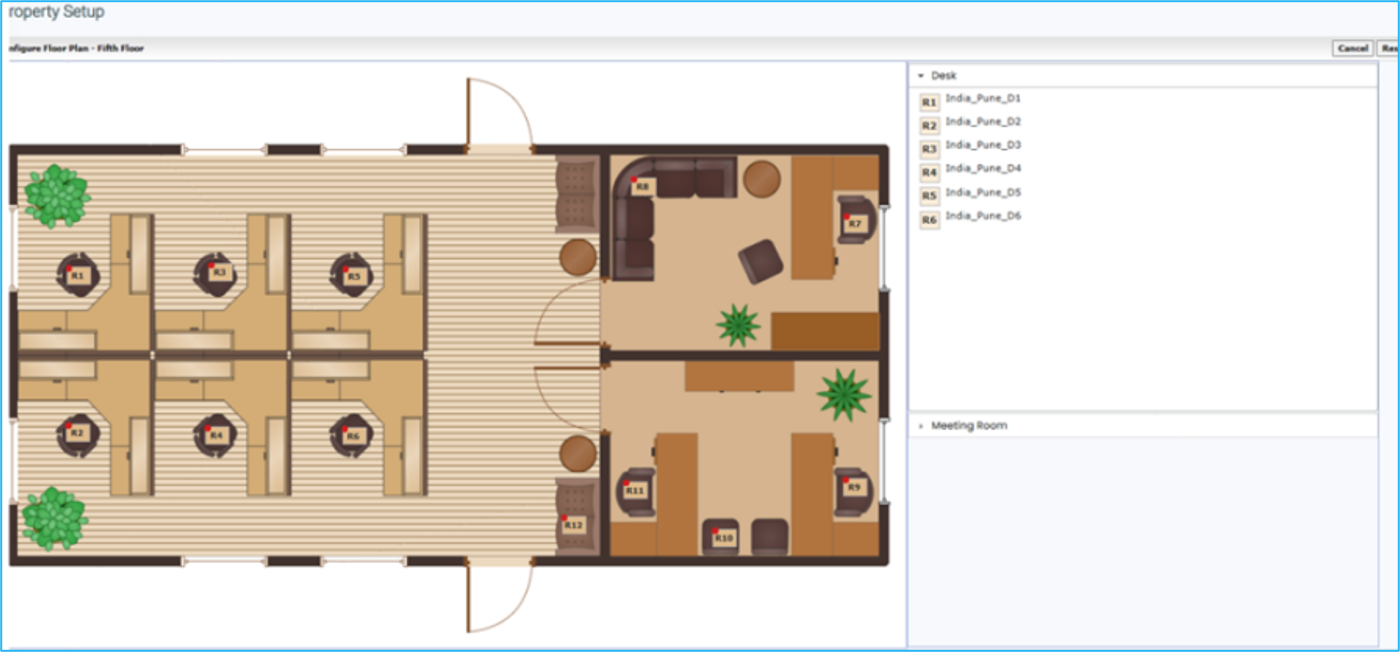
Drag the room icons to their applicable area on the Floor Plan image
You can click Reset in the upper right to remove icons.
Enabling Floor Plan Booking
Floor Plan Booking is enabled by default for all users with appropriate permissions. To restrict or re-enable access:
Log in as an administrator.
Access the Administration area from the left navigation menu.
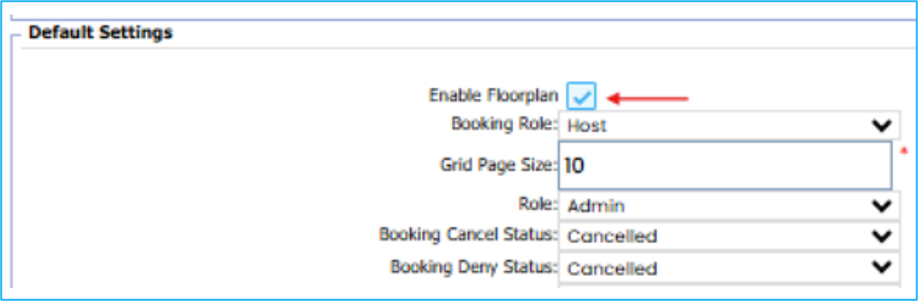
Go to Global Settings > Default Settings.
This is where the Floor Plan feature flag is controlled.
Find the Enable Floorplan setting.
Toggle this On or Off to enable or disable Floor Plan Booking for all users. Changes take effect immediately.
Was this helpful?
Still need help? Share an idea