Booking Admin - Settings
Settings that control your Booking system
Written By Ed Kinne
Last updated 7 days ago
Korbyt Booking has a variety of configurable settings to suit your business’s needs. Many are set to a default value.
The settings tab is usually hidden from end users to avoid unauthorized changes.
Creating Languages
The language setting is particularly important for multi-property companies with overseas branches and/or multilingual employees
Go to Administration > Settings > Language > Add New Language button
Select the Language from the dropdown list.
Depending on the language selected, you may need to specify the dialect. Click Save
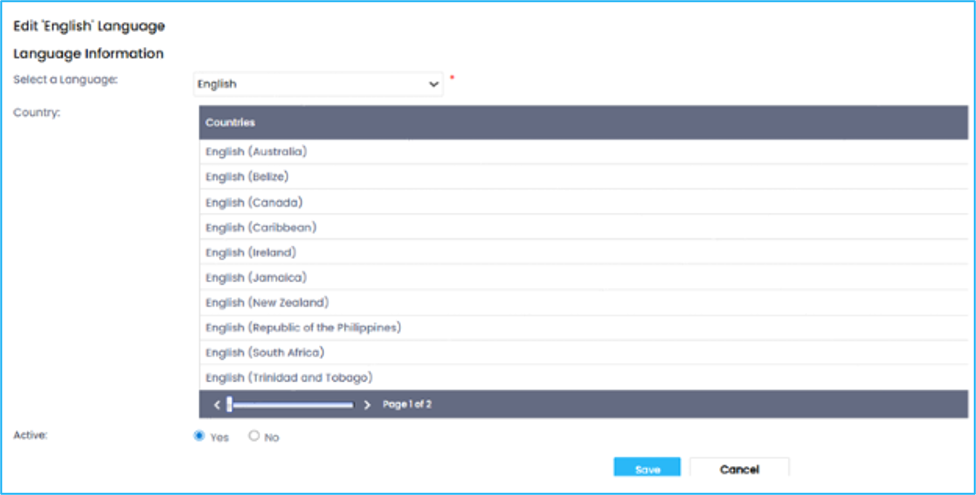
NOTE: Check with your Implementation Consultant for the current languages supported. Setting other languages will only affect the calendar pop-up and date formats associated with the language selected
Create Booking Statuses
You can configure a variety of Booking Statuses for different purposes. The system has the default statuses confirmed, canceled, and requested already configured.
To amend a status, go to Administration > Settings > Status, then click the name on the status list.
Guarantee Status
The Guarantee status is a numerical classification for the level of certainty in a booking and is used to set the value of the status. It also affects when the confirmation email is sent, when the booking goes to the Requires Authorization queue, and when it is removed from the calendar (i.e., canceled).
Go to Administration > Settings > Status > Add New Status button
Enter the Status Name and Display Name.
The display name is usually the same as the status name.
Select the Color Code for the status.
The status color will display on the calendar and booking search results.
Enter the Guarantee Status and Sequence
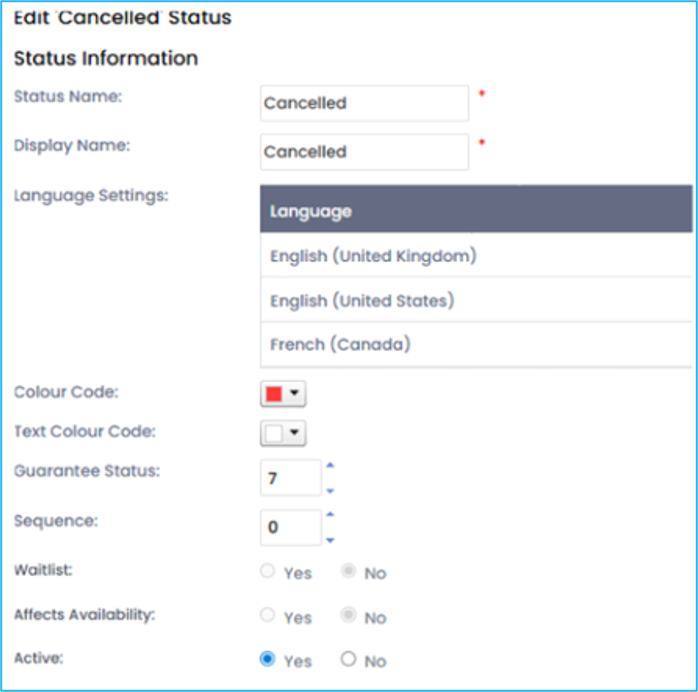
Sequence
In the Booking Search section of Korbyt Booking, items are listed by sequence number when a set of search results is displayed. For example, if the canceled status is set to the highest sequence number, i.e., all canceled bookings will appear last in the search results list
Select a Sequence number for the status.
If the sequence number is set to zero, it will not appear in any searches.
We do not recommend giving any status the sequence number zero.
Set Affects Availability. This determines whether a booking will display in the calendar.
This is usually set to No for the canceled status.
Click Save or Save & Add More.
Configure Waitlist
NOTE: This functionality is only available in the main web app
Waitlist management allows the user to make a booking for a resource that is not currently available on the date and time requested, and therefore does not affect availability. Access to the waitlist functionality is a user group permission.
Go to Administration > User Security > User Groups
Open each User Group that should have the ability to waitlist a booking.
In the Diary section, select the Waitlist checkbox
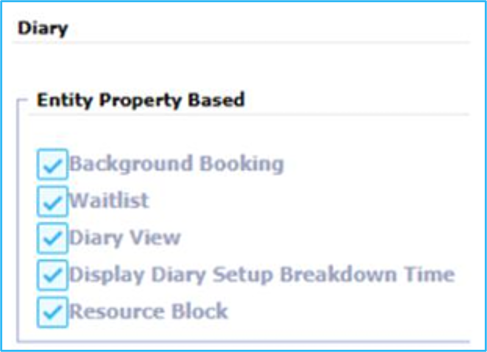
NOTE: The Waitlist status must be made active to use this functionality. See Creating Booking Statuses to do this.
Overview of Property Settings
Property settings are specific to each individual property. Here, you can add a company logo or choose if the room price option is visible in the booking summary screen. Save the settings on each property as you work.
They can be found through Administration > Settings > Property Settings
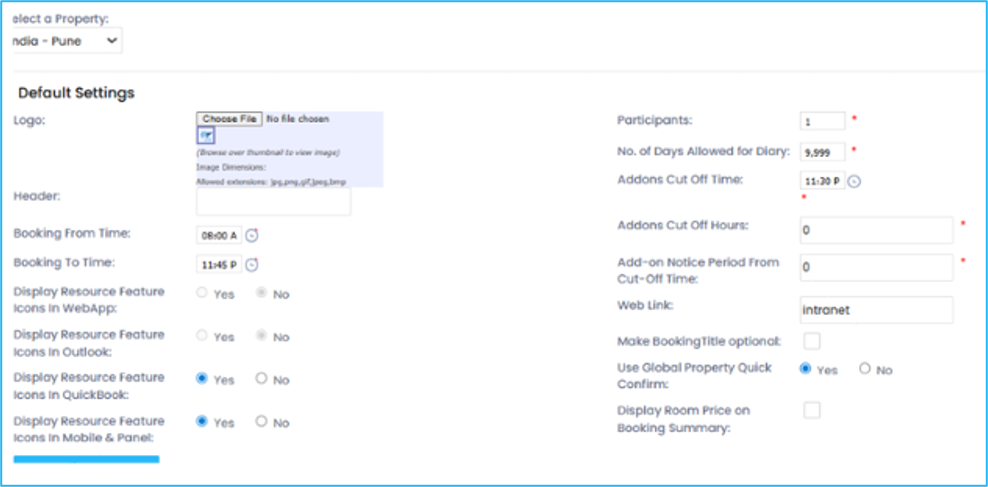
Property Settings
Overview of Global Settings
The Global Settings are applied to all properties in the system and include various features. It is recommended that you do not amend any Global Settings without consulting Korbyt Support first. The following settings can be amended without help.
Go to Administration > Settings > Global Settings
Time Display
Set the Diary (Calendar) Start and End Time. This time frame will be displayed when Show Business Hours is selected in the Diary view.

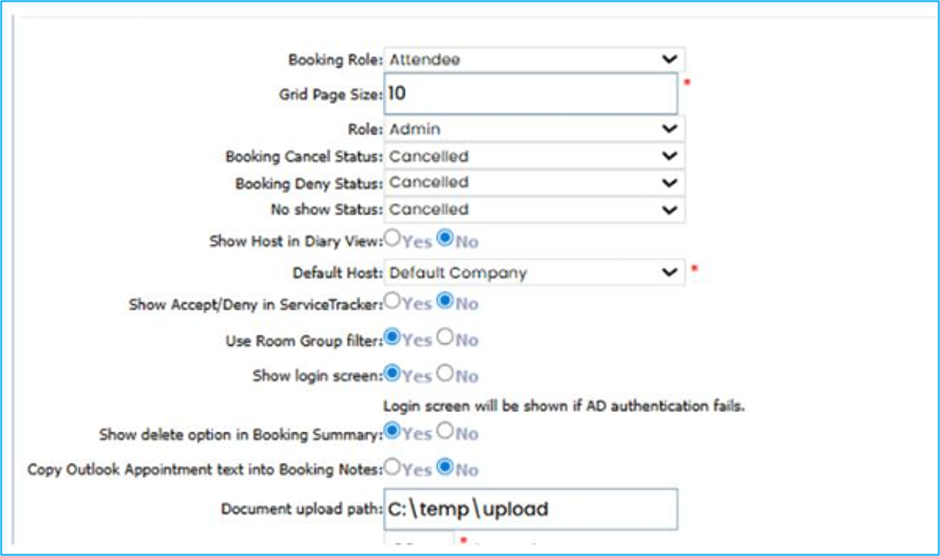
Documented Upload Path
To create the document upload path, make a folder called “Documentupload” in the system’s code files. Then copy the folder’s path to the Document Upload Path field under Default Settings. To access the code files, you must have access to the server.
Type of Meeting
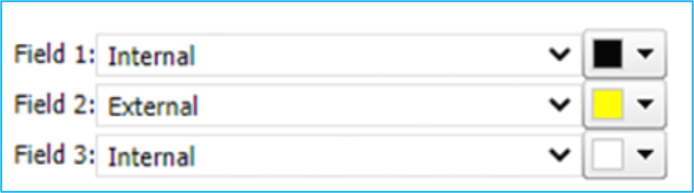
Enter a Type of Meeting name in each Field and select a Color. The Type of Meeting settings allow a color to be displayed at the bottom of the calendar booking ribbon. This color indicates the meeting type based on the selected booking type.
Each Type of Meeting field must be mapped in the Booking Type LookUp list to display the color according to the booking types selected.
Go to Lookup> System LookUp List> Meeting Type
Click the Edit icon for the options (e.g., Field 1).
In Display Name, enter the new name. Click Save.
Next, click Booking Type
From the list of Booking Types, select the corresponding Meeting Type just added from the drop-down menu to the right.

Click Save.
Then go to Settings> Global Settings, then under Type of Meeting, select the Booking Type and Color.
Click Save.
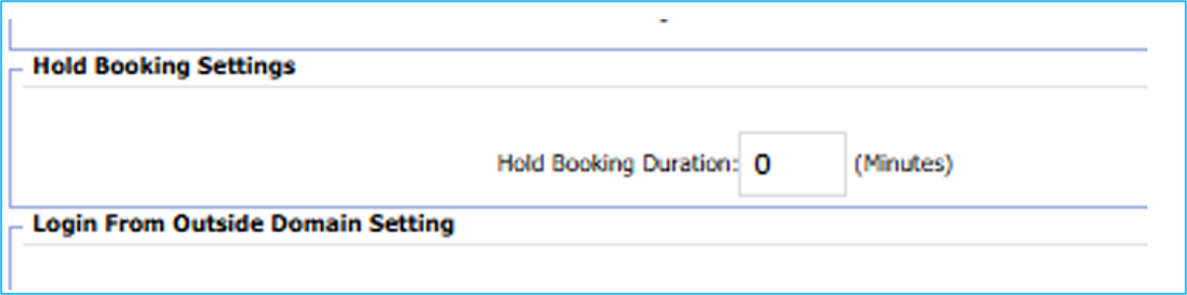
Hold Booking Settings
Enter the Hold Booking Duration in Minutes. The hold booking setting prevents users from booking a room that another user is in the process of booking. The booking process time can vary depending on the configuration of the system.
Note: For more details on Global Settings, speak to a Korbyt consultant or contact the support team, as many settings depend on the licensing agreement. Many Global Settings are typically configured during the system’s initial setup; any amendments should be made with careful consideration. If in any doubt when attempting to make changes, contact our support team.
Was this helpful?
Still need help? Share an idea