Booking Admin - Creating Rolling Displays
Written By Ed Kinne
Last updated 7 days ago
The Rolling Display appears on a large screen, allowing the hosts and attendees to locate a meeting. In each Resource, there is a setting to allow the resource to display on a Rolling Display (Display on Reader Board). Rolling Displays are property-specific.
Go to Administration > Settings > Rolling Display > Add New Rolling Display button
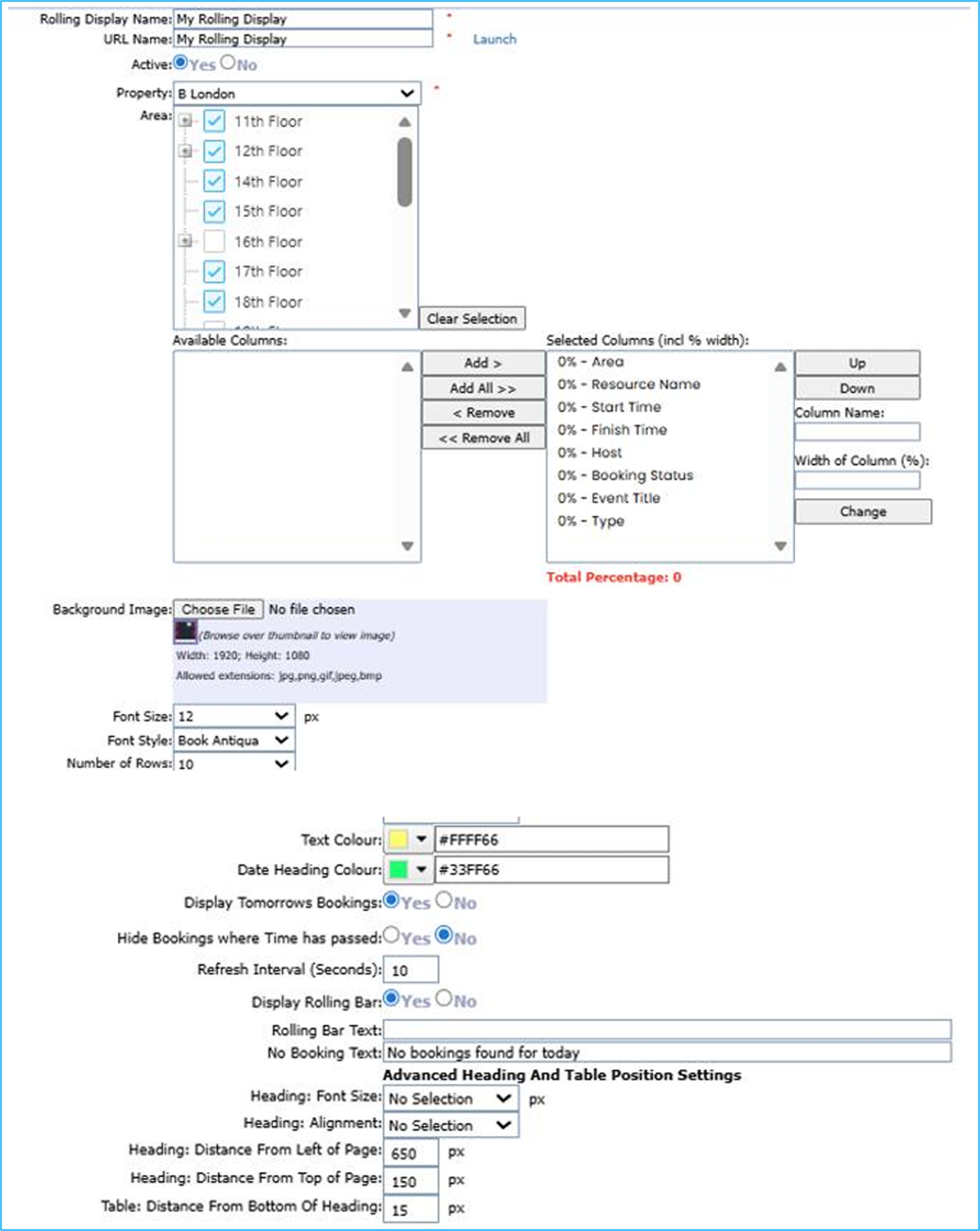
Enter the new Rolling Display Name. This is usually the property name.
Select the Property and Areas (if applicable).
Select the Column Settings
In the Available Columns list, select the booking information to display, then click the Add or Add All button.
This will move the selected column to the table on the right. Repeat until all the necessary columns have been added.
To adjust the order of the columns, select the applicable columns from Selected Columns and use the Up and Down buttons to change the order.
To change the title of a column, select the column from the Selected Columns, then add the new name in the Column Name field.
To adjust the width of a column, change the percentage in the Width of Column field.
The percentage must be between 0 and 100 (the higher the percentage, the wider the column).
Caution: Since this is dependent on the size of the screen, the ideal dimensions vary.
Note: The total percentage shown underneath the Selected Columns table must add up to 100% before you can save changes made to the rolling display.
Select Choose File to add a Background Image.
Choose the Text Font Settings. o Select the text Font Size.
Select the text Font Style.
Select the Number of Rows.
This is the maximum number of bookings that will show on each page.
Set the Text Color and Date Heading Color.
Set the Text Color and Date Heading Color.
Edit the Rolling Display Settings as needed
Display Tomorrow's Bookings: Select No to only display the current day’s bookings.
Hide Bookings Where Time Has Passed: This will only show bookings that are in progress or that are in the future.
Refresh Interval (Seconds): Choose how regularly you would like the display to refresh. o Display Rolling Bar: Select Yes if there will be text at the bottom of the display.
Rolling Bar Text: Add text to show at the bottom of the display.
No Booking Text: This will show if there are no bookings on the current day for the selected properties and areas
Configure the Advanced Heading and Table Position Settings
Choose Heading Font Size. The heading displays as a date. To disable the date from showing, select No Selection.
Select the Heading Alignment position on the page or select No Selection for more detailed options. Click Save.
Was this helpful?
Still need help? Share an idea