Booking Admin - Lookups
Lookups are found throughout the system and include most pre-set options/picklists.
Written By Ed Kinne
Last updated 8 days ago
A series of factory settings lookups creates more lists and list items. Examples of this type of lookup include items such as Titles: Mr., Mrs., or Booking Role: Host, Attendee.
CAUTION: Do not reuse existing lookup items. Do not make Additions to the Lookups listed without first speaking to your Korbyt training consultant or the support team.
Creating LookUp Lists
Go to Administration > LookUp > LookUp > System LookUp List dropdown
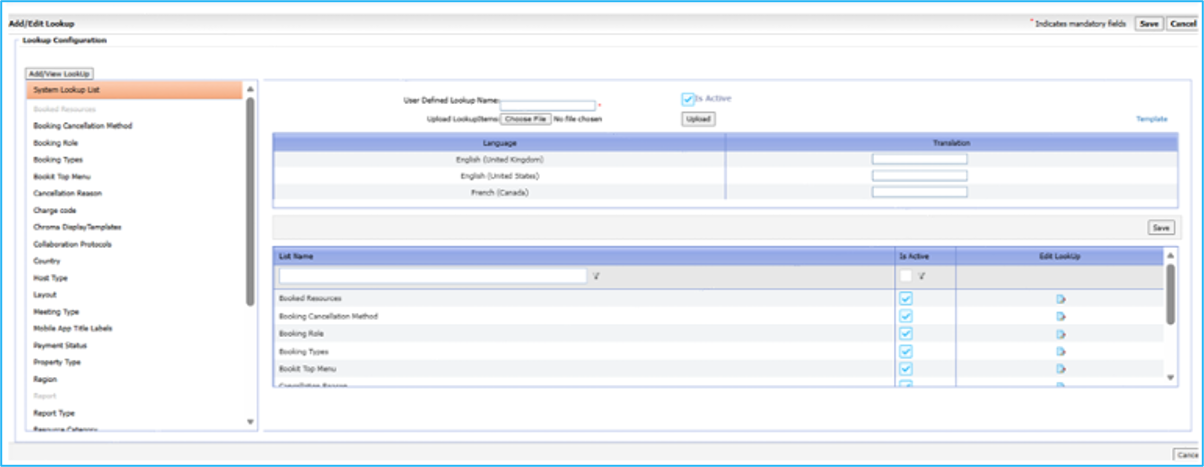
Click on the name (e.g., Layout). The selection will become highlighted.
Enter the Option Name and a Display Name if necessary.
Enter a different Option Name for the translation (if applicable).
This is dependent upon the languages displayed in the system.
Click Save
Creating User-Defined Fields
User Defined Fields (UDFs) provide the data for a pre-defined selection within a drop-down menu. These fields are popularly found in forms. UDFs can consist of different input data apart from lookups, including Alphanumeric (Single and Multiline), Date, Number, Boolean (yes/no), or Lists (Single and Multi-Select). Note that there is a 100-character limit for UDFs.
Go to Administration > > LookUp > User Defined Fields
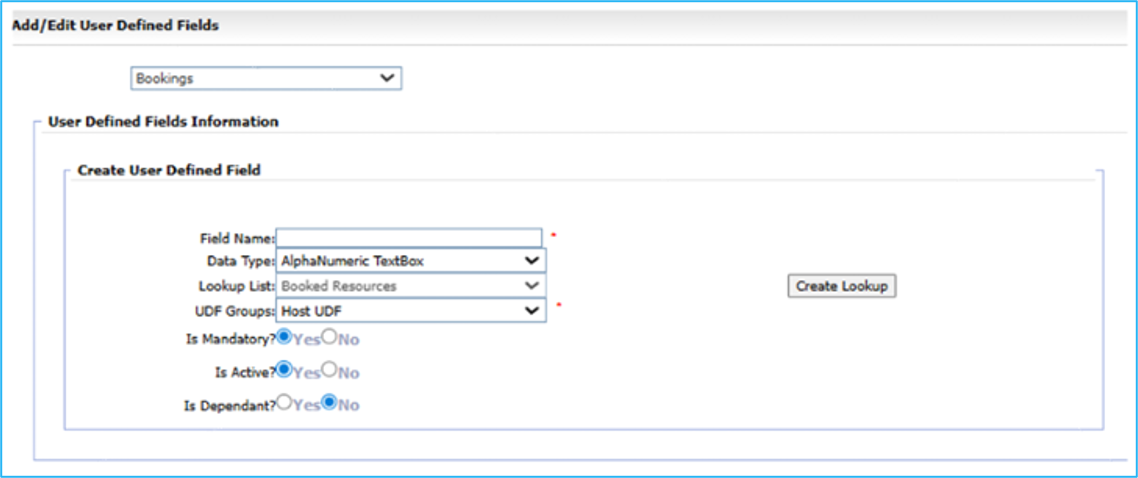
In the Section drop-down list, choose the UDF type.
Do not configure Sections not listed.
Enter the Option Name and a Display Name if necessary.
Bookings: The UDF will appear on the booking summary page for ALL bookings
Questionnaire: This kind of UDF appears for specific booking types.
Questionnaire UDFs are created here, then added to a Questionnaire
Enter the Field Name.
Select which Data Type to use.
Select the UDF Group.
Choose if the UDF is Mandatory
Dependent UDFs
Dependent UDFs appear in a form based on the results of another UDF. By selecting Yes for Is Dependent, a list of Boolean UDFs will appear where the parent UDF can be selected. UDFs can only be dependents of Boolean UDFs. To create a Dependent UDF:
Go to Administration > LookUp > User Defined Fields
In the section drop-down list, choose the UDF type.
Enter the Field Name.
Select Boolean from the Data Type to use.
Select the UDF Group that the UDF is a part of.
Choose if the UDF is Mandatory.
Select Yes UDF is Dependent, then select the parent from the list.
Creating a List Data Type
Click Create Lookup.
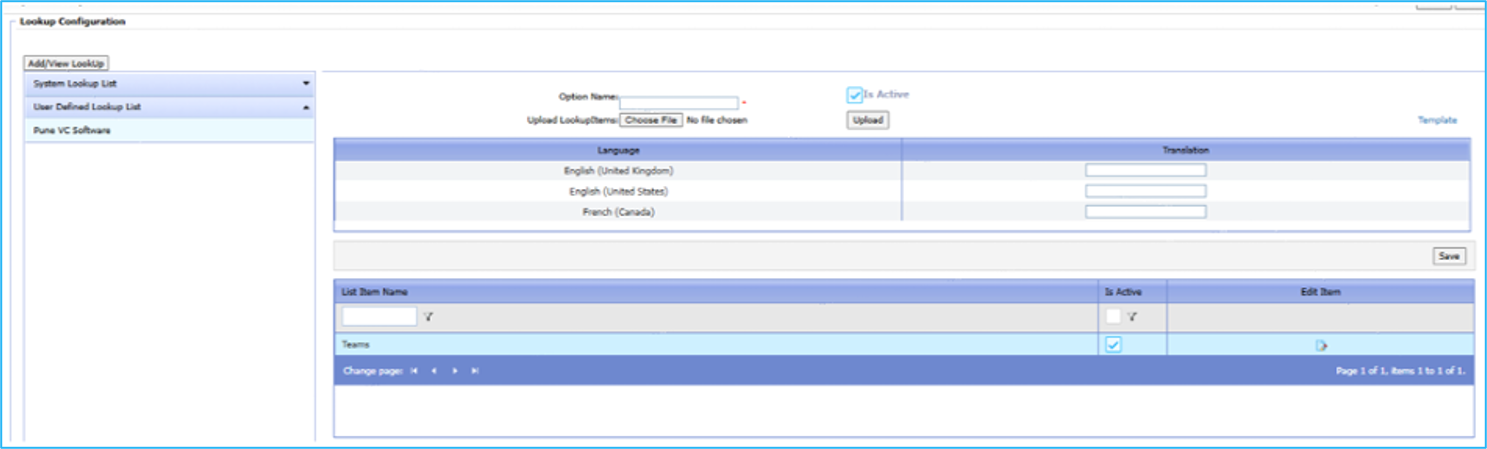
If a list Data Type was chosen, the Lookup List will no longer be greyed out. In which case a User Defined Lookup List will need to be created.
In the LookUp subtab, enter a name for the list. Click Save.
Click the list name.
Enter an Option Name, click Save. Repeat as needed.
Then go back to the User Defined Fields tab and choose the newly created list.
Creating Questionnaires
Questionnaires have more control over how UDF’s are organized and where they will show up. They may be Booking Type or Resource Type specific. UDFs must be made before starting the Questionnaire. Questionnaires appear as their own tab in Korbyt Booking and Bookit. You must log out and back in to see newly Added Questionnaires. Questionnaires require additional steps after completing the previous UDF section.
Go to Administration > LookUp > Questionnaire

Click Add new record. A new Questionnaire line will appear.
Select the Booking Type from the Dropdown
Select Booking Level for the Booking Type-specific Questionnaire (appears as a tab in the Booking Summary.
Select Resource Level (only in the Web App) for the Booking Type and Resource Type specific Questionnaire (appears as a button underneath the Services button).
Choose a UDF and copy (or make a new name as this is the text that will show up in the Questionnaire) it to the Questionnaire Text.
Choose the Question Number (position within the Questionnaire). Click Insert.
Resource Level Questionnaire
A Resource Level Questionnaire is dependent on the Booking Type and the Resource Type. Resource Level Questionnaires are only in Korbyt Booking. This Questionnaire requires further steps after completing the previous UDF sections.
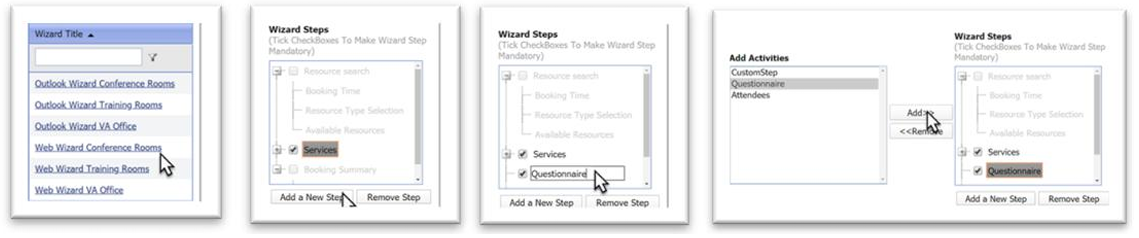
Go to Administration > Wizard Management > Wizard
Select the Wizard of the applicable Resource Type. Repeat steps 2-4 for both Web and Outlook.
At the bottom of the Wizard Steps, click Add a New Step.
Double-click the new step to name it (this is the name of the button) and click the checkbox.
Select the new step and Questionnaire from the Add Activities column. Click Add a New Step. Then click Save
Creating Resource Groups
Resource groups (Also called resource security groups) are used to define which resources users can have access to. For example, you may wish to create a resource group that allows access to book meeting rooms and Hot desks only. Therefore, when creating a resource group, you would only select the meeting room and hot desk resources, leaving all the others unchecked. Resource groups typically reflect the resource types.
There is no limit to the number of groups that resources can be assigned to. The system has an All Resources group created by default, which all users can be assigned to, should you require no restrictions.
Go to Administration > Resource Management > Resource Group > Add New Resource Group button
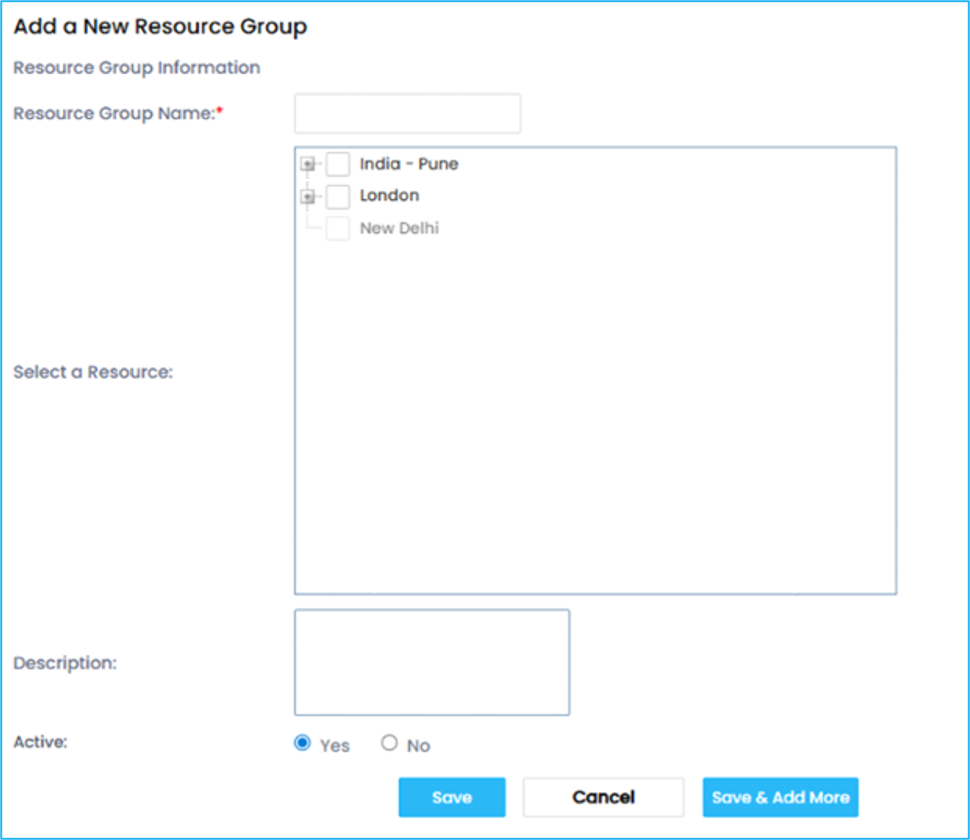
Select the Resource checkbox. To enable all the resources within an area, click the +, then select the area.
Add a Description for the resource group (optional).
Was this helpful?
Still need help? Share an idea