Booking Admin - My Desk
Creating a new resource or converting an existing resource to a flexible resource has a few conditions.
Written By Ed Kinne
Last updated 8 days ago
Once a resource is configured as a flexible resource, it will NOT be possible to set it back to a standard resource. This ensures availability always displays correctly and that no existing bookings in these resources are lost.
Enabling Flexible Resources
Go to Administrative Settings > Resource Management > Resource > select the resource > Resource Details
To enable a flexible resource, select Yes. A new field will display.

Enter the name of the Owner.
The owner of the resource must be an active internal user.
A desk owner can be an end user without administrative rights.
This user can decide when the flexible desk will be publicly available to book
My Desk Module Access
A Desk Owner must be in a User Group with access to the My Desk module. This will allow them to create date ranges to free up their individual resources. To Add My Desk Module to a User Group:
Go to Administration > User Security > User Groups > Booking Management
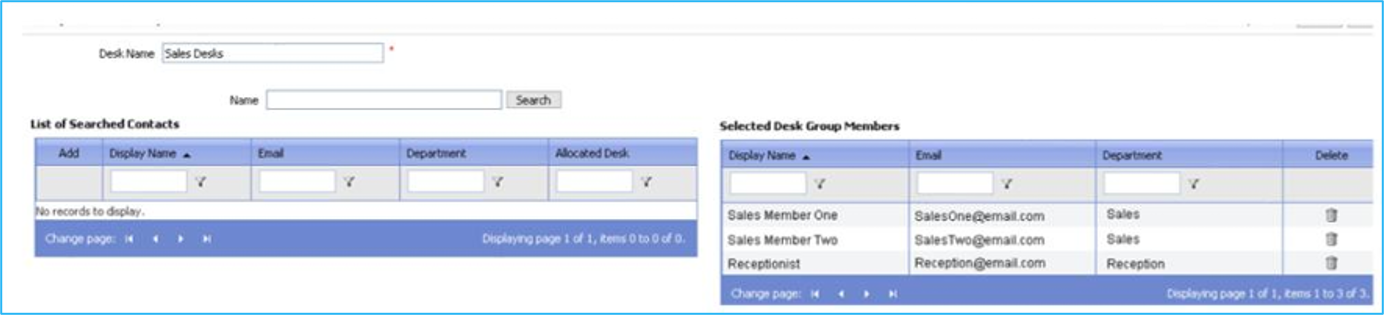
In Entity Property Based, Click My Desk
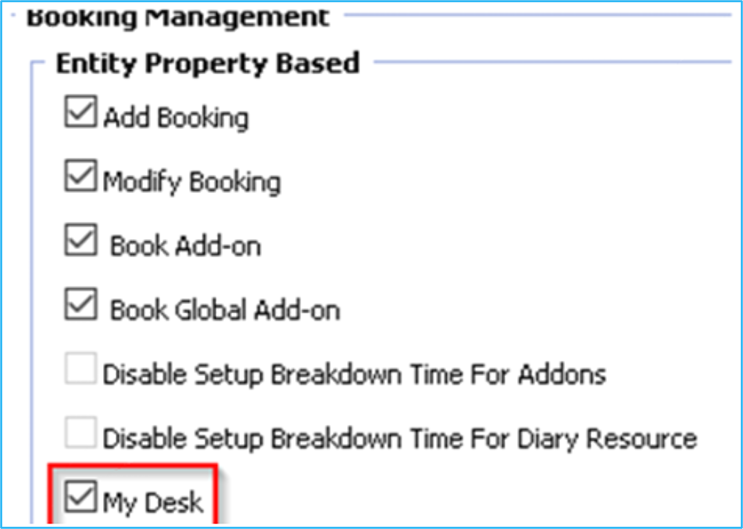
The My Desk module will now display as an icon along the top of the page
Flexible Groups
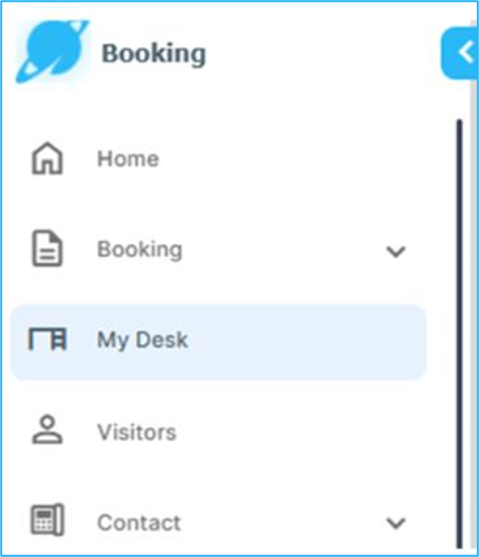
Flexible resource groups make management easier and offer additional configuration options. Multiple users can add and maintain resource availability. Access to this tab will be included in the existing User Group permissions for User Security, enabling them to configure these flexible resource groups.
Go to Administration > User Security > Desk Management
From the Desk Management tab, select Add a New Desk Group.
Search and add each user.
Group Desk Visibility
There is a scenario where not all users within the same resource group should have access to all resources. For example, the sales teams may have some flexible resources assigned to each of them, and a receptionist may be responsible for maintaining the availability of these resources. Only the receptionist will need access to all flexible resources; each sales team member should only have access to their own.
Group Desk Visibility will give access to all resources that are part of a group. If unselected, then regardless of being in a desk group, the user will only have access to their own individual resource.
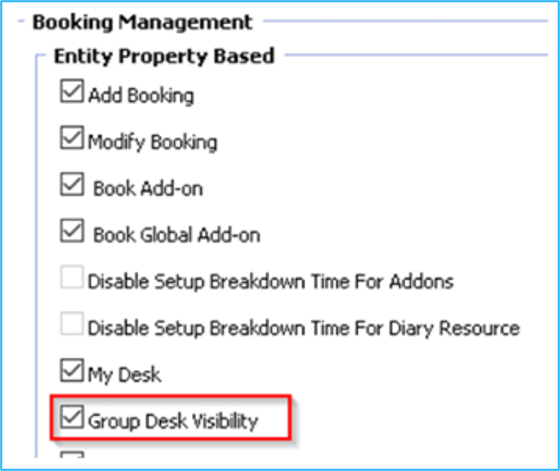
Go to Administration > User Security > User Groups > Booking Management
Click Group Desk Visibility to give access to all resources that are part of a group, or unselect to limit to their individual resource
Once all the relevant user permissions are set, flexible resource owners and desk management groups have been configured, and flexible resources will then be ready to use
Was this helpful?
Still need help? Share an idea