Booking Admin - Users Security
A review of creating and managing users in a Booking System
Written By Ed Kinne
Last updated 8 days ago
User security is controlled by several settings that can be customized in your system.
User Groups
Permissions are assigned in User Groups. These advanced user security options are initially configured by Korbyt. An administrator can add more user groups. If you can “view” or “display” a field, you can “edit” the field as well.
Creating User Groups
Go to Administration > User Security > User Groups > Add New User Group button
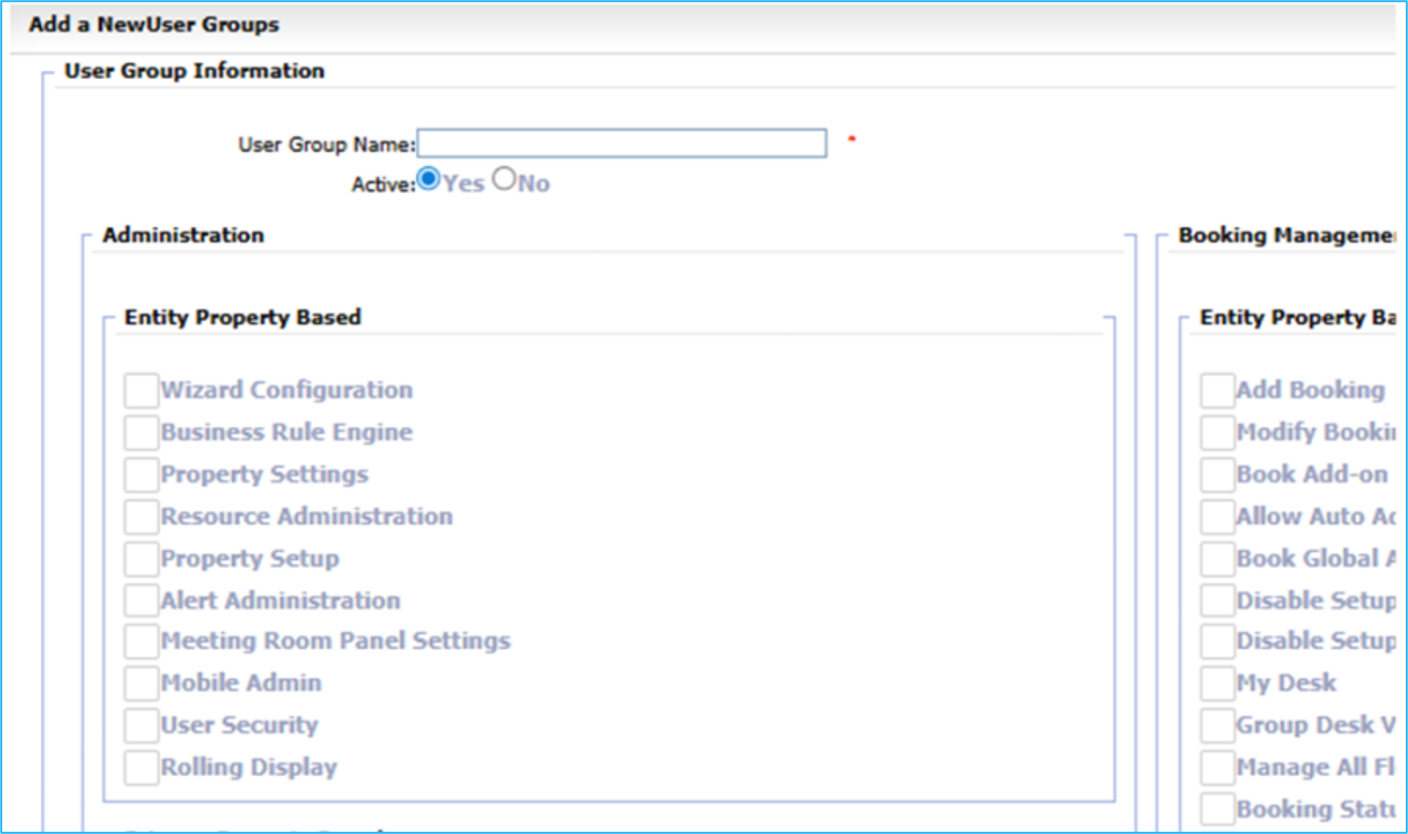
Enter the new User Group name
Assign permissions by clicking the checkbox
Click Save
Important: Do not edit existing User Groups without consulting the Korbyt consultant or the support team.
Caution: Some permissions cannot be revoked once saved. Contact the Korbyt consultant or the support team to reselect those permissions.
User Roles
Roles interlink Resource Groups, User Groups, and Properties. Each has its specific permissions for general tasks. Roles combine these three sections into one fully customized security setting, which can then be assigned to each user.
Creating User Roles
Go to Administration > User Security > Role > Add New Role button
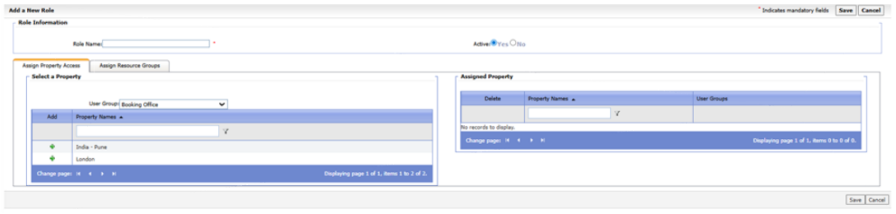
Enter the Role name • Select the User Group
Select the Properties the Role has access to using the green + icon
Once you select a property, it moves from the Select a Property list to the Assigned Property list.
Contine to assign Resource Groups
Assigning Resource Groups
Click on the Assign Resource Groups tab
Click the appropriate checkbox for each Resource Group
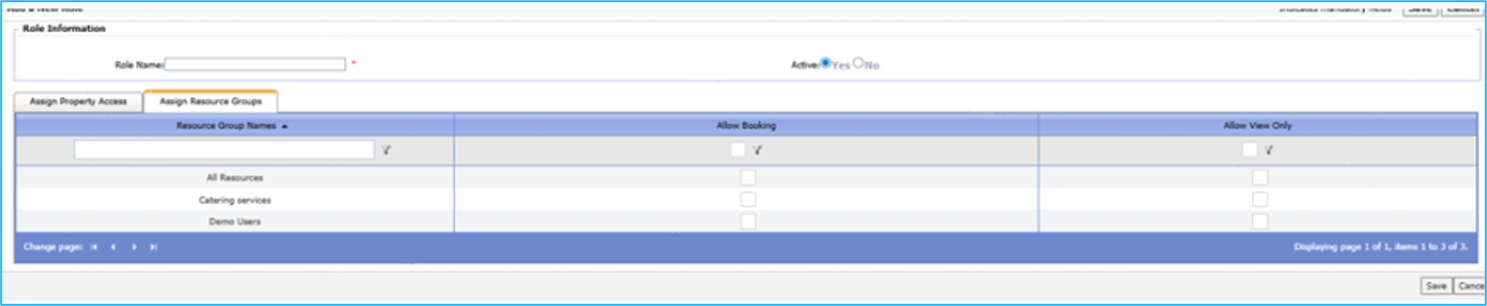
Allow Booking: This option gives users full capability to book and view bookings.
Allow View Only: This option allows a user to only view a resource.
Click Save
Creating AD Field Mappings
Identify the default Active Directory values for incomplete user profiles.
NOTE: The system does not allow two Role Mappings to have the same Access Level. To do so, deactivate a Role Mapping temporarily, move the Access Levels around, and then reactivate
This screen is used to map the appropriate Korbyt Booking field to the equivalent in AD when using the AD Synchronization facility. Repeat the top section for each property in the system. Talk to a Korbyt Representative for Additional information.
Edit AD Property mapping (Top Section)
Go to Administration > User Security > AD Field Mapping

Double-check the Region.
Usually, there is only one, but if there are two properties, then it may need to be made in both.
Select the AD Mapping Field Name, which is the User’s AD field within a profile (e.g., the City).
Select the Property.
In the AD Field Value field, enter the possible city name match you would find in a User's AD Profile. You may map multiple AD Field Values for one Property (e.g., New York and NYC) to make sure the Profiles are brought in correctly. Click Assign.
Edit AD Fields Mapping (Bottom Section)
Click All Properties (If the information is the same for each property. If not the same, then perform these steps for each property).
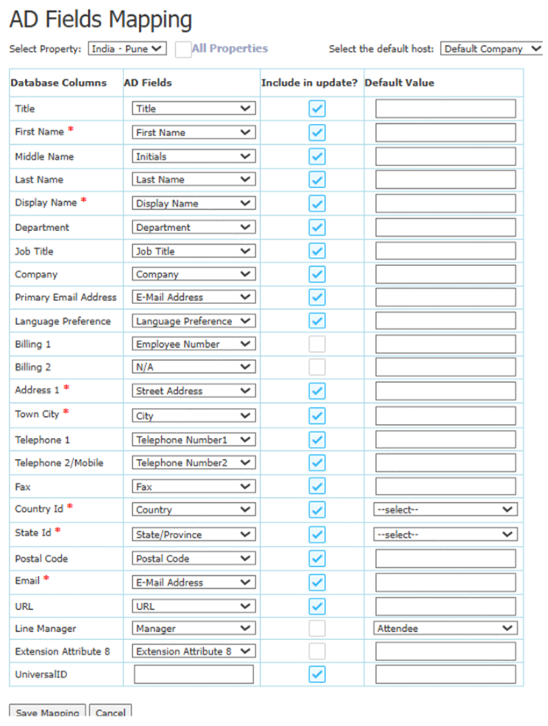
Complete all the mandatory* fields by mimicking the Database Columns in the Default Value column. Click Save Mapping.
NOTE: Update this section every time a new property/location is added. Otherwise, the sync stops working.
Creating Users Manually
If AD Sync is not being used, then each user must be created manually. After selecting the Company, the contact list will show other users within the same company.
Go to Administration > User Security > User > Add New User button
Select a Company. This will automatically fill in some fields with the company’s information.
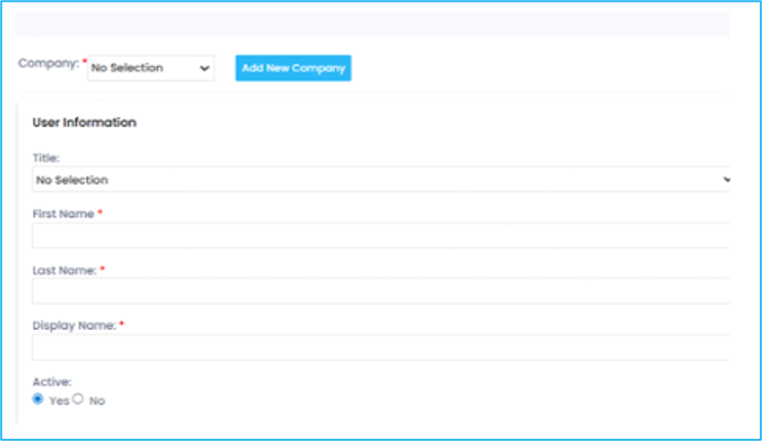
Complete the User Information and Address Details sections.
Click Add User Information.
Click the Role Name field to view the drop-down list, then select the Role to assign to the user.
Select the Primary Property and Language Preferences first.
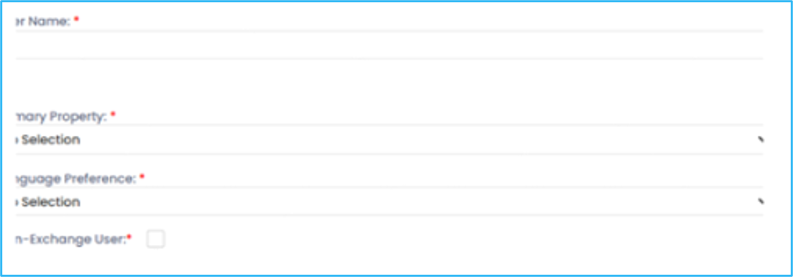
Then enter the User Name and Password. Click Save.
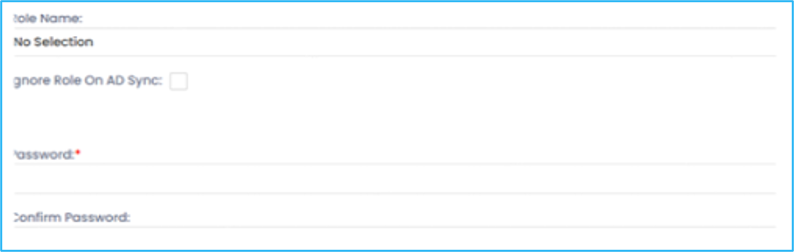
NOTE: Users must be assigned to a Role that is allocated by the Role AD Mapping, and changes are updated during the synchronization.
Editing Users Manually
Making changes to a user’s record manually
Go to Administration > User Security > User
Under Display Name, search for the user you want to edit
Click on the User Name to open the profile
Make desired changes
Click the Save Button
Creating Teams
The Korbyt Booking Teams functionality allows users who normally only have permissions to their own booking to also be able to access and modify other users’ bookings when they are part of the same team. A user can be in as many teams as required.
Go to Administration > User Security > Teams > Add New Team button

Enter the Team Name that represents who is in the Team (e.g., PA Group).
To add users, enter the Name of the person and click Search. Then click the green plus + by their name.
Team members display on the right-hand side under the Selected Team Members section. Click Save.
Was this helpful?
Still need help? Share an idea