Booking Admin - Wizard Management
Configure when a new Rescource Type or Property is created
Written By Ed Kinne
Last updated 8 days ago
This area will only need to be updated when a new Resource Type or Property is created within the system. This is used to display service- and resource-level questionnaires within the main application and the traditional Bookit plugin only.
Creating the Wizard
Go to Administration > Wizard Management > Wizard > Add New Booking Wizard button
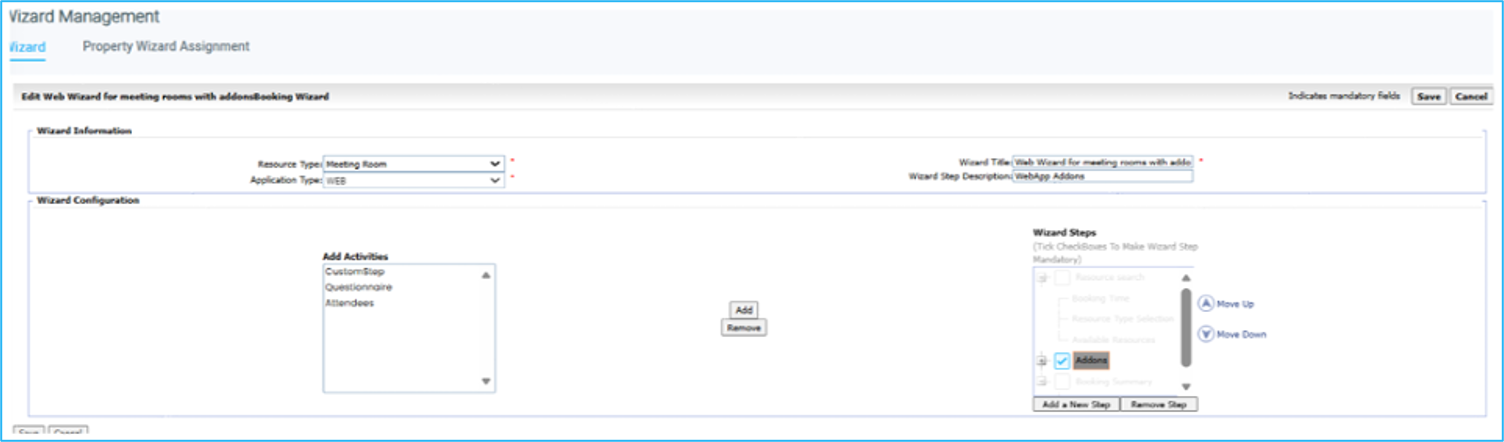
Select the Resource Type.
Select Application Type, either Web or Outlook.
This cannot be changed once saved.
Enter a detailed name in Wizard Title (e.g., “Outlook Wizard for Meeting rooms with Services”). The description is optional.
Click Add a New Step.
Double-click the step, enter the name Services.
Click the checkbox next to Services.
Select Services in the Wizard Steps column and Add-ons from the Add Activities column.
Click Add, then click Save.
Repeat for Web and Outlook
Assgning the Wizard
Go to Administration > Wizard Management > Property Wizard Assignment
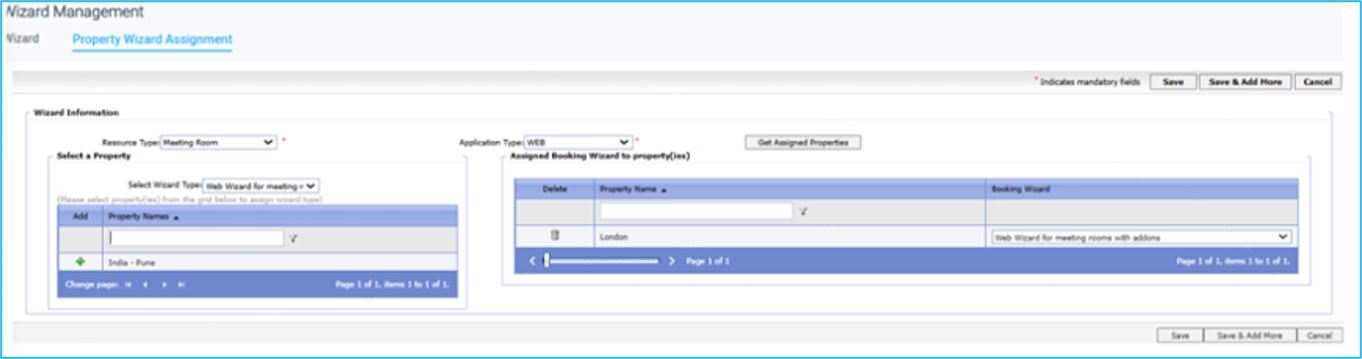
Select the Resource Type and Application Type.
Click Get Assigned Properties.
The unassigned and assigned lists will appear.
Check that the correct wizard is selected.
Click the green + for each property.
Click Save or Save & Add More.
Repeat for each Resource Type and each Application Type
Was this helpful?
Still need help? Share an idea