Booking Admin - Business Rules Settings
Individual Properties Settings
Written By Ed Kinne
Last updated 7 days ago
The Business Rule Settings are a collection of settings that are applied to individual properties.
When working in Business Settings, select the Property first. Each tab has a range of settings.
Most settings are in a Yes / No format and can be copied to other properties in the system. Save your changes after each tab using the Update Current Settings button at the bottom of the page.
Go to Administration > Settings > Business Rule Settings
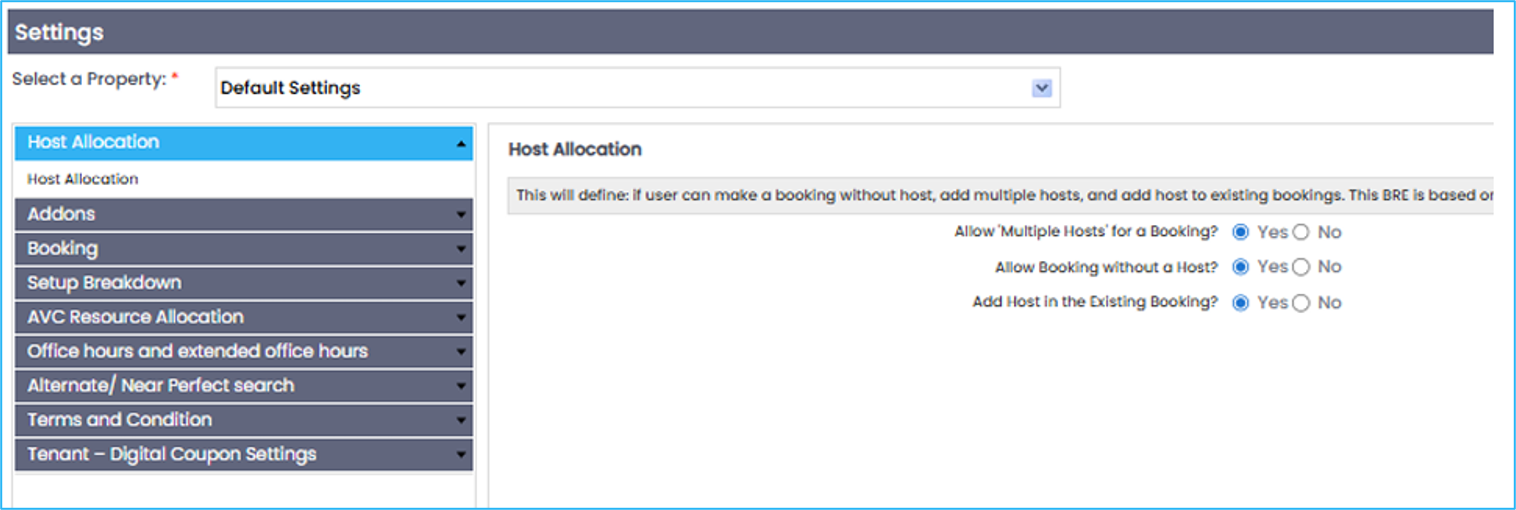
Summary of Business Rules Settings
Host Allocation: The Host Allocation options specify if Multiple Hosts can exist in any booking and if a booking can be made without a Host. It’s recommended that all bookings have a default host. Tip: For clear reporting, create a co-host Booking Role rather than allowing multiple hosts.
Addons (Services): This setting will supersede each Service’s configuration. Allow Zero Quantity Addon is used when the quantity required is not known but will be updated in the future. The Addon 48 hour cut off rule specifies when the weekend starts for the 48-hour rule.
Booking: There are several booking rule options (e.g., Future Booking Restriction and Past Booking). Each setting should be reviewed individually and updated per property as required.
Setup Breakdown Time Overlap: This rule allows/restricts the breakdown time of one meeting to overlap with the setup time of the next meeting. This would denote whether the setup/breakdown can happen at the same time.
Office Hours and Extended Office Hours: Office hours can be set by the property under Office Hours & Extended Office Hours. You can also specify Holidays and Weekends, preventing users from booking during these times. An override User Group setting is available.
To Allow Booking in Non-Office Hours, first click No and input the Office Hours and the Extended Office Hours.
Click Update Current Settings, then click Yes, and then click Update Current Settings again.
NOTE: For more details regarding the Business Rule Settings, speak to the Korbyt consultant or support team. AVC Resource Allocation, Alternate / Near Perfect Search, and Terms and Conditions: Business rules are not in use.
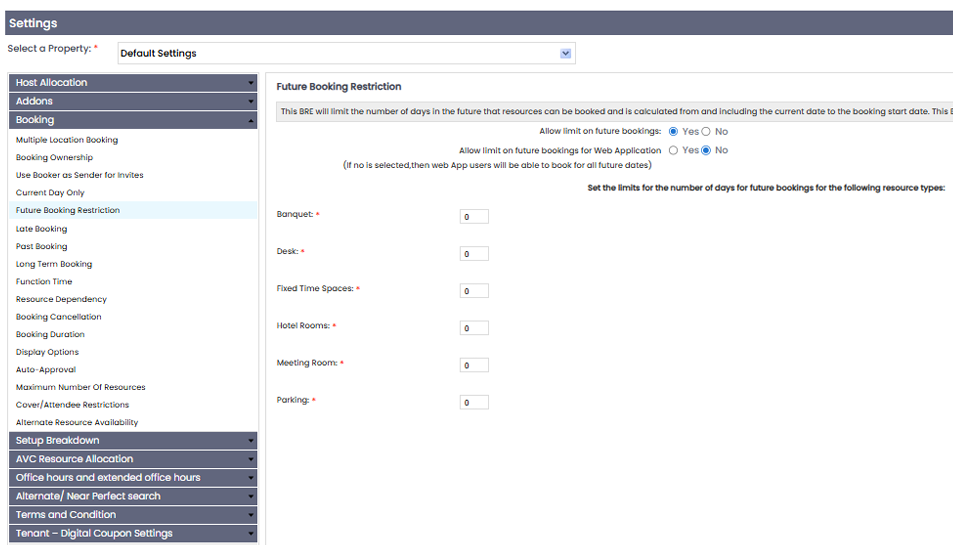
Set Limit on Future Bookings
Limit the number of days in the future that a space can be booked via Outlook and/or the Bookit web app.
Go to Administration > Settings > Business Rule Settings
From the left-hand panel, select Booking and click Future Booking Restriction.
Select Yes for Allow limit on future bookings.
Select NO for Allow limit on future bookings for Web Application. This applies to the Power UI and will allow administrators to create future bookings without restrictions.
Enter the number of days for each resource type. The maximum you can type is 9999
Booking > Cover/Attendee Restrictions (DRE Panel)
This panel is property-based (applies to the selected Property or Default Settings) and governs attendee/participant validations and how quantities for services/resources are calculated.
Two related counts drive this panel. Attendee Count is the number of people assigned in-room to a specific resource (set in the People/Attendees section of a booking, excluding anyone toggled as Virtual). Total Participant Count is the overall meeting headcount, including virtual attendees, entered on the Booking Information screen or calculated automatically. The settings below control how these two numbers are validated against each other and how they drive service quantities.
Enforce Max capacity limit (Yes/No) — When Yes, the system blocks saving a booking if the in room attendee count exceeds the room’s configured capacity. Virtual attendees are excluded from capacity checks.
Note: Virtual Attendee status is auto-assigned by comparing an attendee’s Primary Property (set under Administration > User Security > User) to the properties of the resources on the booking. If an internal attendee’s Primary Property does not match any booked resource, they are automatically flagged as Virtual; if it matches, they are flagged in-room. Users can override this with the Virtual toggle in the People/Attendees section regardless of the auto-assignment.
When No, users can exceed capacity (useful for soft limits) but see any separately configured warnings.
Warning message (if Attendee count is different than participant count) (Yes/No) — When Yes, displays a warning if the number of Attendees (people actually assigned to the room) differs from Participants (overall meeting invite count). This does not block saving; it’s an informational prompt to reconcile headcount vs. invitees.
Services & Resource covers Quantity based on (Resource Participant Count / Attendee Count) — Controls how auto-calculated service/resource quantities (e.g., pads, beverages) are derived:
Resource Participant Count: Uses the meeting’s overall participant total (booked headcount), regardless of how many are in-room vs. virtual.
Attendee Count: Uses the in-room attendee total assigned to the room. Recommended when services are consumed only by on-site people (catering, chairs, table settings).
Require at least one attendee per room (Yes/No) — When Yes, each booked room must have ≥1 attendee assigned before confirmation. Prevents “empty” room holds.
Show Total Participants? (Yes/No) — When Yes, the UI surfaces a total participant indicator to planners, aiding quick validation of headcount against capacity and services.
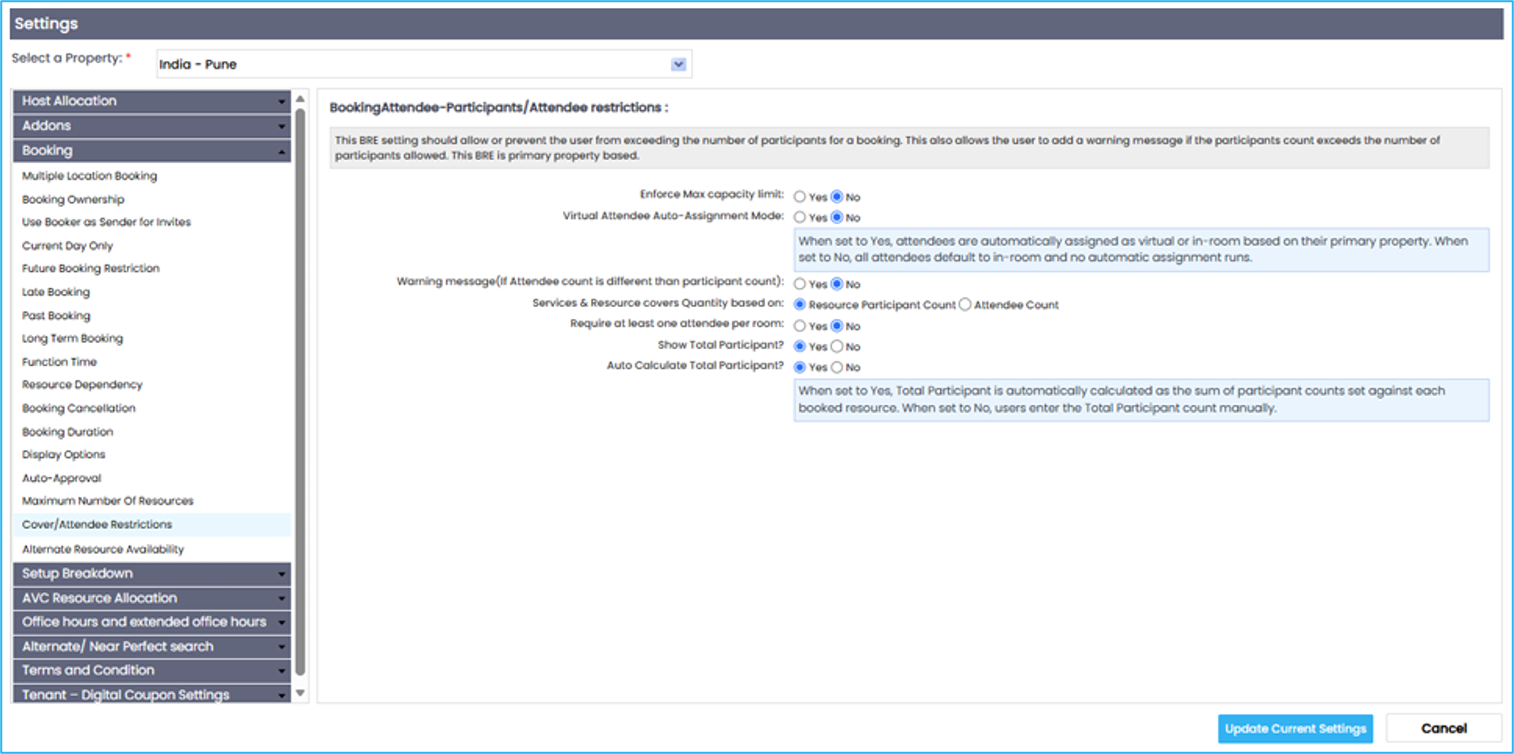
Auto Calculate Total Participant (Yes/No) — When Yes (the default), the Total Participants field becomes read-only and is automatically calculated as the sum of the participant counts entered for each booked room, updating in real time as rooms are added, removed, or edited. When No, the field remains manually editable by the planner. This setting only has a visible effect when Show Total Participant is also set to Yes.
Global Business Rules Settings
The Global Business Rules are a small collection of settings that are used to determine the outcome and effect of a booking status.
Go to Administration > Settings > Global Business Rule Settings
Status Management
The Booking Status Range provides the Guarantee Status range that should be used when creating a new status and determines the availability of that status. These are hardcoded values that cannot be modified.
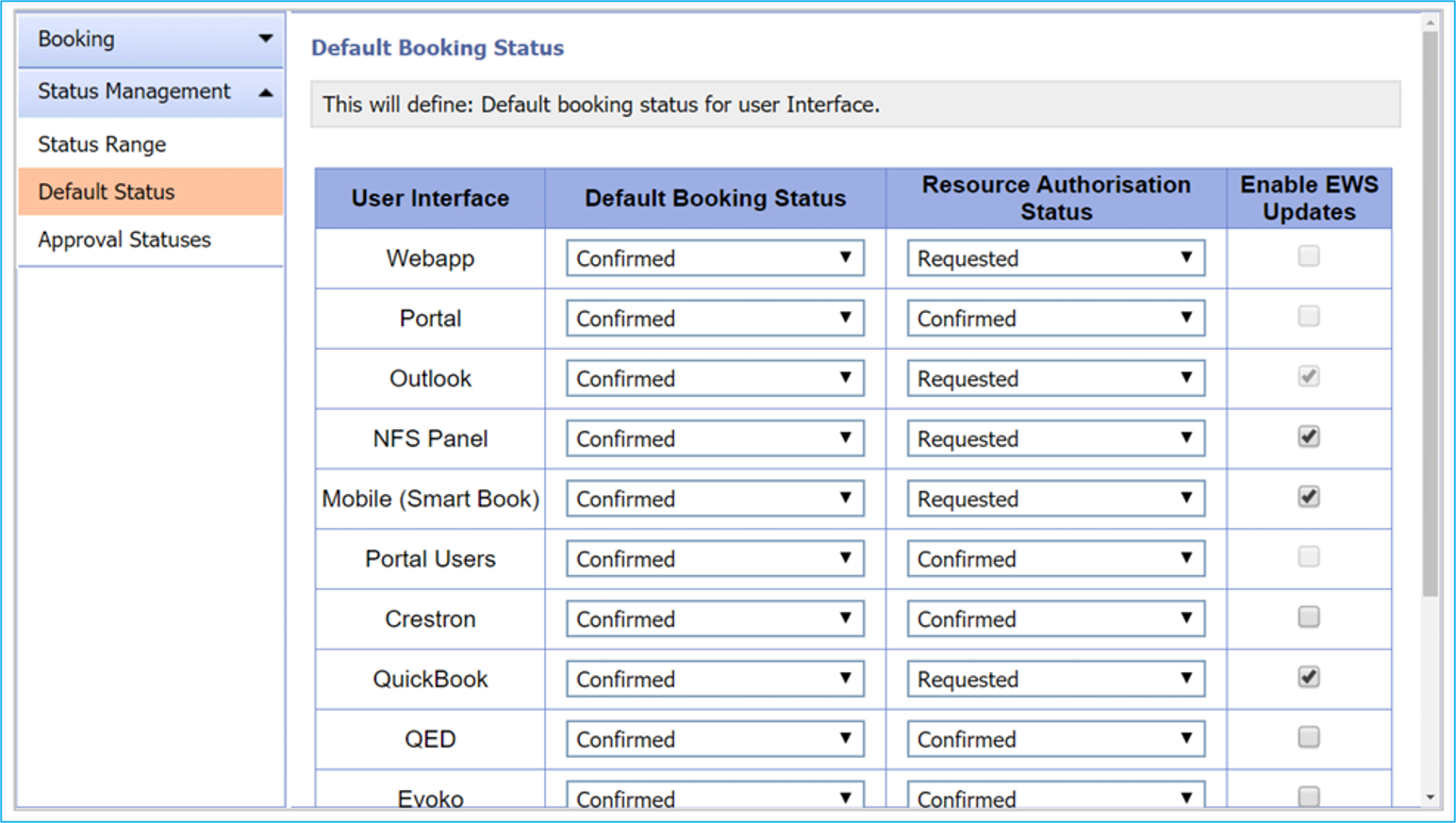
Default Status
The default Bookings Status for each User Interface.
Approval Statuses
The Booking Statuses that will appear under the Authorization Request tab in Bookings. Only Provisional Status Ranges (e.g., requested) appear in the Authorization Request tab.
Meeting Room Panel Settings
As with previous settings, first select the property and then update the settings for each one.
Go to Administration > Settings > Meeting Room Panel Settings
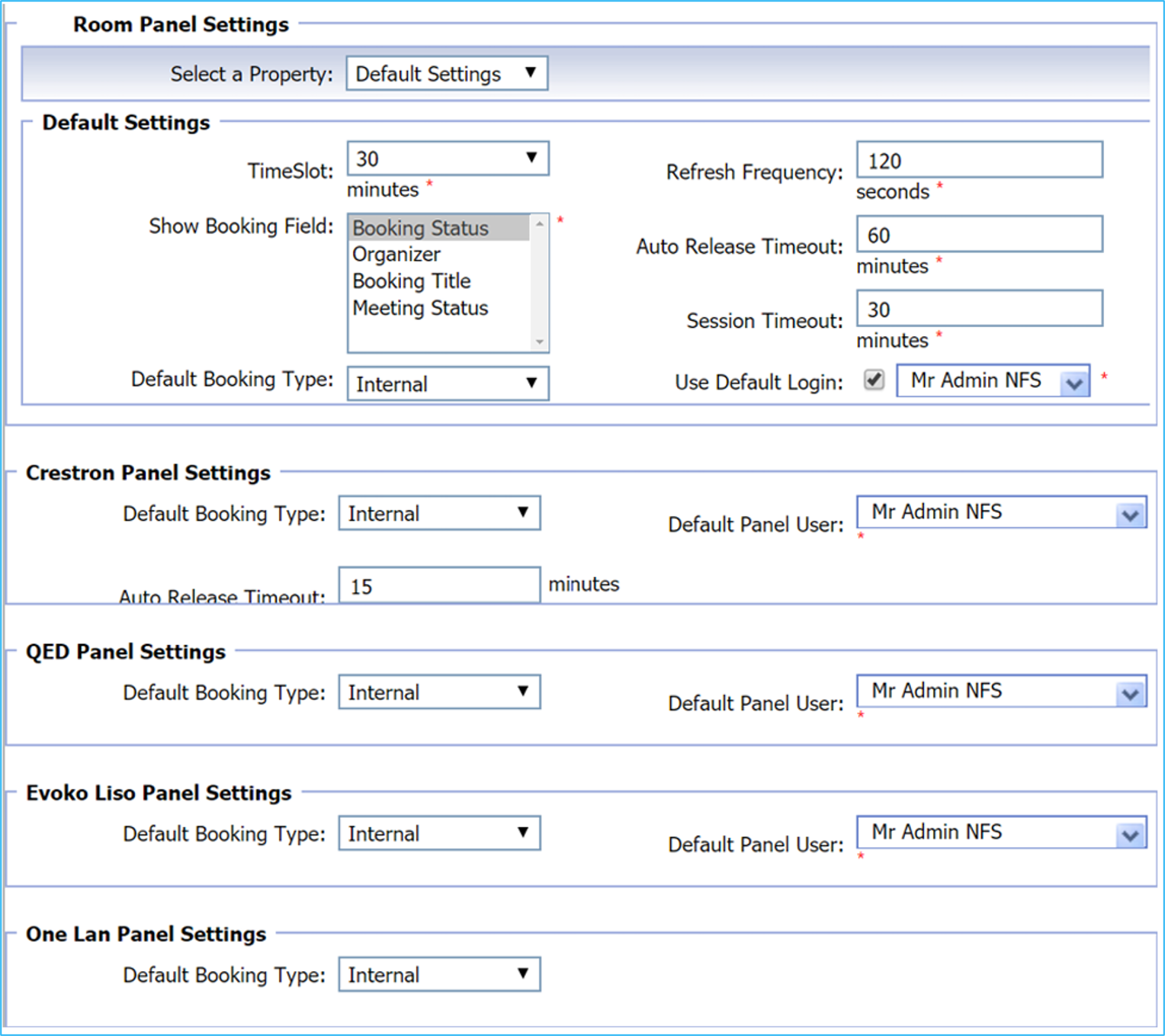
Default Settings
The default settings are only used for the iPad application. An iPad is used as a panel that is placed outside a meeting room. The application displays the availability and status of a meeting.
Time Slot and Booking Field are not in use. For more information regarding settings and panels, speak to the Korbyt consultant or the support team.
Refresh Frequencey
The refresh frequency sets how often the page refreshes. Two minutes is the suggested amount of time.
Auto Release Timeout
The auto-release setting is a feature that automatically cancels a booking when the host hasn’t checked in. The time entered here determines how many minutes after the scheduled meeting start time a user has to check in to hold their booking.
Once a room is released, it will become available in the diary for other users to book.
Session Timeout
The session timeout affects the amount of available time a user has per session after they have logged into the application.
When a user is idle, their session will timeout based on the number of minutes entered in this field.
This does not force a login screen, but everything other than accessing the apps settings is available.
Two minutes is the suggested Session Timeout default. This prevents someone from changing the settings.
Use Default Login
Select the default panel administrator
Specific Panel Settings
Configure the specific panel settings as needed.
Was this helpful?
Still need help? Share an idea