Slack Notification Delivery Integration
How to connect Korbyt to your Slack Workspace to receive notifications in Slack from Korbyt
Written By Ed Kinne
This article reviews the steps in Slack and Korbyt to enable Korbyt to send Player notifications to Slack.
These settings only affect player notifications configured in the Player Group settings. For more details on setting that, see Player Groups and Access Permissions specifically the Notifications Section
High-Level Steps
In Slack, a new Slack App or Bot will need to be created
In Korbyt, a Tenant Administrator will need to connect to the new Slack Bot using an OAuth token
In Korbyt, individual users or an admin will need to set a user’s preferred communication channel to Slack, and input the Slack Member ID
Once a user’s prefered communciation method has been set to slack they will no longer receive player alerts at their email, and instead will receive them in Slack
Steps in Slack
Create a Slack Workspace
If you already have a Slack workspace, move to the next step
This Slack help article provides steps if needed
You can use a personal email for testing
Create A Slack App and Set Permissions
While logged into your Slack Workspace, navigate to
Select Create
Then select From Scratch

Name it however you want it to show up in your workspace, for example, Korbyt Player Group Notifications
Select your workspace
Create your app
You will now see your app’s Basic Information
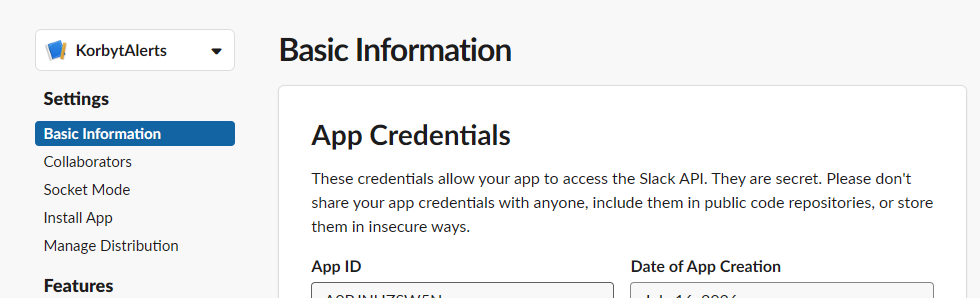
On the left navigation bar, select OAuth & Permission
Scroll down to the Scopes section
In Bot Token Scopes
Click Add an OAuth Scope
Select chat:write
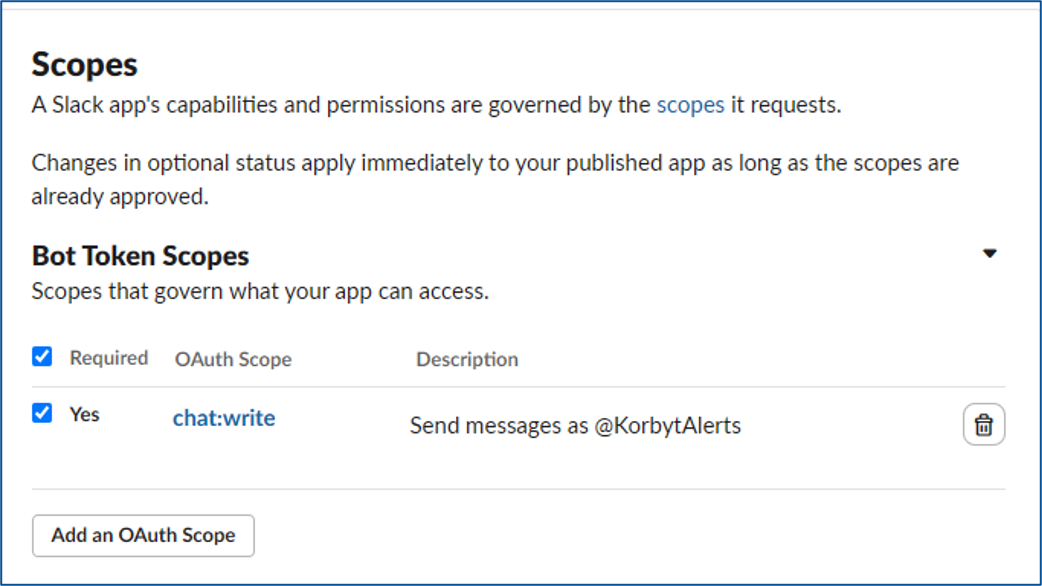
These need to be selected so DMs can be sent to Slack Users
Near the top, click on Install/Reinstall to {your workspace name}
Then click Allow
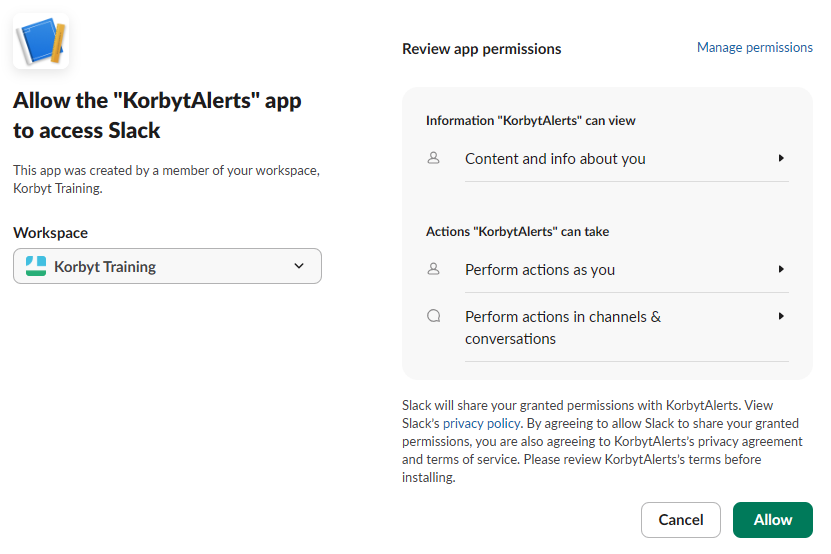
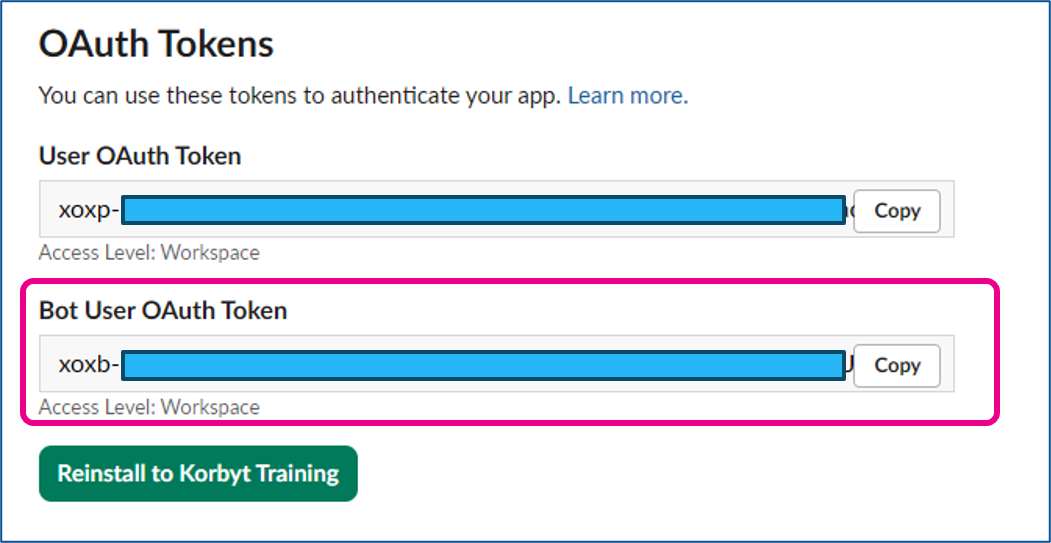
Copy and save the Bot User OAuth Token that’s been generated; you will need this later in Korbyt
Collect your Slak User ID
You will need your Member ID later in Korbyt
Navigate to your Slack workspace on web/desktop
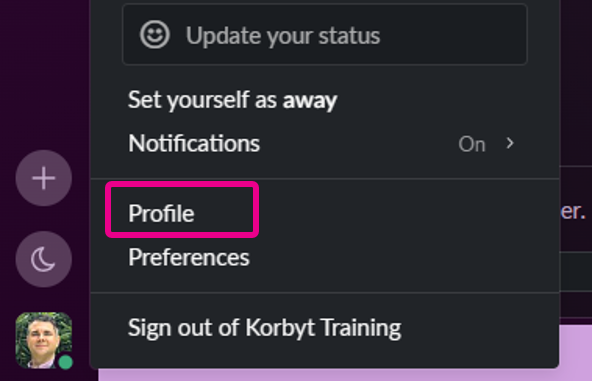
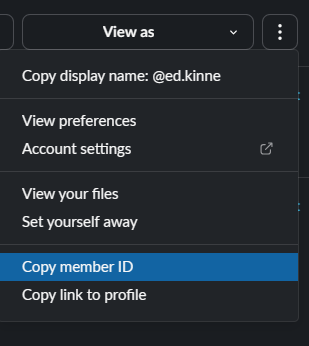
Click on your profile in the bottom left corner, and select Profile
In the Profile panel now open on the right, click on the three dots
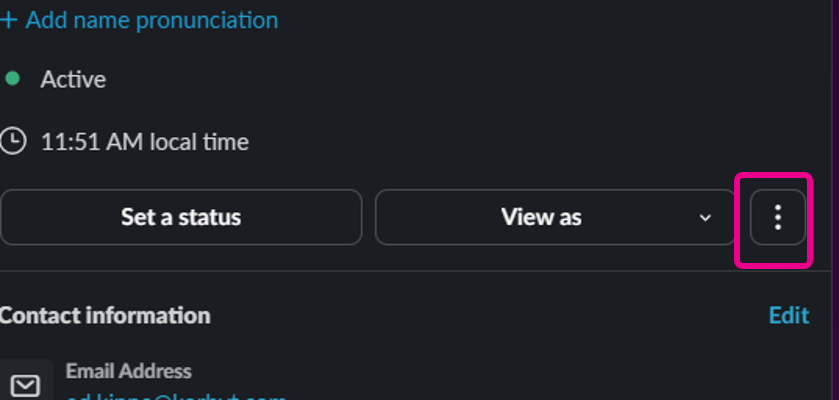
Click Copy member ID (you will need the member ID in the Korbyt CMS
Steps In Your Korbyt CMS
Connect Korbyt to the Slack Application
You will need to be a Tenant Administrator or an Administrator in Korbyt to access these settings.
You will need the OAuth Bot Token captured earlier
Log in to your Korbyt Tenant
Click on the Gear Icon to open the Settings
Click on the Delivery Tab

In the Slack Section, enter your Bot Token and click Validate
A pop-up will ask for a Slack ID to send a test message to
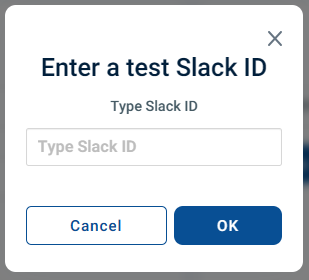
Enter your Slack Member ID, click OK
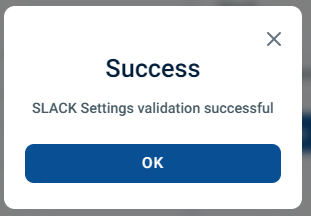
You should see a Success message
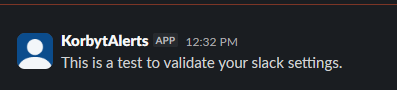
And a new Slack Message to your Slack Agent
Click the Save button in the upper right of the Settings screen
Your Korbyt Tenant is now connected to your Slack Agent
Set User Preferred Communication in Korbyt
Now, for individual Users to receive DMs through Slack, they need to have their preferred communication method set to Slack and their Slack ID entered.
This can be done by a Tenant Administrator, an Administrator, or by the User themselves
Once the change is made, the user will no longer receive Email Alerts for Player Activity from Korbyt, and they will instead go to their Slack
These changes ONLY affect Player based notificaitons and have no effect on other system alerts
As a User
Click on your profile picture or user outline, and select My Profile
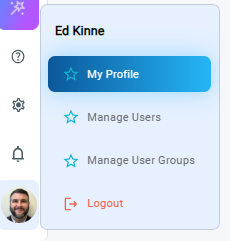
Use the Preferred Notification Channel dropdown to select Slack
Enter the Slack ID in the Username section

Click the Save button
The user will now receive player-based notifications they are a part of to Slack, rather than email
The user still needs to be part of a Player Group Notification.
For more details on setting that see Player Groups and Access Permissions specifically the Notifications Section
You have to be an Administrator or Tenant Administrator to manage Player Groups
As an Admin Level User
Click on your profile picture or user outline, and select Manage Users
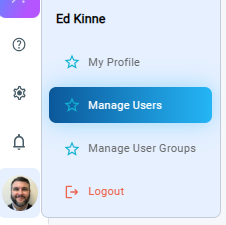
Click on the Pencil Icon for the user you want to edit
Use the Preferred Notification Channel dropdown to select Slack
Enter the Slack ID in the Username section

Click Save in the upper right
The user will now receive player-based notifications they are a part of to Slack, rather than email
The user still needs to be part of a Player Group Notification.
For more details on setting that, see Player Groups and Access Permissions specifically the Notifications Section
You have to be an Administrator or Tenant Administrator to manage Player Groups
Was this helpful?
Still need help? Share an idea