Displaying IPTV Video Streams, Live TV, and other Video Types in Korbyt
A review of options for showing video content through the Korbyt CMS
Written By Ed Kinne
The Korbyt platform supports a wide variety of options for showing video content; some options require a specific media player or third-party encoder hardware.
If you are playing a locally available video file (MP4, AVI, MPEG), import the video file into the Korbyt CMS, and it can then be directly added to a Playlist. The Supported Media Specification article provides a full list of supported video file formats and limits.
Below, we will be reviewing video options that require the use of the Korbyt Builder Tool to create a custom Layout to display a video source. That Layout would then be added to a Playlist to schedule it to a screen.
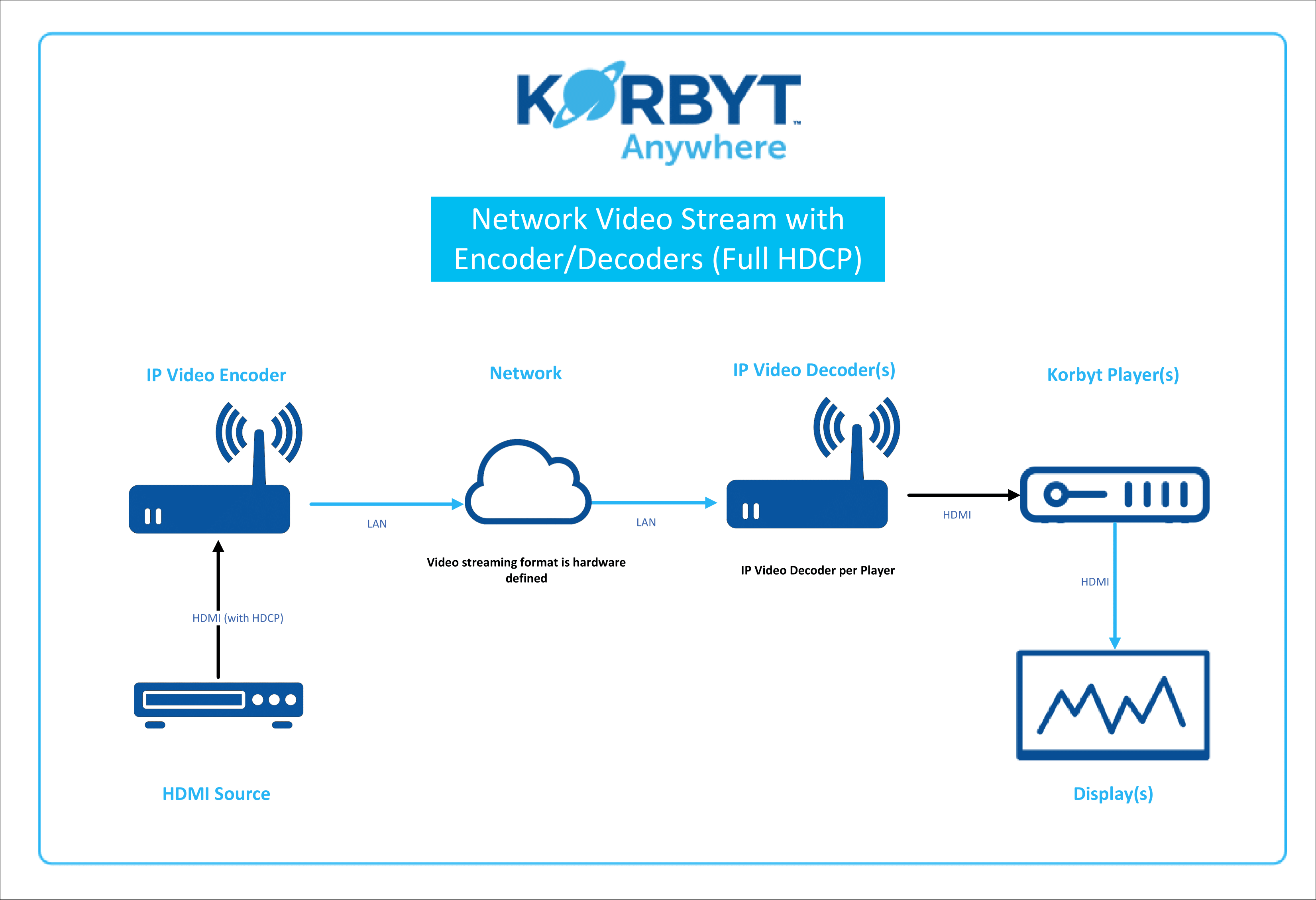
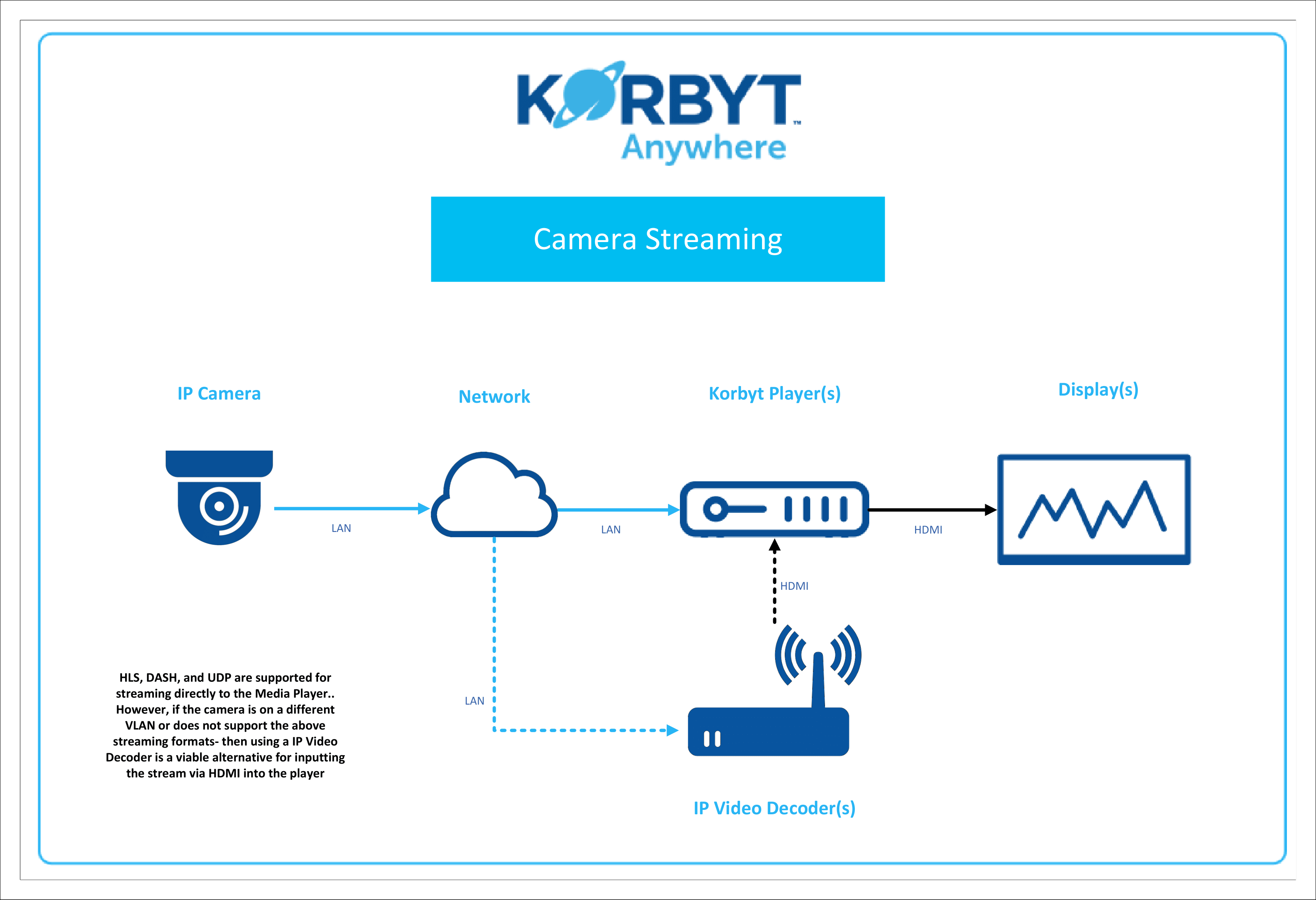
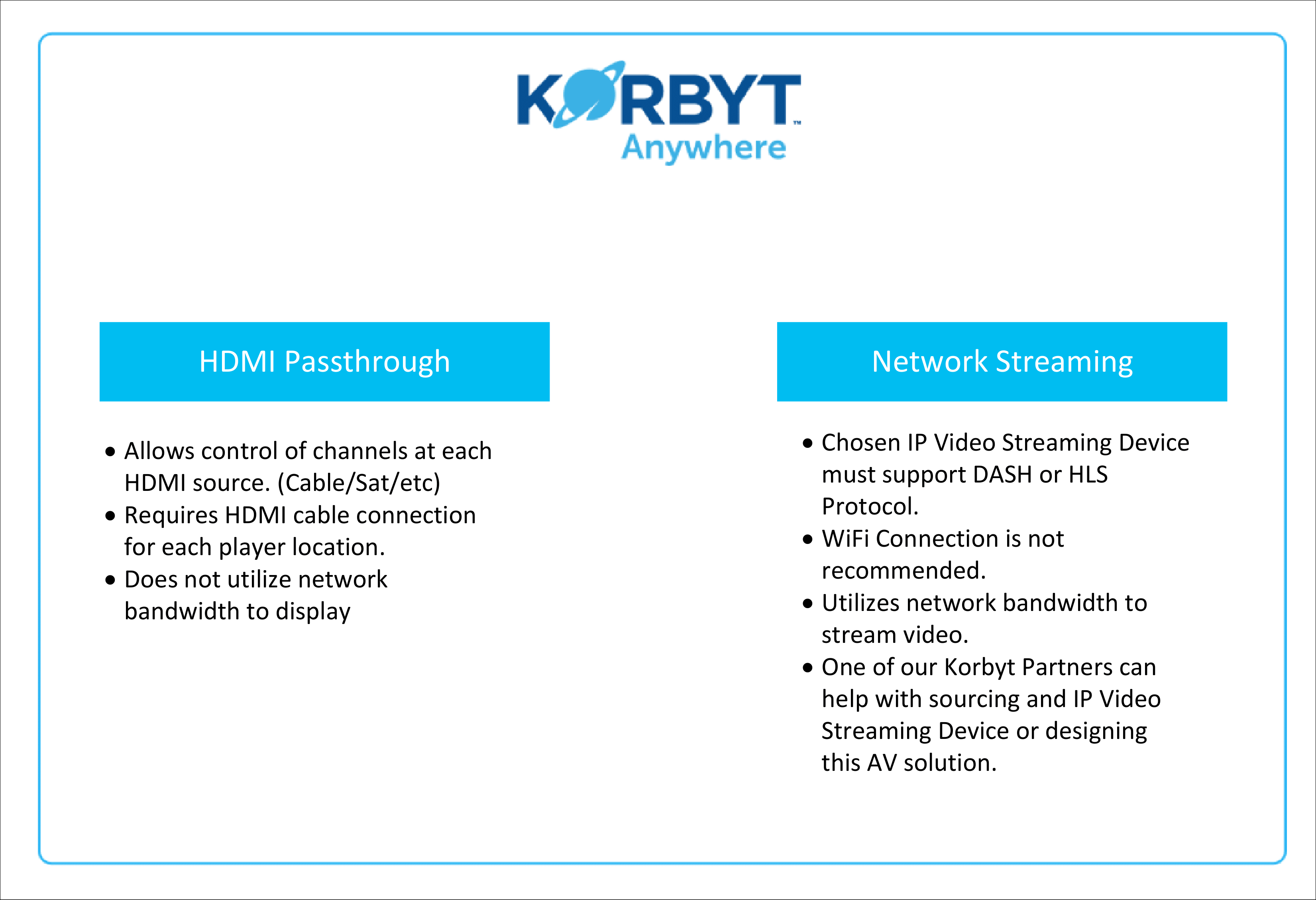
The diagrams at the end of this article illustrate the various video options and hardware configurations.
Network-Based IPTV:
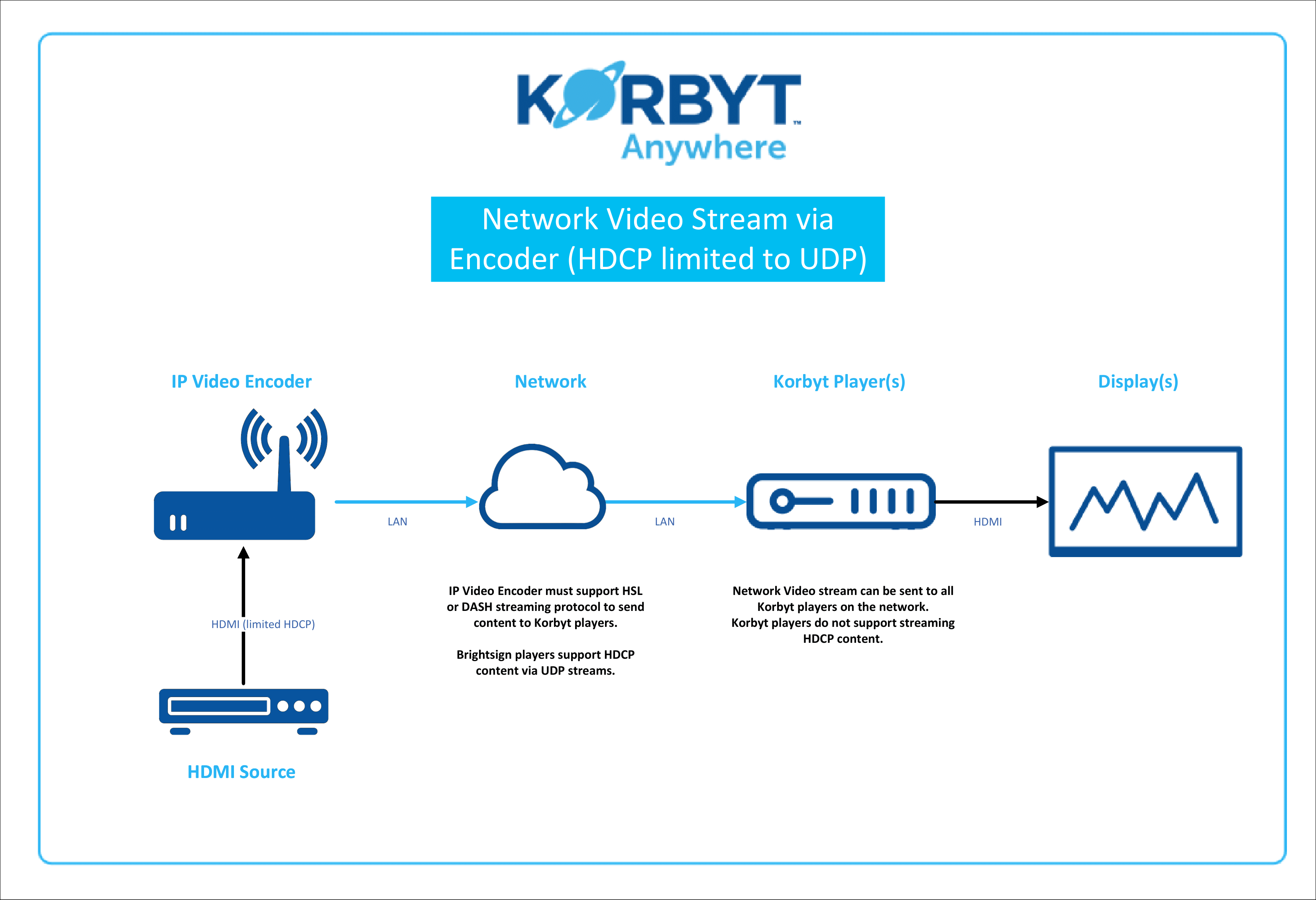
Korbyt supports traditional network-based input methods, including HLS, DASH, UDP, and HDMI.
Video Content to Multiple Displays
To send local video content out over a network of players, you will need to work with one of Korbyt’s Audio/Video partners. These partners can assist in selecting the necessary third-party hardware to transmit video streams to our players. This video head-end hardware will process your video source and then transmit it out in one of our supported formats.
Hardware Limitations of Different Video Streams
There are limitations on which streams (UDP, DASH, or HLS) different media player hardware can display.
HLS streams are the most compatible
DASH streams are not supported on BrightSigns
UDP streams are not supported in Windows-based players
For full details, review the Supported Media section of the Media Player Comparison article and chart Korbyt Digital Signage Media Player Feature Comparison
To Display Network-Based IPTV Feeds
You will use the Korbyt Builder Tool and the Video Element to configure our connection to your video source.
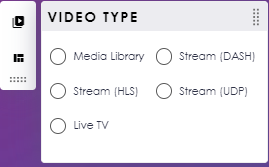
How To Use a Video Element provides full details
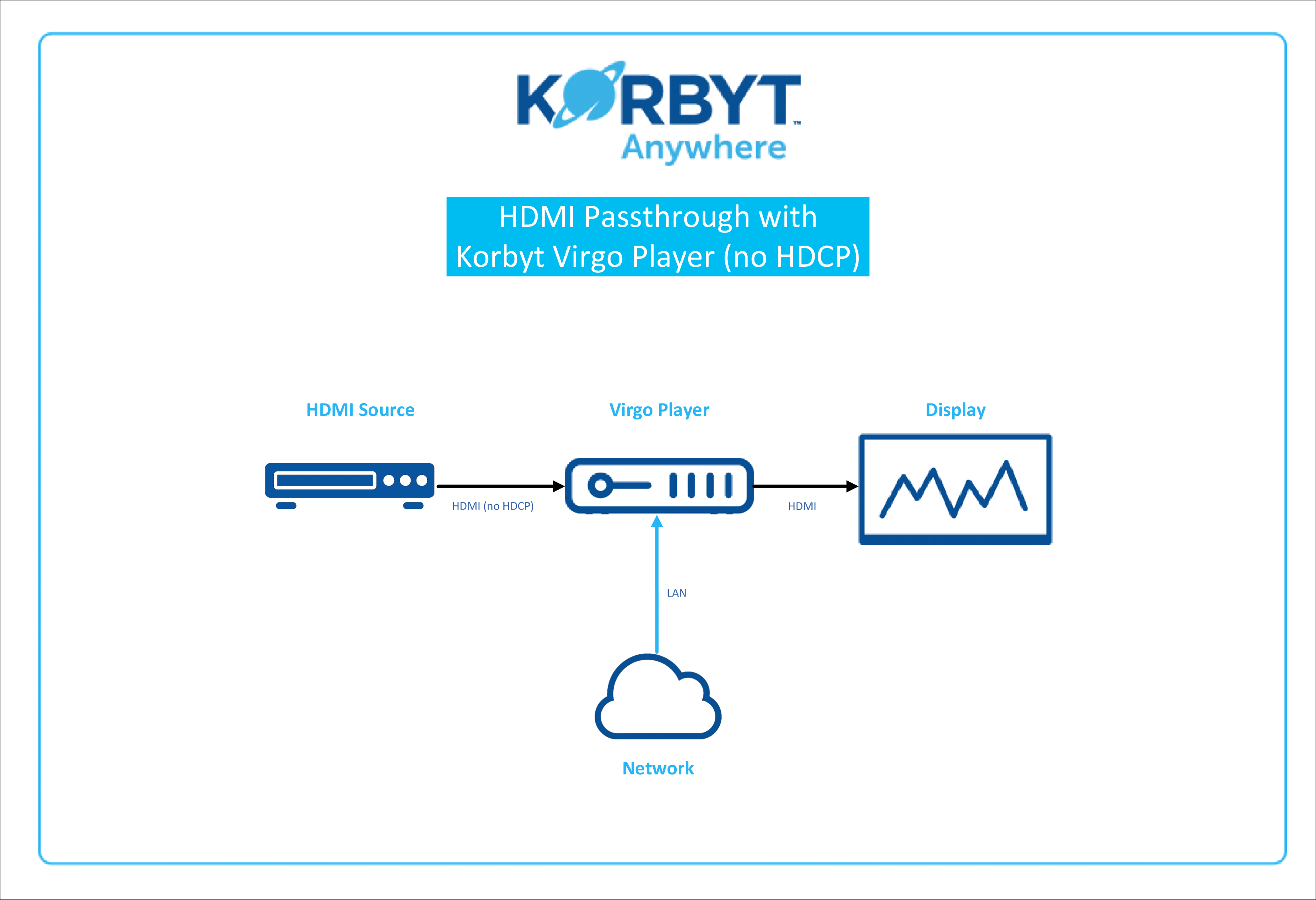
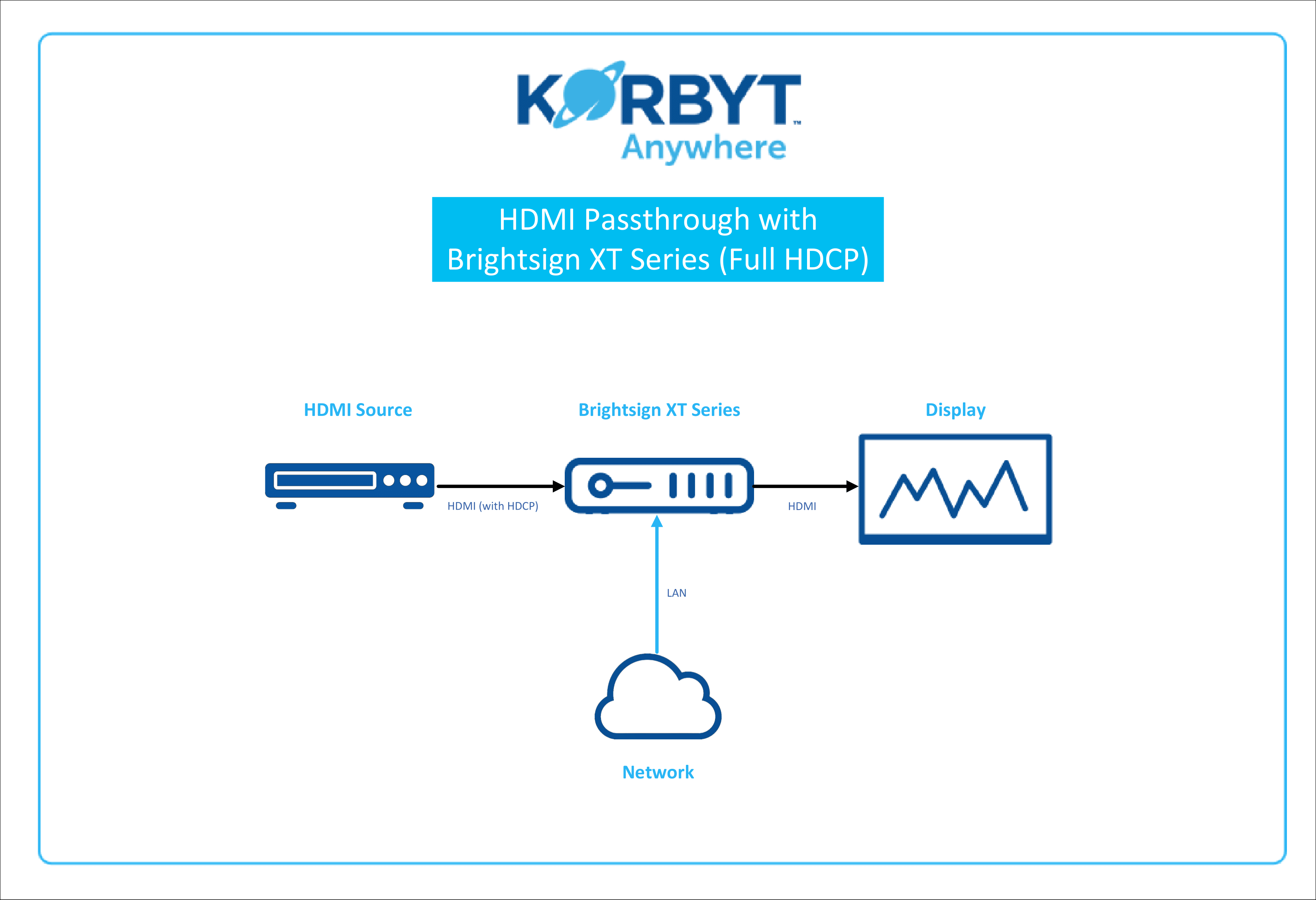
Local Video through HDMI Input on Player
Korbyt supports HDMI input through the Media Player, allowing content to be displayed on the screen to which the media player is connected (locally).
This requires a device that has an HDMI input built-in, and if the video source is HDCP encoded, the media player will need to support that protection standard to display it.
Hardware Limitations of HDMI Input
Currently, BrightSign XT series 5 players have HDMI inputs and full HDCP Support
The legacy Korbyt Virgo player has an HDMI input, but DOES NOT support the HDCP standard.
To Display Local Live TV
You will use the Korbyt Builder Tool and the Video Element to display Live TV, the HDMI input that is connected to the Media Player.
How To Use a Video Element provides full details
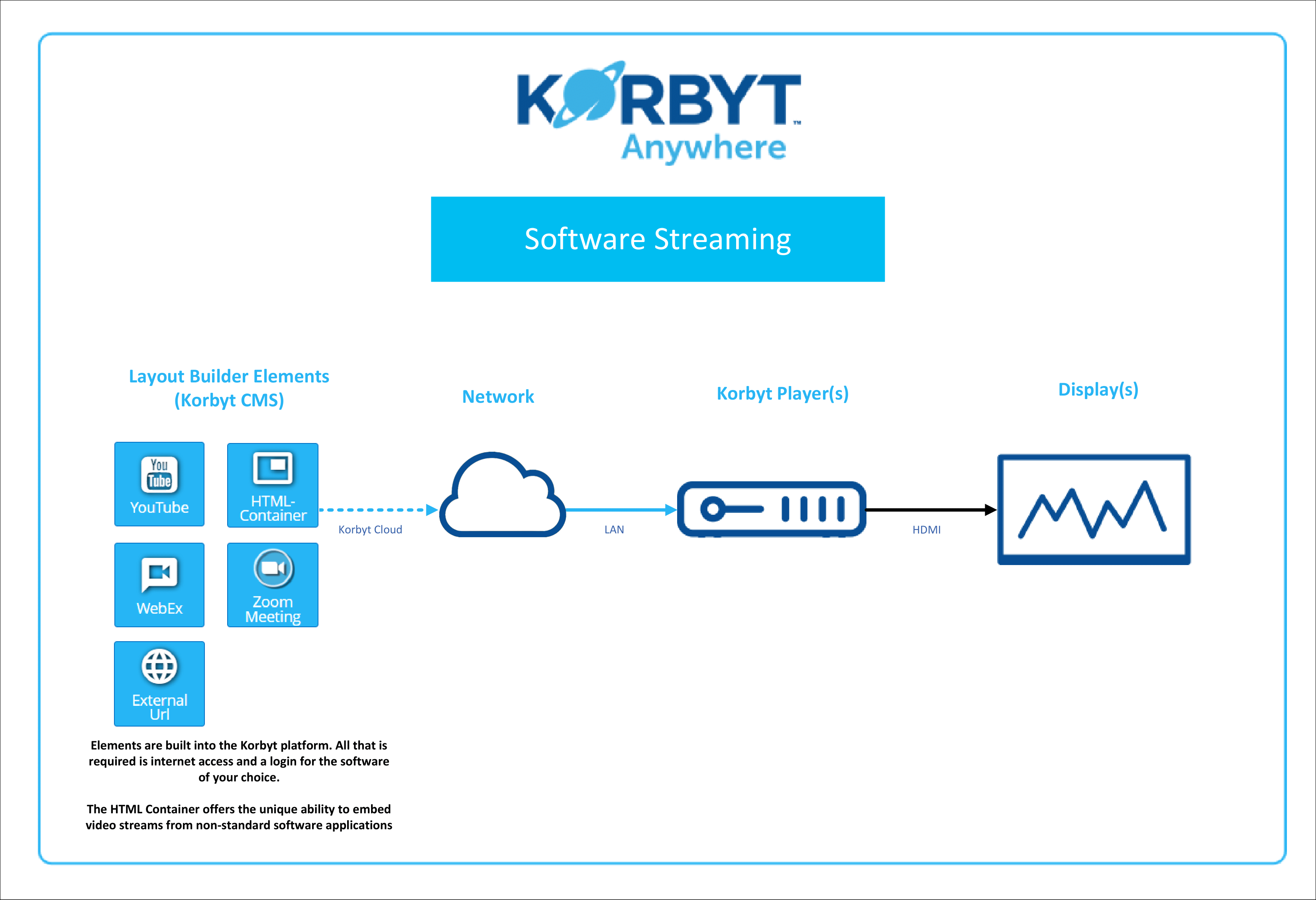
Web-Based Content
If you are displaying a public video from a source such as YouTube, Vimeo, or another website, you would use the YouTube Element, Vimeo Element, or the External URL Element in the Layout Builder to set the display of the specific content.
Limitations on Web-Based Content
Be aware that with these sources, the content providers can place restrictions on them that prevent Korbyt from displaying them.
Live Webinar Meetings
You can display live meetings that are hosted on Zoom or Webex through Korbyt by using the Layout Builder and the dedicated elements for each service.
Designs and Layouts
The video element of the Layout Builder can be used in full screen, to display only the video source, or can be placed in an area of the screen to frame the video with a design of multiple elements, such as time and date, ticker, or any other elements.
For more information on building layouts
Once published, the layout with your video element would need to be included in a Playlist to be seen. Creating and Managing Playlists provides full instruction.
Video System Diagrams Below
Also available to download
Korbyt-Live-TV-Options-rev8.pdf
227.1 KB• Document