How To Change Or Reset Your Korbyt CMS Password
Written By Ed Kinne
This article walks through the steps to reset your password from the login screen if you forget your password and how to change your password to a new one if you are able to log into the CMS.
Passwords Reset
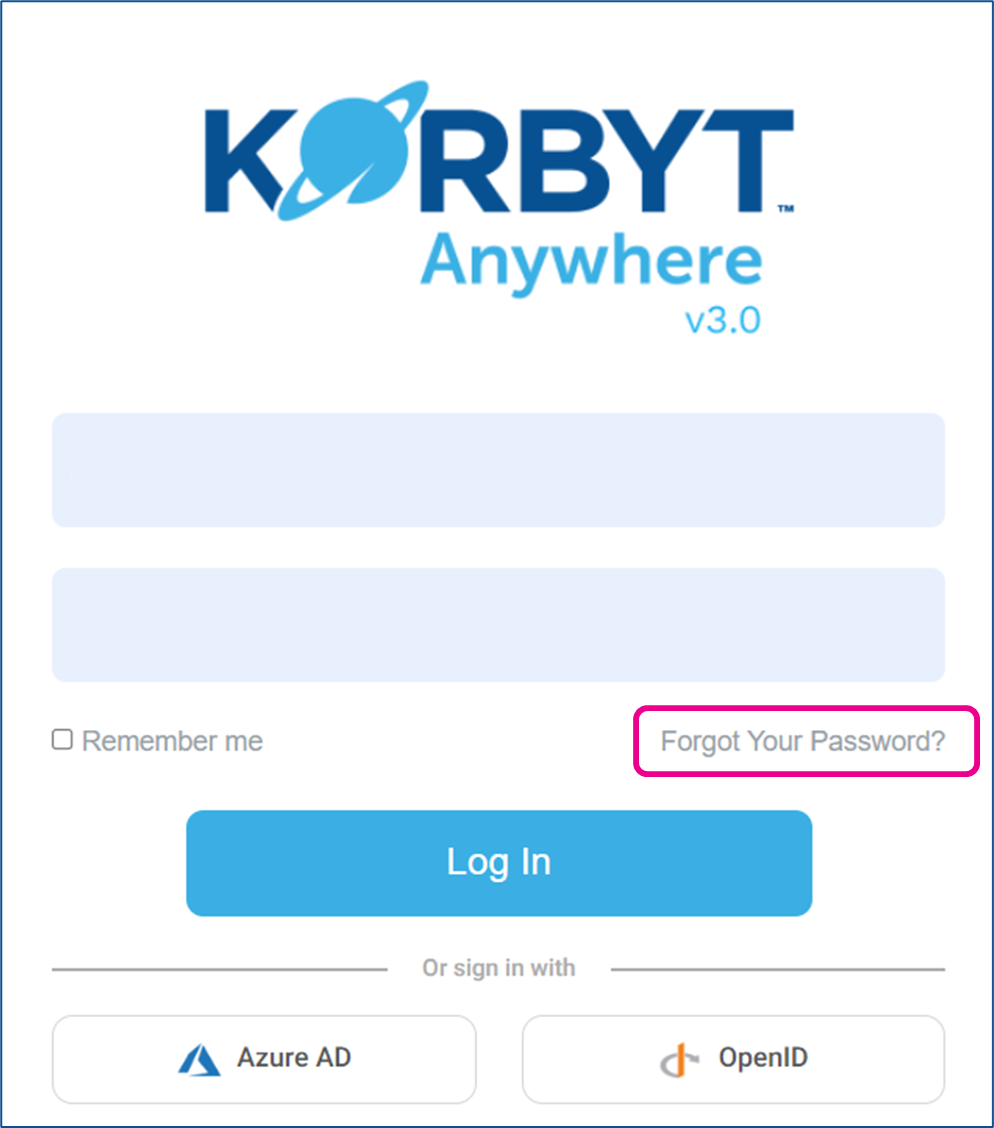
On the Korbyt Login Page, you will find the Forgot Password link.
Click Forgot Your Password
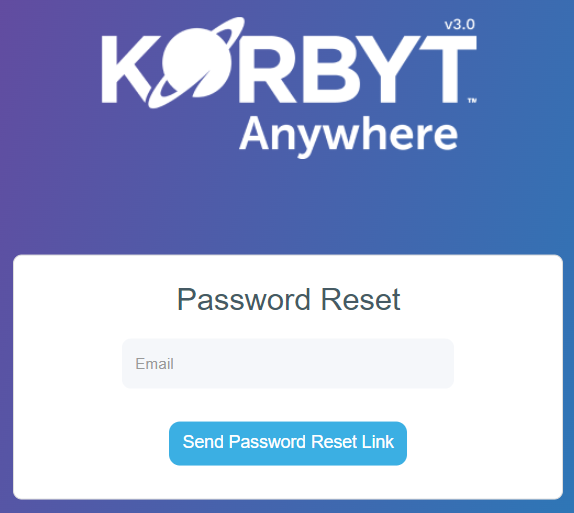
Enter the e-mail address associated with your account and click on Send Password Reset Link
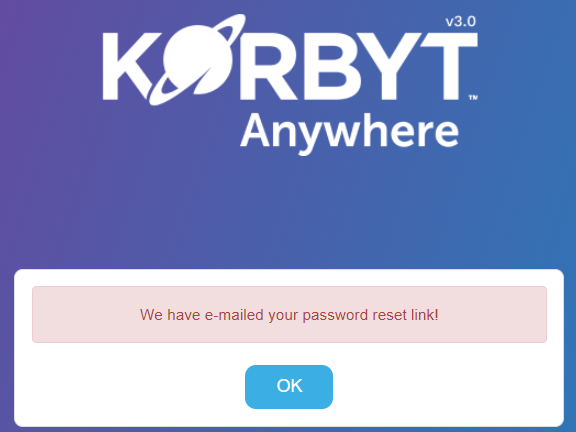
A notification will appear, click OK
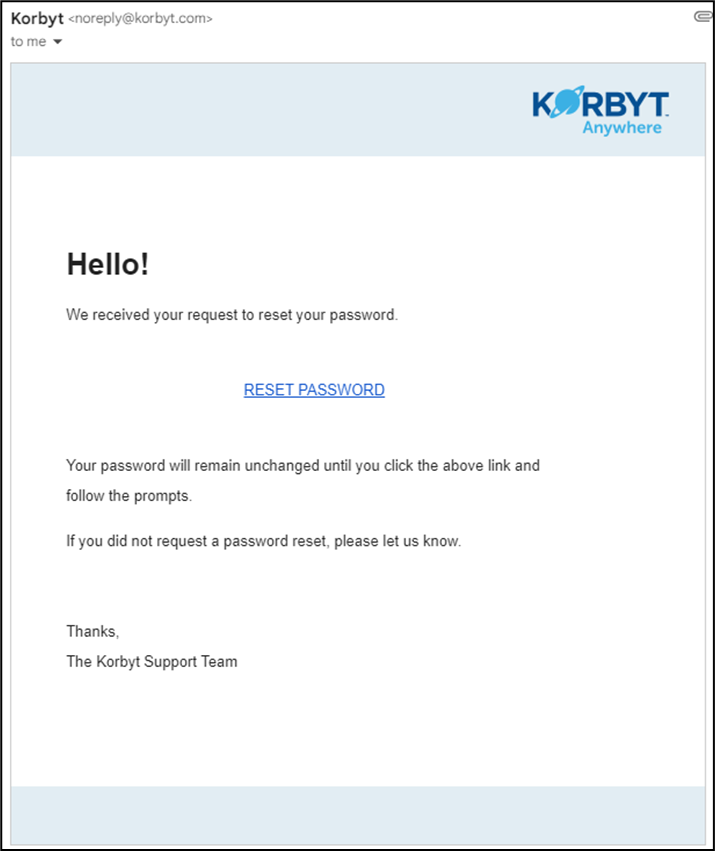
You will receive a password reset email from NoReply@Korbyt.com that contains link to create your new password
After clicking on the link you will be asked to create a new password and confirm it
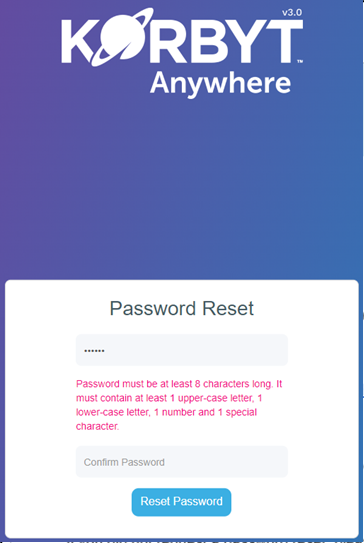
You will be directed if your new password does not meet security requirements
Changing Password
If you are able to log into the CMS and your organization is not using a Single Sign On (SSO) service to manage access, you will be able to change your password.
Login to your company’s Korbyt Tenant through the Korbyt Login Page
Once on the dashboard, hover your mouse over the Profile outline in the upper right corner
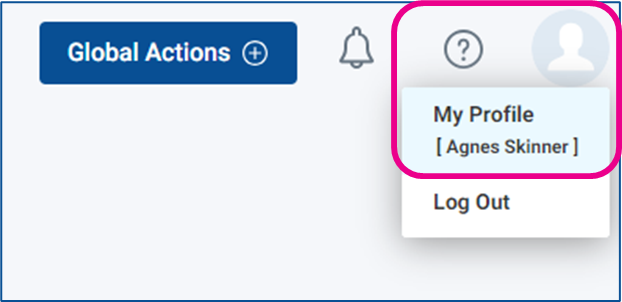
Select My Profile, and on the profile screen click the blue Change button
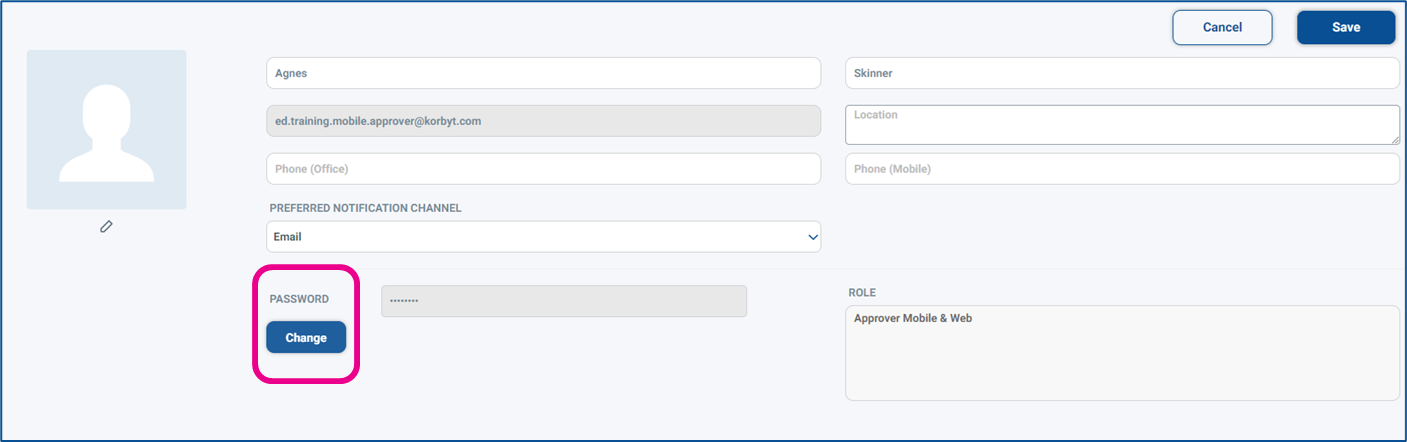
You will then be asked to enter your current password, new password, and confirm the new password