How To Manage CMS Users And User Groups

Written By Ed Kinne

Last updated 2 days ago

This article describes the steps to Add and Manage Individual CMS Users and CMS User Groups (Users who can log into the Content Management System directly).

Users are Individuals who can log into the CMS and manage content directly

For more inforomation on the available user roles see Content Managers (CMS Users) Roles And Permissions

User Groups are used with Folder Permissions and Player Group Permissions to control or limit which users can see certain content and Players

To manage other users, you need to be a Tenant Administrator or Administrator

Accessing and Viewing CMS Users

  • Login to your tenant

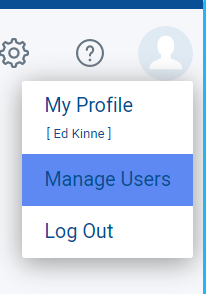
  • Hover your mouse over the User Profile Outline (or your Profile Picture) in the Upper Right Corner

  • From the menu that appears, select “Manage Users”.
  • On the Manage Users window, there are two buttons, “Add User” or “Manage User Groups” or you can search for an existing user.

    • Add User = Create a New CMS User

    • Search = Find an existing CSM User

    • Manage User Groups = A different screen for CMS User Groups (used to control access)

Adding a New User

  • Click on the “Add User” button to add a new user.

  • The Add New User window will appear. On this window, the user information has to be entered and the permissions for Signage, Mobile & Web, and Desktop can be selected.
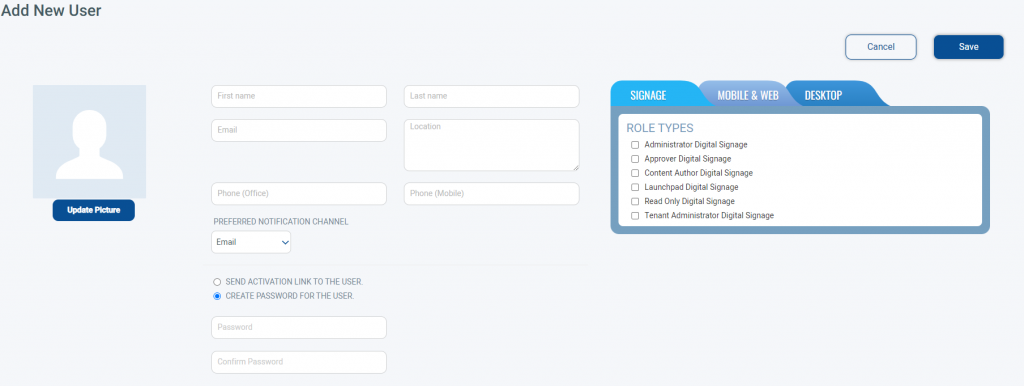
  • Enter the CMS Users information (First Name, Last Name, and Email are required)

  • Select the User’s Role Type.

  • Choose between Send Activation Link to the User or Create Password for User

    • Send Activation Link to Users will generate an email to the user with a link for them to activation their account

      • The link does expire after two days if not used

    • Create Password for the User allows you to set an initial password that you can then alert the user to

  • Click Save

  • The CMS User is now created

To Manage an Existing CMS User

  • Find the user in the list of current CMS users (you can use the search to find them)

  • Once found, you can view information about the user (Name, Email, Roles, User Groups, Last Login, Last Update)

    • Clicking the Pencil Icon will allow you to edit the User’s information and role,

    • Clicking the Trashcan will delete

  • After clicking the Pencil, you can edit the Name, Contact Information, and Role
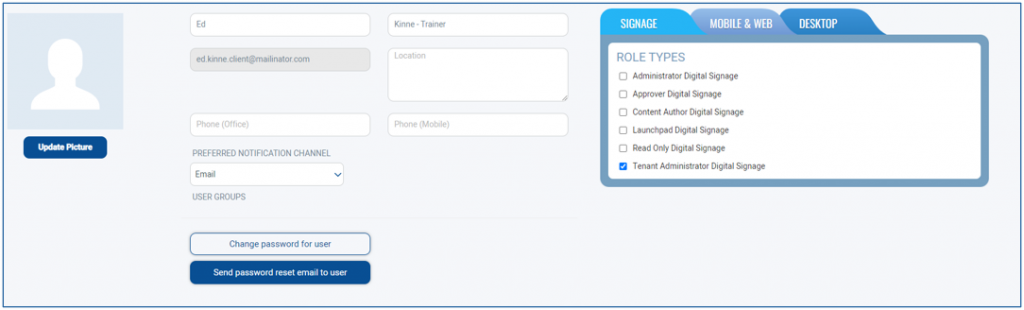
  • You can also change the user’s password, or send the password reset email to the user

    • If they were sent an activation link, but did not use it in time, you will have an option to Resend the Activation Link

To Manage CMS User Groups

User Groups are used in the CMS to control who will be able to access to Folders, and Player Groups based on group membership.

An example use might be limiting a group of of Content Authors for a specific location to only be able to access Layouts that are within a specific folder for that location. These steps describe how to create and edit group memberships.

The Korbyt System automaticly creates groups based on assigned user role

You do not need to create a group for “Authors” as Korbyt will create and manage the group automaticly

To Create a Custom User Groups

  • Login to your tenant

  • Hover your mouse over the User Profile Outline (or your Profile Picture) in the Upper Right Corner

  • From the menu that appears, select “Manage Users”.

  • On the Manage Users window, click Manage User Groups
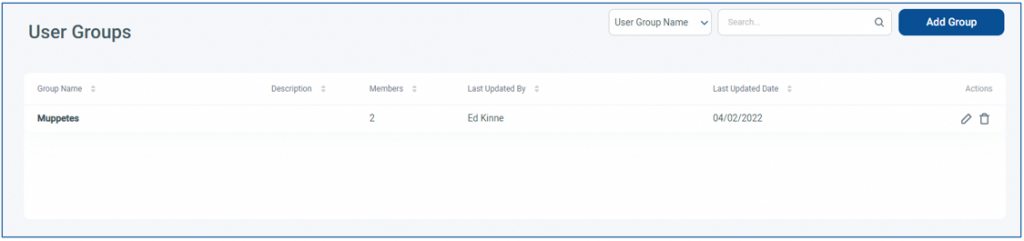
  • Click on the “Add Group” button to add a new group. This will open a window to name the Group, provide an optional Description, and select Group Members

  • To edit an Existing Group, click the Pencil next to it

  • This will let you edit the group details (Name, Description) and Add or Remove members
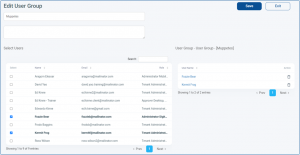
    • To add a New Member, check their name on the left

    • To remove a member, click the trash can next to the name on the right

  • When done, click Save

Group Permissions to Control Access

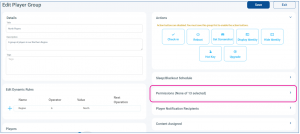
With User groups in place, you can use them to control access to specific Folders and Players

  • For Folders, it is controlled by clicking the padlock symbol for the folder you wish to restrict

  • For Players it is done through Player Group Access permissions
Single Sign-On Management

Single sign-on (SSO) for Korbyt CMS enables customers to use their existing corporate user/password details when logging in to the Korbyt CMS. It avoids the need to keep the password details updated on the CMS, as well as simplifying connection to the CMS for users already logged in to their corporate network.

Korbyt supports both Azure AD and SAML 2.0

Review the specific section for your deployment


Azure AD Integration to Import CMS Users

Korbyt Anywhere provides integration with Azure AD for secure and scalable user management and single sign-on, allowing a customer’s employees to login to the Korbyt Anywhere CMS, using their Azure AD credentials.

This process will require configuring both your Korbyt Tenant as well as your Microsoft Azure services. Your IT Department, as well as Korbyt Professional Services will likely be involved in the process.

This document provides high-level insight into the process steps.

There are three main steps in the setup process:

  • Granting Access: In your MS Azure service you must grant Korbyt Anywhere access to the desired Azure AD groups

    • In Azure – Registering an app on the Azure app registration portal

    • In Azure – Confirming permissions for Microsoft Graph on the app

    • In Azure – Obtaining Administrator consent

    • In Azure – Generating a Client Secret

    • Recording the details from these steps as they will be used in Korbyt to create the connection

  • Importing Users: Inside Korbyt Anywhere, setting the information so that Korbyt can automatically create a corresponding CMS user for each employee it detects in the customer’s designated Azure groups

    • In Korbyt – Enter User Import Parameters

      • In the New Side Bar UI, open or hover over Advanced, then select Directories

        • In the Classic UI, open the Mega Menu, in the Advanced section, select Directories

      • On Directories, select if you are using Azure AD or a different IDP

        • For IDP

          • Turn on the Services you wish to use

          • Then configure the information required for that service

            • Enable SSO for CMS

            • Enable SSO for ECA(OIDC) - Korbyt Mobile and Web

            • Enable SSO for ECA (SAML) - Korbyt Mobile and Web

            • Customer Expiration for SSO Access Tokens

            • Automatically Archive Inavtiev ECA Users - Korbyt Mobile and Web

        • For Azure AD

          • Click the pink +Add New Azure Users button and enter the details you established in the first steps

          • Click Save

          • In Korbyt – Filter By Group

            • If specified, the import process will only add users that are members of selected groups. This can be helpful if you have a large number of users and you only wan to import a subset of those uses

            • In the Azure Menu, use the Action to select Filter By Group

          • Now established, Azure AD and Korbyt will communicate periodically to match the users that should be in Korbyt based on the information in your Azure AD.

  • Employee Login: Once the import is processed and complete, an employee will be able
    to log in to Korbyt Anywhere using their Azure credentials


SAML 2.0 Integration to Manage CMS Users

IdP vs SP

  • Korbyt supports SAML 2.0 Identity Provider (IdP) initiated SSO.

    • This is where the user logs in to the IdP, so is validated as part of that login, and all SSO is then handled by the IdP

  • Korbyt also supports SAML 2.0 Service Provider (SP) initiated SSO.

    • This is where the user logs in by navigating to their specific login URL to fire the SSO event to the customer's identity provider.

    • The URL will be formatted as https://delivery.korbyt.com/saml2/login, for example

Configuring Kobryt for SAML 2.0 SSO

Korbyt expects the following values from the IDP:

Value

Use

“Firstname”

Used to fill in the “First Name” field of a user

“Lastname”

Used to fill in the “Last Name” field of a user

“Email”

Used to fill in the “Email” field of a user, plus Email address is considered the “unique identifier” for a user in Korbyt

“Role”

Used to give the new user the admin rights as set for the Korbyt roles, eg Content Author Digital Signage, Read Only Digital Signage etc

“Groups”

Used to place a user in one or more user groups and so control the scope of their access (eg a group for UK only users, which cannot access US only content)

"Tenant”

Used to place a user in the correct tenant, if you have a multi-tenant setup. Value can be a tenant ID, a tenant token, or a subdomain.

This integration is ultimately facilitated by an exchange of metadata between Korbyt and your IDP.

The Korbyt SAML2 metadata file that you provide to your identity management provider can be configured in the format below. The server FQDN will be unique to your server/tenant.

  • http(s)://<server FQDN>/saml2/metadata

  • For example, https://<your Korbyt subdomain>.korbyt.com/saml2/metadata

The example below is taken from a Korbyt demo hybrid tenant

The example below is taken from a Korbyt demo hybrid tenant

The output of the browser call is the XML file itself in readable form. You are interested in three entries, as well as an optional entry –

  1. “entityID” – in this example = https://delivery.korbyt.com/saml2/metadata

  2. “Assertion consumer service URL” = https://delivery.korbyt.com/saml2/acs

  3. The ACS “index” = 1

  4. Single Logout Service (optional) = https://delivery.korbyt.com/saml2/sls

If manually entering these values, click the edit “pencil” next to Basic SAML Configuration and enter the values as seen in the XML file on the browser window.

If uploading the XML file, save it from the browser session by right-clicking anywhere within the main browser window, selecting the “save as” option, and then saving the subsequent XML file into a suitable location.

Provide your IDP Metadata URL to your Korbyt representative to configure your tenant for SAML SSO.

Note: Making the metadata available via URL is preferable if the values/certificates are going to be rotated or changed often.

Note: If the IdP is MSFT Azure, the correct url to provide is the Metadata Federation XML URL but make sure that it is the full URL with the APP ID query string on it

IDP needs to provide the following values in the SAML2 assertion –

  1. FirstName

  2. LastName

  3. Email

  4. Role

  5. Groups (optional)

  6. Tenant (optional)

We need to provide these values using the exact wording for each value as shown above, ie we need an assertion value named “FirstName” and one named “Email”, so we must ensure that the assertion info coming from your IDP is named in the format used by Korbyt.

The syntax of these 5 values can be upper or lower case, but must be exactly the characters given above (ie no spaces). The internal SSO code of the server is able to handle either uppercase, lowercase or a mixture of the two, but the actual characters used must match those shown above. The code snippet below also shows the syntax as used for these 5 values.

Now that you have your SAML claims set with the correct name for Korbyt SSO, you need to ensure the correct values for those claims are being provided by your IDP


Role Claim

For the Role claim, there are 6 roles available on Korbyt, and the value that must be placed in the claim to match these roles is shown in the table below. For a breakdown of the roles and their abilities, see Content Managers (CMS Users) Roles And Abilities

Note: that these values must be entered exactly as shown in the table below.

Korbyt Role

Value to send in the SSO Claim

Tenant Administrator Digital Signage

Tenant Admin

Administrator Digital Signage

Administrator

Approver Digital Signage

Approver

Content Author Digital Signage

Author

Launchpad Digital Signage

Launchpad

Read Only Digital Signage

Read Only

If you do not provide a “Role” claim, or enter an invalid value compared to the table above, the user will be given the role of Content Author by default.


Groups Claim

For the Groups claim, the value sent in the “claim” must exactly match any existing User Groups that are already created on the Korbyt platform. For more info on creating user groups, see the above section of this article, To Manage CMS User Groups

New groups cannot be created via SSO. If the value in the Groups claim does not match exactly an existing User group, or has a non-existing group value, the default is to not set the “on the fly” created using into a group, so they have no group membership, unless an exact match is made. Multiple groups can be sent in the claim, with each group name being separated from the others using a comma.

An example of a completed claim is below, where static values have been entered in the Role and Groups claim, where usually these would be dynamically provided via your IDP.

Once you have your attributes and claims set up, you should be ready to generate your metadata URL from your provider and enter it into your Korbyt tenant.

This document does not go into generating the metadata url so please consult your provider documentation or administrator for help with that process.


Set up Your IdP Metadata URL in Korbyt CMS

  • Through the Mega Menu or the Sidebar Navigation, open the Advanced section and click on Directories

  • Click the IDP button

  • Then toggle on Enable SSO for CMS

  • Enter the metadata URL provided by your identity provider

  • Korbyt will automatically query the metadata URL and fill in the Entity ID, SSO URL, and Certificate Data fields

  • Click Save

You should now have the correct information set in Korbyt and being entered into the SAML2 claim that will invoke the SSO on the Korbyt server when the user clicks on the “Korbyt” app from their app tray or visits the login URL.
