How to Configure a Barco Clickshare
The steps and requirements for provisioning a Barco Clickshare device to connect to Korbyt
Written By Ed Kinne
Barco Clickshare System Requirements
Must be a Barco C-5, C-10, CX20, or CX30 device
Clickshare Firmware version 02.16 (or newer) with
Chromium version 102
Qt WebEngine version: 6.4.1
Instructions for Installing the Korbyt Application in Clickshare
Connect to the XMS Cloud and log in with your Barco credentials
Barco has documentation on How to use the XMS Cloud Management Platform if needed
If you have rights to more than one Clickshare XMS tenant, select the right tenant/company name in which your Base Unit is located.
Go to Manage Baseunit > CONFIGURATION and activate the Barco Digital Signage feature
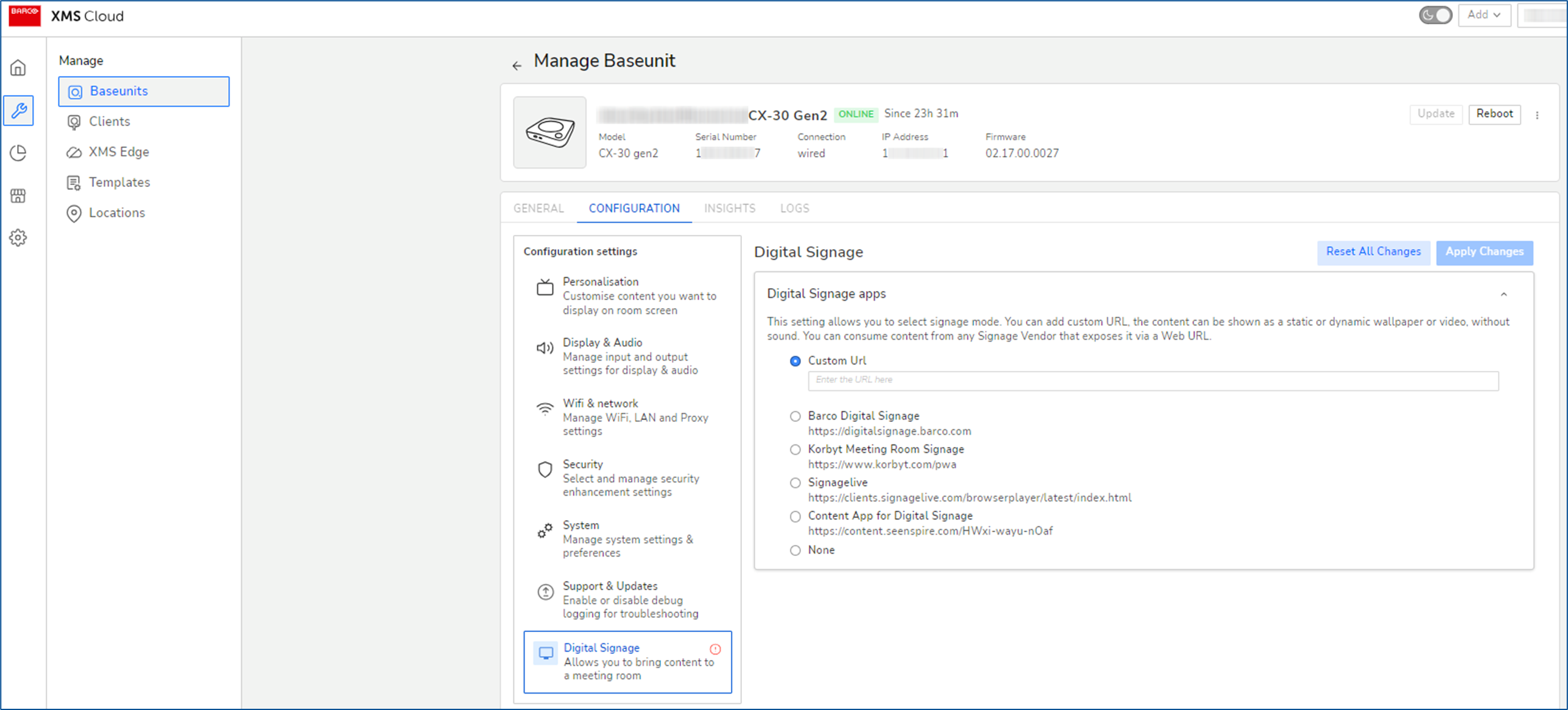
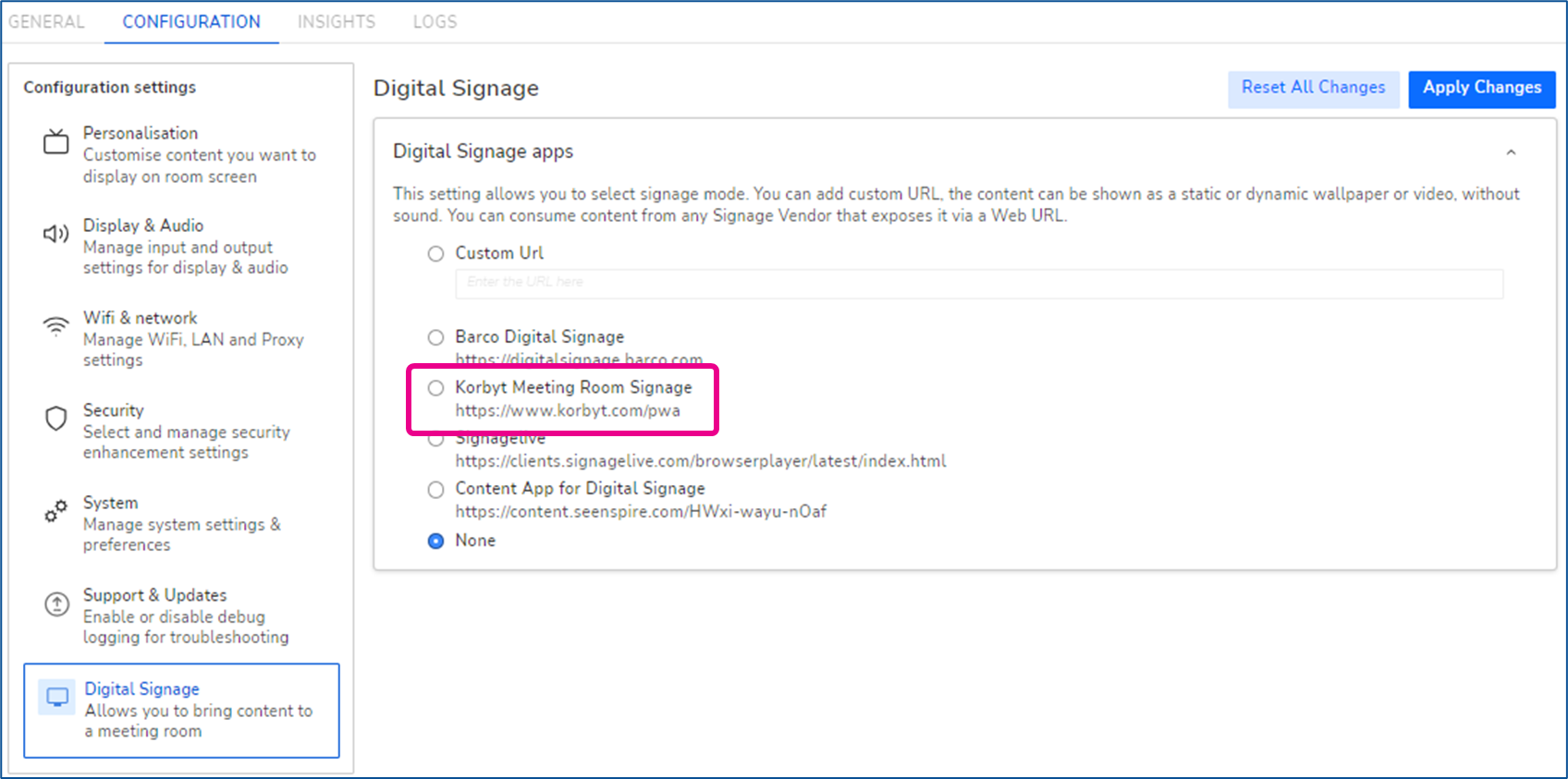
Select the Korbyt Meeting Room Signage URL on the list to apply the change.
After installation, the Korbyt player will launch and display a provisioning code
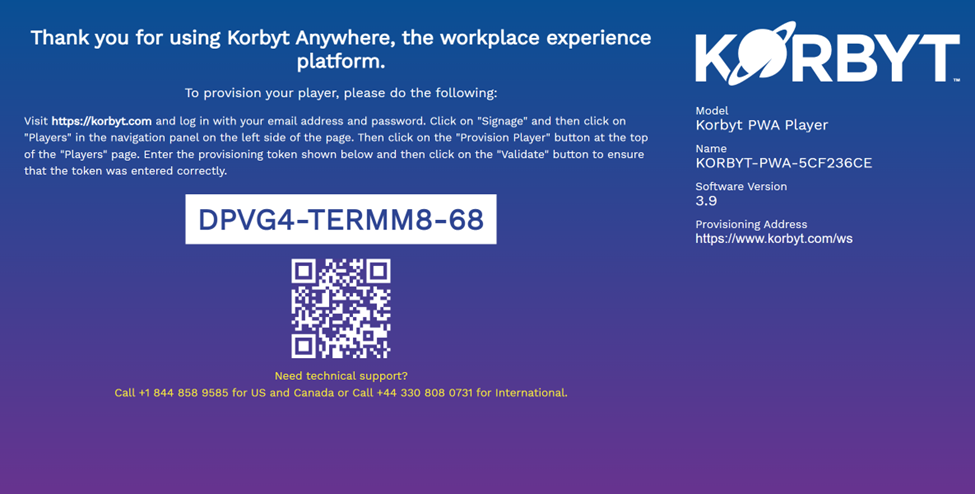
You can now log into your Korbyt Tenant and use the CMS to provision the player to your system
For more information, see Adding Players to your Korbyt Tenant - Provisioning
Barco Clickshare Specs and Limitations
Barco shares the specifications and technical limits of their device HERE
The limitations that you should be aware of are
Simple content
Use mostly static images
Limit the transition effects
Limit Playlist size in Korbyt
Consider using a Static playlist rather than a clever one
Limit the items scheduled
Max Content Specifications
1080p max resolution
5Mbps bitrate or lower suggested
30fps max frame rate
Cache Limit
1.7 GB cache limit for content after browser and system reserved space is used