Korbyt Desktop (InView) Requirements and Installation
The Minimum System Requirements and Installation Process for Korbyt's Desktop(InView) Application as both an .exe or .msi file
Written By Ed Kinne
Minimum System Requirements
The Korbyt Desktop(InView) software can be installed on a Windows 10 or 11 PC with the latest Windows updates installed on it.
Minimum System Requirements:
Windows 10 OS
4 GB of RAM
128 GB SSD
Nvidia GTX 1650 GDDR6 graphics card equivalent or better.
Installation Files
The installation files are available upon request. contact your Korbyt Client Relationship Manager or contact Korbyt Support by emailing support@korbyt.com or calling 844-858-9585.
General Installation Process with .exe
The following instructions detail how to install Korbyt InView on a desktop computer.
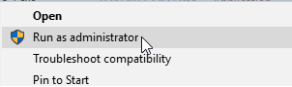
Right-click to run KorbytInView Setup as an Administrator
Select yes to allow Windows to run the installer.
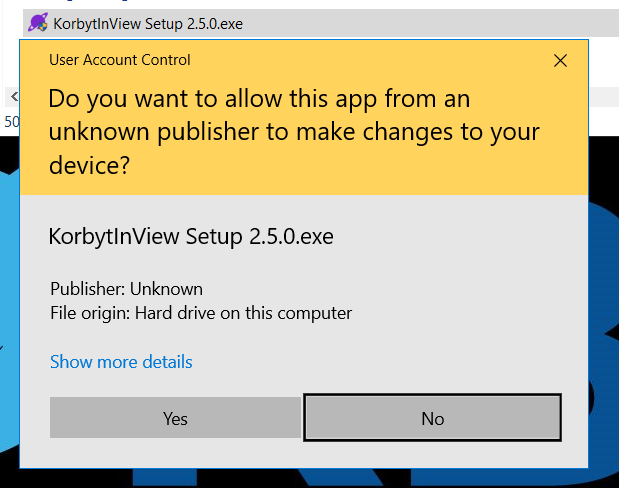
The installer will automatically run until completion.
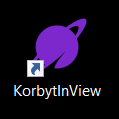
The installer will create a desktop shortcut, double-click to launch the application
To log in to Korbyt InView, enter the email address and password supplied by the Korbyt tenant administrator.
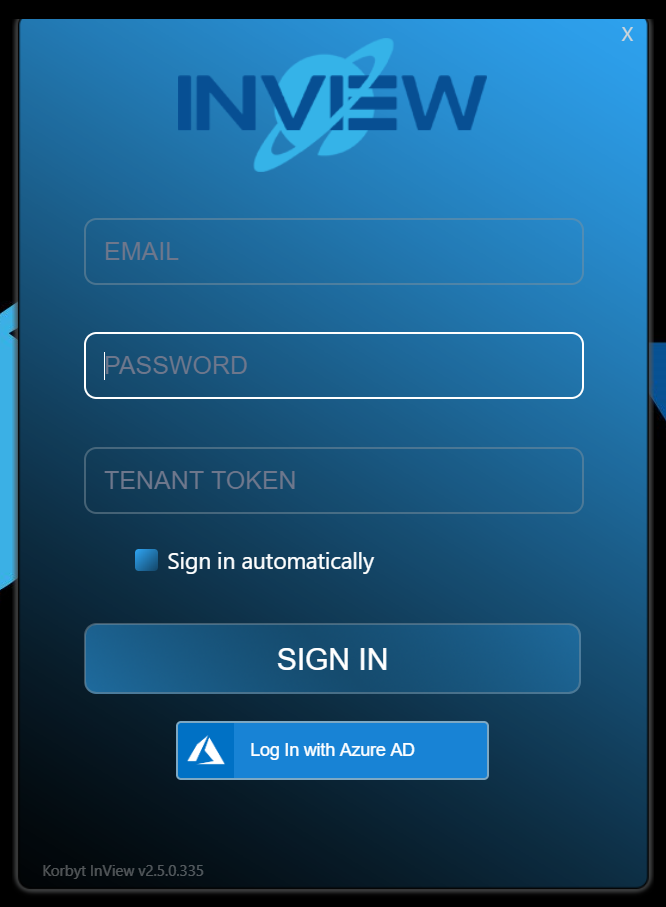
Note: The email address used for login will be the KorbytGo account created within the Korbyt tenant.
The Tenant Token will also be supplied by the Korbyt tenant administrator and can be found at the bottom of the window underneath the Help section inside the Korbyt tenant.
After the correct credentials are entered, press the SIGN IN button to launch Korbyt InView. If the Employee, Audience, and Message have already been created, you will immediately begin to see scheduled content.
This completes the Korbyt InView desktop installation.
Korbyt Inview Install with .msi
The .msi file can be run by right-clicking and choosing the “Install” option.

The installer will prompt for action on the following prompts:
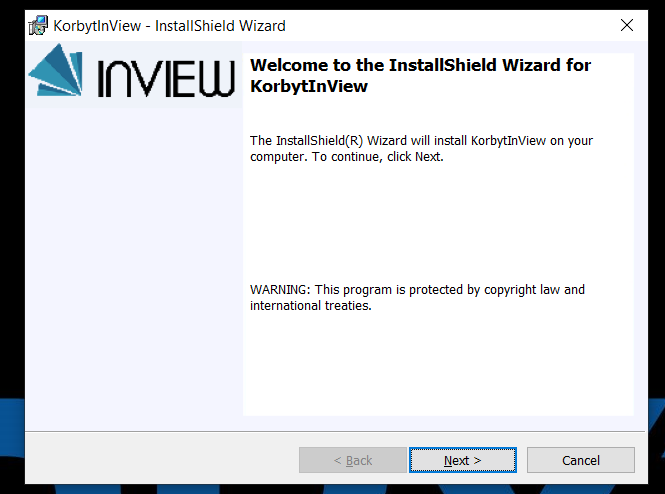
Click Next
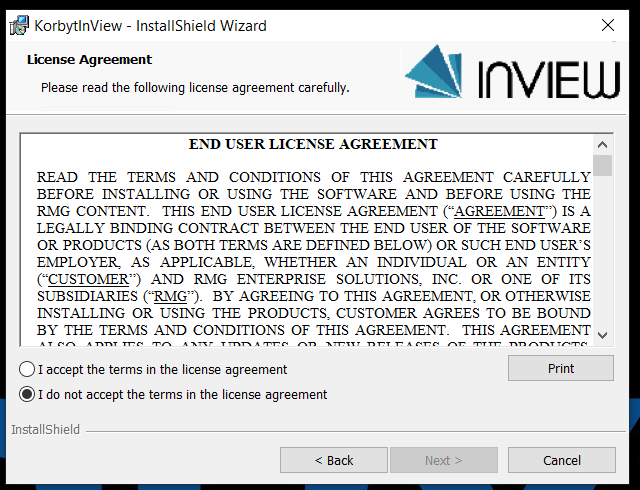
Accept the EULA and click Next:
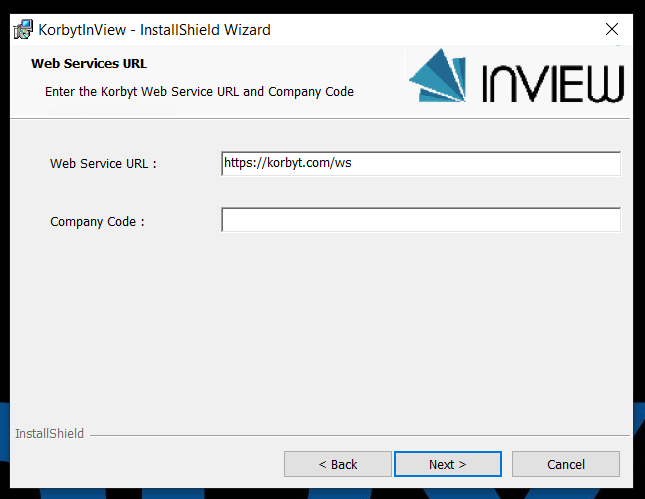
Click Next:
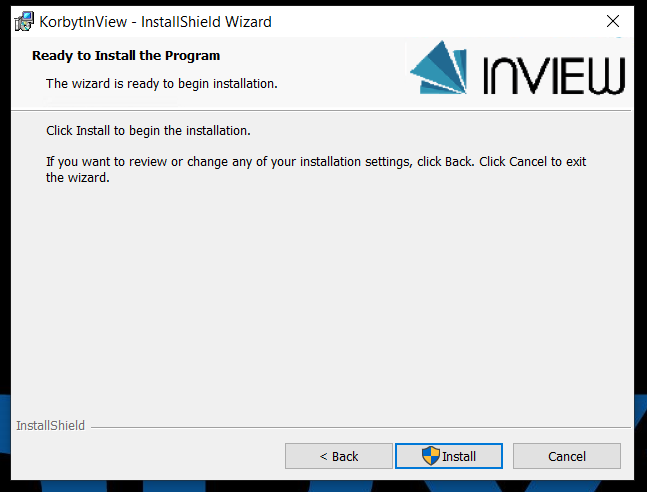
Click Install and then Finish to complete the installation.
The installer will create a desktop shortcut, double-click to launch the application
To log in to Korbyt InView, enter the email address and password supplied by the Korbyt tenant administrator.
Note: The email address used for login will be the KorbytGo account created within the Korbyt tenant.
The Tenant Token will also be supplied by the Korbyt tenant administrator and can be found at the bottom of the window underneath the Help section inside the Korbyt tenant.
After the correct credentials are entered, press the SIGN IN button to launch Korbyt InView. If the Employee, Audience, and Message have already been created, you will immediately begin to see scheduled content.
This completes the Korbyt InView desktop installation.
Silent Installation Option
Note: If you wish to install Korbyt InView silently there is a way to do that using the .msi installer file rather than the .exe, using the following parameters:
COMPANYCODE=<code> WEBSERVICES=<ws>
An example would be “Msiexec.exe /i korbytInview.msi COMPANYCODE=XX-XXX-XX WEBSERVICES=https://my.company.com/ws”
Additional parameters are available by running the korbytinview.msi with the /? or /help switches to see additional MSIEXEC command line switches.