How To Reset EDID On Aries/Orion/Leo Players
Reseting the players information about the display attached and available resolutions
Written By Ed Kinne
What is EDID
When a Media Player first turns on, it receives EDID information from the display over the connected HDMI cable. EDID, or Extended Display Identification Data, is the information a display sends about the resolutions and refresh rates it supports.
When the KDA receives this information, it acts as a digital handshake and selects the display’s best possible listed resolutions.
If you have changed displays or your KDA has received incorrect information from that handshake, you may need to reset the player’s EDID.
AV Distribution Hardware that may be between your display and your Korbyt Player can interupt the flow of that information. Many AV distribution hardwares have their own EDID tables that need to be configured.
If you have AV hardware between the Korbyt Player and your screen you may want to consult your AV vender before reseting your hardware.
Signs that your Media Player has bad EDID information
Unusual or wrong display resolutions are available in the CMS
Content is being shown at the wrong resolution, possibly causing distortion
A black or blank screen
A player that does not support multiple outputs, but has multiple output entries in your CMS because it saw multiple displays connected.
Some players, such as Aries and Orieon players, have multiple HDMI connections on the back, but do not support multiple display outputs.

Resetting EDID in these cases will require extra steps to prepare, listed below.
Leo Players do support multiple outputs, and having multiple entries would not be an error with that equipment.
Resetting the EDID for Korbyt Aries/Orion/Leo Players
You will need a straightened paperclip or similar, and access to the physical media player
If you are reseting the EDID information on your Aries or Orion players because you accidently connected multiple displays and have multiple outputs, you will need to do a few steps first
If your player correctly only has 1 output listed, then you do not need to do these steps and can move on to Reseting
Prep before Reset IF you have Two Player Entries Incorrectly
De-provision both player entries from your Korbyt CMS
Locate the players on the Players Page and click the Trash Can icon
See Player Settings - Controlling and Configuring Media Players in the CMS for assistance
Remove ALL HDMI cables from the Aries or Orion device
Resetting the EDID
Locate the small hole on the back of the device near the USB and HDMI inputs.
Insert a paper clip into the small hole.
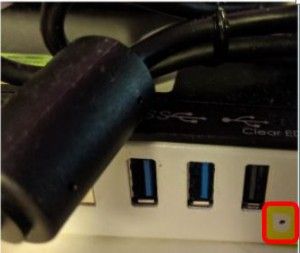
Press lightly, holding for 6 seconds.
When the player reboots, it will retrieve the EDID information from the display again.
If the player does not automatically reboot after the EDID reset, manually reboot the player
IF you were not correcting for multiple player entries
Your player will reconnect to the HDMI Device, retrieve the EDID information, and should start playing its assigned content
IF you reset specifically to correct for multiple player entries in the CMS
Reconnect the single correct HDMI cable
Re-provision(connect) the player in the CMS
See Adding Players to your Korbyt Tenant - Provisioning for assistance