How to Configure a Logitech Tap Scheduler
Written By Ed Kinne
Requirements
Tap Scheduler running Logitech CollabOS 1.14 A
Configure your Logitech Tap Scheduler
Follow the instructions below to configure the Logitech Tap Scheduler device for room scheduling:
Power up your Logitech Tap Scheduler device
When the provider selection appears, choose Korbyt from the Select video service provider menu.
After selecting Korbyt, click Skip when the Logitech Sync Portal screen appears.
When you reach the Confirm Installation screen, press the Right Arrow button to initiate the installation process.
After the installation is completed, tap the Continue button.
Your screen will now display a Korbyt Provisioning Screen with a unique token, like the example below
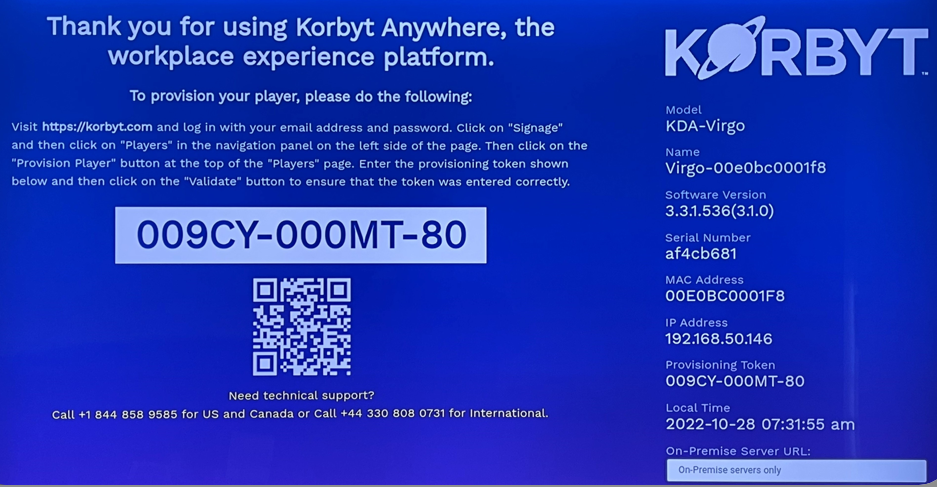
In your Korbyt CMS, Provision the player to your tenant following the normal steps
For more information Adding Players to your Korbyt Tenant - Provisioning