Desktop (InView) Application Settings
The end user’s Desktop Application can be customized by selecting different options from within the Settings screens of the Korbyt Anywhere Platform.
Written By Ed Kinne
Branding Settings for Desktop(InView)
The branding of the Desktop Applications Login Screen can be customized from within the Korbyt Tenant.
These branding settings only affect the login screen. They do not affect any other section of the Desktop application. They will also only be seen after the initial login that asks for the Tenant Code.
Begin by clicking the settings Gear Icon in the upper right, and you will be shown the General settings section
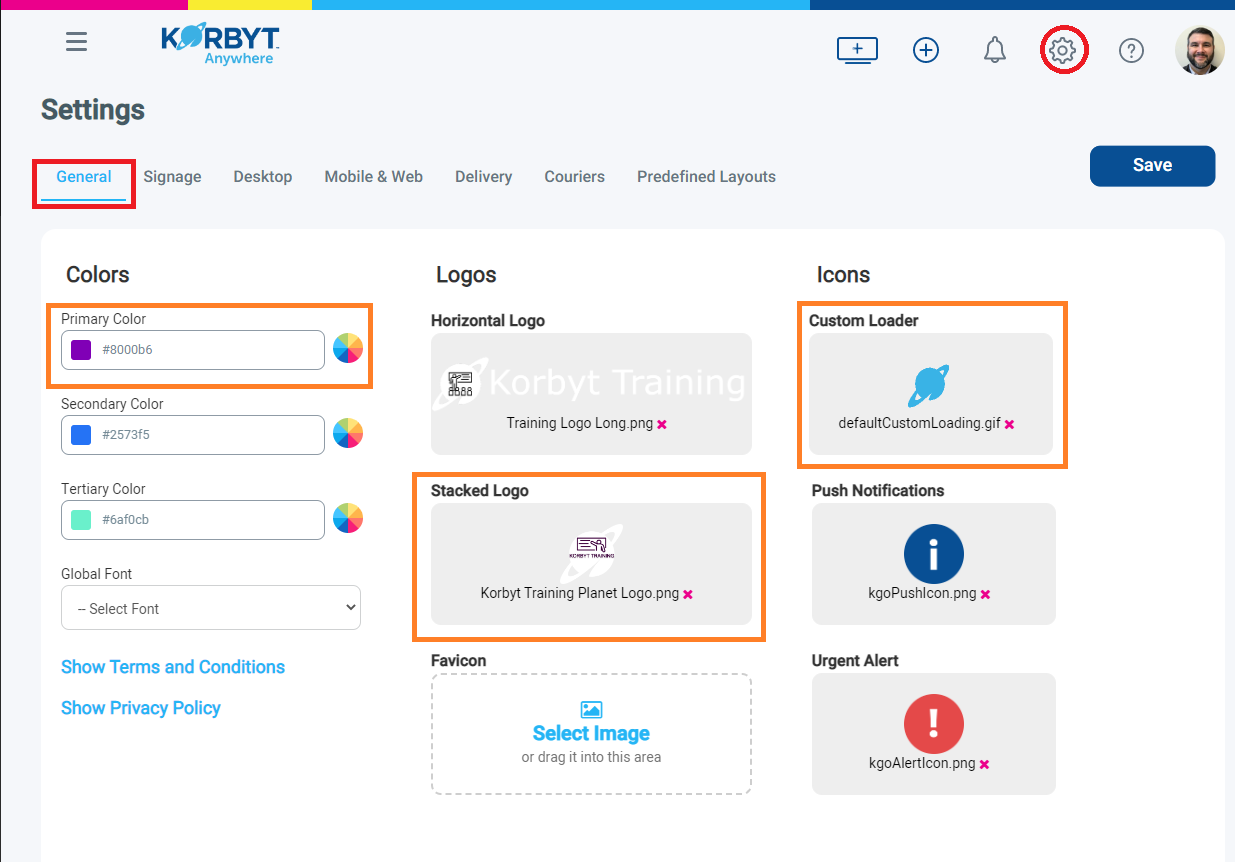
On this screen, you can set a Primary Color, Stacked Logo, and Custom Loader that will affect the Desktop(InView) application's appearance.
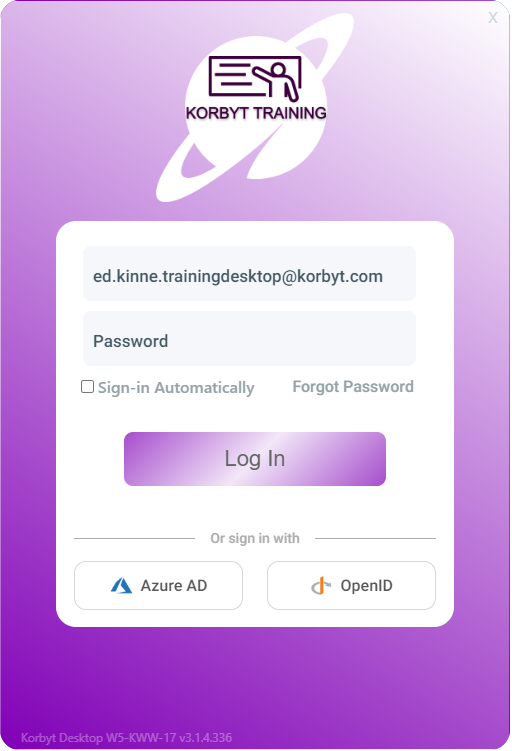
The Primary Color will be used to create a color gradient on the login screen
This color is also used for branding of the Mobile & Web Experience
The Stacked Logo will appear at the top of the login screen
This logo will also be used in branding the Mobile & Web Experience
Suggested Size 120px X 60px
Suggested Aspect Ratio: 2:1
The Custom Loader is an image that appears when the system is processing information.
The Customer Loader will not always be seen by your end users, but may occasionally appear and can be customized with a static image or a GIF
This element is also shared with the Mobile & Web Experience
This example corresponds to the settings you see above
Other Sections of the Branding Options DO NOT impact the Desktop(InView) Product
End Users Application Icons and System Options
Administrators have the ability to disable several different icons and system tray options that the end user will have available to them
Begin by clicking the Settings Gear Icon in the upper right, then selecting the Desktop settings section
You will find two sections of options. The default is that all options will be turned to the ON position as you see them here
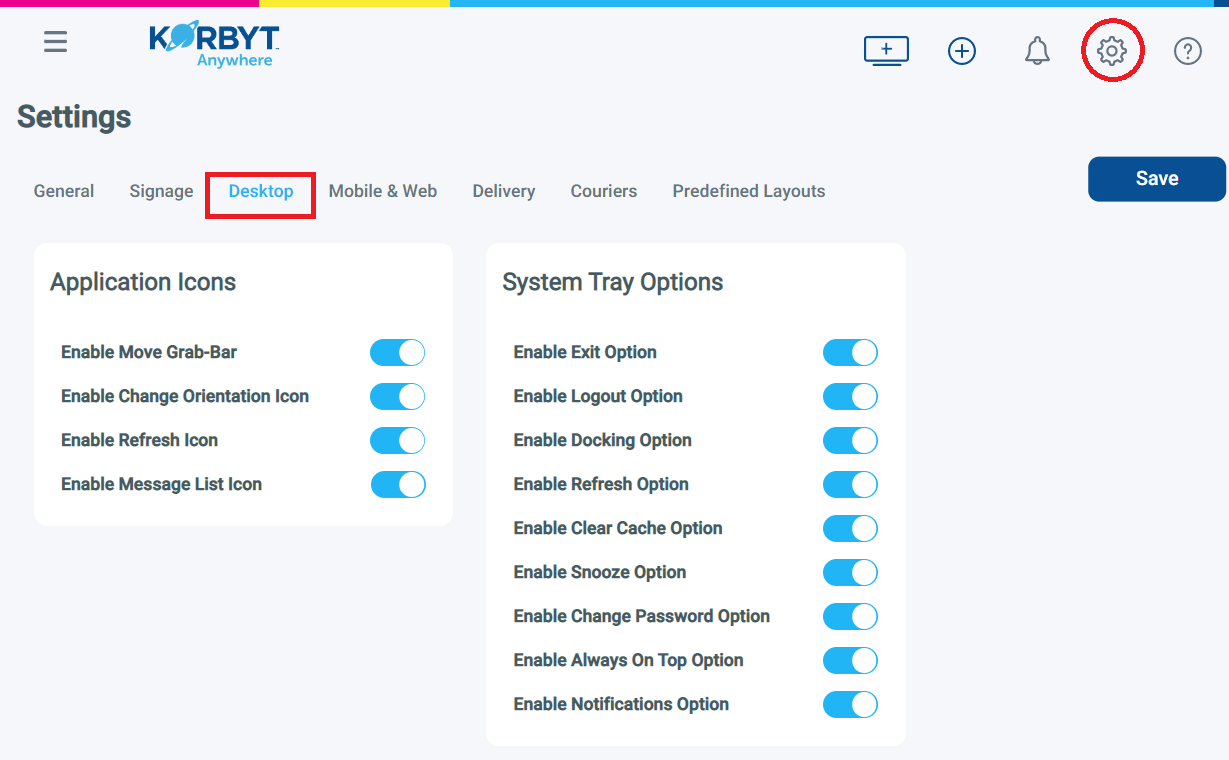
By toggling any of them to the OFF position you will remove that icon or option from ALL of your Desktop end users.
Application Icons
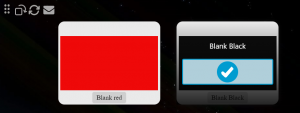
This refers to the icons that appear in the Desktop Message when the mouse moves to the upper right.
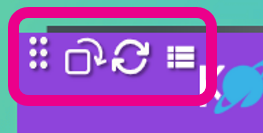
By toggling the sliders off in the system settings, you will remove them from the end user’s experience.
These Icons (from left to right)
Move Grab-Bar = this is the location you can click and drag to move the application window
Change Orientation = this will pivot the application between a Portrait and Landscape orientation
Refresh = this will refresh the desktop message to reflect any changes that have been made to it or pull new data
Message List Icon = this will allow you to select from multiple desktop message assignments that you might have
System Tray Options
This refers to the options that will be available to the user when they right click the Korbyt Application Icon in the Windows System Tray.
Based on your Windows Taskbar and System Tray settings, your users will likely need to click the Up Arrow to expose the full list of running system applications.
Right-clicking the mouse on the Korbyt icon will show the System Tray Options
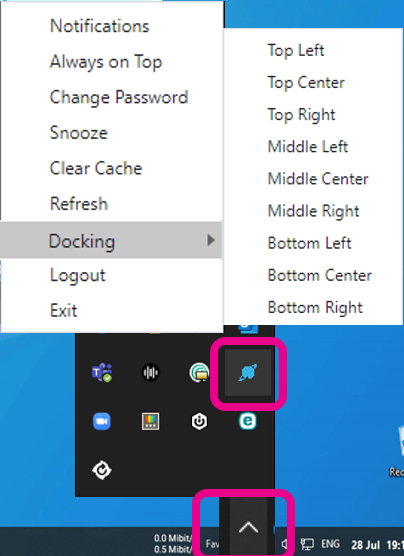
Notifications = See any message notifications that have been sent to you through the Korbyt System
Always on Top = Toggle the behavior to always have the Desktop application on top of other windows
Change Password = Change your password for the Korbyt System (This option should not be used if your organization uses Single Sign On)
Snooze = Minimizes the Korbyt Application
Clear Cache = Removes any stored Korbyt Desktop information and will take you back to the login screen
Refresh = Refreshes the Desktop information from the service
Docking = Allows you to set the location that the Desktop application window should be positioned in
Logout = Logs you out of the Desktop application and takes you back to the login screen
Exit = Closes the Desktop application by toggling the sliders off in the system settings; you will remove them from the end user’s experience.
A common choice is to remove the Change Password option from the list for installations that are using Single Sign On (SSO) to authenticate a user