Adding Transitions to Playlist Content
How to add transitions from item to item in a playlist
Written By Ed Kinne
Transitions are available on both Clever and Static playlists, and differ slightly for hot to set them on each.
Tranistions do add to the processing of the playlist and complex tranistions such as crossfade can overwhelm low power players
Clever Playlist Transitions
For individual items on a clever playlist
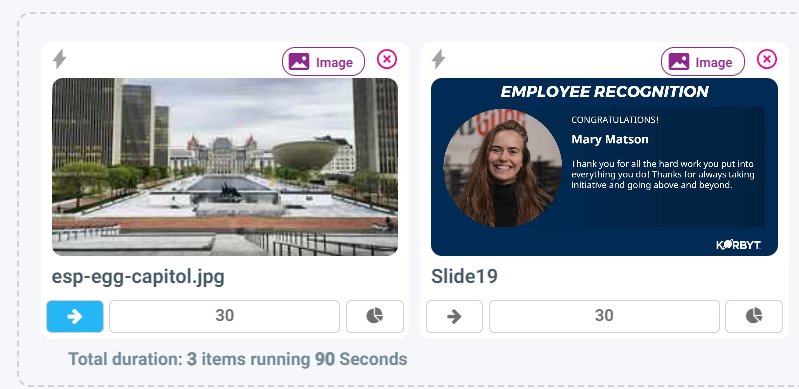
Click the arrow icon below the item you want to set the transition in for
This opens a menu to select the transition
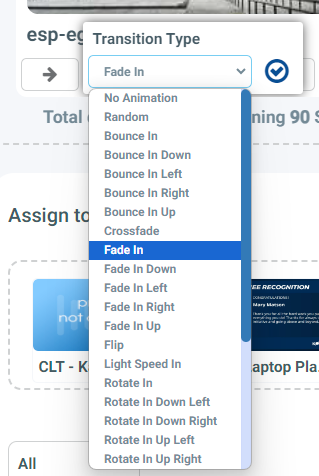
Click the blue check to confirm your choice and close the transitions menu
For items in a Clever Rule on a clever playlist
When creating the Clever Trigger (Rocket ship) or editing the Clever Trigger (Lightning Bolt) there is an options section that includes the Transition for each item in this specific rule
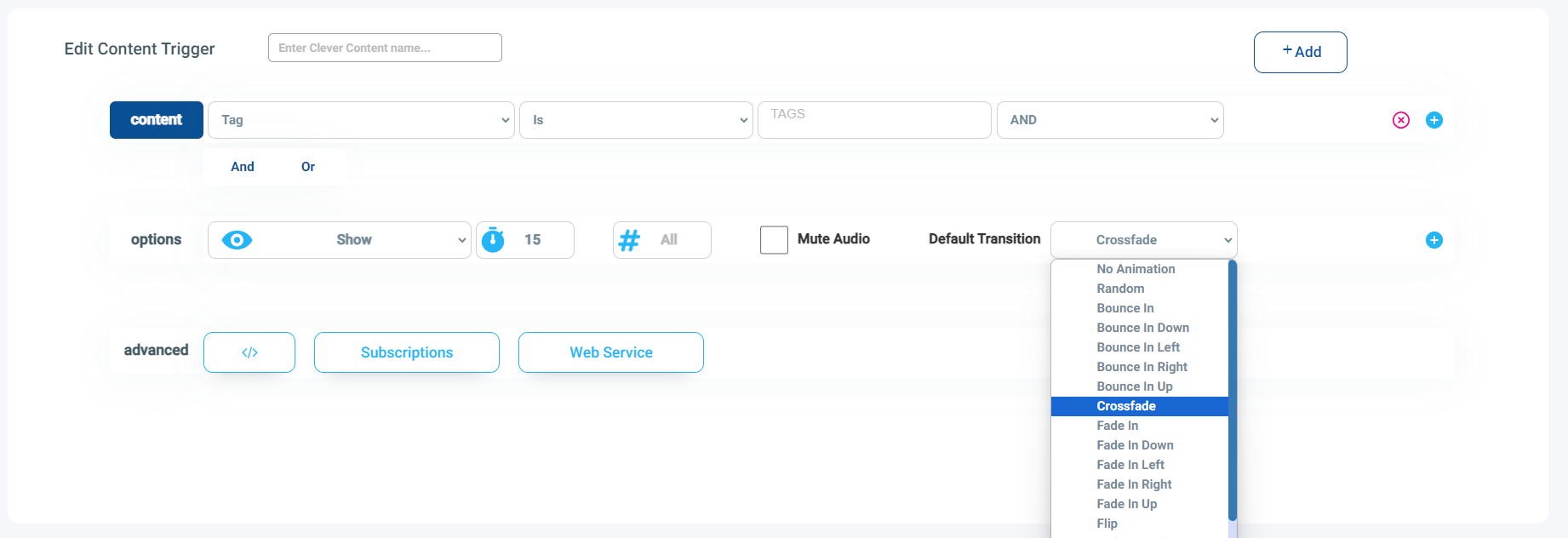
There can only be 1 tranistion selected for all items in the Clever Trigger, but different Clever Triggers can have different settings
Standard Playlist Transitions
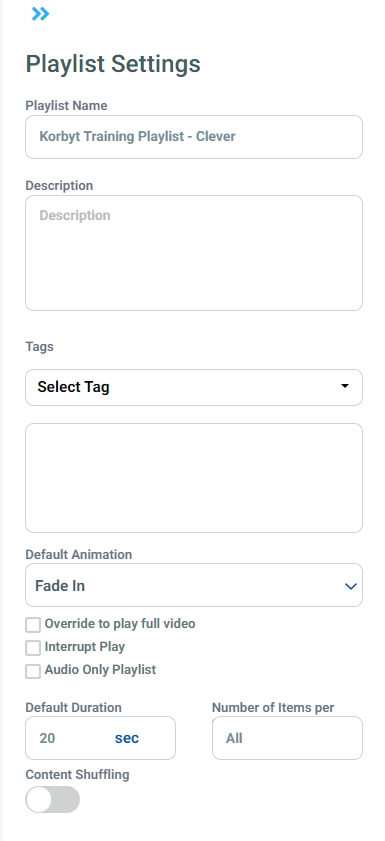
When creating a standard playlist, you have the option to set a Transition for all items on the playlist
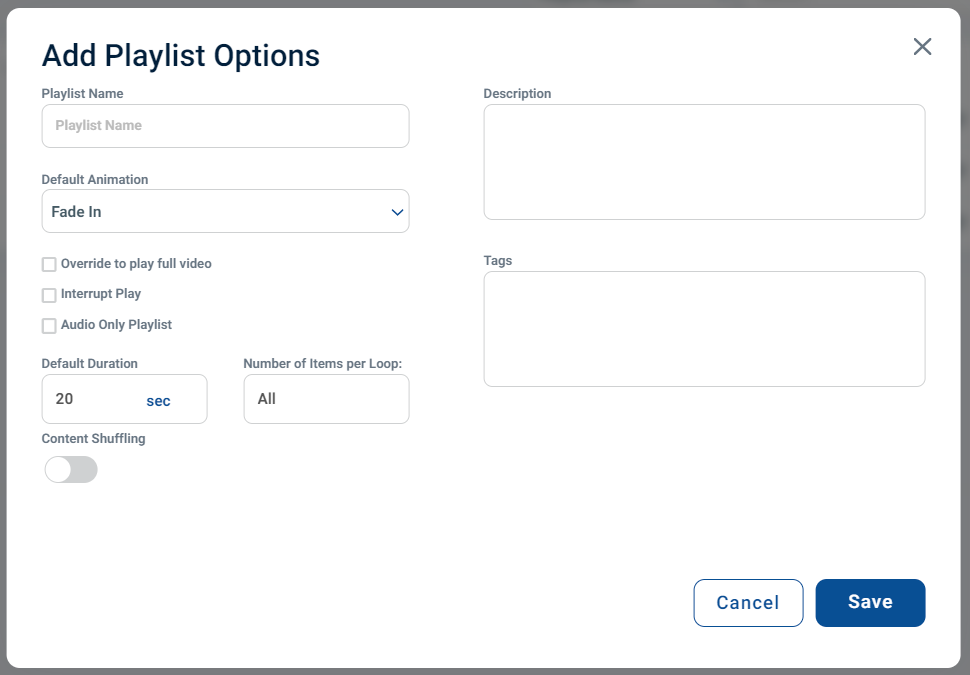
If the Playlist has already been created the Default Animation can be changed in the Playlist Settings menu
Click Playlist Settings in the upper right
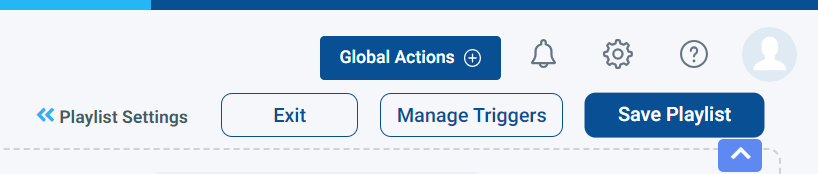
This opens the Settings sidebar where you can change the default Animation, along with other settings