CreateAI Image Enhancement
The CreateAI Image Enhancement is an option tool that allows for images to be edited through AI prompts
Written By Ed Kinne
Overview
The CreateAI Image Enhancement tools allow for Images to be edited using AI prompts in a pop-up window opened by clicking on a dynamic icon visible in the top right corner of different Image containers found in the Korbyt CMS
This optional feature does need to be enabled in your system, to have it turned on contact our Support Team at Support@Korbyt.com
Opening the CreateAI Image Enhancement Window
The CreateAI Image Enhancement tool pop-up window can be opened by clicking on the icon that appears in the corner of images in several locations.
In the Media Manager, when you hover the mouse over the thumbnail icon
In the Layout Builder, when you hover the mouse over an Image element
In the Launchpad or CreateAI Launchpad builder, when you hover your mouse over an image
In Clever Playlists, when you hover the mouse over an Image
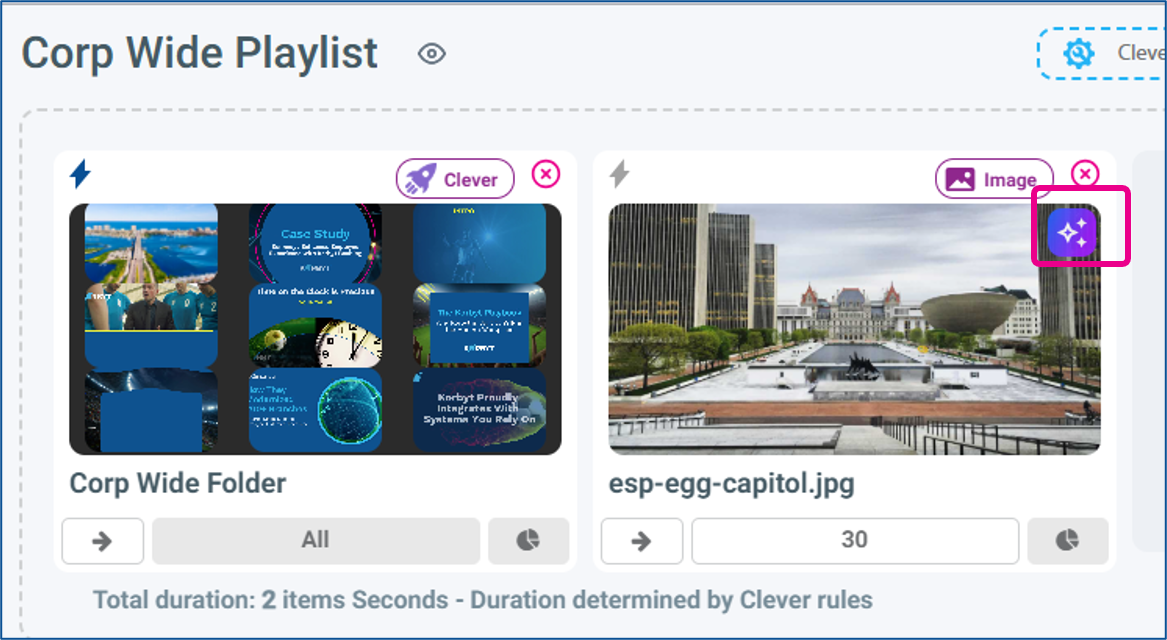
Opening the tool in a Playlist will add a unique option to add the new creation directly to the playlist
Using the CreateAI Image Enhancements
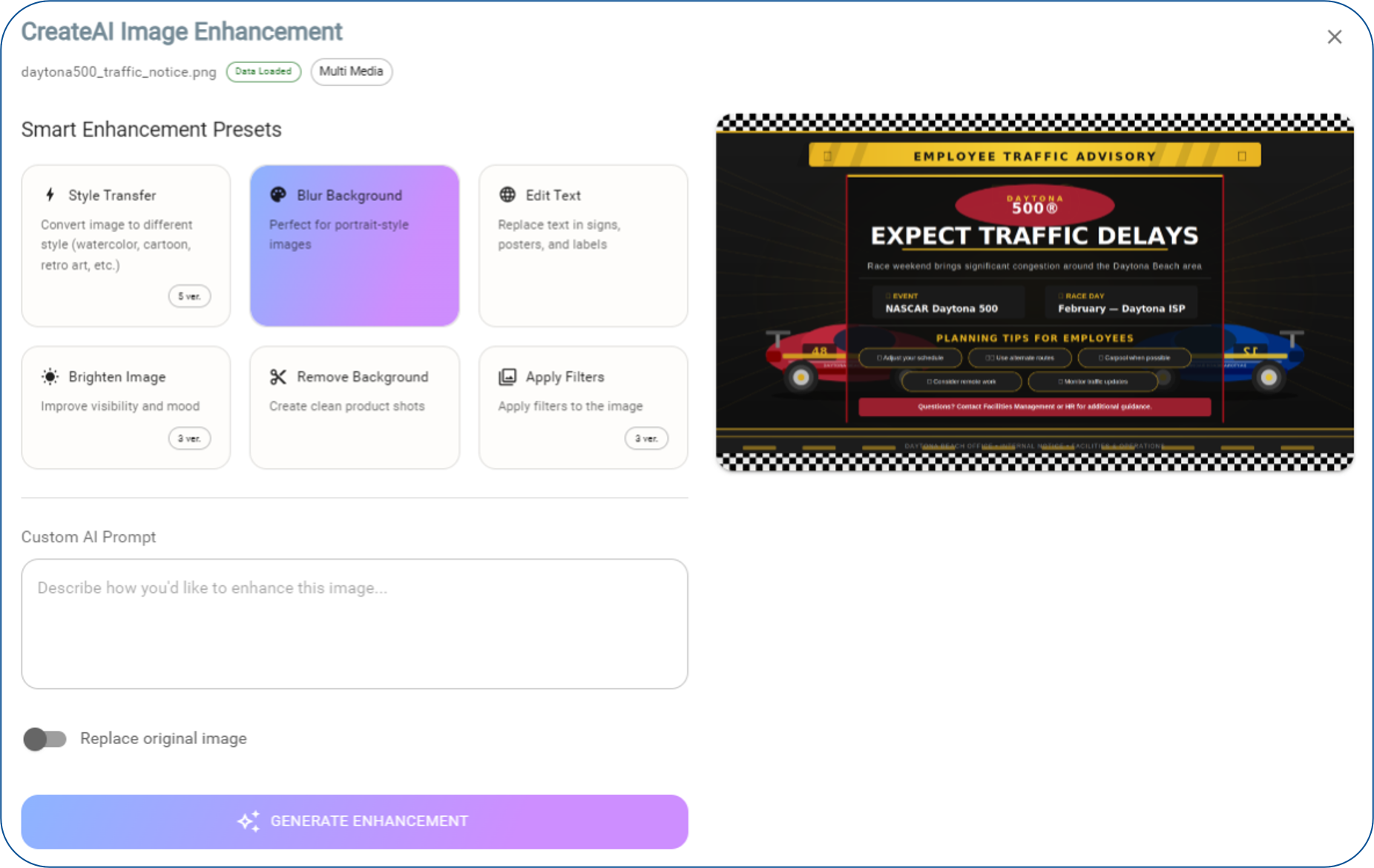
After you click the icon, the pop-up will display the image, with Smart Enhancement Presets, and a space to create your own prompt from scratch.
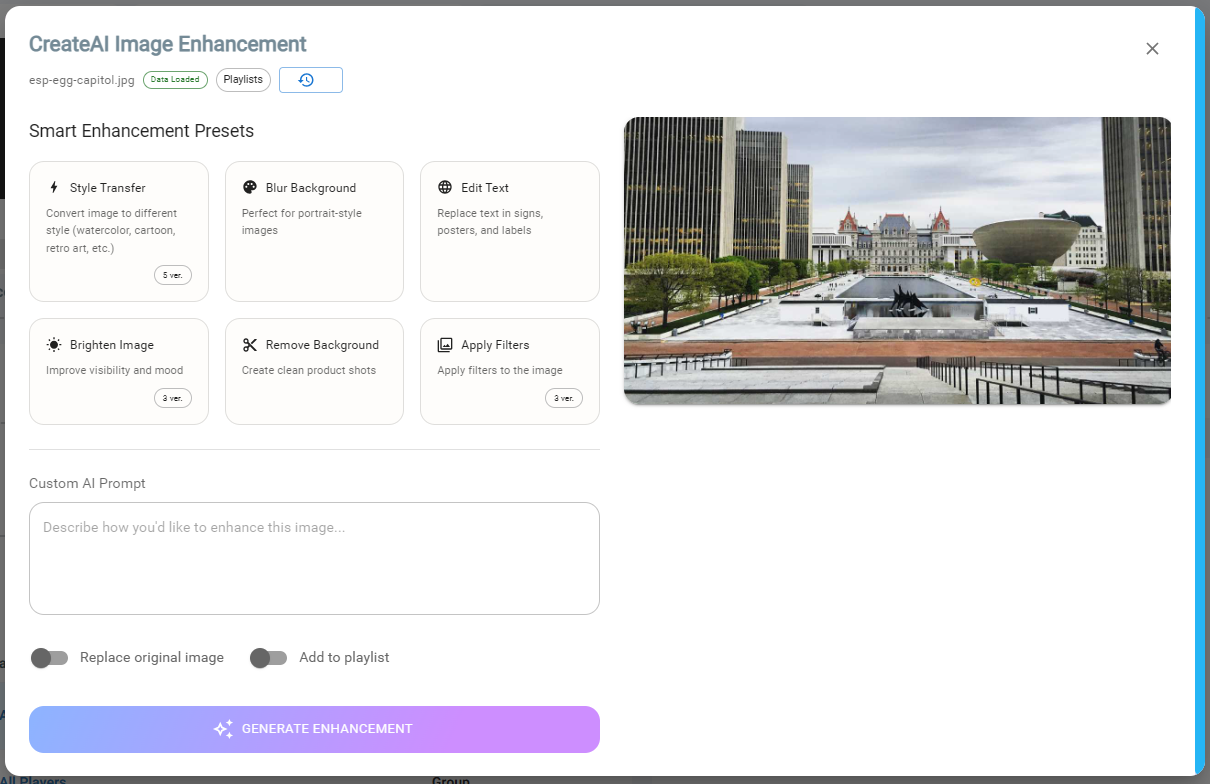
Smart Enhancement Presets
This section gives preset options that, when you click them, add the appropriate prompt text
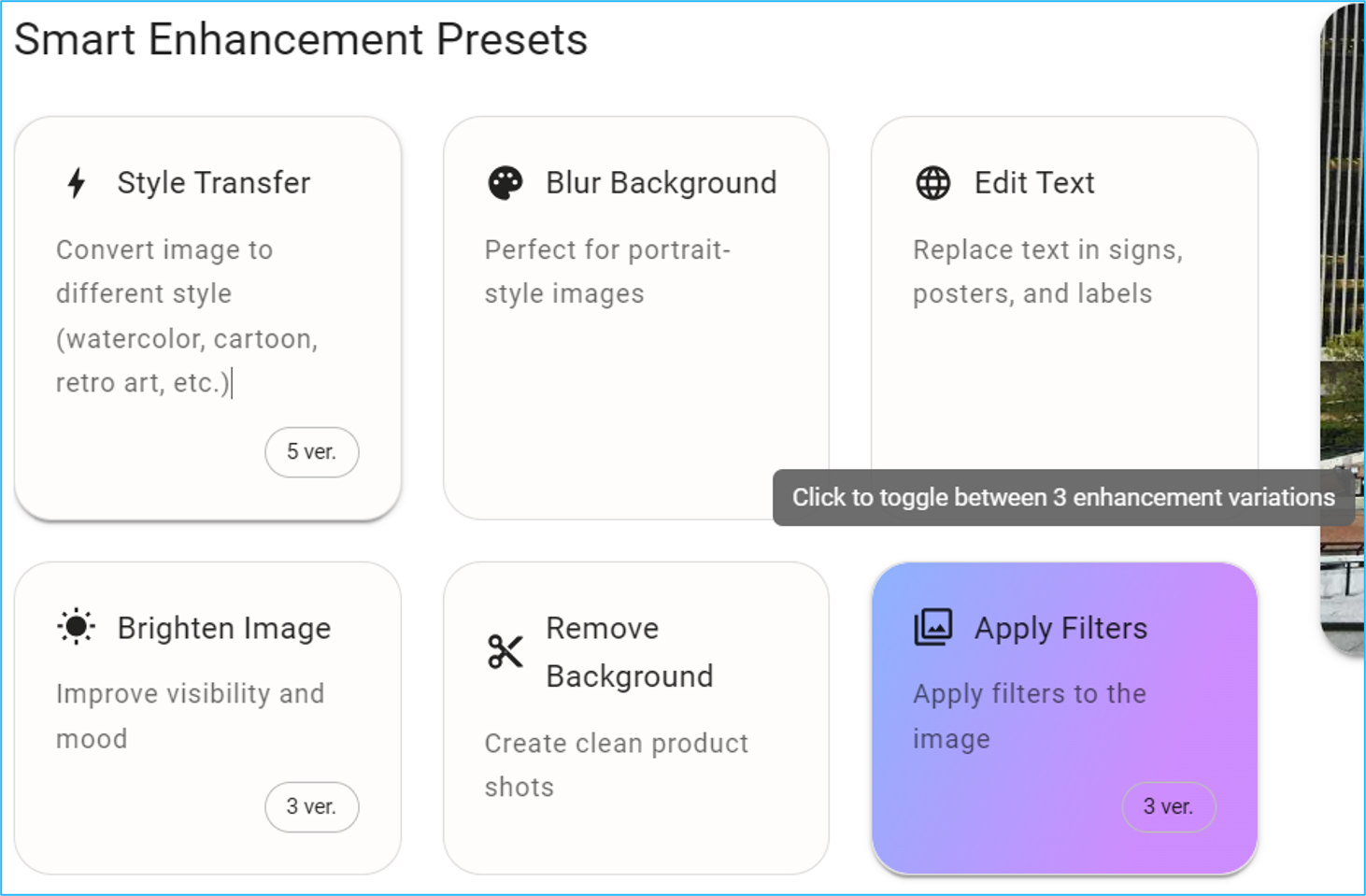
If an enhancement has multiple options, clicking the tile again cycles the text in the prompt through the different versions available
Only 1 Preset can be selected at one time, but you can add additional text to prompt before you process it
Custom AI Prompt
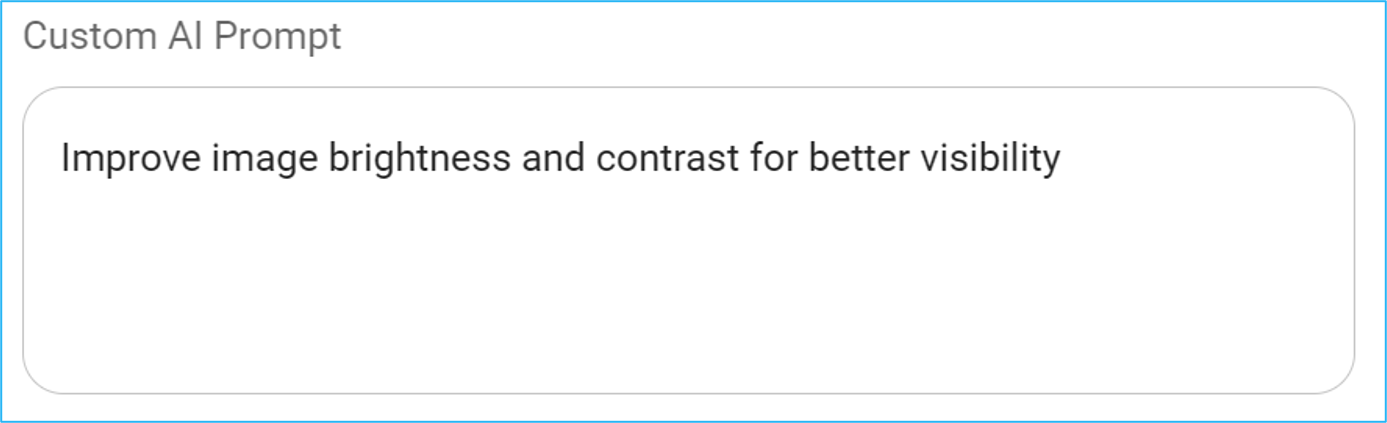
If you clicked any of the presets, that text will be here
You can change the text from the preset or enter your own custom prompt with no preset values at all
Saving Options

Replace original Image
If enabled, it will overwrite the original image file in the media manager with the new creation
Add to playlist - Only available when opening the Image Enhancement Tool while in a playlist
If enabled, it will add the new creation to the playlist you are working in
Generating Enhancement
Once you have your prompt and options configured, click on the blue Generate Enhancement button at the bottom
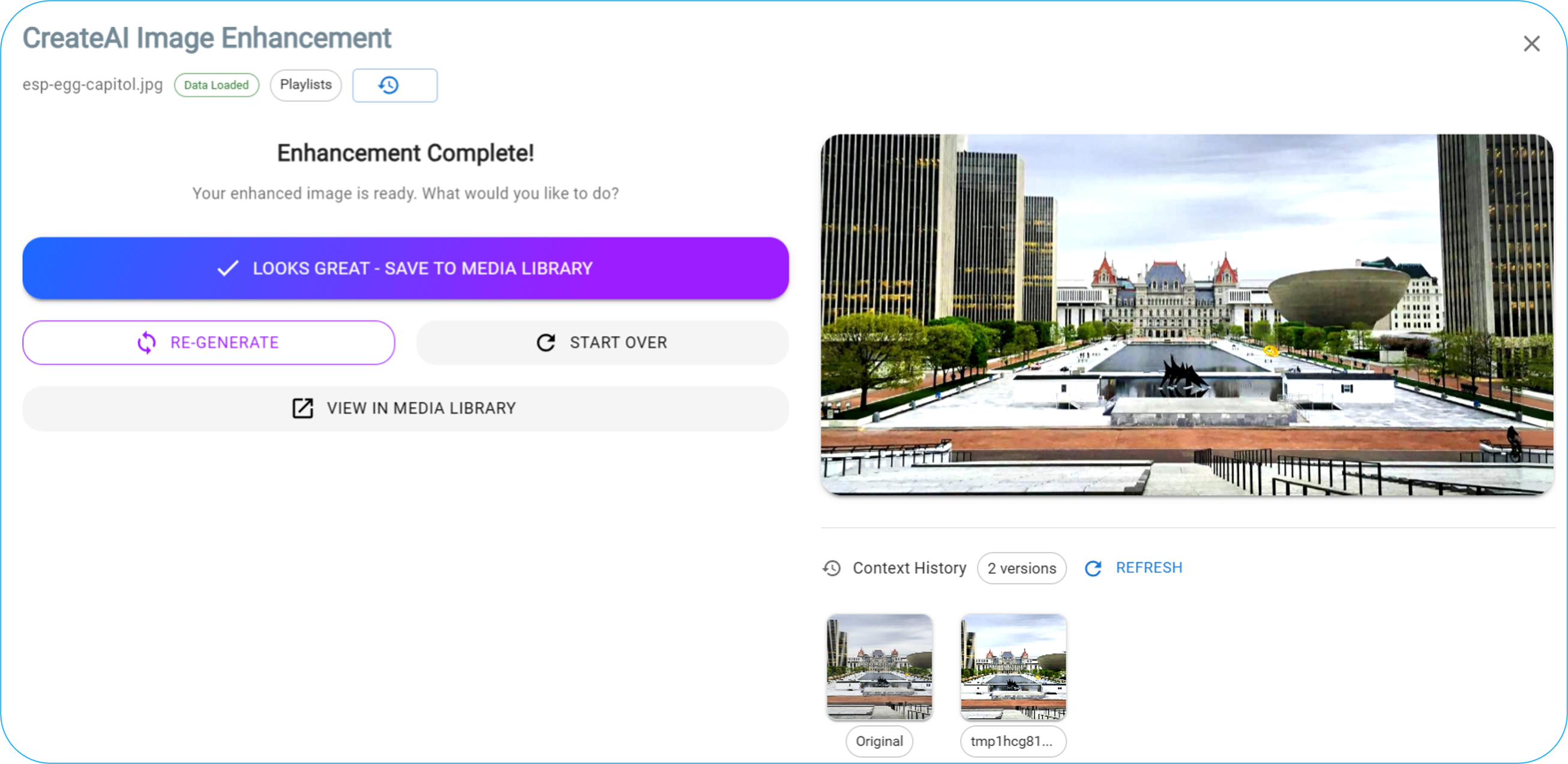
Options
Looks Great button
This option will save the item and close the Image Enhancement window
Re-Generate button
This option will keep the new item and return you to the prompt generation screen so you can apply more enhancements
Start Over button
This option abandons the new creation and returns you to the prompt generation screen with the Original image
Version History
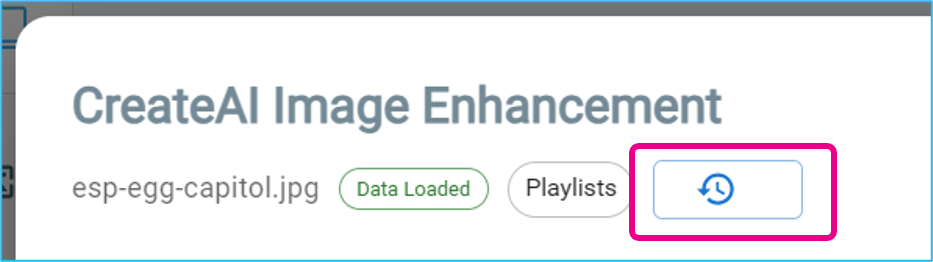
For any item that has had the Image Enhancement tool used, you can toggle on a version history by clicking on the clock icon in the upper left of the window
Media Library Storage
New images created through the CreateAI Image Enhancement tool are saved to the AI Images folder in the Media Manager
Was this helpful?
Still need help? Share an idea