KWP Audio Output Mapping
Setting the audio output path for multiple video output
Written By Ed Kinne
This article reviews using the Korbyt Configuration page to assign the audio output path for Multi-Display Korbyt Windows Players (KWP)
This feature is currenlty only available on KWP based devices, that are running the Beta PRT Version 3.15
While technically available on KWPs that have a single video output, the audio path for a single output can simply be set in Windows controls
Setup
Audio setup involves first plugging in audio-enabled outputs to the KWP and/or connecting audio devices to the KWP.
It is recommended to use external audio devices for this feature (i.e., not built-in laptop speakers).
After devices are connected, log in to the Device Configuration page
To do this, you will need to be on the same network or VPN network as the device
You will enter the IP address for the device into a web browser to directly log into the configuration page
If you need assistance accessing the Device Configuration page, please contact support at Support@Korbyt.com
In the Player Configuration Page, navigate to Display, then Display and Sound
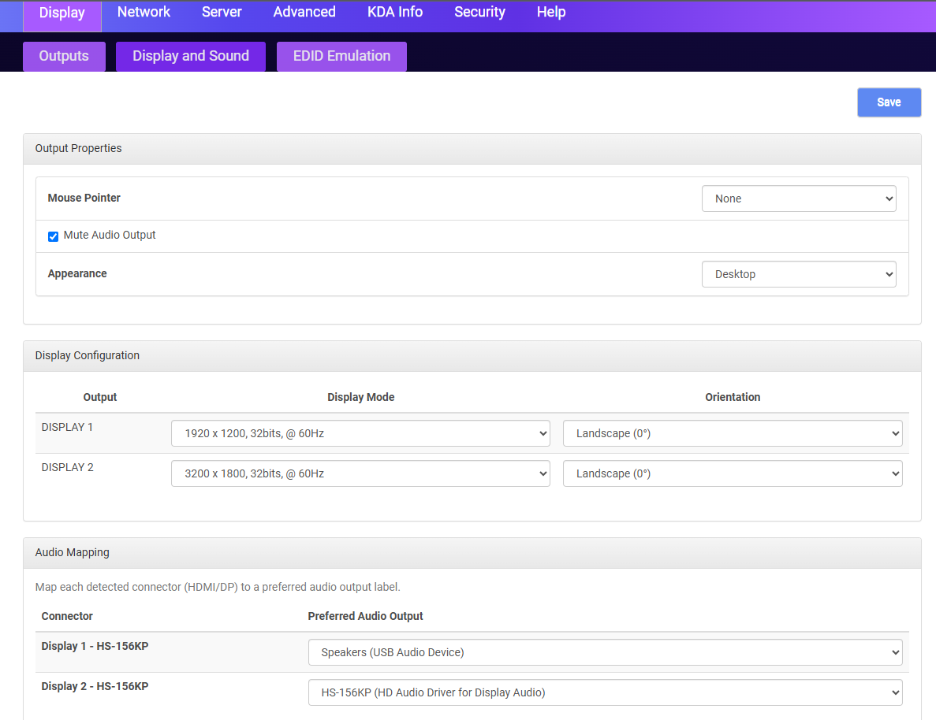
Within the Audio Mapping section, connected displays are enumerated in system output order.
The Preferred Audio Output dropdown(s) show a list of all available audio interfaces observed by Windows, utilizing the same labels.
Saving the audio mapping in PSS causes the player to restart the player application to ensure correct audio output assignment.
Changes to the audio topology (e.g., moving displays from one output to another, plugging in new audio devices, etc) may require the user to reconfigure the audio mapping again.
Was this helpful?
Still need help? Share an idea