Validity Dates
Used to limit Plalist Validity and playback of specific items in Korbyt
Written By Ed Kinne
The Korbyt system has a function that allows you to set date and time conditions for when an item will be considered valid by a playlist for playback, and shown. If an item is not valid, it will be skipped and not shown.
General Info on Validity Dates
You can set two validity date options Start Date and End Date.
You can set one or both.
Start Validity Date – The date and time an item becomes valid and will be shown
Before the validity date, Playlists will skip the item
End Validity Date – The date and time an item stops being valid and won’t be shown anymore
After the validity date passes, the item stays on the playlists it was part of, but is skipped
The date/time setting is interpreted by the player who is playing back the item, using their local time and date to judge the validity.
Playlist Validity is tied to the item and is used by every Playlist that references it.
Playlist Validity Dates do not affect other methods of showing the item (adding it directly to a layout design, using it in a carousel or media grid element)
Items with Validity dates will appear in Playlists with an hourglass symbol on the item, indicating that a validity date controls it.
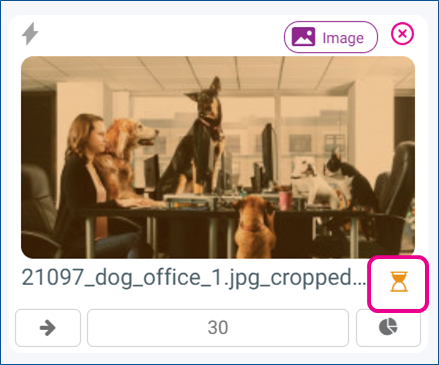
Yellow Hourglass = Item has not yet started to be valid
Green Hourglass = The item is currently valid
Red Hourglass = The item has expired and is no longer valid
Setting Validity Date in Media Manager for Images and Videos
There are three ways to assign/edit Validity Dates to Images and Videos
When the items are imported to the Media Manager
Editing a single item’s details in the Media Manager
Editing Multiple Selected Items
Assigning Validity Dates to an entire folder
Editing the item’s details quickly from within a Playlist
described in more detail below
Setting Validity Date as Items are Imported
When you click the Import Media button in the Media Manager, the upload modal includes an area to set Validity Dates on all items being imported
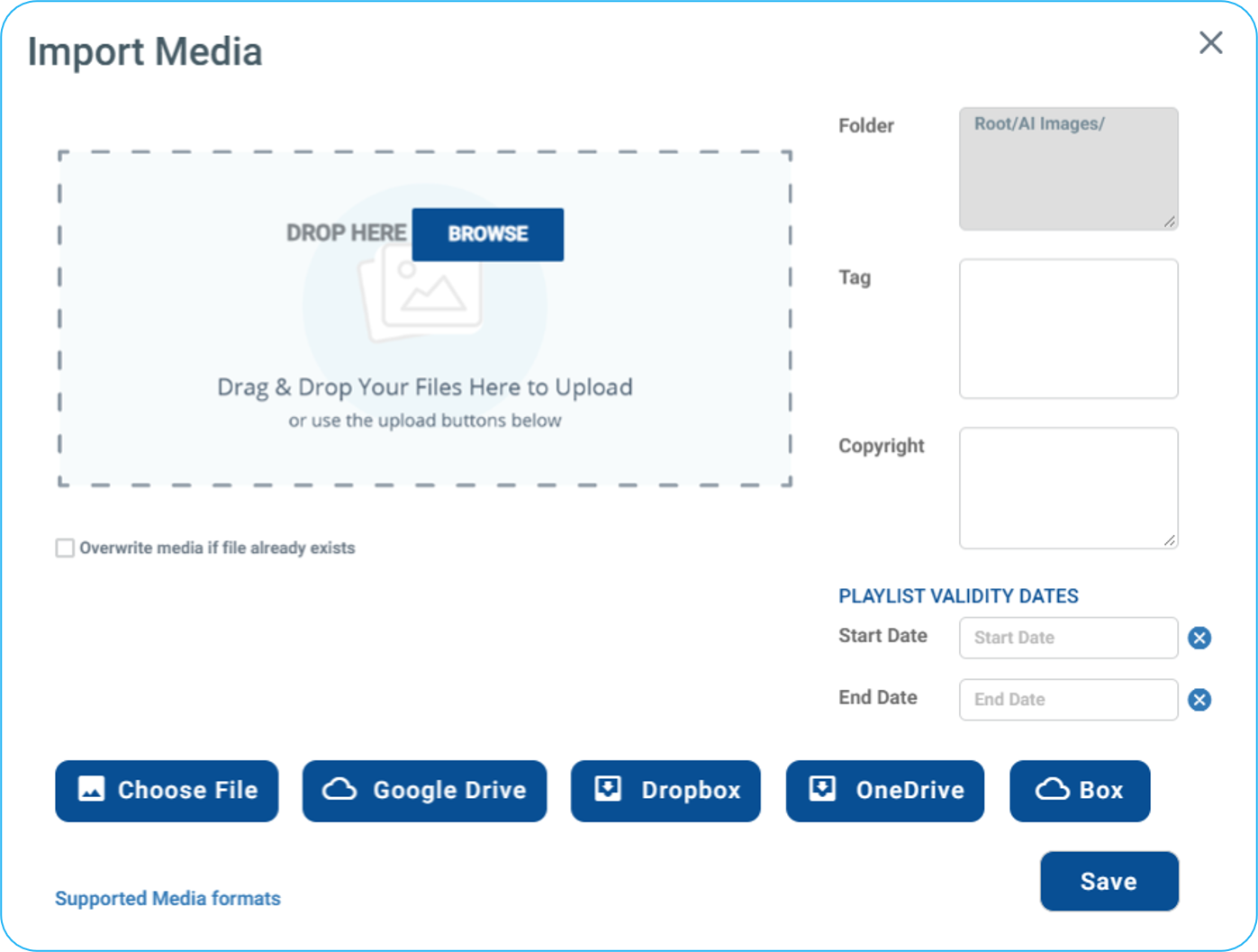
Click on the field you wish to set
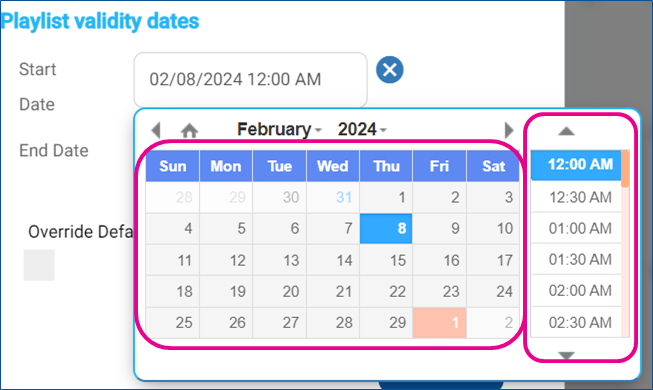
The time selection is in 30-minute increments, but after selecting your time, you can use the cursor to type the specific time in the space for time/date
After configuring your Start and/or End date information, click the blue Save button in the lower right
Setting Validity on Individual Items already in the Media Manager
To set the validity date for Images or Videos already in the Media Manager
Open the Media Manager
Locate the item you wish to assign a Validity Date to and click the Pencil icon to open the Media Details screen
You will see a Playlist validity dates section in the lower right
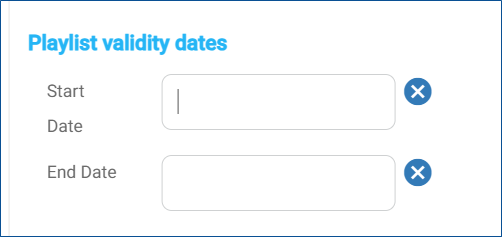
Use the same interface described above to select dates and times
Setting Validity on Multiple Items already in the Media Manager
You can select multiple items by clicking next to items, then use the drop-down in the upper left to apply an action to the selected items.
Start by hovering your mouse over your first item.
This will show a check box; clicking it will select it
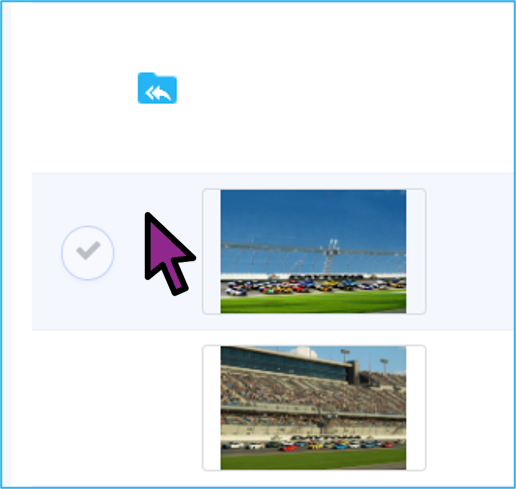
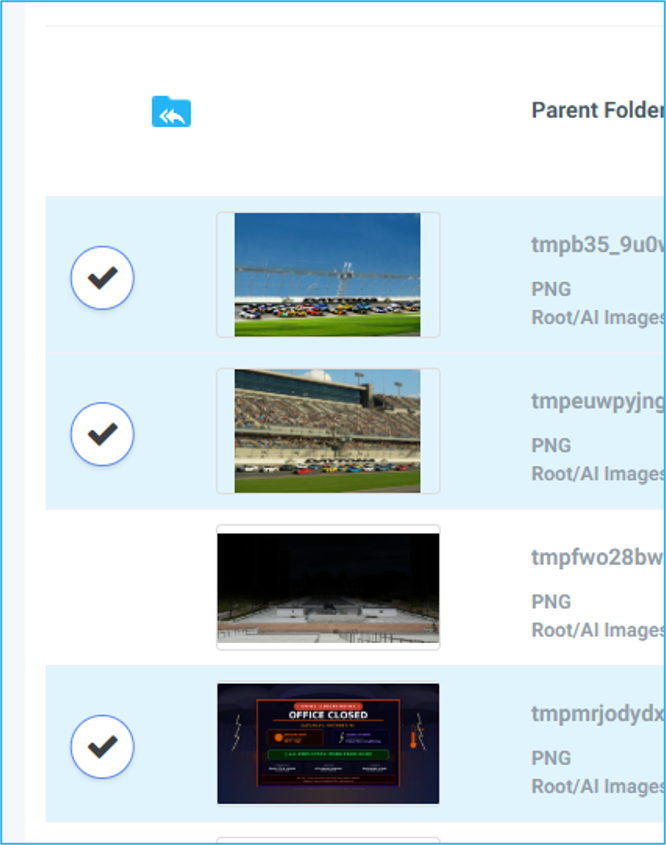
To select multiple items, hold down either the Control key or Shift key on your keyboard
Control will allow you to select multiple items by clicking each
Shift will select ALL items between your first item and second item
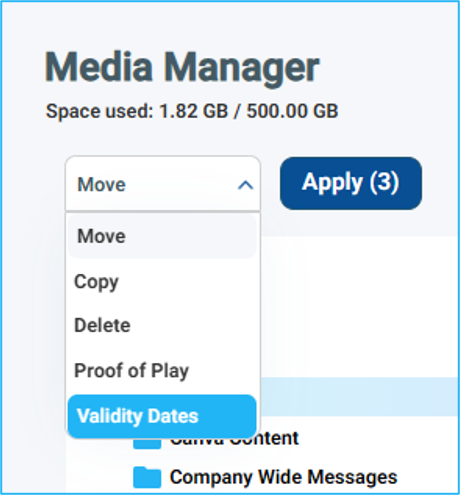
Once you have the multiple items selected, open the drop-down in the upper left and select Validity Date, then click Apply
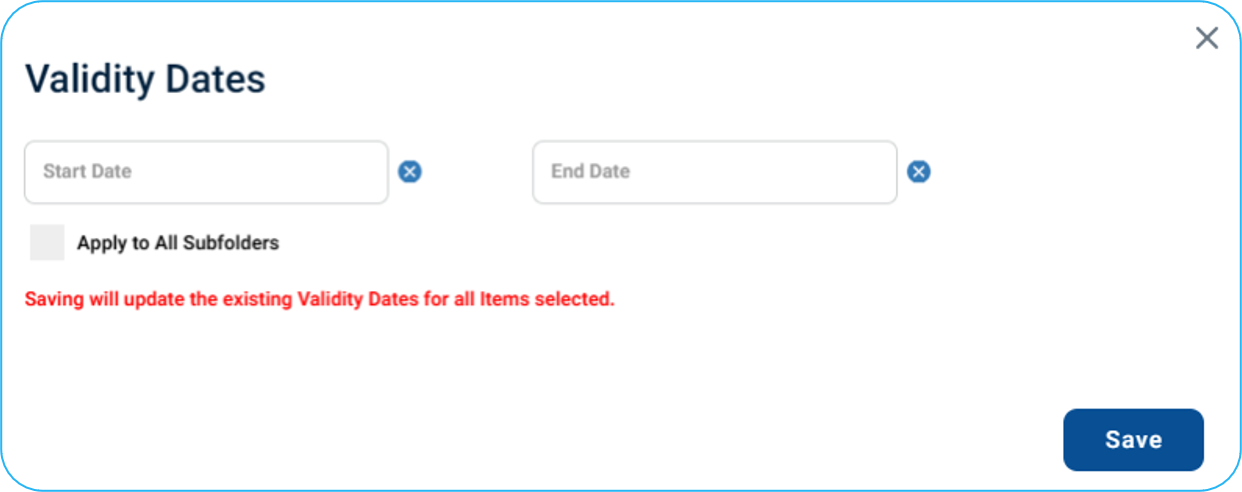
This will open the window to select the Validity Date to apply to the selected items
Setting Validity Dates for a Folder / Subfolders
Open the Media Manager
Locate the folder you wish to assign Validity Dates throughout and click the Pencil icon to open the Folder details screen
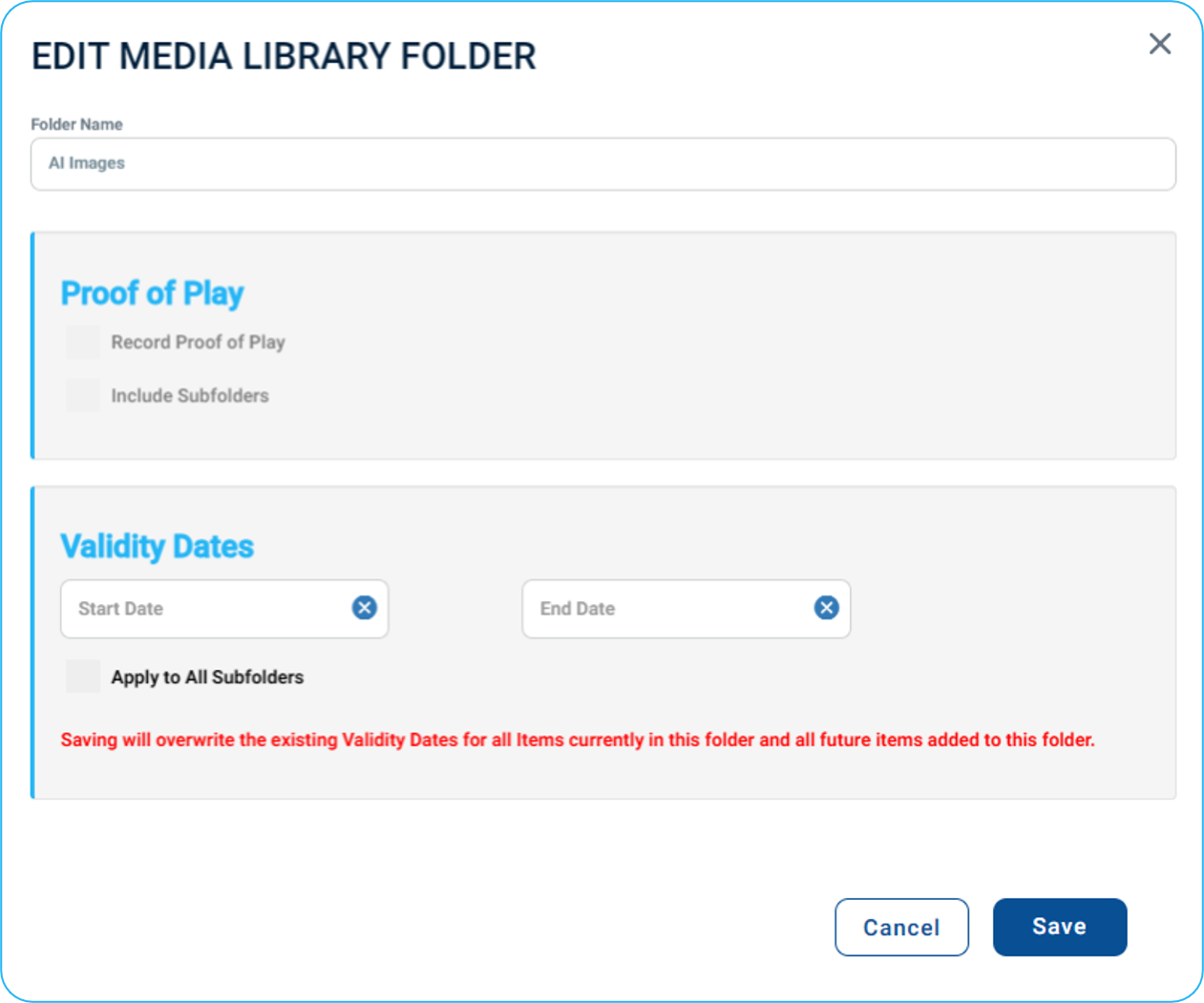
You will see the Playlist Validity section and a checkbox to have these validity dates applied to the Subfolders as well.
Setting Validity Date on an Image or Video from inside a Playlist
When you are in a Playlist for editing,
Clicking on the name of an Image or Video
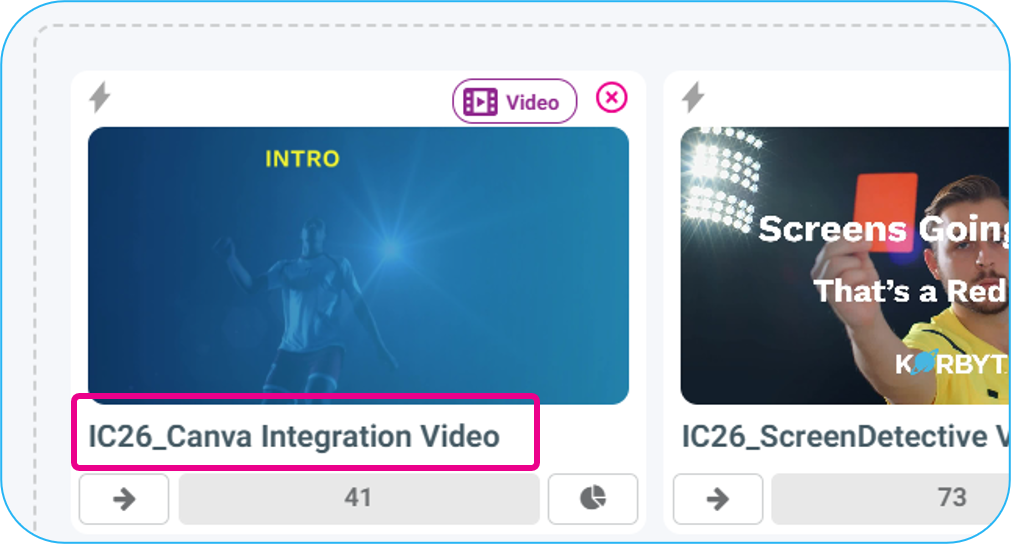
Will open a new tab where you can edit the Validity Dates for that item
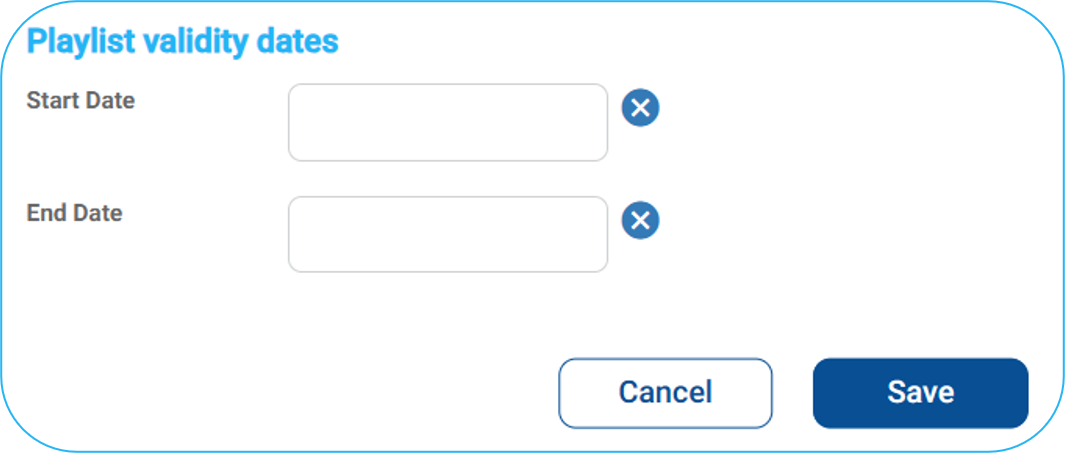
When done, click Save and then close the tab
Expired Items in the Media Manager
If a media item has expired, in the Media Manager, its pencil icon will have an exclamation point next to it

Setting Validity Date for a Layout or Message
Layouts and Messages allow for validity dates.
For Messages, it does not affect the message being assigned to an InView Audience; it only affects the Message referenced in a playlist.
To set the validity date for a Layout or a Message
Open the Layouts section
Locate the item you wish to assign a Validity Date to and click the lowercase “i” icon to open the Layout or Messages Metadata screen

You will see a Playlist validity dates section in the lower half of the pop-up
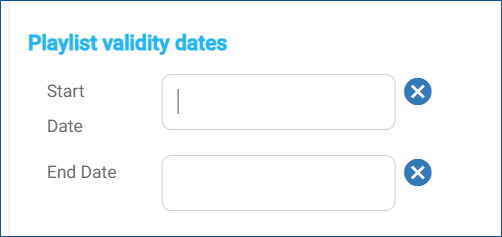
Click on the field you wish to set
Advanced Validity Options
In the System Wide Settings, Gear Icon in the upper right, there are controls that can affect content with Validity Dates
These settings are acessable by Tenant Administrators and Administrators only
In the Tenant-wide Settings, on the General Settings tab, scroll down to find Global Settings
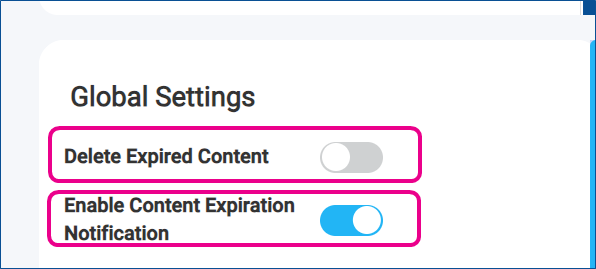
Delete Expired Content
If you turn this setting on, the Korbyt system will automatically delete content that has an expired END validity date
The deletion takes place at least 1 week after the validity date has passed, giving a user time to remove the end validity date and not have the content auto-delete
Content that is automatically deleted can not be recovered
Enable Content Expiration Notification (System-Wide Default)
Turning this option on allows the admin to set up a notification that gets sent to a set group of users a standard number of days before expiration
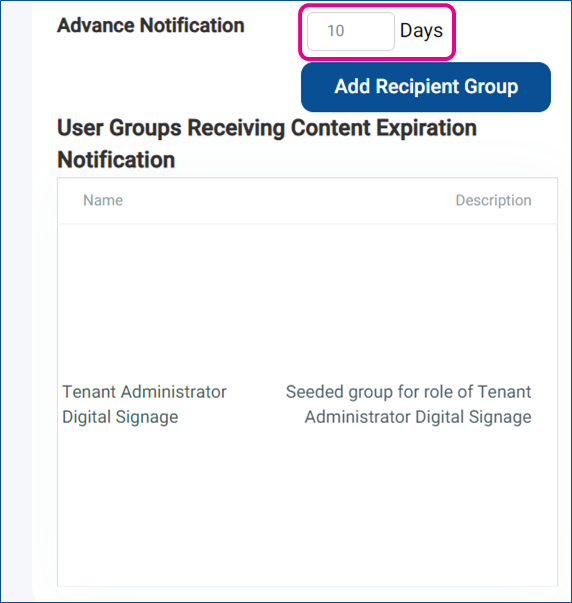
If the System-wide notification is turned on, it can be overridden on a per-item basis
In the window for setting Validity dates for Media, Layouts, or Messages, there is a check box below the date and time to override the default notifications
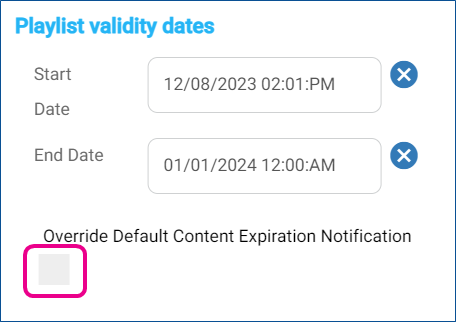
Checking that box allows the defaults to be changed for the notifications associated with this 1 specific piece of content
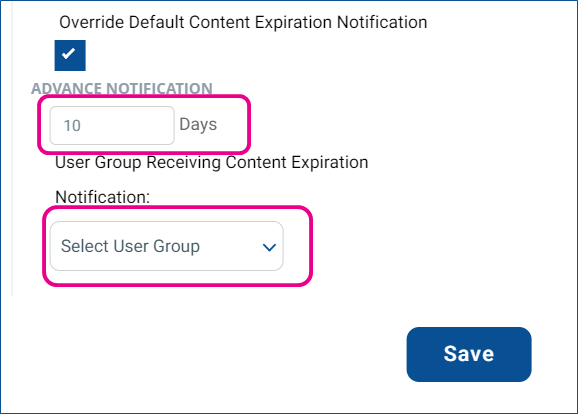
Setting a different number of days, or a different user group selected from the already programmed user groups for Notifications
Was this helpful?
Still need help? Share an idea