How To Use a Video Element
Add a video file, or an external video source in the Builder Tool
Written By Ed Kinne

The Video Element allows you to add either a video file or a video stream from HLS, DASH, UDP or a Live TV Passthrough.
Note: If you wish to use a YouTube video, Twitch stream, or other publicly available video source, you would want to use the YouTube element or the External URL element.
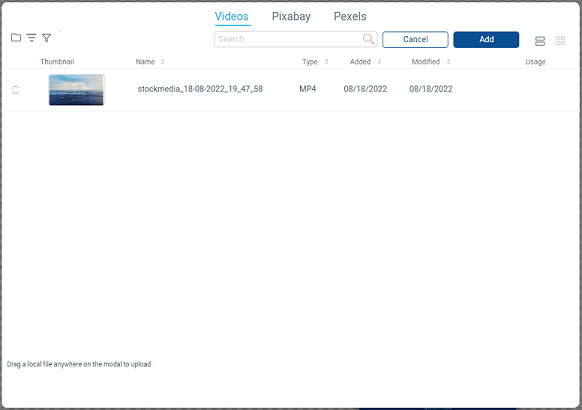
Adding a Video Element
When you add a Video Element, a window opens, allowing you to select an item from your Media Manager, Pixabay, or Pexels, you can also upload a new image by dragging the file on your computer to the dialog box.
You select Cancel if this Video Element is going to be used to bring in Video Streams like HLS, DASH, UDP, or Live TV
If you select a video file, it will fill the space and begin playing. You can use the Gear Icon in the upper right to open the Edit options.
Editing a Video Element
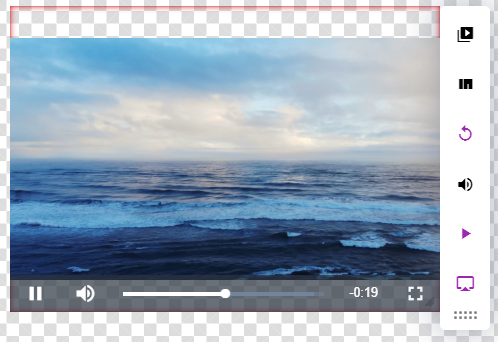
Icon | Setting Description |
 | Media Library/ Video Source allows you to select a new video from the Media Library or select your external Video Source (DASH, HLS, UDP, Live TV) 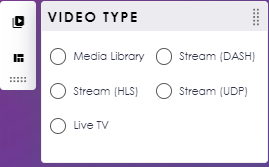 If your video source is something other than a Media Library file, the edit options below will not be available, and the media will not be seen in the Builder Tool More details on the different live video sources are below in the article |
 | Stock Media: allows the selection of a stock video. |
 | Loop: Toggles if the video loops its playback. Purple is Loop On |
 | Volume: allows you to set the relative volume the video will play at. |
 | Autoplay: Toggles if the video will auto-play. Purple is Autoplay on and should be the setting for Signage Layouts |
 | Controls: Toggles whether the video will show controls at the bottom. Generally, you would want the controls visible when making an interactive layout for a kiosk and invisible otherwise. Purple indicates that controls are set to show on the screen. |
IPTV, Live TV, and Video Streams
Korbyt supports the display of a separate video source in the signage system through the Video Element. With all these options, the video will not be visible in the CMS; instead, a blue screen displaying the area where the video will play is shown.
Live TV / HDMI At the Media Player
Live TV is the insertion of an HDMI video input into the signage display at the screen/media player.
This requires the Media Player to have an HDMI input, to which the local device (cable box, decoder, Blu-ray player, etc.) is connected.
Current HDMI Input Capable Players
BrightSign XT series players
DASH, HLS, and UDP Streams
Korbyt supports various IPTV streams.
There may be limits to the stream options that specific media player hardware can display.
Currently known limitations are below. You are advised to investigate the limits of any hardware that will be used to display an IPTV feed.
Korbyt Windows Players (KWP) and IPTV Support
HLS (unicast)
DASH (unicast)
BrightSign Media Player and IPTV Support
HLS (unicast)
UDP (multicast)