How To Use A Text Element
A customizable text box that can be added to a canvas. Can also be used to display the date or time in text format
Written By Ed Kinne
The Text-Note Element creates a space to type text or insert a dynamic Date and Time.
If the font you use is not available in the builder tool it can be added to your tenant
To add a custom font to your tenant you will want to contact the Korbyt Support team via email at Support@Korbyt.com
Please set the subject line to Font Addition and include the following in the email
Your Contact information
Company Name
Korbyt Tenant ID (found at the bottom of the settings page)
attach the font data files in TTF or OTF format
Adding a Text-Note Element
When you add a Text-Note, it will open on the canvas with the edit bar open and a cursor so you can type.
This default action (being open and ready to edit) means that you will not be able to move the text box at first because your cursor input of clicking and dragging is thought to be intended to select text.
You can move a text box while editing by clicking the “Element Draggable” icon on the bottom of the edit bar, or by clicking the gear icon in the upper right and saving your changes
Text-Note Edit Options
Icon | Setting Description |
 | Text allows you to change the Font, Decoration, Alignment, Size, and Line Height |
 | Color allows you to change the Font and Background Color. The Background Color selected here only affects the space behind the text. |
 | Styles allow you to select a predefined stylized block of text, which you can then edit. |
 | Image allows you to add an image from the Media Manager to be in line with text |
 | Date allows insertion of Date and Time. Can select the format of how they are displayed. |
 | The table allows the text element to be broken down into a grid |
 | Element Draggable Toggle, when active (blue), allows the element to be moved and resized while still having the editing menu open, but it will not be able to highlight text. |
 | Scaling Style only appears if a Style is selected, allowing you to scale the size of all elements of the style together |
Setting Font and Adding New Font Types
Korbyt offers several standard fonts included in the system
If your branding uses a specific font, it can usually be added to your Korbyt Tenant. Send the Font Files to Support@Korbyt.com, and they will be added to your specific tenant
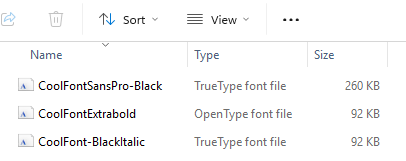
BrightSign Font Compatibility
BrightSign devices no longer support system fonts. If a layout uses a system font, BrightSign replaces it with a built-in default that tends to be much larger than standard fonts.
Layouts that look correct in Builder preview will often overflow or wrap on the actual player.
The fix is to use custom fonts loaded into your tenant rather than the default Korbyt font library. (See above)
Text-Note to Display Data / Time
Select Insert Date or Time from the Edit Menu
Then select to Insert Date, Insert Time, or Both, and the Format Mask you would like
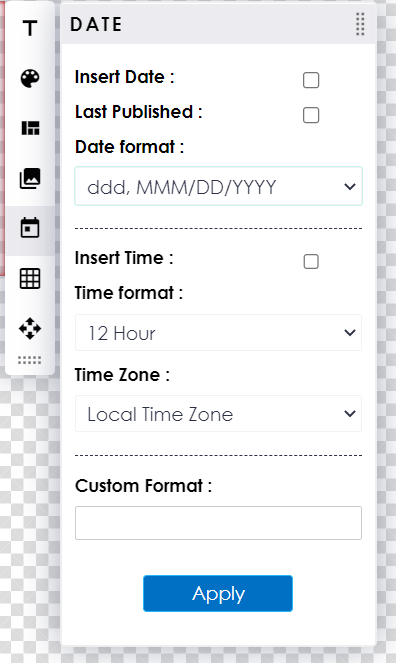
There are several stock selectable Date formats available. The dropdown describes them using generic placeholders for different information.
ddd = the Days 3 letter abbreviation
dddd = the day fully written out
DD = 2 digit number for the day
MMM = the month 3 letter abbreviation
MMMM = the month fully written out
MM = 2 digit number for the Month
YYYY = 4 digit year
YY = 2 digit year
Time Formats Available
12 Hour = Displays time in 12 hour format with AM or PM, Includes Seconds
24 Hour = Displays time in 24 hour format, Includes Seconds
Hour Only 24 = Displays the hour in 24 hour format
Minutes: Sec = Displays only minutes and seconds
Hour(12): Min = Displays the time 12-hour format with AM or PM, No Seconds Displayed
Hour(24): Min = Displays time in 24 hour format, No Seconds Displayed
Minutes = Displays just minutes
Seconds = Displays just seconds
You could also use the space at the bottom of the insert menu to create your custom formatting
The Font, Style, Format, and Color of the inserted Date/Time text can be adjusted like any other text element.
Text Element Sizing Suggestions and Guidance
The sections below give guidance for using text through Korbyt and within Templed Designs
Vmin for Font Size
Set font sizes in vmin, not px or pt. This lets text scale with the screen rather than locking it to one size.
Good: font-size: 3vmin; Avoid: font-size: 24px;
Larger vmin values mean larger text and fewer characters before overflow occurs. Smaller values fit more text but can hurt readability at viewing distance. Always test at the actual viewing distance of the screen, not just on your monitor.
When Previewing, Set the Correct Aspect Ration
The Builder preview window can match any screen size. Always preview at the actual player destination dimensions before publishing.
16:9 (standard landscape): most common. Check that the text doesn't run into lower thirds.
9:16 (portrait): text lines shorten a lot. Plan to reduce character limits by 30-40%.
21:9 (ultra-wide): centered text can look isolated. Check for visual balance.
4:3 (legacy displays): line widths are shorter even though the canvas is taller.
If a layout goes to both landscape and portrait screens, test both. A count that works at 16:9 will very likely overflow at 9:16
Setting Character Limits in Templates
In Korbyt predefined layouts, "Templated" is the property that controls whether an element is editable by end users in a webform or launchpad. Elements without Templated checked are locked and cannot be changed when someone submits content.
To configure a text element for user editing:
Select the text element on the canvas.
Click the gear icon in the upper right of the element and select Properties.
Open the Attribute tab.
Add a Label. This is the field name users will see in the webform or launchpad screen.
Check the Templated checkbox.
Set Max Character Length to your tested character count.
One important note for Text-Note elements specifically: set the Templated property before entering any placeholder text. If you enter text first and then check Templated, the text will be removed, and you'll have to re-enter it. Also, once an element is templated, the font, size, and color formatting apply to all text in that element uniformly. Users can change what the text says, but not how individual words are styled.
Elements without Templated checked will appear in the design but won't show up as editable fields in the webform or launchpad.
Estimated Text Character Limits by UseEstimate
These are rough starting points for a 16:9 layout at standard viewing size. Validate with the steps above before using them.
Full-width headline: 30-50 characters. Large font (~5-7 vmin). Very sensitive to font choice.
Subtitle: 60-90 characters. Smaller font (~3-4 vmin). Watch for two-line wraps.
Body/description text: 120-200 characters. Usually multi-line. Set a line limit too, not just a character limit.
Ticker/scrolling text: no hard limit. Scrolling bypasses overflow, so focus on reading speed instead.
Short label or name field: 20-30 characters. Stable across most resolutions.
Date/time/event field: 20-35 characters. Structured formats are predictable in length and rarely need much testing.
Checking Character Limits with Notepad
Since limits are element-specific, the most reliable approach is to just measure it. Notepad works well for this.
Open Notepad or any plain text editor.
Type until the text fills your intended element without overflowing (one headline, two subtitle lines, etc.).
Get the character count. In Notepad: Edit > Select All, then check the status bar, or paste into Word.
Paste that text into the Korbyt text element in the Builder.
Adjust font size and box dimensions until it looks right, then note the character count.
Set that as the Max Character Length in the element's templated attribute properties (see section 4 below).
Once you have a count you like, save that line of text somewhere reusable. It's a handy reference when sizing new elements.