How To Use a Salesforce Element
This Element will allow you to display a Saleforce dashboard in a Signage Layout
Written By Ed Kinne
The Salesforce Element in Korbyt connects to data shared by your Salesforce service and requires that your server be configured to all the data to be shared

Salesforce Configuration
A Salesforce administrator for your organization must configure Korbyt as a Connected App.
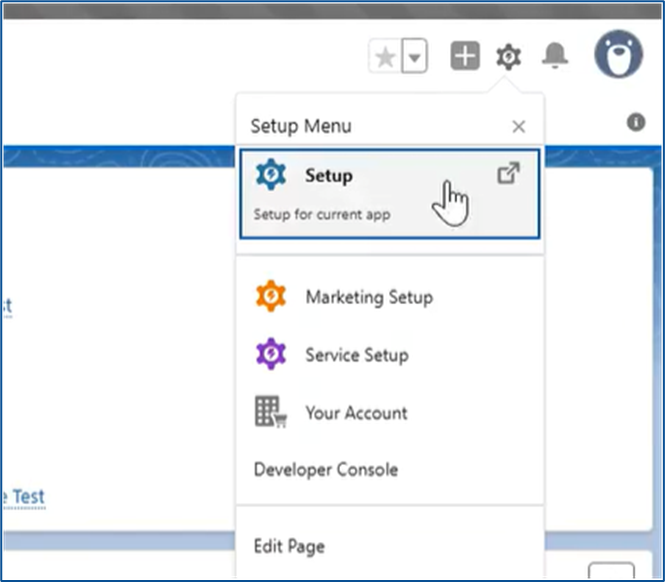
In your SFDC, click the Setup menu, then select Setup
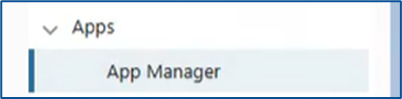
On the left navigation menu, open Apps and click on App Manager
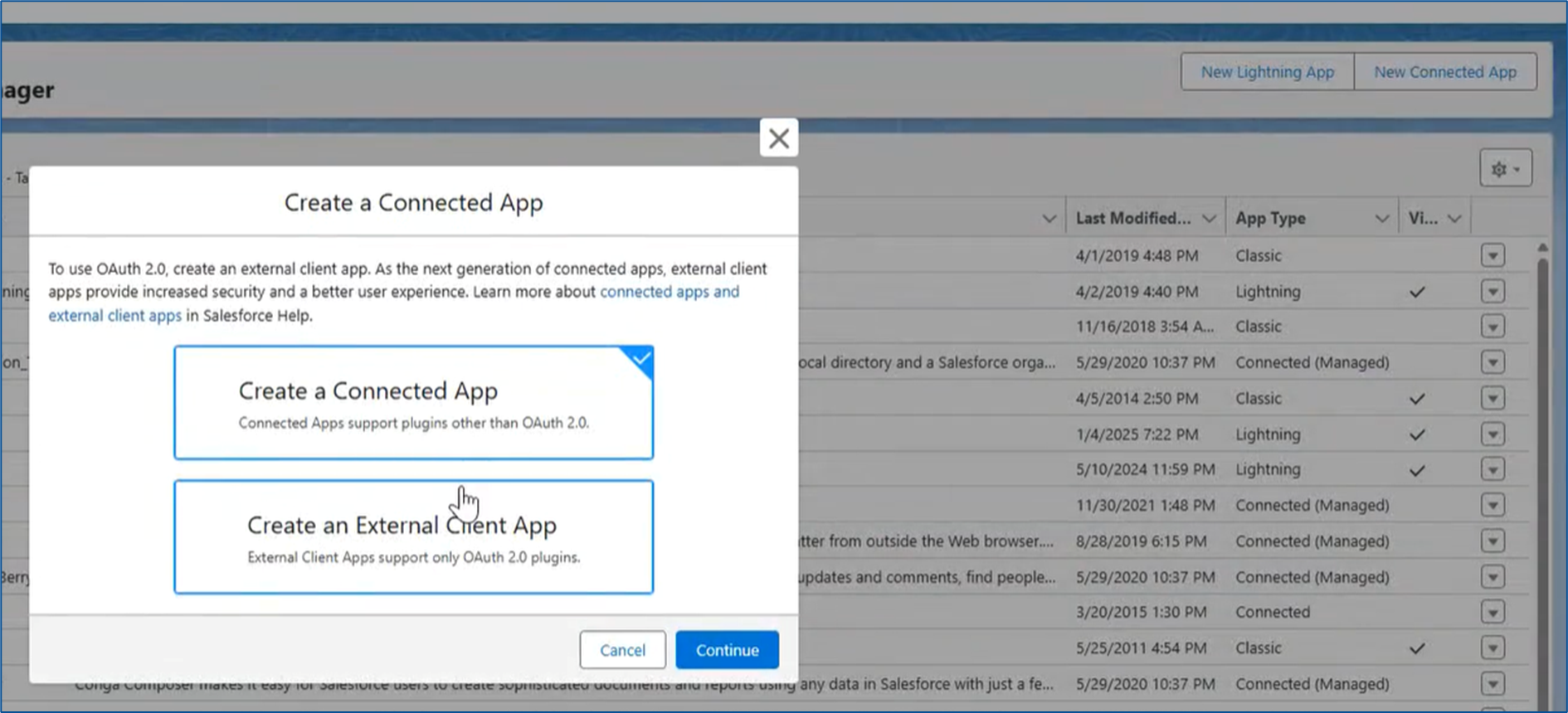
In the upper right, click New Connected App, then click Create a Connected App
Configure your basic info
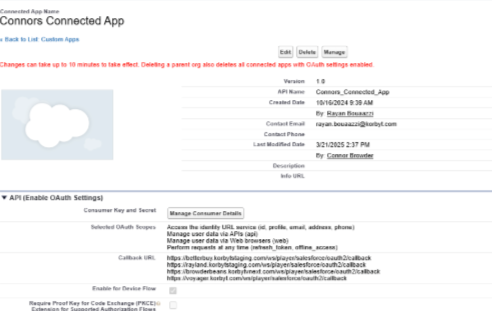
Select OAuth Scopes:
Access the identity URL service (id, profile, email, address, phone)
Manage user data via APIs (api)
Manage user data via Web browsers (web)
Perform requests at any time (refresh_token, offline_access)
Callback URL will be: https://{yourtenant}.korbyt.com/ws/player/salsforce/oauth2/callback
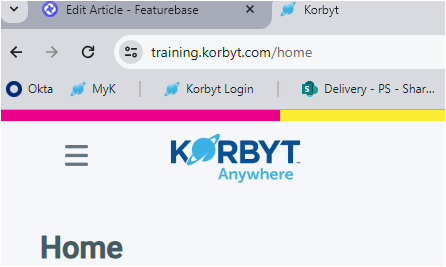
Your Tenant value can be found in the URL when working in your CMS
In this example, the {yourtenant} value would be training
Enable for Device Flow: Checked
Enable Authorization Code and Credential Flow: Checked
Save your configuration in Salesforce
You will now work in your Korbyt Tenant
Korbyt Keychain Configuration for Modern Salesforce
For current Salesforce (2024 to present), you MUST establish a Credential Keychain. If you have a legacy Salesforce instance, you can skip directly to the Legacy Salesforce Element section.
In your Korbyt CMS, open Settings (gear icon) and select the Keychain Tab
If you need to have Keychain enabled, contact Korbyt Support at Support@Korbyt.com
On the Keychain tab, click Create Credential
If this is your first Keychain, you will also have to enable Keychains

Select Salesforce from the Authentication Type drop-down
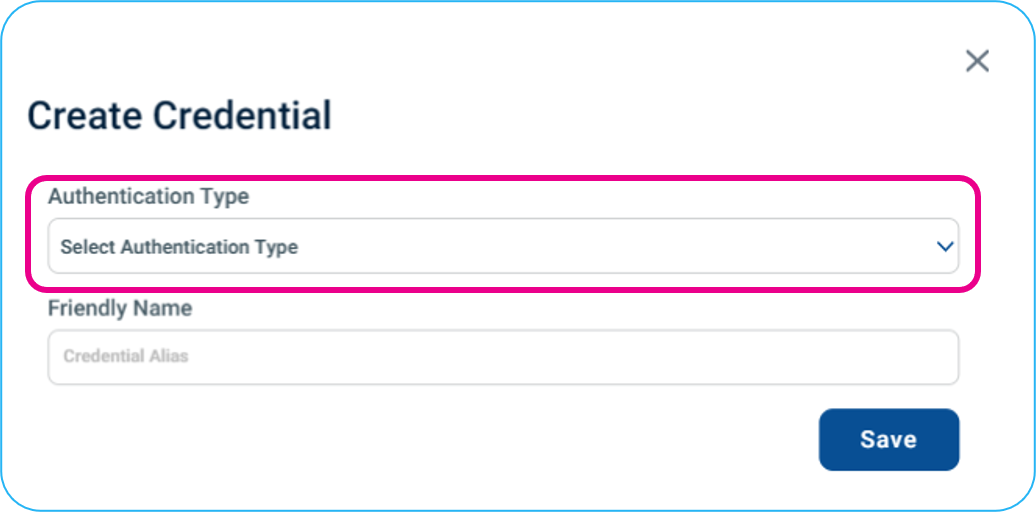
Enter other credentials such as a friendly name, Client ID, Client Secret, and Instance URL
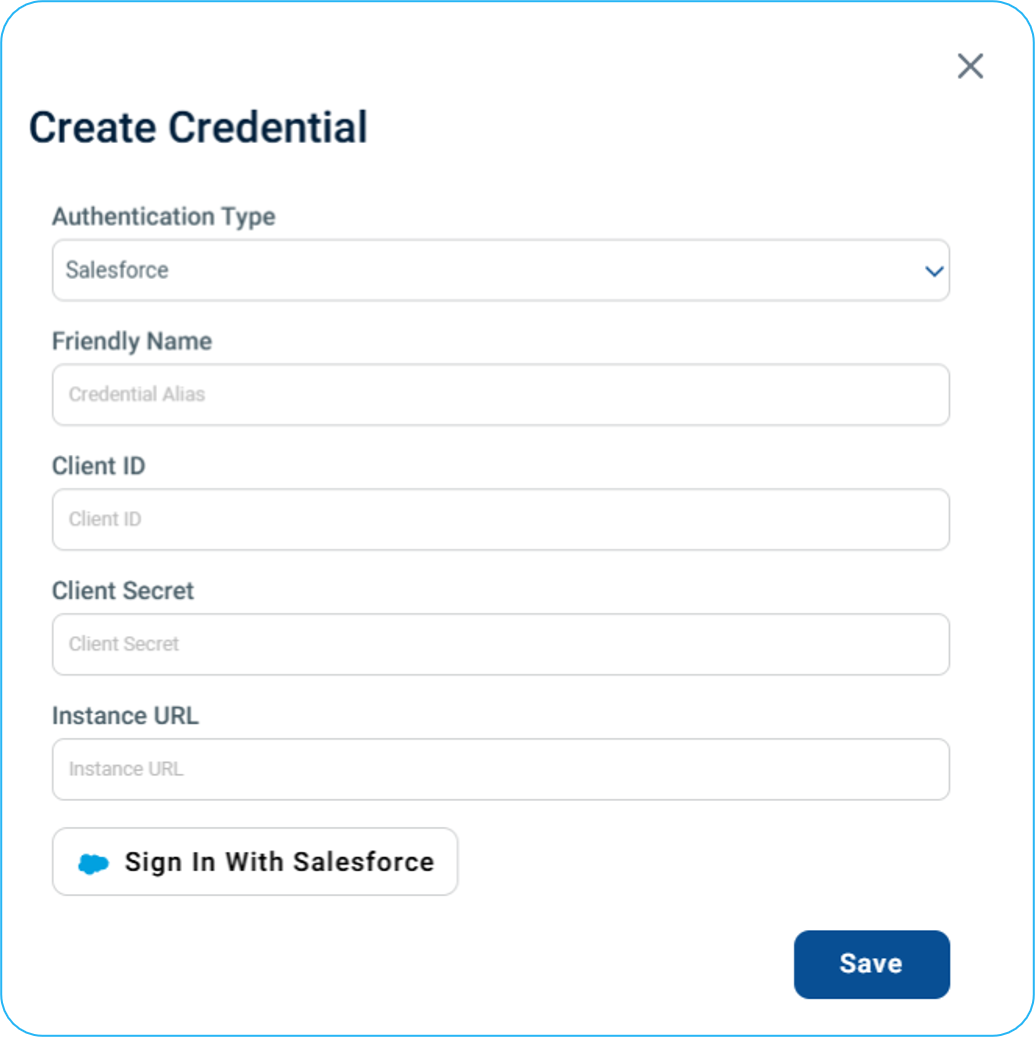
Then click Sign in With Salesforce
To Create The Salesforce Element In a Korbyt Layout With Keychain:
Drag and drop the Salesforce button element to the canvas
Click on the wheel to edit the Salesforce element
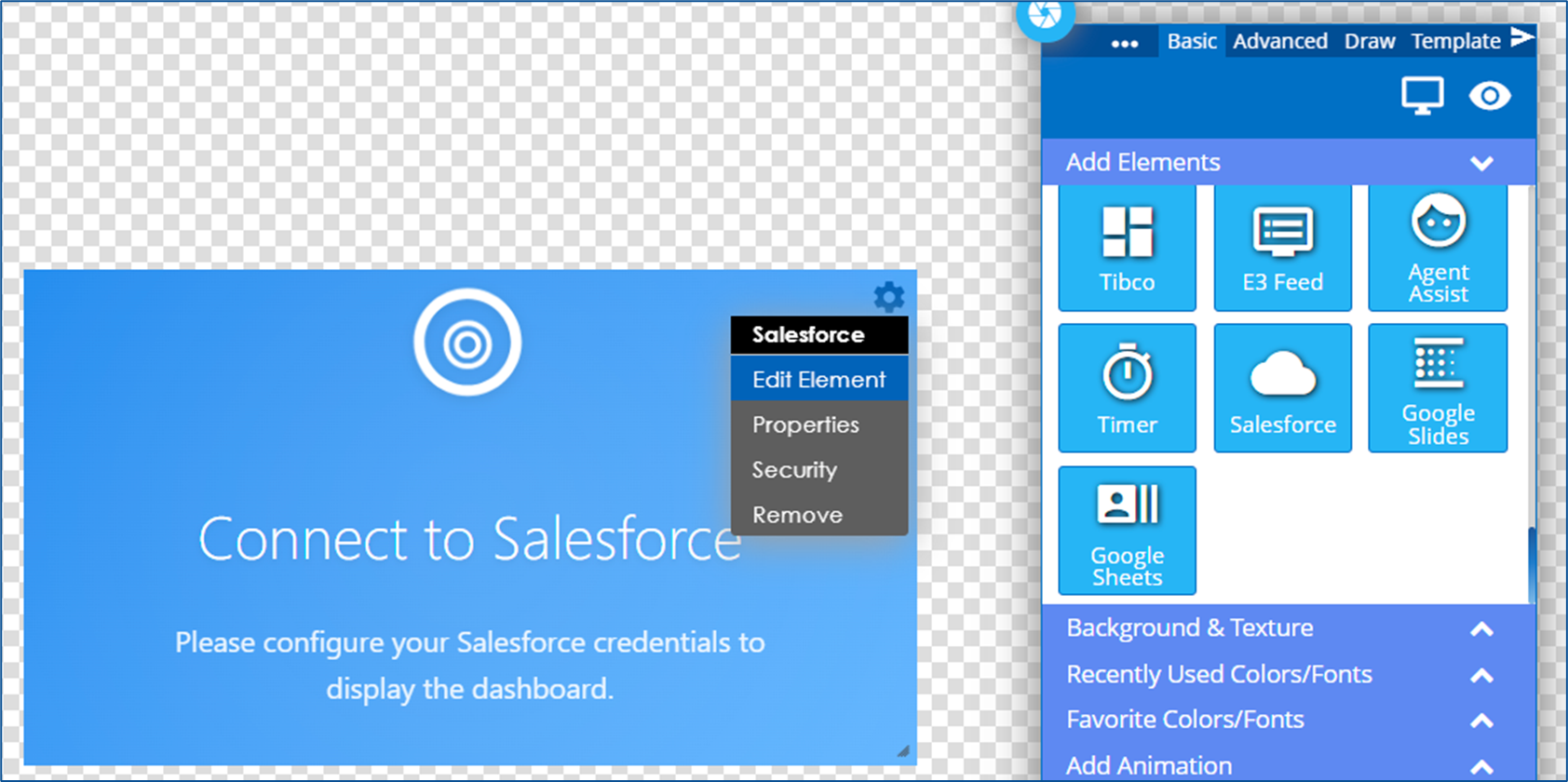
Click on the Down Arrow button in the upper left of the element container
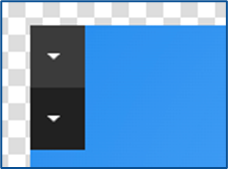
Check the box for Enable Keychain, then use the Dropdown to select the Salesforce Keychain you created earlier
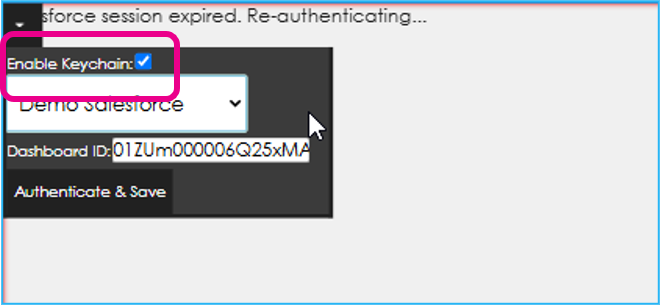
You can then select specific Dashboards by entering the Dashboard ID
Click Authenticate & Save
You can use the down arrow to configure the refresh interval
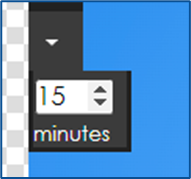
You can then resize the element to fit the area of the screen you need
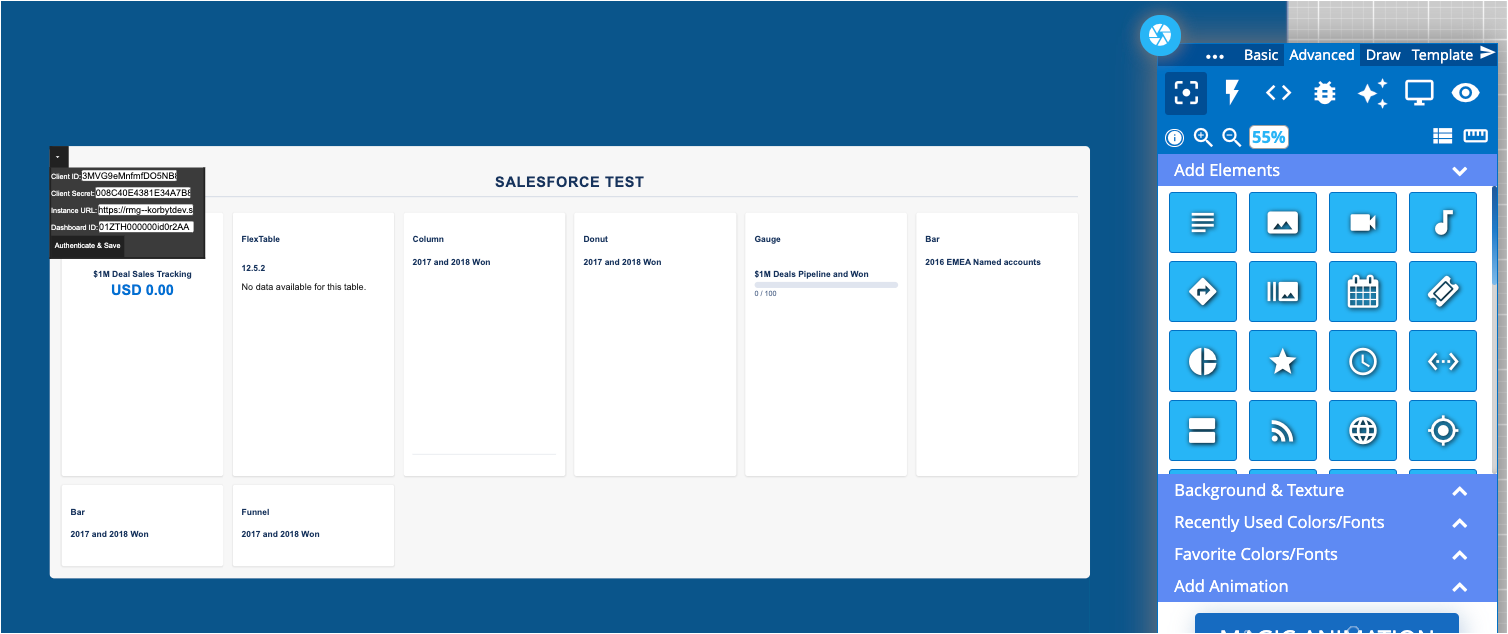
Continue working with your layout as normal; see Using The Builder Tool For Layouts Or Messages
Legacy Salesforce Element In a Korbyt Layout WITHOUT Keychain:
If your instance of Salesforce does not require a Keychain to be created, you can skip directly to configuring the Salesforce Element
Drag and drop the Salesforce button element to the canvas
Click on the wheel to edit the Salesforce element
Click on the Down Arrow button in the upper left of the element container
Here you will enter the credentials for your Salesforce instance
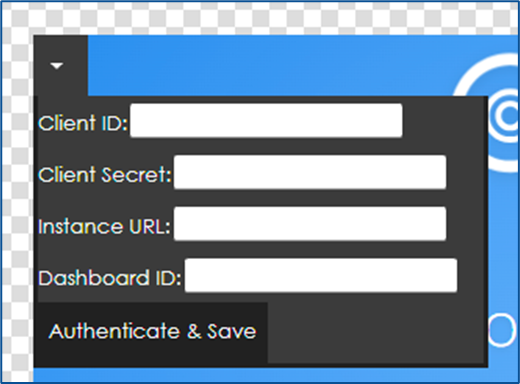
Click Authenticate & Save
You can use the down arrow to configure the refresh interval
You can then resize the element to fit the area of the screen you need
Continue working with your layout as normal; see Using The Builder Tool For Layouts Or Messages
Was this helpful?
Still need help? Share an idea