How To Use a Sound Element
Written By Ed Kinne
The Sound Element allows you to play a sound when the layout first displays, repeat a sound while the layout displays, let the user of an interactive kiosk play a sound, or trigger a sound using JavaScript or jQuery.
Adding a Sound Element
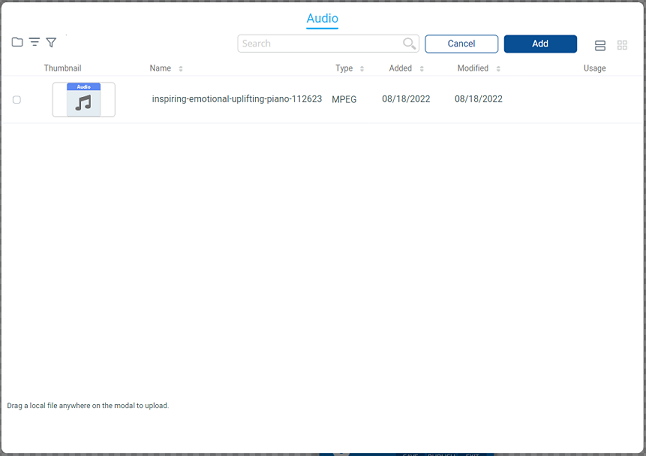
When you add a Sound Element it will open on a window that will let you select a sound from your Media Manager, or you can also upload a new audio file by dragging the file on your computer to the dialog box.
Editing a Sound Element
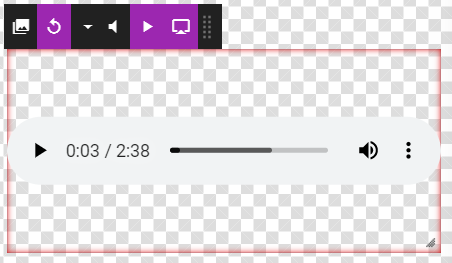
You can now click on the Gear Icon in the upper right corner to Edit the Sound Elements options:
Icon | Setting Description |
 | Change Sound allows you to change the sound file by selecting a new one |
 | Loop allows you to toggle if the audio file will loop it’s play, or play once. Purple is Loop turned on |
 | Volume allows you to select a relative volume for the sound. |
 | Autoplay allows you to toggle autoplay on and off. Purple is Autoplay turned on |
 | Controls allow you to display the audio controls when the Layout loads. Generally, you would want the controls visible when making an interactive layout for a kiosk and invisible otherwise. Purple is Audio Controls set to show |