How To Use an XML / JSON Viewer Element
The XML JSON Viewer Element gives an easy way to add a JSON source of information to a display.
Written By Ed Kinne
For detailed manipulation or large data sets a dedicated Data Adapter will be the best implementation.
A dedicated JSON Template is available when creating a Templated Data Adapter.
To use the XML JSON Viewer Element
In the Builder Tool, click and drag the XML JSON Viewer Element from the control panel to the canvas
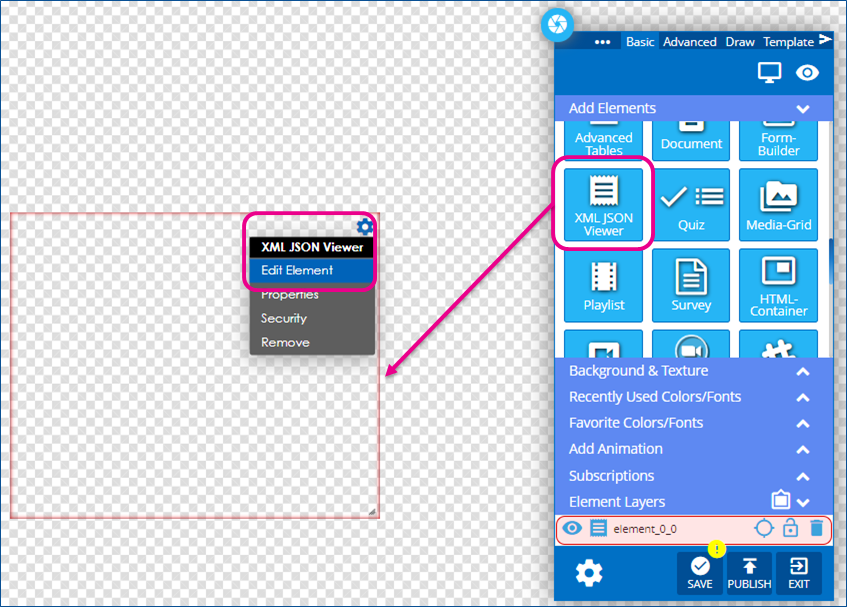
Select the gear icon by hovering over the top right corner of the element and then selecting “Edit Element.” A new row of icons will appear above the element.

Use the Available Option to build your form
Icon | Setting Description |
 | Add XML/JSON Data set the link or text data source that will be viewed 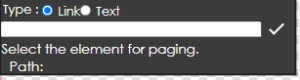 |
 | Bold sets the text to be bold |
 | Italic sets the text to be italic |
 | Underline sets the text to be underlined |
 | Font Size set the font size for the whole form. |
 | Font Family sets the font choice for the form |
 | Padding adjusts the text padding throughout the form |
 | Color sets the text color |
 | Alignment sets the text alignment to left, center, and right |
 | White Space sets the wrapping behavior for how the text will act in spaces |
 | Image Sizing sets the way images will display, Cover or Contain, and % image size adjustments |
 | Video Controls sets Loop, Autoplay, Audio Mute and Control Icon behaviors |
 | Paging Settings sets paging if multiple pages of data are needed to be presented |