How To Use a WebEx Element
Creates an element that can be linked to a specific WebEx Meeting so that the meeting can be played through Korbyt
Written By Ed Kinne
Requires a Webex account that you will log into through a popup connecting to that account.

To Use the WebEx Element
When you drag the WebEx element onto a Layout, the system will pop up a WebEx sign-in screen
You may need to disable pop-up blockers
If your web browser has your credentials stored, this popup might close on it’s own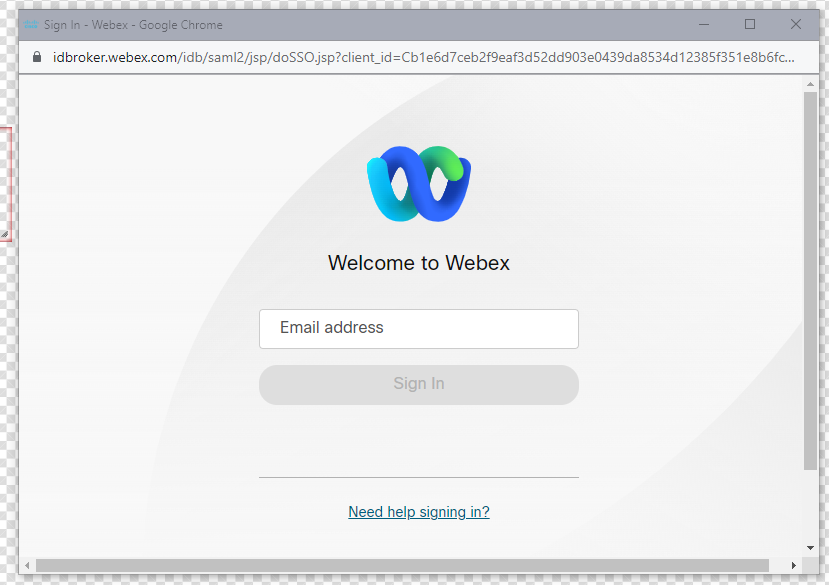
Once logged in, you will use the Gear Icon in the upper right corner of the element to open the Edit Element controls
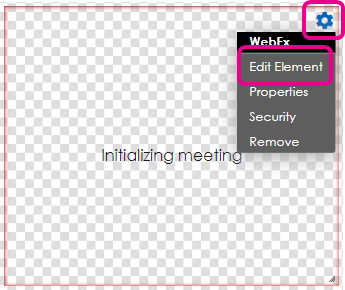
After selecting Edit Element you will have a drop-down where you can enter the meeting information
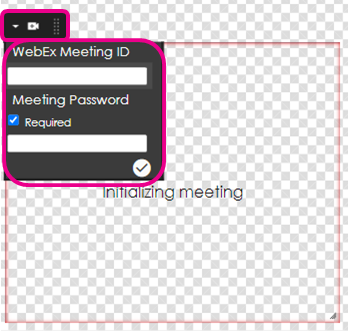
The WebEx Meeting ID is also sometimes referred to as the Video Address in the WebEx invite information
You can then resize the Meeting Element to be the area of the screen you wish it to take
Then Publish your Layout and schedule it to screens with a Playlist