How To Use A YouTube Video Element
Add a indiviual video, or a whole YouTube Chanel to a Layout
Written By Ed Kinne
YouTube Video Limits
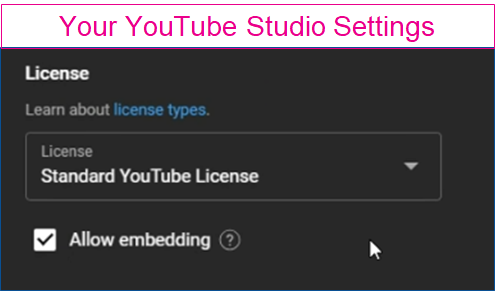
The video that is being shared has to allow it to be embedded in external services If you manage the YouTube channel that is being shared, the setting can be found in your YouTube Studio in the License section.
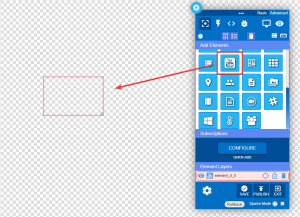
Adding a YouTube Element
When you add the YouTube element from the toolbar it will only add a blank element, and it needs to be configured
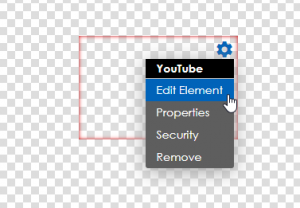
Select the gear icon by hovering over the top right corner of the element and then selecting “Edit Element.” A new row of icons will appear above the element.
You will then have access to the settings for a YouTube Element
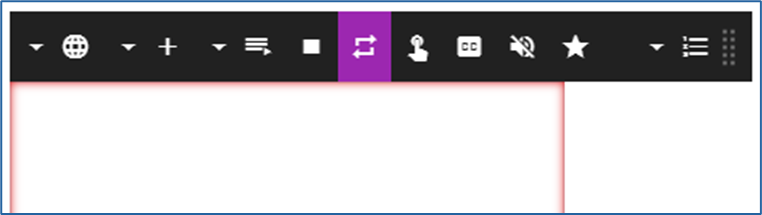
When you first open the edit ribbon, you may see a message saying “There are no playlist items” if you have not yet added any videos.
Icon | Setting Description |
 | Globe – paste URLs for specific YouTube videos or a feed, include “https://” |
 | Number of Videos – sets the number of videos that will play if a YouTube Channel is selected instead of a single video. |
 | Channel – Instead of a single video, you can enter the name of a YouTube Channel. |
 | Pause toggle- Pauses the automatic playback that will start when an item is added. |
 | Loop toggle –When active(purple), will loop a single video in playback. |
 | Interactive toggle –When active(purple), allows the video playback to be interactive for kiosks. |
 | Closed Caption toggle – When active(purple) will add any closed captioning that YouTube has associated with the video. |
 | Mute toggle – Mutes the audio. |
 | Playback Limit – When active(purple) overrides playing back the full video by default. |
 | Playlist – Order the videos in the playlist, set specific play times, or remove previously added videos. |