How To Use a Calendar Element
The Calendar element allows you to integrate a Google, or Microsoft Calendar through the builder tool. It can also have it’s data provided through a Korbyt Data Subscription.
Written By Ed Kinne

How to Add a Calendar Element
When you drag a Calendar Element to the canvas, the element will not take any action on its own. You must use the gear icon in the upper right to open the Edit Element list to connect the calendar to its data source.
How to Edit a Calendar Element
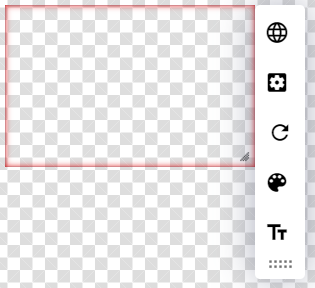
Icon | Setting Description |
 | Source allows you to select the data source for the calendar
|
 | View allows you to set the view to Month, Week(default), or Day view, as well as set the refresh interval. |
 | Refresh clicking refreshes the calendar’s data from the source. |
 | Color allows you to select colors for different calendar sections and events |
 | Text allows you to select different text characteristics for different areas |