How To Use a Carousel Element
The Carousel Element allows you to setup a list of items inside of your layout
Written By Ed Kinne

The Carousel Element allows you to setup a list of items inside of your layout. You can define the size of the area you want your media displayed and then pick multiple images, videos, other layouts, or messages to play inside that area. You can change the transition type and other options specific to each piece of media. Each carousel has a limit of 15 items.
A more powerful version of this can be accomplished by using the Playlist Element instead of building a Carousel.
Adding a Carousel Element?
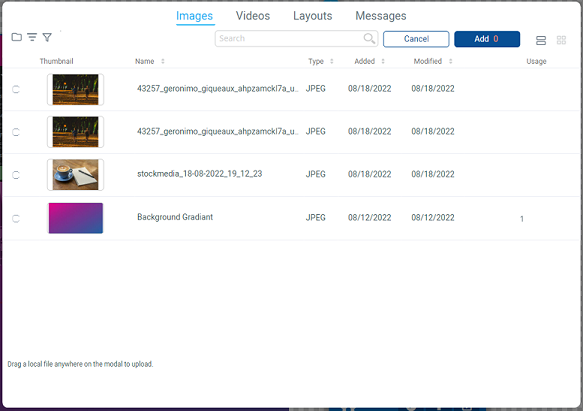
When you first add a Carousel Element, it will open a window for you to select the items you would like to be part of the Carousel. Use the selection at the top to switch between available Images, Videos, Layouts, and Messages. Or drag and drop new files to upload from your computer.
Edit a Carousel Element Options
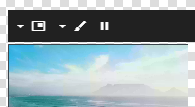
Icon | Setting Description |
 | Playlist allows you to change the items that are on the carousel, their order and view time |
 | Style allows you to tweak the look of your Carousel and decide how media will display
|
 | Pause Stops the Carousel from animating while editing in Builder. This does not affect playback in Preview or on a player. |