How To Use an HTML Container Element
The HTML Element can be used in the builder tool to add HTML code into the design. This element’s function is defined by the code that is provided to it.
Written By Ed Kinne
To use the HTML Container Element
In the Builder Tool, click and drag the HTML-Container element to the canvas
Use the settings gear in the upper right to select Edit Element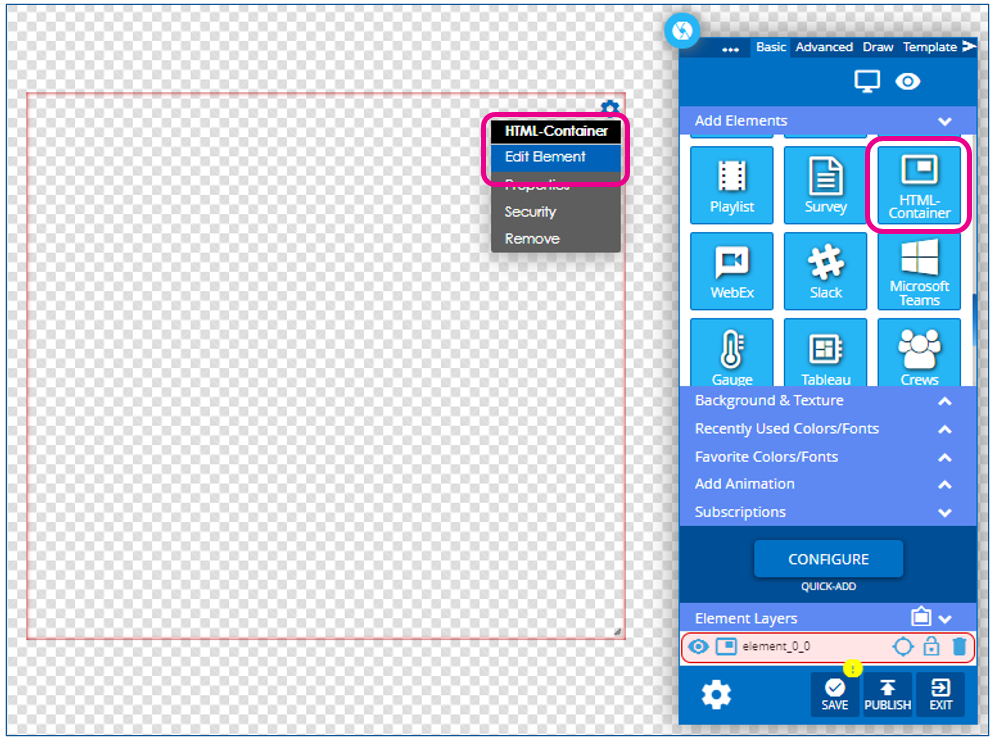
With the Edit Menu open, click on the pencil to open the HTML editor
Typically, the code has been written in another program and is pasted into this space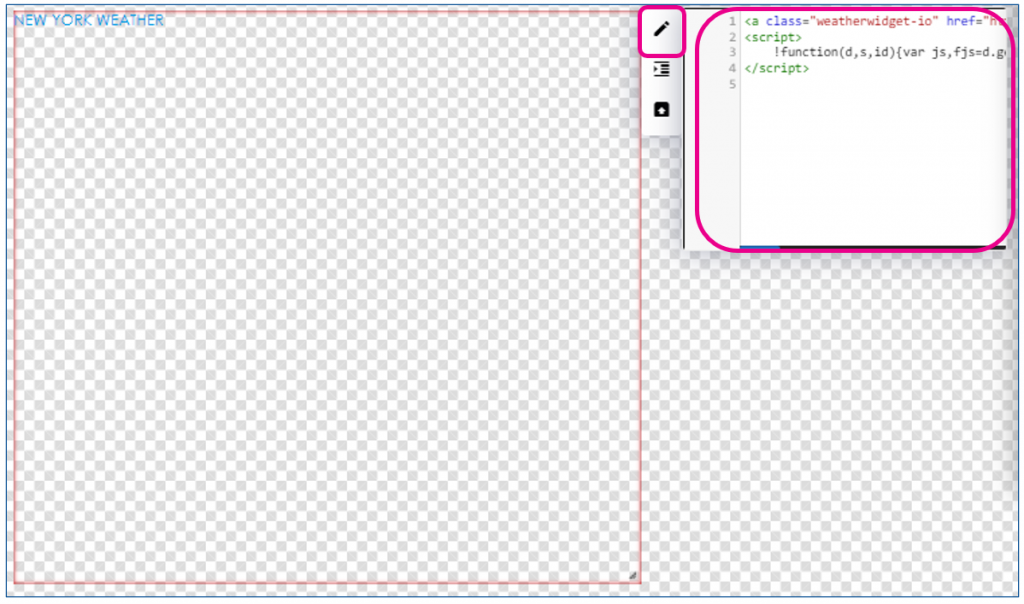
Depending on the nature of the HTML code, the visual may be a simple note on what is being provided
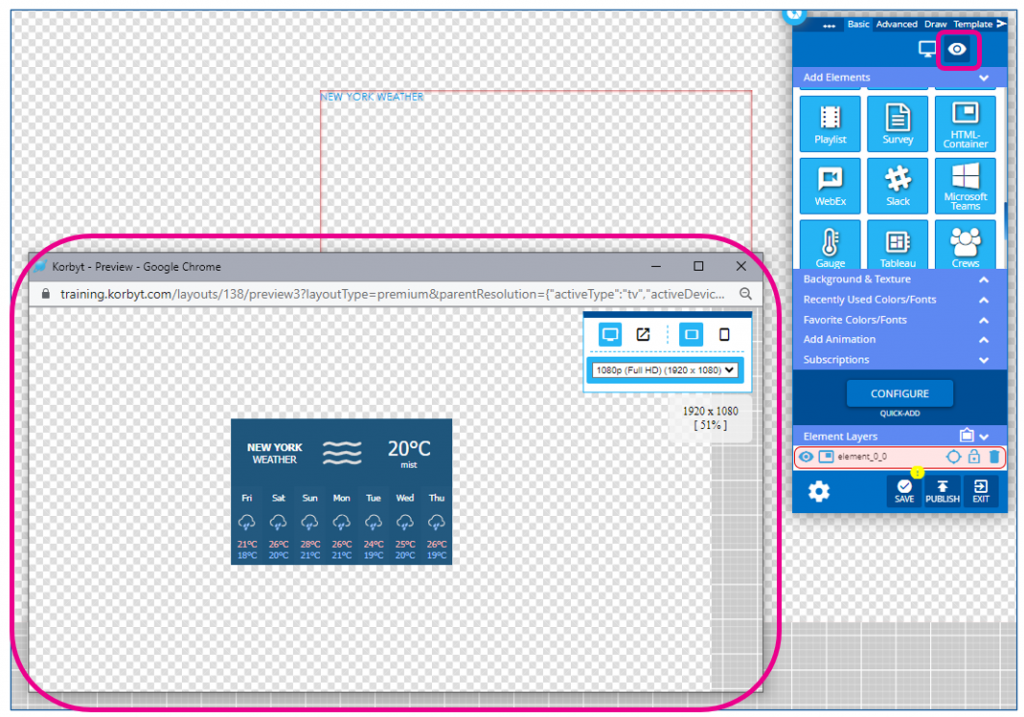
Clicking the Preview Eye at the top of the control panel will open a preview window, which should show the code running
Custom HTML Code Version Control and Restoration
Version control applies only to custom code editors and does not affect other layout changes.
To facilitate easy code changes in Korbyt's Custom Code sections, we now offer the ability to restore custom code to a previously published version.
Saving New Code Versions
This occurs automatically when a Layout containing custom code is published.
The 10 most recently published versions of code will be saved in the Previous Code sections, including HTML Elements
Restoring a Previous Code Version
To restore a previous code version
In the Layout Builder, find the HTML Element you want to restore
Click on the Gear icon for that element to open its settings menu
Click on Edit Element
Click on Versions in the control ribbon

This will display a list of previous code versions.
Select the one you wish to restore to
Click Republish
This will restore that code version to be the active code in the Layout