How To Use a Room Scheduling Element
Allows you to add a scheduling experience for your workplace.
Written By Ed Kinne
This element is interactive when displayed on a player and can view room schedules and book rooms for use. Outlook and Google calendars are supported.
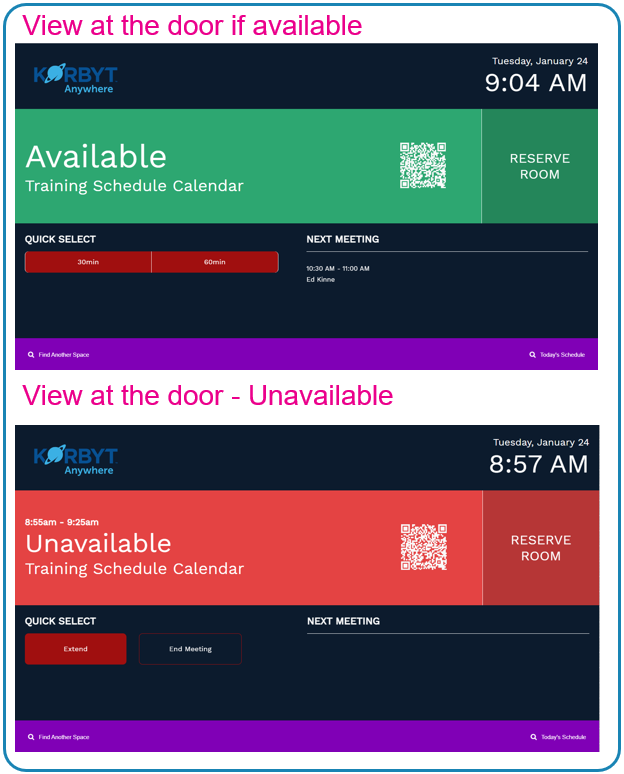
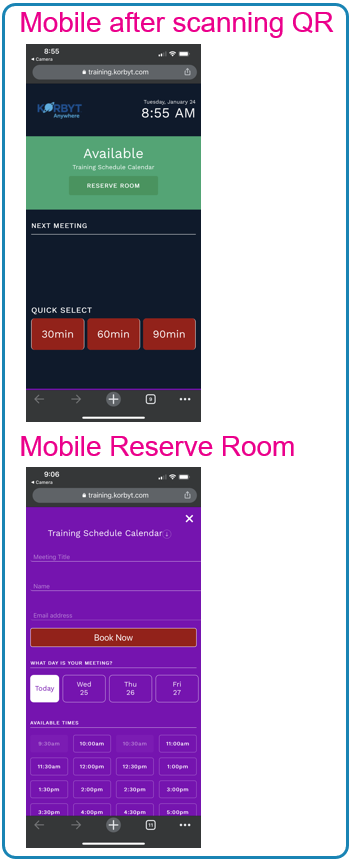
This will create a layout that can be displayed near meeting rooms to show their availability, and give people a way to reserve this room, or others in your calendar system through the display itself if touchscreen or mobile device using a QR code.
Adding a Room Scheduling Element
When you add a Room Scheduling element to the canvas, it will add a default door room availability design to the entire layout.
This will include the Korbyt Logo and room text. The color palette, font, and Logo image can all be customized, but the general shape and layout can not
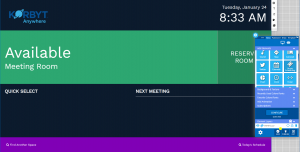
To configure a Room Schedule, open the Setting Gear in the upper right and select Edit Element.
First, you should connect the layout to your calendar system (Outlook or Google) as that will add other menu options
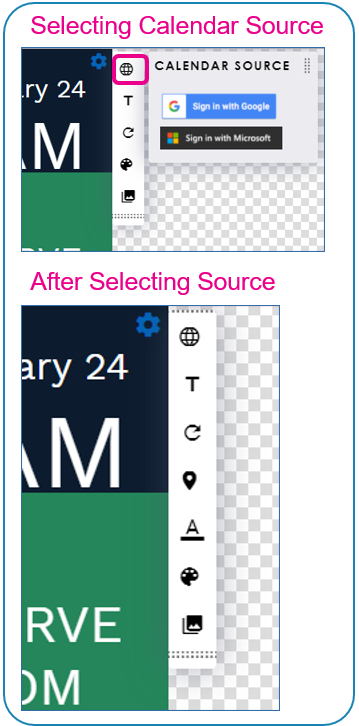
Icon | Setting Description |
 | Calendar Source allows you to select and then log into your calendar source |
 | Text allows you to change the Font used in the design |
 | Refresh Calendar allows you to refresh the view of the actual room booking |
 | Room select the specific room or shared calendar that you have access to through your selected service’s account. |
 | QR Color allows you to select a different color for the QR Code element |
 | Color allows you to change the color of sections of the design (background, status color) or replace the background with a picture file |
 | Logo allows you to |
Once configured, you will have a dynamic space management display linked to your Outlook or Google calendar system.
This system will allow your employees or guests to see room availability displayed, and interact to book the space directly on the display if it is touch enabled, or through a Mobile Device using the displayed QR Code.
Below are some examples of a room in motion.
A reminder that the colors can be customized in the layout builder interface