Korbyt Booking Mobile Application Installation & Configuration
This article reviews how to install and set initial API settings to connect the application to your Booking service
Written By Ed Kinne
Installing
The Korbyt Booking mobile app can be found in the Apple App Store and the Google Play Store by searching for Korbyt Booking

API Settings and Scan API
The API Settings option allows the mobile app to connect to your organization’s booking environment. Your Administrator typically manages this configuration.
As an end user, you may need to set it up the first time you log in or if the connection has changed.
Access API Settings
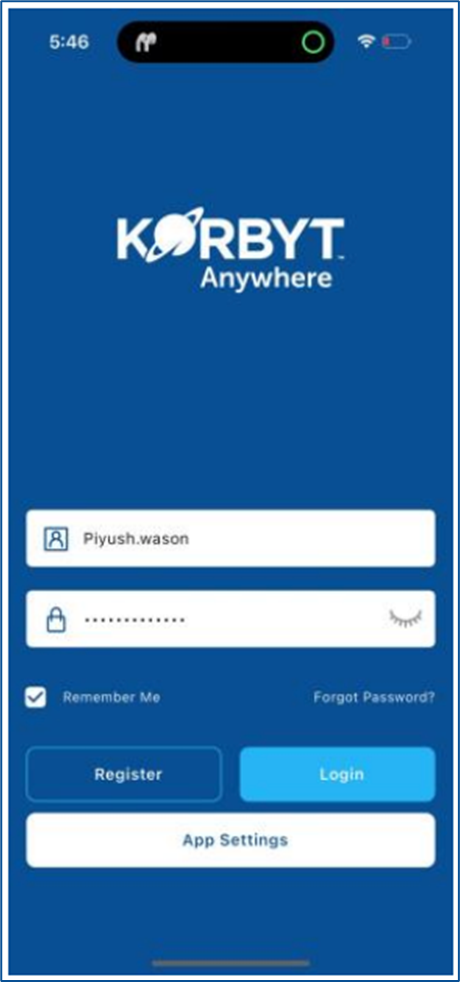
On the Login Screen, tap the App Settings button.
The API Settings screen opens. Here you will see fields for:
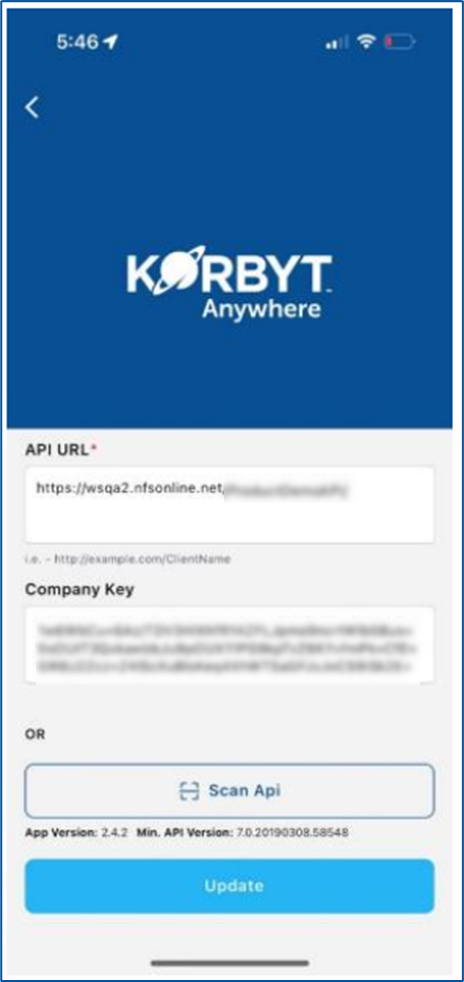
API URL – provided by your Administrator.
Company Key – a unique identifier for your company’s booking environment.
Configure API Manually
Enter the API URL shared by your Administrator.
Enter the Company Key exactly as provided.
Tap Update.
A confirmation message will appear asking if you want to change the API URL.
Tap Yes to confirm.
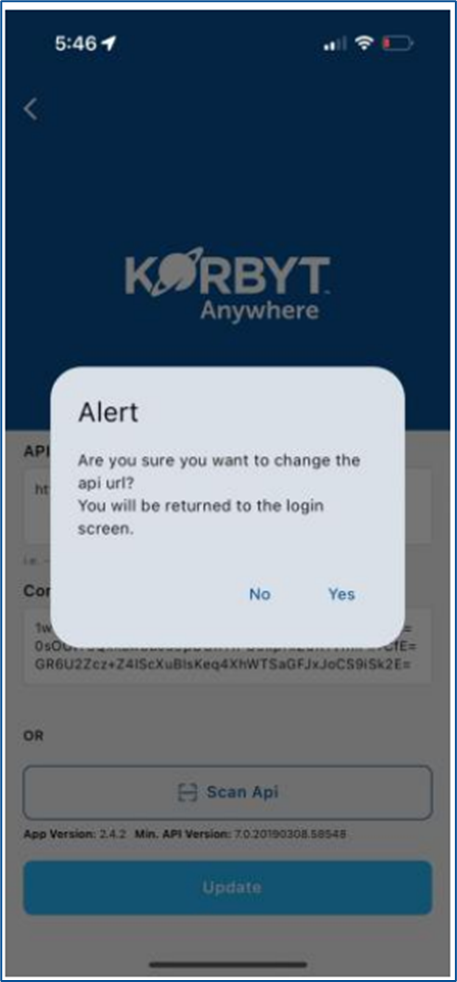
You will be redirected to the Login Screen to proceed with your normal login (Username/Password or SSO).
Configure API Using Scan API
On the API Settings screen, tap Scan API. The app will activate your device's camera.
Scan the QR Code provided by your Administrator. This QR Code is generated from the Mobile Settings section of the Admin Portal.
Once scanned, the API URL and Company Key are filled automatically.
Tap Update.
A confirmation pop-up will appear; tap Yes to proceed.
You will be redirected to the Login Screen
Logging in to the Mobile Application
If your organization is utilizing SSO
You will automatically sign in with your company credentials
If your organization is not using SSO
Enter your email or user ID and password
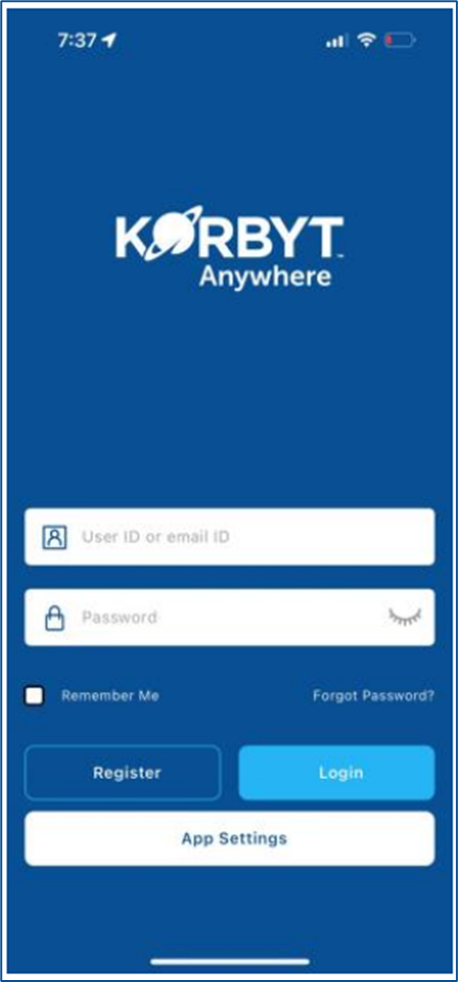
Tap the light blue Login button
If the Login is successful, you will see your Home Screen
If login fails, you will see an error message to enter a valid username and password
Continue to the Korbyt Booking Mobile App User Guide article for detials how to use the Mobile App