ConciergeAI User Guide
Steps for using ConciergeAI to accomplish different booking tasks
Written By Ed Kinne
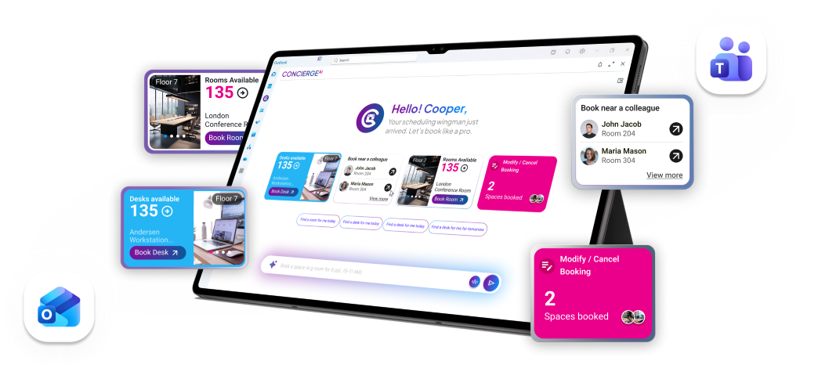
ConciergeAI is your AI-powered booking assistant inside Microsoft Teams, Outlook, and the Korbyt Booking Web App. You can interact with it in two ways:
Type a request in natural language - Describe what you need, and ConciergeAI finds and books the right space.
Use the UI - tap cards, buttons, and quick actions on the home screen to browse and book without typing.
Both journeys lead to the same outcome: a confirmed booking in your Korbyt diary, with no form to fill in and no menus to navigate.
Getting Started
Accessing ConciergeAI
You can open ConciergeAI from any of the following:
Microsoft Teams - Search for the ConciergeAI app or open it from your pinned apps
Microsoft Outlook - Search for the ConciergeAI app or open it from your pinned apps
Korbyt Booking Web App - Click the ConciergeAI icon in the navigation bar
Signing In
ConciergeAI uses your organization's single sign-on. When you open it for the first time, you will be routed through your usual login page; no separate username or password is required unless you use a Username & Password to sign in to Korbyt Booking.
The ConciergeAI Home Screen
When you open ConciergeAI, the home screen loads with everything you need, no searching required.
Home Screen Layout
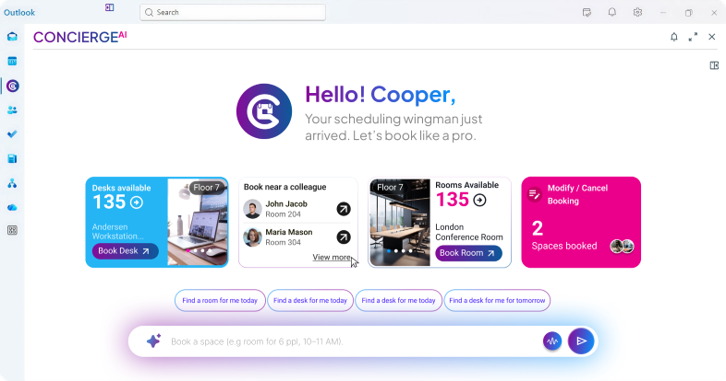
Tip: The quick action buttons are the fastest way to make a common booking. They trigger the same AI flow as typing, so you still get the full availability check and rules enforcement.
Booking a Space
Whenever ConciergeAI presents a room or desk, whether from a typed request or from browsing, it displays a space card. Cards give you all the information you need to make a decision without leaving the conversation.
Room Card
Desk Card
Note: Edit Date and Edit Time are available directly on the Room or Desk Card; you do not need to type a new request to adjust your booking before confirming.
Browsing All Available Spaces
If the first option presented is not what you need, tap View More Rooms or View More Desks to see the full list of available spaces.
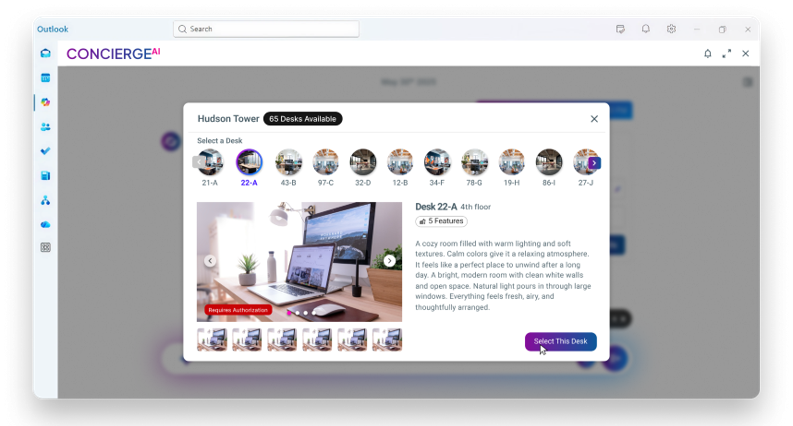
View More Rooms
View More Desks
Confirming a Booking
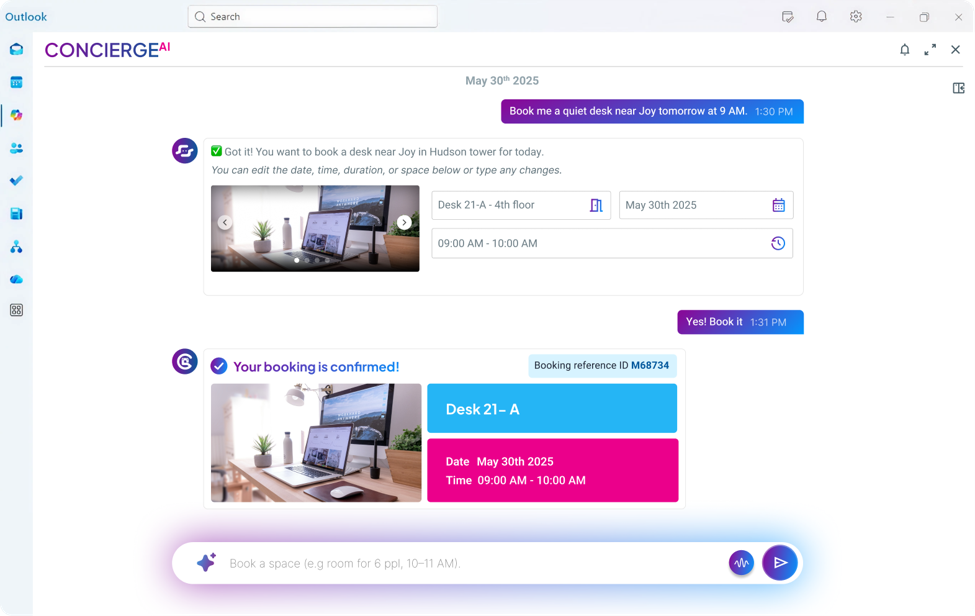
Whether you arrive at a space through the UI or a typed request, the final step is the same: a confirmation prompt.
Review the space card, check the resource name, floor, date, time, features, and any notes.
Use Edit Date or Edit Time if you need to adjust before committing.
Tap Book This Room or Book This Desk to confirm.
A confirmation card appears showing: resource name, floor/area, date and time, booking status (Confirmed), and options to View booking or Modify/Cancel.
The booking is created in Korbyt Booking immediately. If your organization uses Exchange, the calendar entry is created simultaneously.
Tip: The confirmation card stays in your chat history so you can find the booking reference later without opening the diary.
Booking by Typing: Natural Language
You can skip the home screen cards entirely and just type what you need. ConciergeAI interprets your message, checks availability against your booking rules, and returns the best match.
Below are examples of phrases that can be entered
Booking a Room by Typing
"Book me a room for 8 people with a screen, Friday at 2 pm"
"Room with video conferencing and a whiteboard, 7th floor, tomorrow at 3"
"Book my usual room"
Booking a Desk by Typing
"Book me a desk tomorrow"
"Reserve a quiet desk at London on Friday from 9 to 5"
"Book my favorite desk"
"Same desk as last time"
"Book a desk on Floor 3 at Paddington"
How the Conversation Flows
ConciergeAI responds with a space card in the chat. The card sits inside the conversation as an AI response bubble. You can:
Confirm by tapping Book This Room / Book This Desk
Adjust by tapping Edit Date or Edit Time — the picker appears inline as a new bubble, availability re-checks, and an updated card is returned
Browse by tapping View More — takes you to the filtered list screen; back button returns to the chat
Redirect by typing a correction in the input box — "actually make that a room" or "try the 5th floor instead"
Note: Each exchange in the conversation is preserved as a bubble — AI responses and your replies appear in sequence, so the full booking context is always visible.
Editing Date and Time Inline
You can change the date or time of a proposed booking without restarting the request. Edit controls appear directly within the chat as interactive cards.
Changing the Date
Tap Edit Date on the space card.
A date picker card appears in the chat.
Select the new date.
ConciergeAI re-checks availability and returns an updated space card for the new date.
Changing the Time
Tap Edit Time on the space card.
A time picker card appears with start and end time fields.
Adjust the times.
ConciergeAI re-checks availability and updates the card.
Managing Your Bookings
Viewing Today’s Bookings
Your current day's bookings are shown on the home screen in the Your Bookings card. It shows the count of spaces booked and thumbnail images of the first two. Tap Modify/Cancel for quick access to any booking.
Modifying a Booking
Type your change or use the Modify button on the confirmation card:
"Move my Tuesday room to Wednesday"
"Change my 2 pm desk to 3 pm"
ConciergeAI identifies the booking, shows the current details alongside the proposed change, and applies it on confirmation.
Canceling a Booking
Type your cancellation request
“Cancel my desk booking for tomorrow”
“Cancel my 2 pm room on Friday”
ConciergeAI asks you to confirm the cancellation before removing the booking
Giving Feedback to the AI
After any AI response, you can rate the reply using the feedback option on the message. If a suggestion was not relevant or a booking failed unexpectedly, a thumbs-down and a short comment help your administrator identify and improve the configuration.
Quick Reference
Was this helpful?
Still need help? Share an idea